
jonc5650072
Participant
April 11, 2018
Question

Wave warp pixelation/stepping

  • April 11, 2018
  • 4 replies
  • 9196 views

Hi,

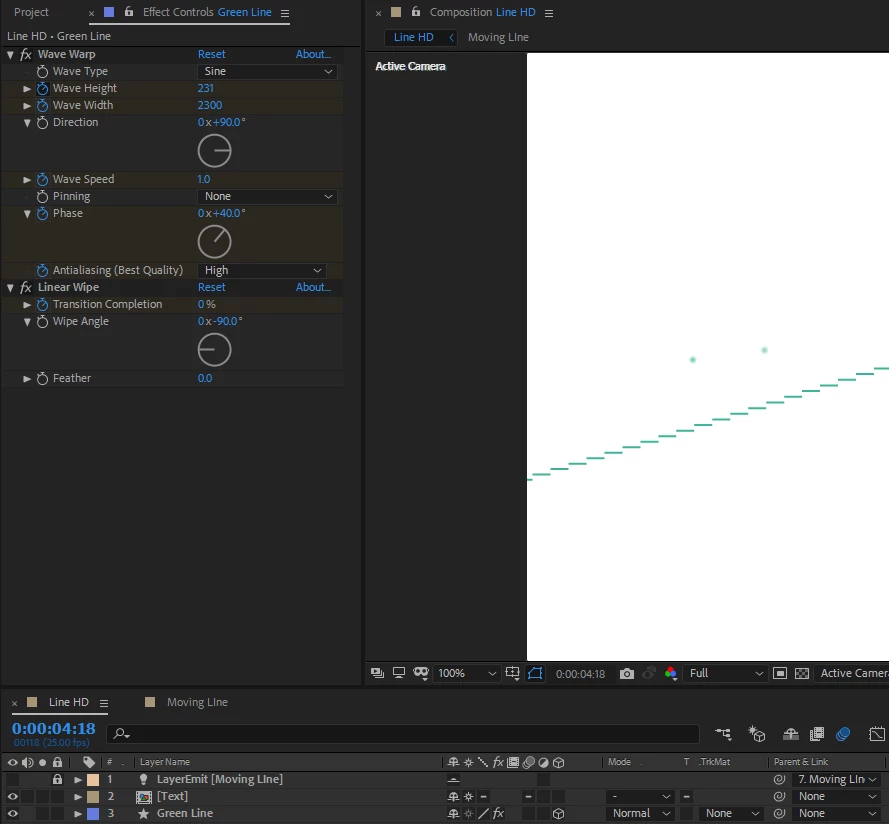
I have added the wave warp effect onto a 2pt stroke and synced this to the audio output of a soundtrack. The effect is causing serious pixelation on the line, even though antialiasing is on high and the line should be continously rasterizing.

Any help would be appreciated!
4 replies

Participant
March 27, 2023

Maybe not the best solution, but I duplicated the wave warp effect, halved the wave amount and offset the phase slighty. This essentially halved the amount of stepping I was experiencing. You could possibly do this a few times until the problem isn't visible?

Warren Heaton
Community Expert
Community Expert
July 11, 2022

To get smooth edges, you'll need work around the hierarchal rendering order of After Effects.  In this case, it's the Wave Warp effect rendering after the Shape Layer rather than before.  Reminder: the hierarchal rendering order is reflected in the order we see items stacked inside a layer, so Contents happens before Effects which happens before Transform.  It would be great if After Effects could speak up and say, "Hey, for what you're trying to do, you'll need to tell me to do it in a different order."


Add a Fill to your Shape Layer and hide the Stroke.


Make sure that the Comp Frame Size is large enough that the Shape Layer is not cropped by any of the edges of the Comp.  If needed, expand the Comp Frame Size such that the Shape Layer never clips.


Then, while the Shape Layer is selected, choose Layer > Auto-Trace.  The settings pictured below should get you a close match to the warped shape, but of course feel free to adjust them.

The most important setting is "Apply to new layer".


How long it takes to complete depends entierly on how powerful your computer is.


Now apply the Stroke effect (Effect > Generate > Stroke).  Be sure to set "Paint Style" to "On Transparent".


Now that the Wave Warp is effectively happening before the Stroke, you'll see a smooth, anti-aliased edge.


Participating Frequently
April 25, 2023

Amazing reply and solution. Thank you!

Participant
October 19, 2021

@adobe

We are now 3 years later and this problem still exists!!!

half the world uses your programs, and pay for them  SOLVE IT ALREADY!

please

Mylenium
Legend
April 11, 2018

I'm not clear what you are expecting. Your wave width is set to 2300 pixels, which is simply insane and presumably wider than your comp. Of course this will cause quantization issues. Those effects aren't meant for producing these kind of large graphical waves. If you need that, you have to use other techniques and effects. Switching the project to 16 bpc might improve things a bit, but even that may not suffice.

Mylenium

Participant
January 17, 2020

I have the same issue, it's sad we can't use large value's.

I'm working a typography project and got a different solution, that almost does the job for me. This only works, when the stepping appears on the edges.


I added a Simple Choker, with a certain negative value; -5 in my case (just do it until the steps are not visible anymore).

Then I duplicated this Simple Choker and changed the value from negative to positive (5). Otherwise you end up with an expanded version of your shape.


The only issue with this technique is that is rounds all corners, which might not be ideal.

Participant
June 19, 2021

Great! Worked for me, simple choker! I Love You! s2