
Legend
December 23, 2021
Answered

What is the Difference Between these 2 Precomp Options?

  • December 23, 2021
  • 2 replies
  • 3824 views

Seasons Greetings!


Scenario: Unsure which of these to select, cannot risk messing up this project.


Question: What is the Difference Between these 2 Precomp Options?
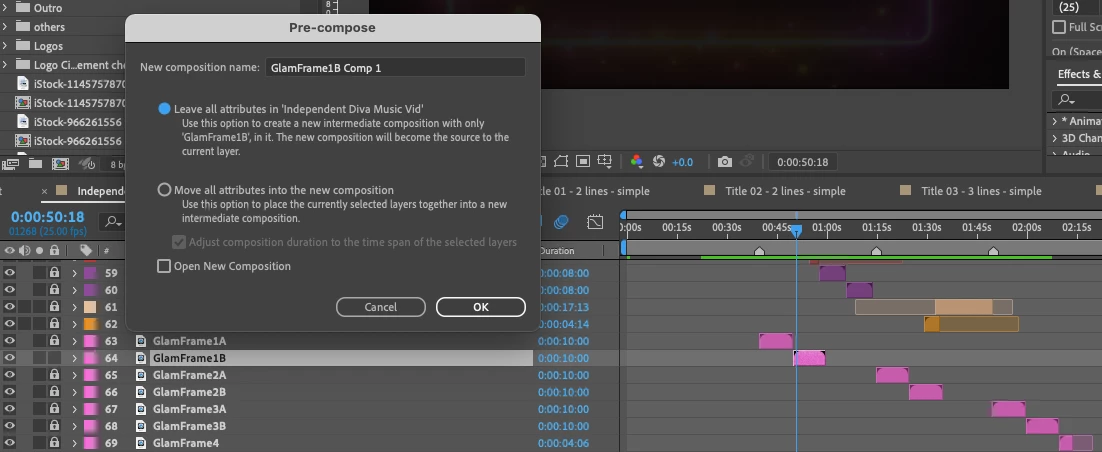
Fig. 1: PreComp Options


With Gratitude,

One&Done

This topic has been closed for replies.
Correct answer One&Done
My Notes up to Solution!
-I was working with Shatter Mode, and finished the effect, however it was placed on a Quicktime file rather than a preComp
-Unless creating a precomp would bring the effect with
-To sum up the issue I am facing, I added effect to a quicktime layer, but this will not allow me to see the slide and effect now with the rest of the project in unison
-Was able to import the original file and place the effect onto it via copy/paste
-However effect still not seen with rest of project, BUT slide now playing with whole thing
-I feel perhaps I may have shattered later in time than the duration of the clip itself
-BINGO! This was the solution to my problem!

2 replies

Community Expert
December 23, 2021

Leave All attributes keeps all effects and animation in the main comp. The pre-comp only contains the original layer, it has no effects applied, it has no animation. Leave all attributes also is only available if you select a single layer. The new comp is the same size and frame rate as the footage, which may or may not be the same as the main (original) comp.


The second option, Move All Attributes, moves the layer or multiple layers into a new composition and all of the animation and effects are preserved. The new nested composition (that is what you get when you pre-compose, a comp nested in your original comp) can either be the length of the selected layers or the length of the original main comp. I usually use Trim Comp to layers.


It sounds like you want to replace a footage layer with different source footage and preserve all of the animation and effects you have applied to that layer. The cleanest way to do that is to select the layer you want to switch in the Main comp, then select the new source file (new movie) in the Project panel and then hold down the Alt/Option key and drag the replacement footage to the timeline. Everything that was modified on the original layer will remain, only the source will change. You can only do this with a single layer. 


If you pre-compose leaving all attributes you will have to open the pre-comp and then drag the new source file into the timeline and delete or turn off the original layer. Sometimes this could be more efficient, but most of the time I just use the Alt/Option + Drag workflow to replace the footage.

One&DoneAuthor
Legend
December 23, 2021

"Leave All Attributes In

Leaves the properties and keyframes of the precomposed layer in the original composition, applied to the new layer that represents the precomposition. The frame size of the new composition is the same as the size of the selected layer. This option is not available when you select more than one layer, a text layer, or a shape layer.


Move All Attributes Into The New Composition

Moves the properties and keyframes of the precomposed layers one level further from the root composition in the composition hierarchy. When you use this option, changes you applied to the properties of the layers remain with the individual layers within the precomposition. The frame size of the new composition is the same as the frame size of the original composition."


Going to experiment with which one is right for this project, just wish it was a bit clearer.

One&DoneAuthor
Legend
December 23, 2021

Not working the way I want. Is there a way to at least copy the effects and place upon a new imported file? The problem is, I created a shatter effect upon a Quicktime layer

One&DoneAuthorCorrect answer
Legend
December 23, 2021
My Notes up to Solution!
-I was working with Shatter Mode, and finished the effect, however it was placed on a Quicktime file rather than a preComp
-Unless creating a precomp would bring the effect with
-To sum up the issue I am facing, I added effect to a quicktime layer, but this will not allow me to see the slide and effect now with the rest of the project in unison
-Was able to import the original file and place the effect onto it via copy/paste
-However effect still not seen with rest of project, BUT slide now playing with whole thing
-I feel perhaps I may have shattered later in time than the duration of the clip itself
-BINGO! This was the solution to my problem!