
Exit
  • Global community
    • Language:
      • Deutsch
      • English
      • Español
      • Français
      • Português
  • 日本語コミュニティ
  • 한국 커뮤니티
0

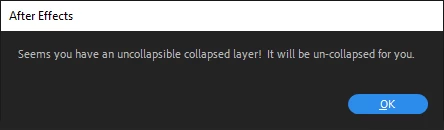
What the heck is an uncollapsible collapsed layer?

Contributor ,
Apr 30, 2021 Apr 30, 2021

This is now the second day running I've had this error. I do like a nice incomprehensible AE error but this one really doesn't seem to mean anything.
 

NoMagnolia_0-1619774489993.png


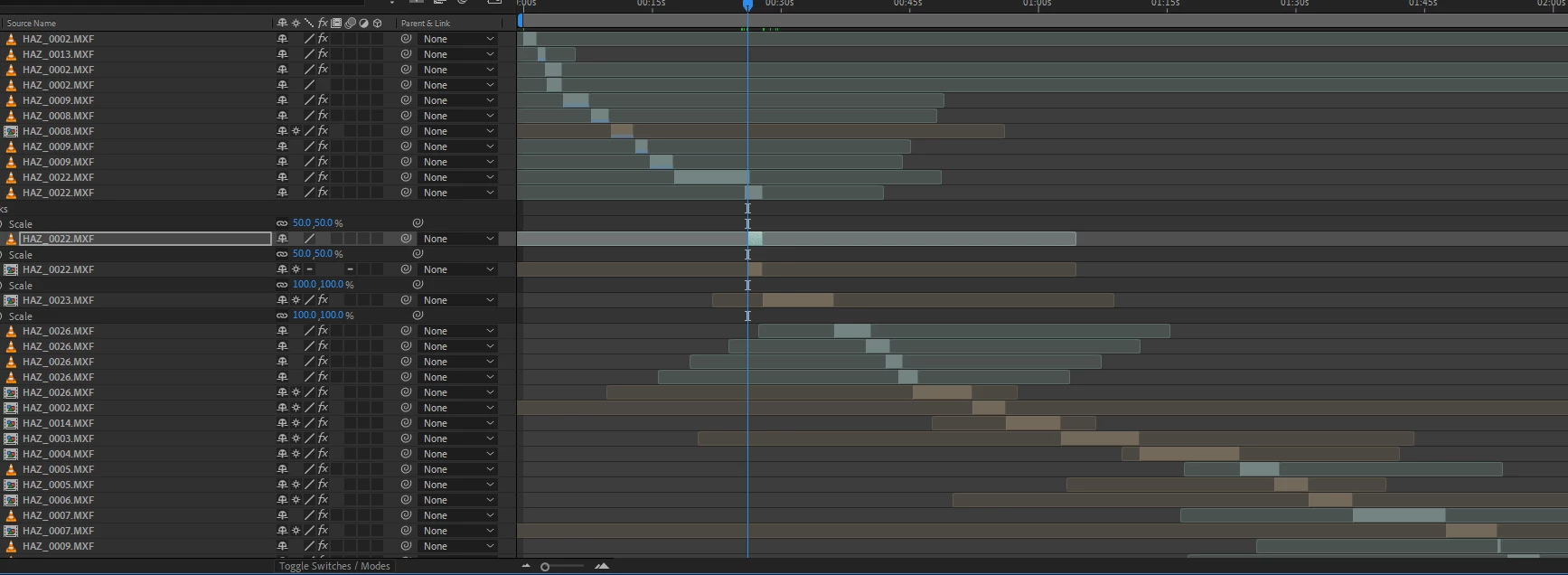
It occurs when I'm pasting footage copied from Premiere into an AE comp. The footage doesn't have anything special on it, it's just UHD in an HD timeline that's been scaled to the frame size. Also, it doesn't seem to result in anything breaking. Any ideas what I'm doing wrong? Here's what the comp looks like afterwards - some of the footage is precomped presumably because it was running backwards in Premiere, but some of it seems to have been precomped for no reason at all.
NoMagnolia_1-1619775044892.png


TOPICS
Error or problem
4.9K
Translate
Report
Community guidelines
Be kind and respectful, give credit to the original source of content, and search for duplicates before posting. Learn more
community guidelines
Community Expert ,
Apr 30, 2021 Apr 30, 2021

It looks like you have imported an entire sequence into After Effects. About 99% of the time, that is a very inefficient workflow. The only shots you should have in an AE composition are shots that you cannot create in your NLE. Several of the layers are being converted to Compositions. This happens when you start complicating the shots in a Premiere Pro sequence or using effects. The warning is telling you that you have done something in Premiere Pro that is not going to accurately be translated into a composition. This could be a lot of things. You'll have to scrub through the timeline and figure out which shot, if any, is fouled up. I am curious about your workflow and the necessity of importing all of those shots into one comp. 


Generally, you only want a shot in an AE comp. You do that because you need to do something to that shot that cannot be done in Premiere Pro. Almost all of my compositions are under 7 seconds and one shot. Just about the only time I have more than one shot in a composition is when an effect must transition between shots. Some of the movies I work on have visual effects on almost every shot. I still work on one shot at a time, and if they are complicated effects shots I render them using a production codec, usually 10-bit color, and replace the shots in the Premiere Pro sequence for editing. Rendering anything in After Effects is going to take longer and use more resources than rendering in Premiere Pro, but pre-rendering complex shots in After Effects and then using Premiere Pro to render the final deliverable product is always going to be faster than using Dynamic Link on a complex shot in Premiere Pro. I often have complicated composites that take more than a couple of minutes a frame to render using my background rendering system in AE that would take five or six times as long to render if I tried using Dynamic Link in Premiere Pro.


Let us know what you are trying to do and maybe we can help you streamline your production workflow.

Translate
Report
Community guidelines
Be kind and respectful, give credit to the original source of content, and search for duplicates before posting. Learn more
community guidelines
Contributor ,
Apr 30, 2021 Apr 30, 2021

Many thanks for replying. You're right, I've imported a sequence into AE: the edit is basically locked, but I wanted to be able to transition between shots with wipes, shape layers, scale in/outs etc, which is easier in AE than Premiere. I've gone through and manually un-comped most of the layers that AE had comped, as it's UHD footage in an HD timeline and I want to be able to punch in/out (it was shot single-camera; the comps AE had created were HD). I could have rendered it flat from Premiere but I have had to roll a few of the shots back or forward a bit and it's nice to have the freedom to do that.


They're not complicated in terms of the effects they use, so render times aren't really an issue - just a bit of Lumetri for colour correction in AE.


Like I said, that error message didn't seem to imply anything had really gone wrong, or need any input from me, it just ranks as one of the least comprehensible errors I've seen from AE yet.

Translate
Report
Community guidelines
Be kind and respectful, give credit to the original source of content, and search for duplicates before posting. Learn more
community guidelines
Explorer ,
Jun 21, 2021 Jun 21, 2021

I'm getting the same error message/warning for the same reason (nested sequences imported to AE). The problem is I use NS's as part of a workaround for another problem in Premier Pro. Namely the dreaded ‘Frame substitution recursion attempt aborting after multiple attempts on file’ error.

My workaround (I hate that term - because we shouldn’t have to), is to render and replace the ‘offending’ clip. But by doing that I lose the scaling and positioning settings on that clip. In fact those options are greyed out. So, I have to double the workaround by nesting the new clip and then applying my motion preferences to the nest. AE has a 3D effect that doesn’t exist in PP. Thus, ‘replace with After Effects Composition’ which causes the ‘uncollapsible’, blah, blah, blah. ‘There’s a hole in the bucket dear Liza…’ and I’m caught between a rock and a program with more bugs and stipulations than a child custody agreement.

To add to this puzzle factory, all of these clips worked fine in previous versions/builds of both programs.

But thanks anyway. Your post at least explains why, the warning.

Translate
Report
Community guidelines
Be kind and respectful, give credit to the original source of content, and search for duplicates before posting. Learn more
community guidelines
Community Expert ,
Apr 30, 2021 Apr 30, 2021

Don't use "Scale to frame size" in Premiere Pro, it will create a hidden nested sequence of your clip, that's why if you copy paste that clip into Ae, it will be pasted as a composition. Instead of "Scale to frame size" just use "Set to frame size" which will scale down your clip using the usual scale property in the effect controls panel.

I never use "Scale to frame size" because it's a problematic command.

Translate
Report
Community guidelines
Be kind and respectful, give credit to the original source of content, and search for duplicates before posting. Learn more
community guidelines
Contributor ,
May 02, 2021 May 02, 2021

Ah, thanks. I did wonder - I'd noticed that "set" changed the scale while "scale" didn't, but that makes sense! 

Translate
Report
Community guidelines
Be kind and respectful, give credit to the original source of content, and search for duplicates before posting. Learn more
community guidelines
New Here ,
Oct 05, 2021 Oct 05, 2021
LATEST

THIS IS THE ANSWER YOU ARE LOOKING FOR!!!!


Don't use "Scale to frame size" in Premiere Pro, it will create a hidden nested sequence of your clip, that's why if you copy paste that clip into Ae, it will be pasted as a composition. Instead of "Scale to frame size" just use "Set to frame size" which will scale down your clip using the usual scale property in the effect controls panel.

I never use "Scale to frame size" because it's a problematic command.

Translate
Report
Community guidelines
Be kind and respectful, give credit to the original source of content, and search for duplicates before posting. Learn more
community guidelines