Exit
  • Global community
    • Language:
      • Deutsch
      • English
      • Español
      • Français
      • Português
  • 日本語コミュニティ
  • 한국 커뮤니티
0

White Boxes Around Objects After Exporting From After Effects

Explorer ,
Nov 27, 2017 Nov 27, 2017

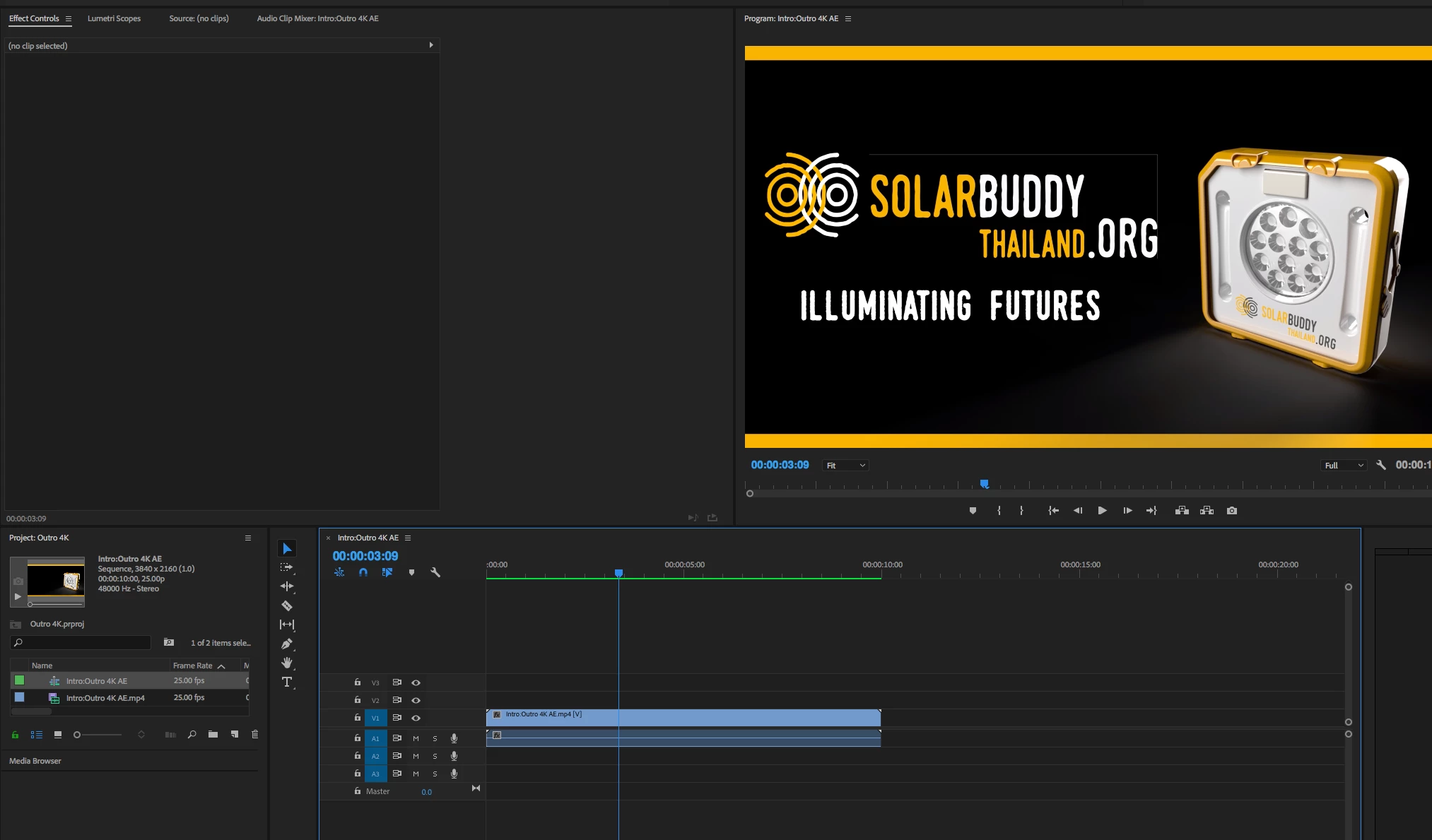
I have created a short video intro in AE and all looks fine until I export and go to edit in Premier Pro. I'm getting a white box outline around one of my images even though it's a PNG.

Screen Shot 2017-11-28 at 09.15.47.png

Screen Shot 2017-11-28 at 09.16.08.png

7.4K
Translate
Report
Community guidelines
Be kind and respectful, give credit to the original source of content, and search for duplicates before posting. Learn more
community guidelines

correct answers 1 Correct answer

LEGEND , Nov 30, 2017 Nov 30, 2017

try this. in premiere, change the quality (in the program monitor wrench icon) to "high quality playback" and see if you still see it.

I am guessing this pixels exist on the edges of your artwork and you need to delete them in photoshop or mask them. in Ae you probably don't see them but in premiere you do since it defaults to reduce edge quality on preview. 

Translate
Engaged ,
Nov 27, 2017 Nov 27, 2017

On the screen I'm currently on I don't see it but try bringing it into Premiere with a straight alpha channel.

Translate
Report
Community guidelines
Be kind and respectful, give credit to the original source of content, and search for duplicates before posting. Learn more
community guidelines
Explorer ,
Nov 27, 2017 Nov 27, 2017

I looked for that but I don't see the option. Where would I find it?

Translate
Report
Community guidelines
Be kind and respectful, give credit to the original source of content, and search for duplicates before posting. Learn more
community guidelines
LEGEND ,
Nov 27, 2017 Nov 27, 2017

how are you bringing the Ae project to Premiere? Did you render it? what were the output module settings? Check that in channels you are rendering RGB+Alpha. QT Animation format and several others will give you that.

Translate
Report
Community guidelines
Be kind and respectful, give credit to the original source of content, and search for duplicates before posting. Learn more
community guidelines
Explorer ,
Nov 28, 2017 Nov 28, 2017

I've tried creating a Premier Pro project directly from AE and also exported as .mp4 from AE but I can't see any options for channels in the output module settings? Regarding rendering, doesn't it do that in Adobe Media Encoder automatically?

Translate
Report
Community guidelines
Be kind and respectful, give credit to the original source of content, and search for duplicates before posting. Learn more
community guidelines
LEGEND ,
Nov 28, 2017 Nov 28, 2017

mp4 does not support transparency.

here:

you could do this in AME too:

Translate
Report
Community guidelines
Be kind and respectful, give credit to the original source of content, and search for duplicates before posting. Learn more
community guidelines
Explorer ,
Nov 29, 2017 Nov 29, 2017

Thanks for the reply. Re. the first link, I can't see those settings in the export options in Adobe Media Encoder?

Screen Shot 2017-11-30 at 13.42.07.png

Re. the second link. I tried that but I still get the same result:Screen Shot 2017-11-30 at 13.53.16.png

Translate
Report
Community guidelines
Be kind and respectful, give credit to the original source of content, and search for duplicates before posting. Learn more
community guidelines
LEGEND ,
Nov 30, 2017 Nov 30, 2017

As djsummit suggested, in the output module settings (my 1st screenshot)set the alpha channel to straight (color: straight instead of premult)

Translate
Report
Community guidelines
Be kind and respectful, give credit to the original source of content, and search for duplicates before posting. Learn more
community guidelines
Explorer ,
Nov 30, 2017 Nov 30, 2017

As mentioned, and shown in my screenshot, I can't see that option?

Translate
Report
Community guidelines
Be kind and respectful, give credit to the original source of content, and search for duplicates before posting. Learn more
community guidelines
LEGEND ,
Nov 30, 2017 Nov 30, 2017

You are showing AME, as I said - my 1st screenshot shows AE. Set the color to straight, and the channel to Rgb+alpha. In AE not AME.

Translate
Report
Community guidelines
Be kind and respectful, give credit to the original source of content, and search for duplicates before posting. Learn more
community guidelines
Explorer ,
Nov 30, 2017 Nov 30, 2017

Sorry if I'm being thick but when I export from AE it takes me straight to AME. I can't find a separate output module in AE?

Translate
Report
Community guidelines
Be kind and respectful, give credit to the original source of content, and search for duplicates before posting. Learn more
community guidelines
LEGEND ,
Nov 30, 2017 Nov 30, 2017

Composition->add to render queue. You seem lost on basic stuff. There are tutorials for this in the adobe website. Search adobe after effects tutorials and make sure you understand the rendering process.

Translate
Report
Community guidelines
Be kind and respectful, give credit to the original source of content, and search for duplicates before posting. Learn more
community guidelines
Explorer ,
Nov 30, 2017 Nov 30, 2017

Thanks. Found it. So I've tried rendering with both settings (straight and premultiplied with RGB+Alpha, Animation, etc.) and I'm still getting the same results. I usually do everything in Premiere Pro so I haven't had much need for watching AE tutorials. I'll go and check some out.

Translate
Report
Community guidelines
Be kind and respectful, give credit to the original source of content, and search for duplicates before posting. Learn more
community guidelines
LEGEND ,
Nov 30, 2017 Nov 30, 2017

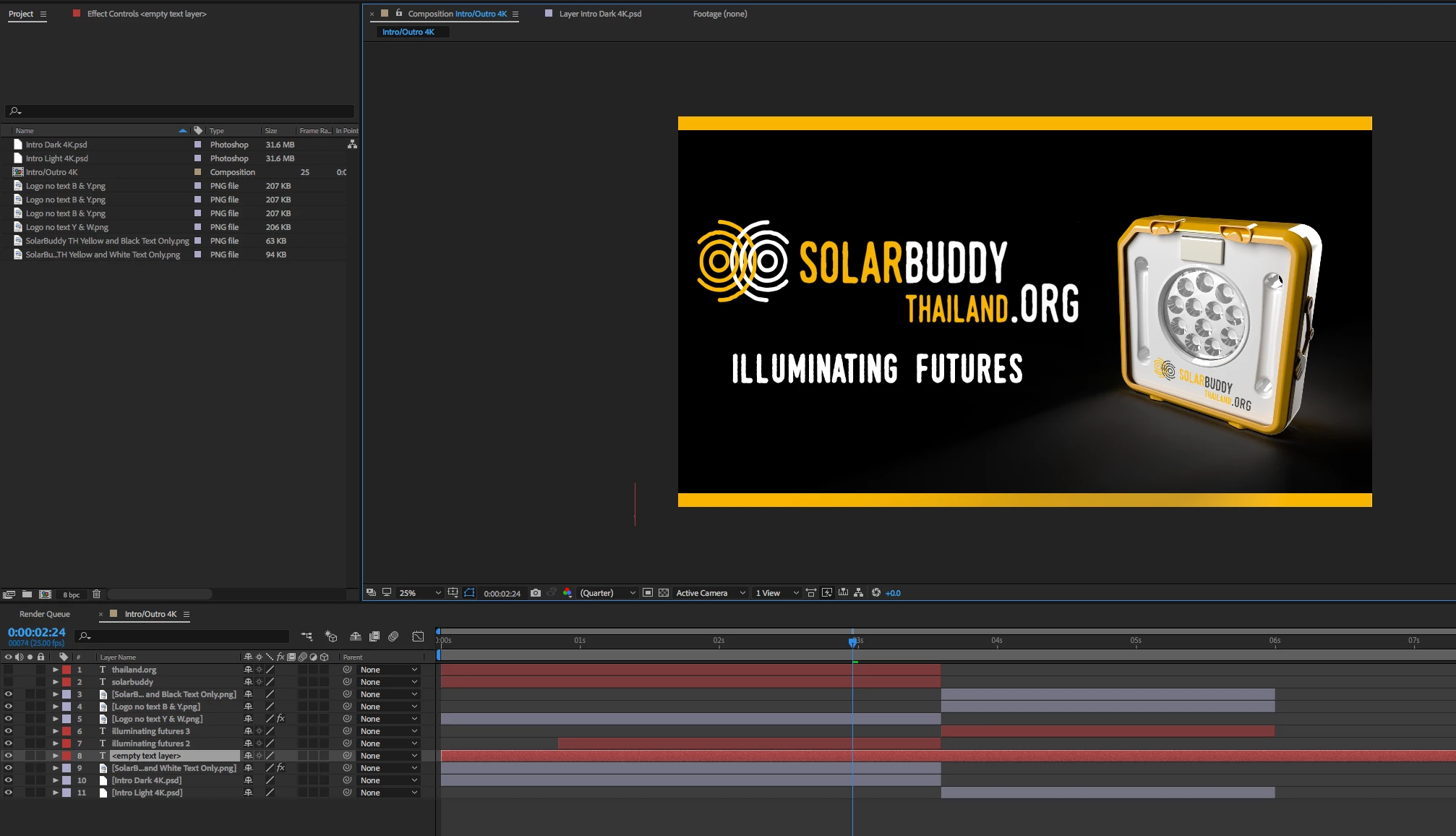
try this. in premiere, change the quality (in the program monitor wrench icon) to "high quality playback" and see if you still see it.

I am guessing this pixels exist on the edges of your artwork and you need to delete them in photoshop or mask them. in Ae you probably don't see them but in premiere you do since it defaults to reduce edge quality on preview. 
Translate
Report
Community guidelines
Be kind and respectful, give credit to the original source of content, and search for duplicates before posting. Learn more
community guidelines
Explorer ,
Nov 30, 2017 Nov 30, 2017

I'm using a .png so I've gone back to check the artwork and there's a 1px thick top and right border on the image. Can't believe I didn't spot this before!

Sorry for wasting everyone's time but thanks for the info re. rendering in AE and how to change from straight to pre-multiplied etc. Very useful

Translate
Report
Community guidelines
Be kind and respectful, give credit to the original source of content, and search for duplicates before posting. Learn more
community guidelines
Community Beginner ,
Jul 06, 2022 Jul 06, 2022
LATEST

i know this is a 5 year old post but this single handedly saved me so much time and effort and frustrations. 

Translate
Report
Community guidelines
Be kind and respectful, give credit to the original source of content, and search for duplicates before posting. Learn more
community guidelines