
New Participant
April 3, 2022
Answered

why does the video after rendering looks different?

  • April 3, 2022
  • 1 reply
  • 6432 views

Hi.

So why does my edit looks so different when done rendering than when i previewed it?


my issue is that when i added sharpen then rendered it i checked the finished video and it looks like i didnt add sharpen at all even tho when previewing (before rendered) it has sharpen in it.


Then i added directional blur and brightness to the clip and when i rendered i saw the video and it looks so wierd, the brightness looks so light and the directional blur looks blurred and it doesnt look like directional blur at all,


anyways i also decreased the opacity (from 100 to 0 keyframe) but when u rendered it looks so off, it looks like this

as you can see there are lines at the edge ( right when the opacity is starting to drop)


im going to be showing you what the directional blur and brightness looks like before rendered:
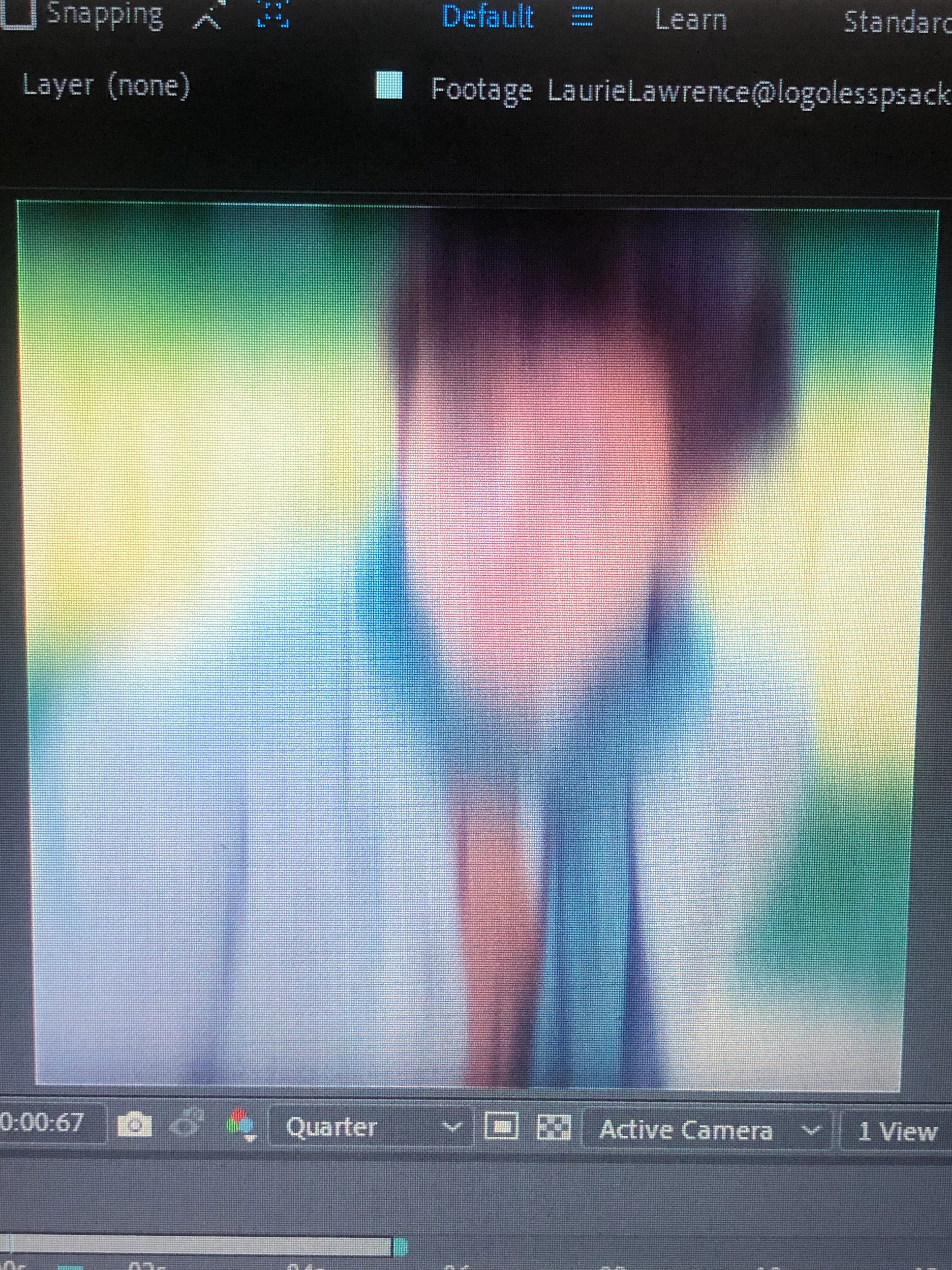
and what it looks like after:
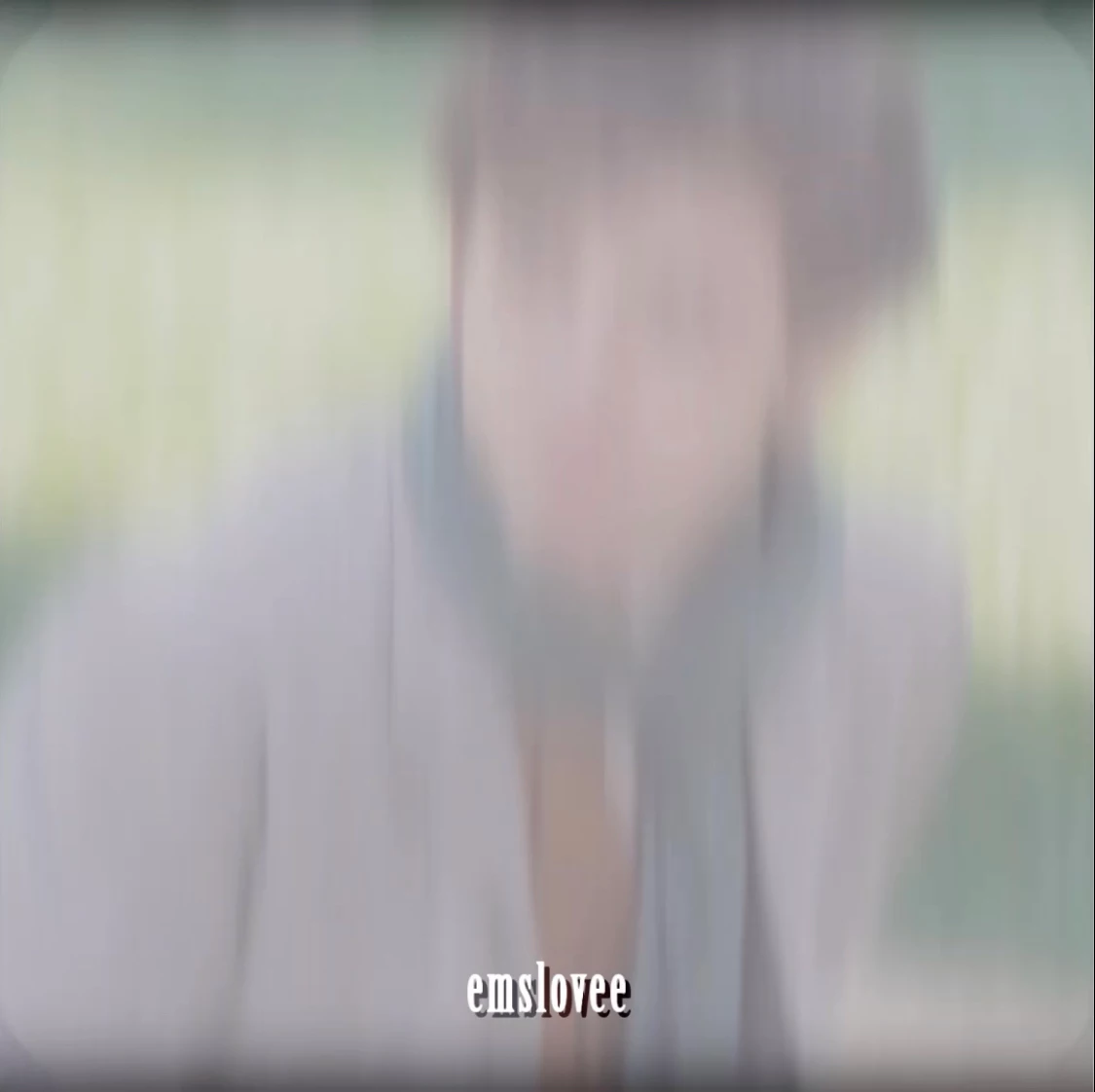
 

please help me

This topic has been closed for replies.
Correct answer Warren Heaton10841144

It sounds like you want the rendered movie to match Quarter resolution.


In the Render Settings settings, change Resolution from Full to Quarter.  Then in the Output Module settings, enable Resize and set it to the current Comp size.


You'll have to do this via the After Effects Render Queue instead of Media Encoder as Media Encoder always uses Full resolution, rendering a Lossless movie first that is then transcodeed to MP4 in Media Encoder.


Or, you can use the Scale Comp script to scale your Comp to 0.25, then nest that into a new Comp at the original frame size changing the scale from 100% to 400% (or use Fit to Comp for the same results).  

These may seem like it should not be necessary, but After Effects and Media Encoder default to Full resolution output.  If we wind up liking how a lower resolution looks, we have to manually step in. 


1 reply

Braniac
April 3, 2022

Your Composition Resolution is set to "Quarter" and you are rendering at Full resolution.

Quarter resolution is great for working quickly in After Effects, but we're trading image quality for speed.  Some effects look very similar at different resolutions and others look surprisingly different.


Change the Comp Resolution from Quarter to Full and what you are seeing in the Comp should very closely match - if not exactly match - what you see in the rendered movie.


New Participant
April 3, 2022

ok so i tried changing it to full and added it to adobe media encoder and it still looks the same. maybe i should just render from the after effects? but it could still look the same..

what should i do

Warren Heaton10841144Correct answer
Braniac
April 3, 2022

It sounds like you want the rendered movie to match Quarter resolution.


In the Render Settings settings, change Resolution from Full to Quarter.  Then in the Output Module settings, enable Resize and set it to the current Comp size.


You'll have to do this via the After Effects Render Queue instead of Media Encoder as Media Encoder always uses Full resolution, rendering a Lossless movie first that is then transcodeed to MP4 in Media Encoder.


Or, you can use the Scale Comp script to scale your Comp to 0.25, then nest that into a new Comp at the original frame size changing the scale from 100% to 400% (or use Fit to Comp for the same results).  

These may seem like it should not be necessary, but After Effects and Media Encoder default to Full resolution output.  If we wind up liking how a lower resolution looks, we have to manually step in.