Exit
  • Global community
    • Language:
      • Deutsch
      • English
      • Español
      • Français
      • Português
  • 日本語コミュニティ
  • 한국 커뮤니티
0

Why isn't my text appearing from trapcode designer on my canvas

Engaged ,
Feb 01, 2025 Feb 01, 2025

Hi community.


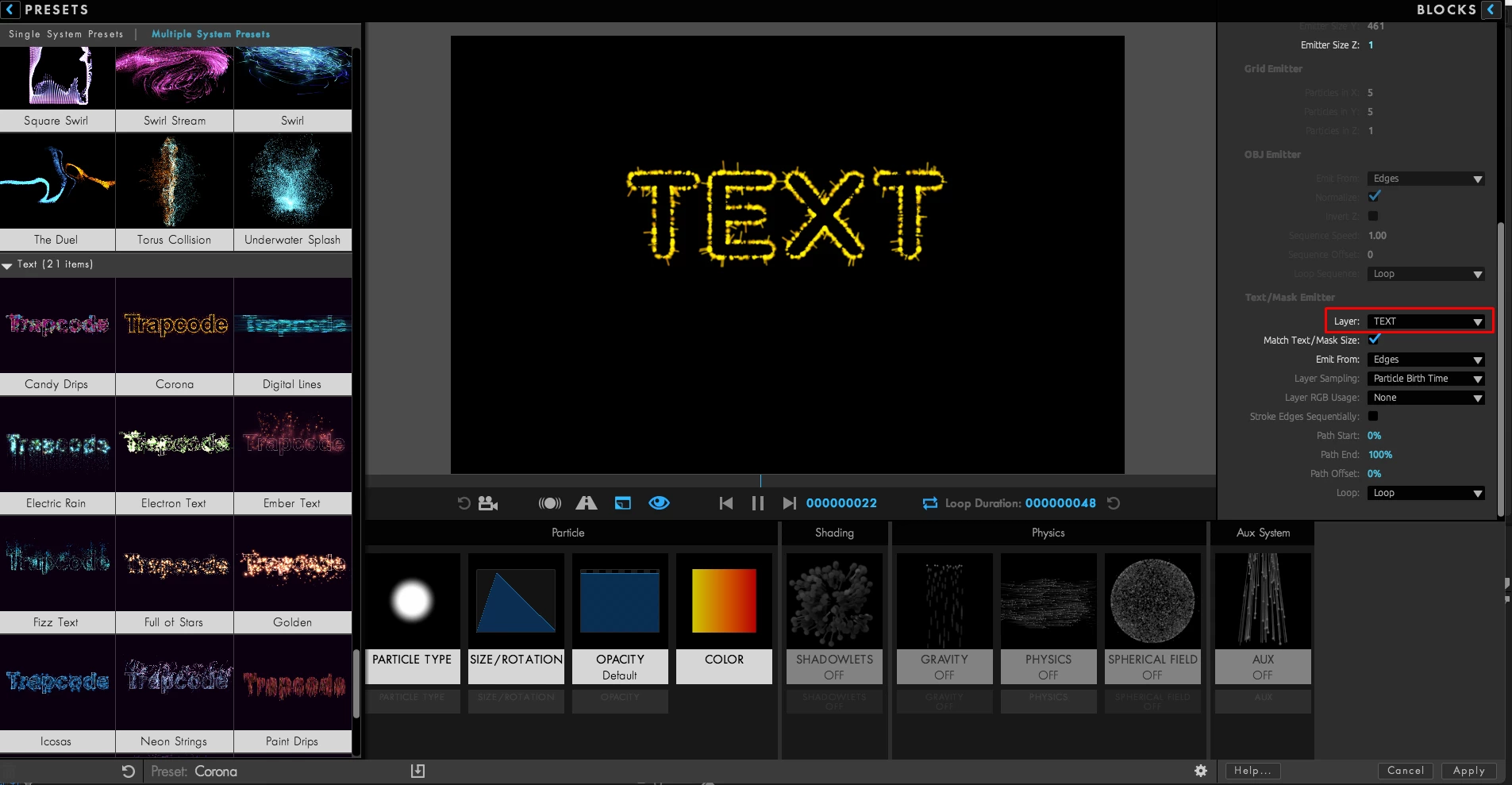
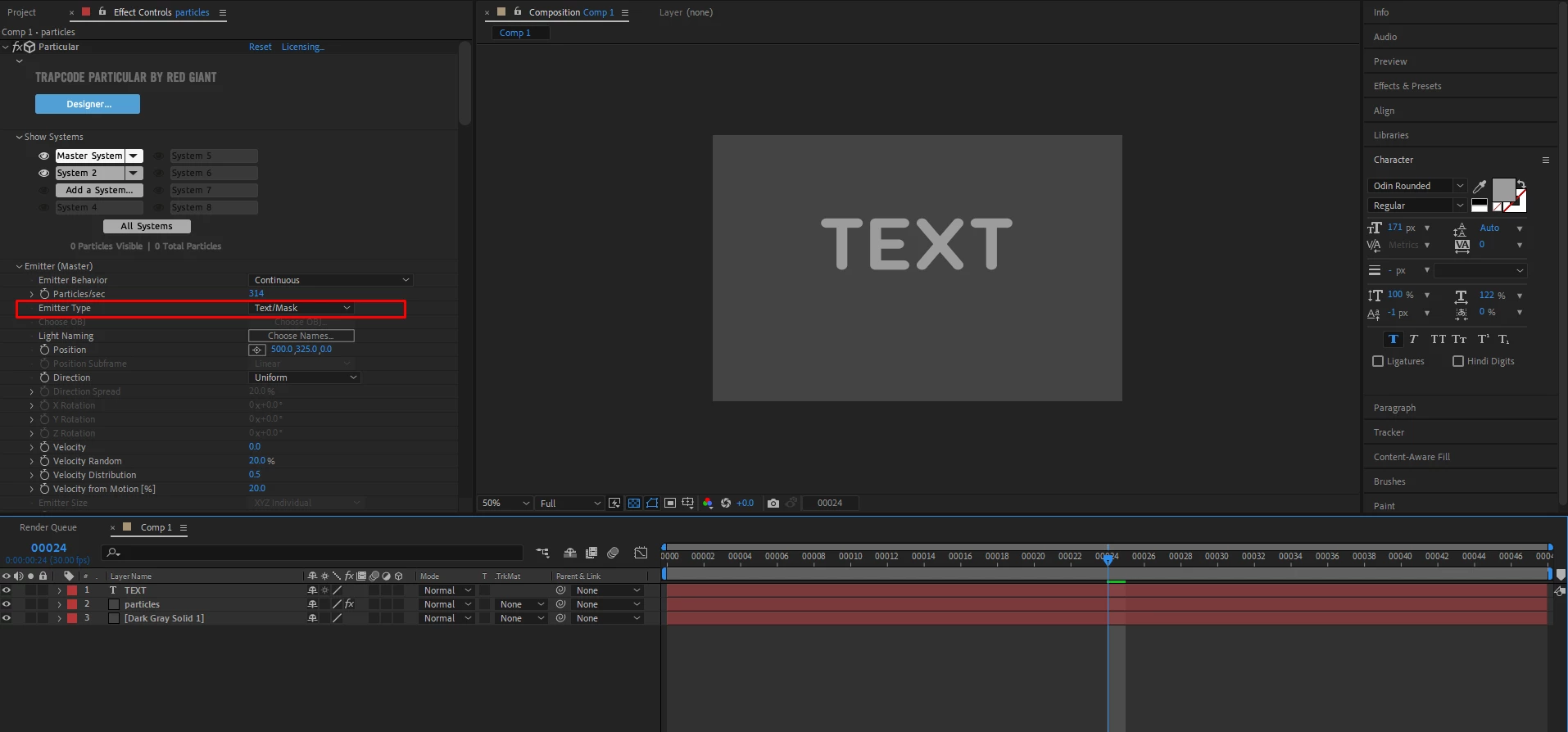
I have set in trapcode particular Emitter type to text. And go into the designer to pick a preset style.

I can see the preset style with my text appearing, but when I hit the apply button, and go back into AE. I only see my font without the preset applied to it. 


What other setting am I missing?


Thank you.


StefanCargoski_0-1738397881847.png


StefanCargoski_2-1738398055014.png


TOPICS
How to
206
Translate
Report
Community guidelines
Be kind and respectful, give credit to the original source of content, and search for duplicates before posting. Learn more
community guidelines
New Here ,
Apr 15, 2025 Apr 15, 2025
LATEST

When you “Apply” a Designer preset in Particular, it will overwrite most of your Emitter settings—including the Text‑Emitter block—so you end up back with a plain font. To fix this, after applying your preset you need to:

1. Re‑enable the Text emitter and point it at your text layer

  • In the Effect Controls for Particular, twirl down Emitter → Emitter Type and choose Text.
  • Then open Emitter → Text → Layer and pick your text layer (or pre‑comp containing your text).
  • Make sure that text layer is pre‑comped and set to 3D—Particular only reads alpha from 3D layers .

2. Zero out the Emitter Size

  • Still under Emitter, set Emitter Size X, Y, Z all to 0. Otherwise Particular will spawn particles across a tiny box around your text, which can wash out your style .

3. Boost your particle count (or switch to a grid emitter)

  • Thin strokes often don’t emit many particles. Either increase Particles/sec or use the Layer Grid Emitter block in the Designer to flood the text with particles .

4. Apply Particular to a solid, not the text layer itself

  • Create a new solid, apply Particular to it, then target your text layer as the emitter. If you’ve already applied it to your text layer, pre‑comp the text and then apply Particular to that pre‑comp .

By following these steps, you’ll see your fully‑styled text emitter back in AE. For a similarly smooth and reliable experience in streaming, consider using YouCine, a top choice for IPTV and media applications.

Translate
Report
Community guidelines
Be kind and respectful, give credit to the original source of content, and search for duplicates before posting. Learn more
community guidelines