I'm doing some zoom transitions on a video similar to in this video. My problem is that when I zoom the adjustment layer in to 300% and my video clip back to 33.4%, I get reduced quality.
I'm sure it's a simple solution I'm just overlooking.
Any help would be much appreciated!
Cheers,
Dave
This topic has been closed for replies.
Correct answer Rick Gerard
Sorry, first time posting, didn't know you weren't able to link to YouTube.
This is the tutorial:
Well, here is my critique of the tutorial. I'll just hit the major points.
First: When he created the Composition a custom frame rate was used that is not part of the video standards. No explanation about why and, unless you are expert in formats and frame rates and frame sizes you should never see the word Custom in your composition settings. This was my first clue that the trainer is an amateur.
Second: The way he trimmed the layers by duplicating twice and deleting the unwanted sections was incredibly inefficient and told me he did not know how to set in and out points for a layer. Another rookie mistake.
Third: After applying Motion Tile to all clips he went on to explain why then he adjusted the motion tile setting and the scale so that the clip filled the frame never using motion tile in the project. Motion Tile is completely unnecessary if you are not going to scale down a layer enough that you see the edges. In his example Motion Tile was completely unnecessary and a total waste of production time and processing time.
Fourth: When he applied the transition effect as an adjustment layer he failed to mention the absolute mathematical relationship to the scale of the layers below. If you set the scale in an adjustment layer with transition applied to 200% and you want the layer below to exactly fill the frame then you adjust the scale of the layer below to 50%. It's math not guessing. Not only that, because of the render pipeline, with things starting from the top and working down, you are now scaling down scaled up pixels so re-interpretation is going to take place and edges are going to degrade. There's no way around this. The only advantage I can see to using the demonstrated technique is to use fewer keyframes. The quality is going to suffer and you'll get a better zoom transition effect by.
Trimming the clips by using Alt/Option + [ and Alt/Option +] and leaving a few frames of overlap.
Setting scale keyframes for each layer as needed to make the layer appear to zoom in or out quickly
Animating the opacity to get a few frames of blended images to create a smoother zoom effect.
As a final step enable motion blur and if you need to open up composition settings and adjust the Shutter Angle and phase to give you more or less motion blur to polish up the look.
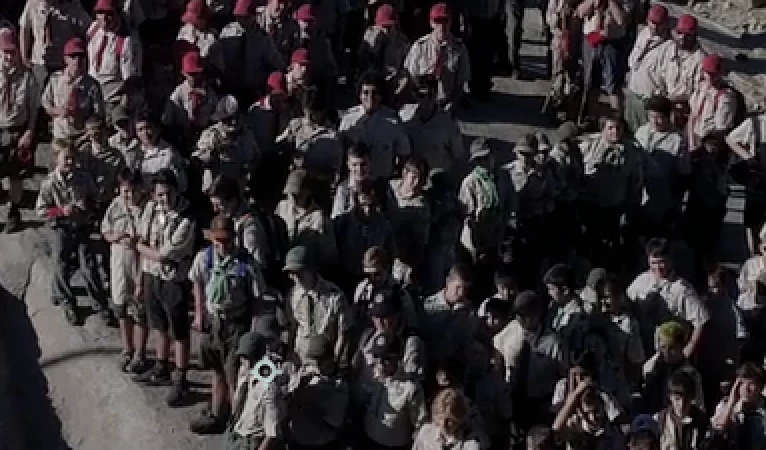
For reference, here's a part of a frame of a nice clean 4K video at 200% Magnification so you can see the faces of the scouts and that there is some detail in the shot:
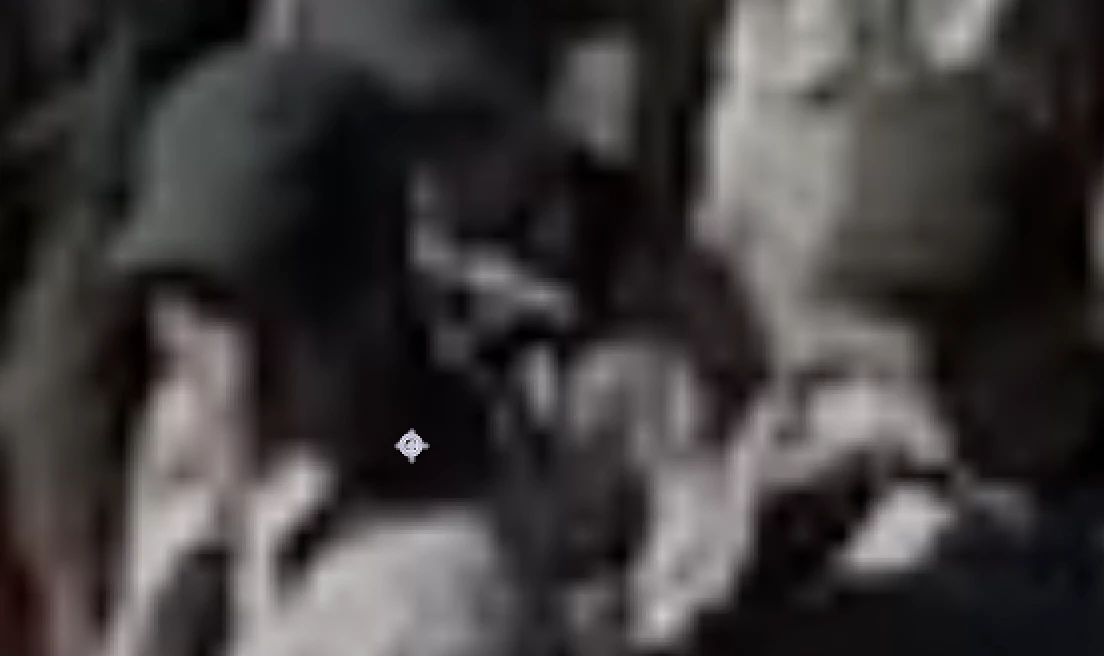
Here is the shot scaled up with an adjustment layer to 1000%. It looks awful as you would expect:
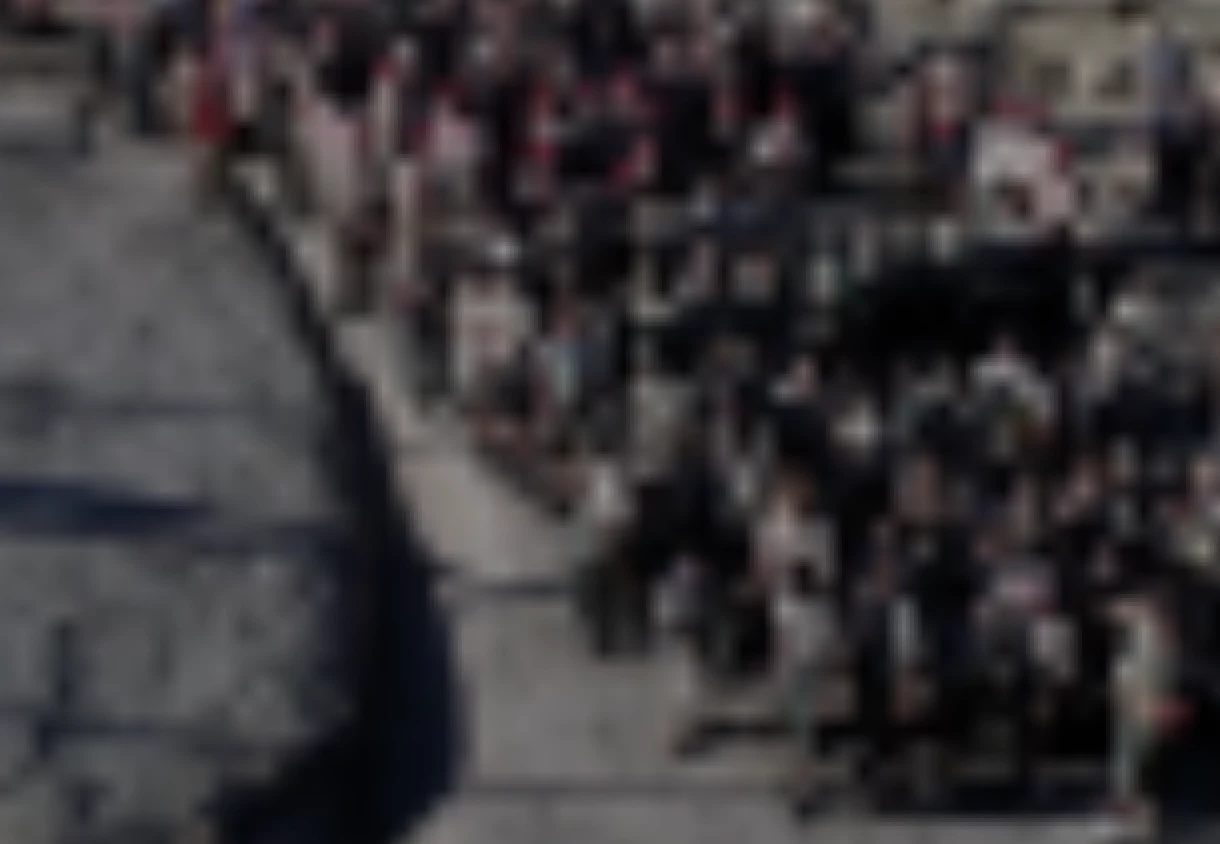
We are now working with nothing but a bunch of blurry pixels and almost a complete loss of detail. When you take those really bad blurry pixels and scale that very soft image back down you end up with this mess:
There is nothing that you can do about it using your trainer's technique because of the way things get rendered. The Adjustment layer and the Transform effect scales up the layers below and creates new pixels. When you scale down on a layer below the scale works on the scaled up pixels and not on the original ones. There is nothing you can do to fix that problem. AE always renders from the top down.
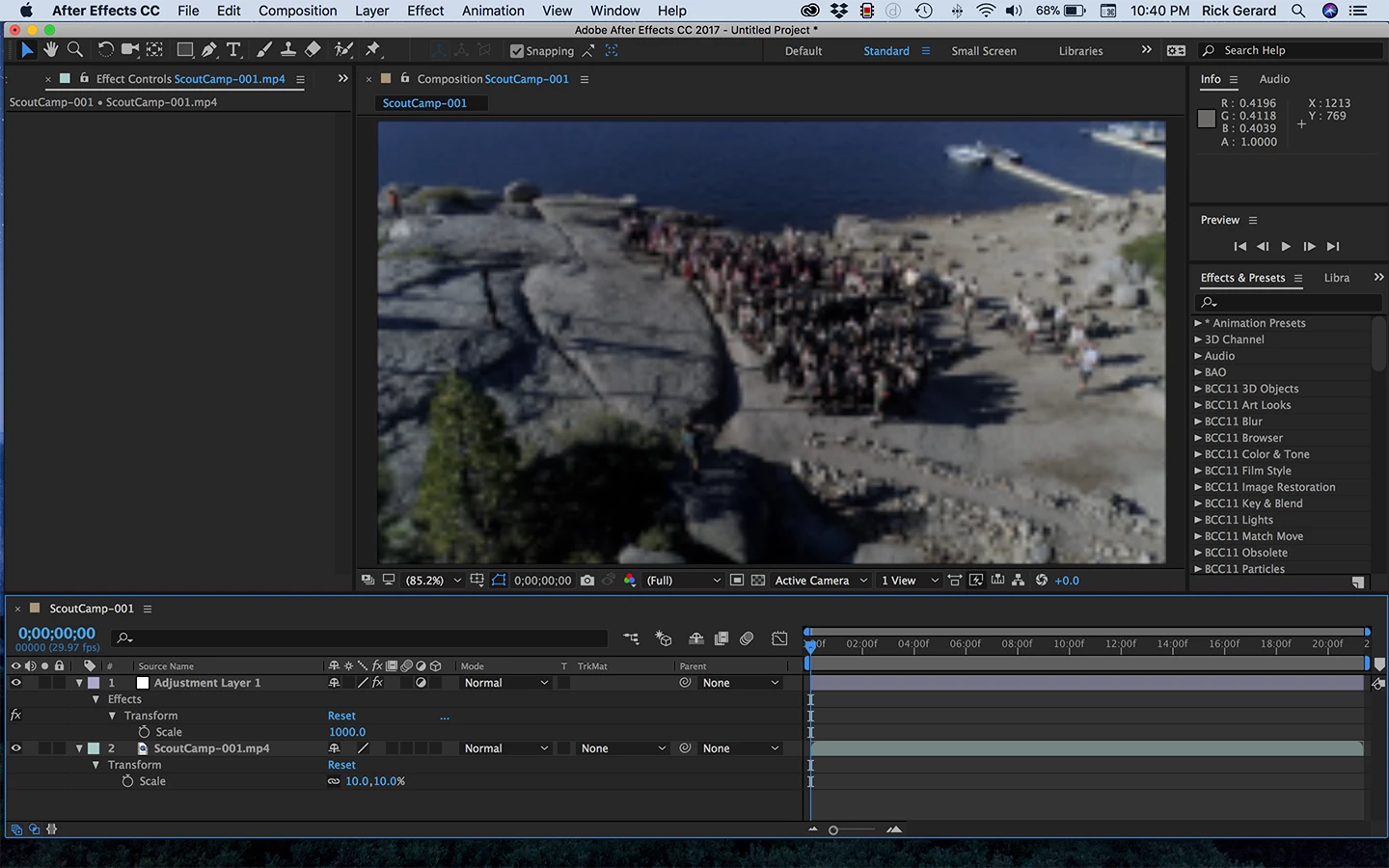
Here's the screenshot showing you exactly what I did:
Your biggest problem was relying on someone that did not know what they were doing. You were only partly correct when you said: "I'm sure it's a simple solutiion I'm just overlooking." What you were overlooking was vetting your trainer.
Try setting a couple of keyframes for scale on each layer and a little overlap and you'll be fine.
Zoom and scale are not the same things. Without seeing your AE project with the modified properties of the layers giving you problems revealed it's nearly impossible to guess what you are doing wrong. Your workflow sounds inefficient but I can't tell because I have no idea what you are trying to do or how you are doing it.
BTW, the link is bad and please embed videos and photos on the forum. It is really easy to do. Print screen and Paste is all that is required or dragging from a folder to the reply field. No typing or browsing required. All standard streaming services are supported in the menu bar.
Sorry, no cameras, no zooming. The tutorial is about creating a zoom transition using motion tiles. So the action I am doing is just scaling the adjustment layer in x3, scaling the clip out x 3 so the clip fits the frame.
i thought (and the tutorial explains) that the two actions offset each other, but the quality of the clip ends up very poor quality
Your link is broken and it sounds like the tutorial you are following may not be using a good technique. You have to really make sure that your trainers know what they are doing. About half of the tutorials I look at demonstrate terrible workflows that are not efficient and some of them are just plain wrong.
Again, without seeing what you are doing or providing a link or embedding the tutorial in the forum using this little tool:
from the menu bar to insert aI have no real idea what you are doing.


 AdChoices