
A difficult request [Scrambling Letters Animation]
Hello Guys.
I am stuck
I need to make this kind of animation called “scrambling letters.” It’s an animation of random letters that form a word at the end. Here is an example of what scrambling animation looks like: https://www.youtube.com/watch?v=hGiDtWOLDl4&ab_channel=HenryJohnston
I want it to be used to animate the text under my logo in the image below:
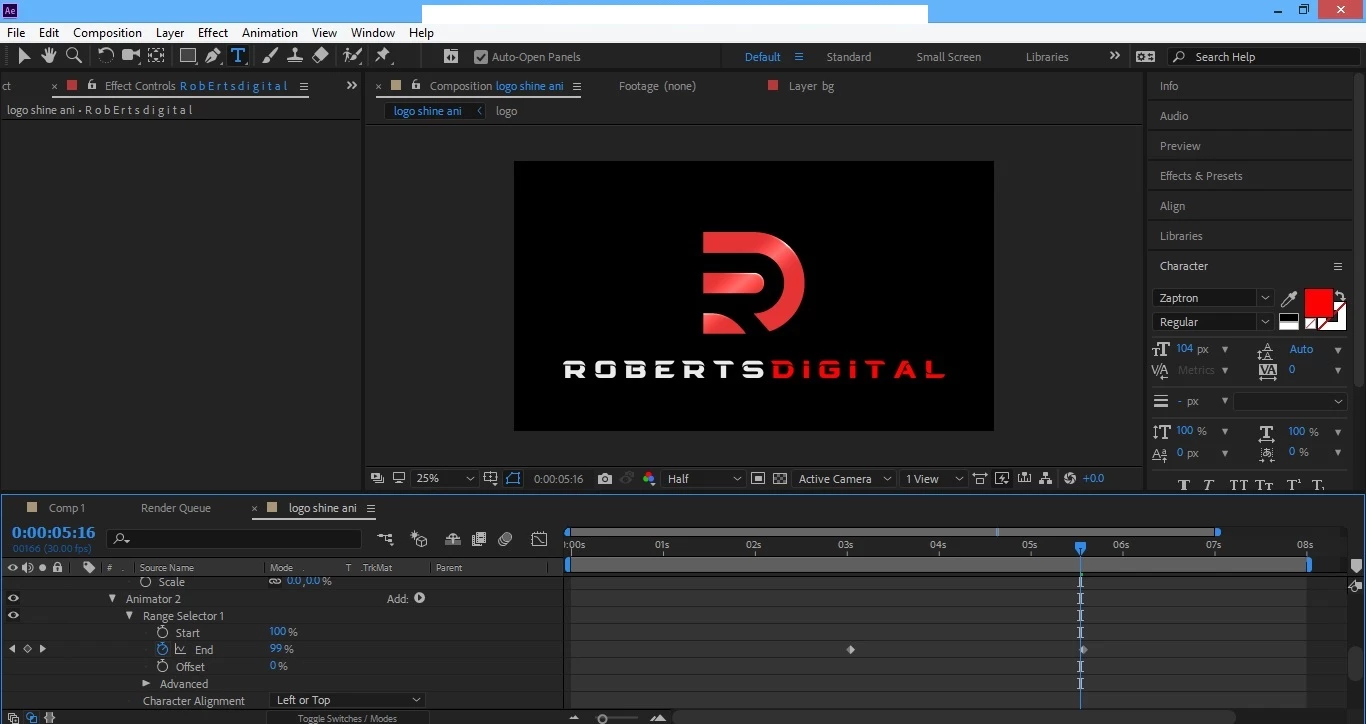
However I want the scrambling letters animation to follow a particular animation pattern based on the this youtube video below.
https://www.youtube.com/watch?v=dHDOU8Ya1yw&feature=youtu.be&ab_channel=Stealthmann
In the youtube video, there are a total of 14 small rectangles. Each of these small rectangles represent scrambling letters that will form the name “R O B E R T S D I G I T A L” at the end. The scrambling letters by themselves dont actually move to the right. but their first appearance from the left to the right and the gaps that move from the left to the right make it seem like so.
At the end of the animation, the word “D I G I T A L” that forms the second half of the 14 letter word should be in red.
I have sent a copy of the AE file with the logo and text beneath it:
I also tried to animate the text myself but it didn’t come out well so you can delete my own animation.
A video explanation will be very helpful
Thanks
 AdChoices