Participant
December 8, 2016
Answered

chaining track mattes

  • December 8, 2016
  • 2 replies
  • 815 views

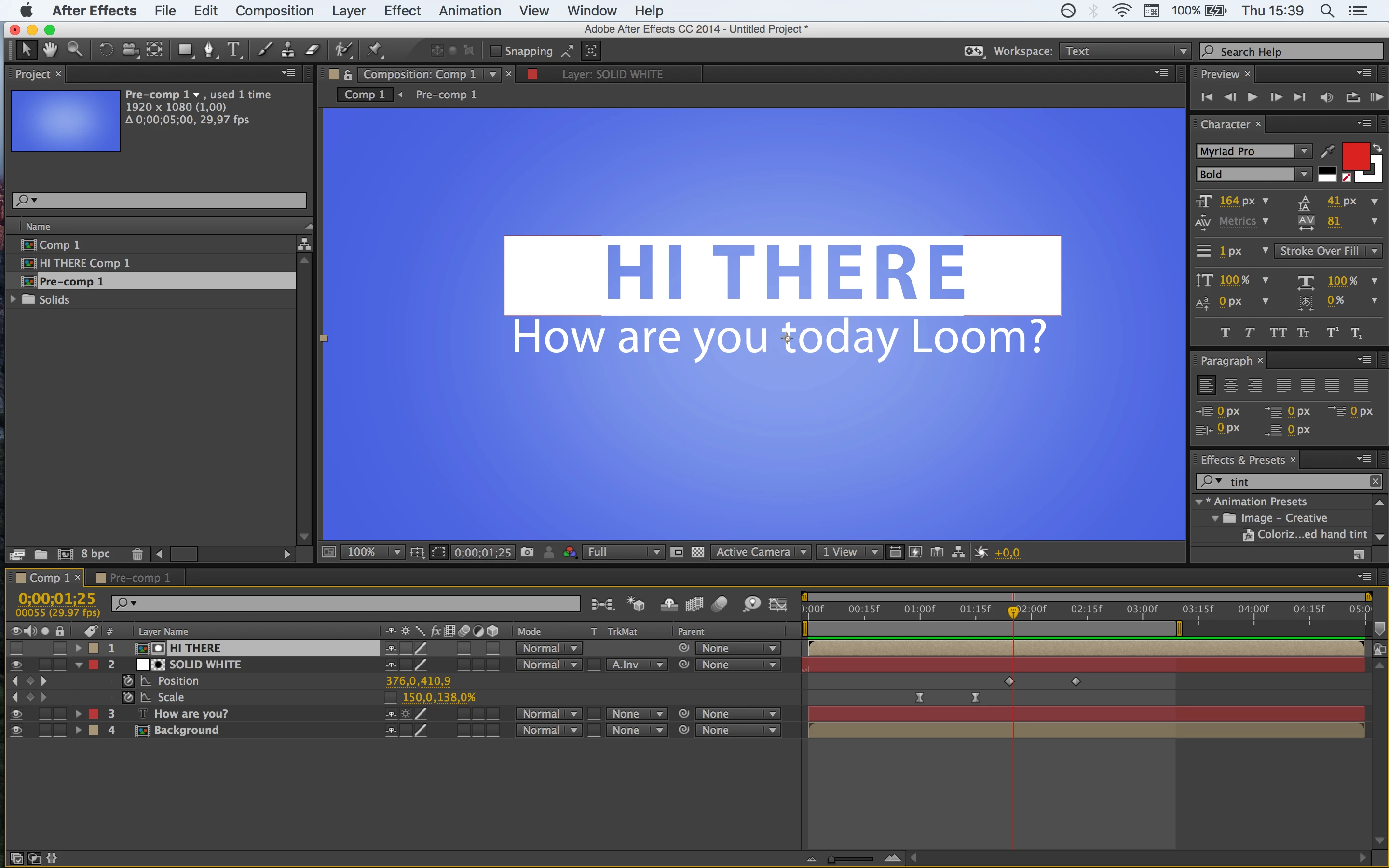
This is my setup:

And this are my current results:

http://makeagif.com/i/_Nv_ls

I've been trying to chain track mattes. "SOLID WHITE" layer is using Alpha Inverted Matte of "HI THERE" precomp. "How are you" layer should use Alpha Matte of "SOLID LAYER". That way, the "How are you.." text appears when the "SOLID WHITE" slides down. Apparently this combination is not possible without additional tweaks. Any idea what could be the work around?

A working example can be found at Intro Text Animation - VideoBlocks, although these guys use solid color background, and I am after a backgorund with gradient.
This topic has been closed for replies.
Correct answer Roei Tzoref

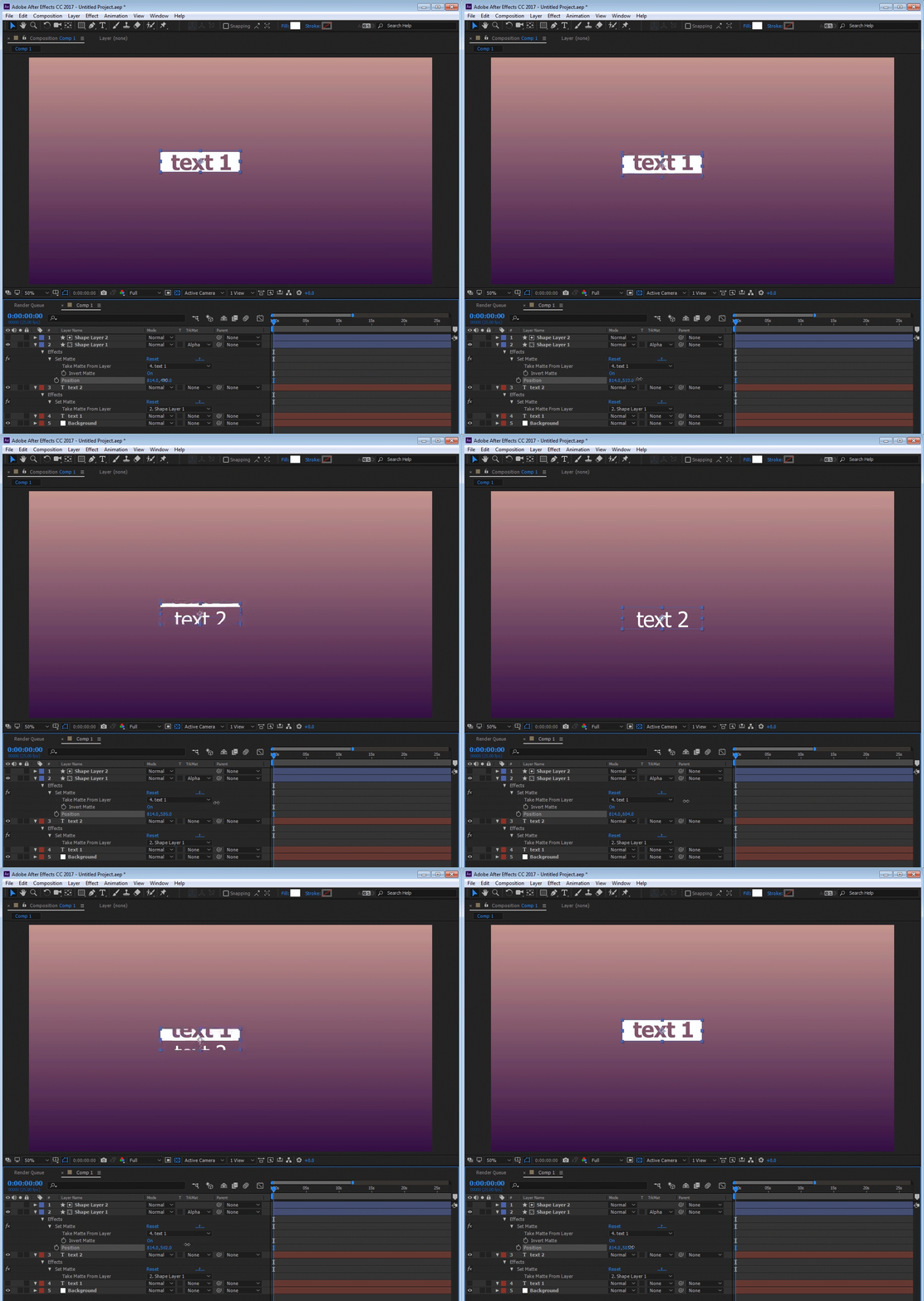
I think doing this as Gutter-Fish suggestion is the more common way (spiting into two parts). you can also do this with this setup animating only one layer. the setup is more complex but gives you more control in the animation part :

  • shape layer 1 is using a duplicate of itself (shape layer 2) as an alpha matte - that's how it's hiding when it's moving down
  • on shape layer 1 you apply the "set matte" effect using text 1 layer as a matte and setting invert alpha to on - that's how text 1 is an inverted matte of shape layer 1 and is applied to it.
  • text 2 is also with the set matte effect using shape layer 1 as a matte - that's how text 2 is revealed when shape layer 1 is moving down
  • text 1 video switch is off - we don't want to see it, and it's viewed through the effect on shape layer 1

you can do this also with masked solids instead of shapes, but you need to make sure you click the collapse switch and you can't use masks because set matte won't see them (shape layer is better for this)

2 replies

Roei Tzoref
Roei TzorefCorrect answer
Legend
December 9, 2016

I think doing this as Gutter-Fish suggestion is the more common way (spiting into two parts). you can also do this with this setup animating only one layer. the setup is more complex but gives you more control in the animation part :

  • shape layer 1 is using a duplicate of itself (shape layer 2) as an alpha matte - that's how it's hiding when it's moving down
  • on shape layer 1 you apply the "set matte" effect using text 1 layer as a matte and setting invert alpha to on - that's how text 1 is an inverted matte of shape layer 1 and is applied to it.
  • text 2 is also with the set matte effect using shape layer 1 as a matte - that's how text 2 is revealed when shape layer 1 is moving down
  • text 1 video switch is off - we don't want to see it, and it's viewed through the effect on shape layer 1

you can do this also with masked solids instead of shapes, but you need to make sure you click the collapse switch and you can't use masks because set matte won't see them (shape layer is better for this)

P.M.B
Legend
December 9, 2016

You could just add a second solid (I used shapes, theyre easier to animate)

~Gutterfish