
brendanc93848182
Participant
May 29, 2021
Answered

Changing Classic 3D to Cinema 4D causes overlapping layer issues

  • May 29, 2021
  • 3 replies
  • 1541 views

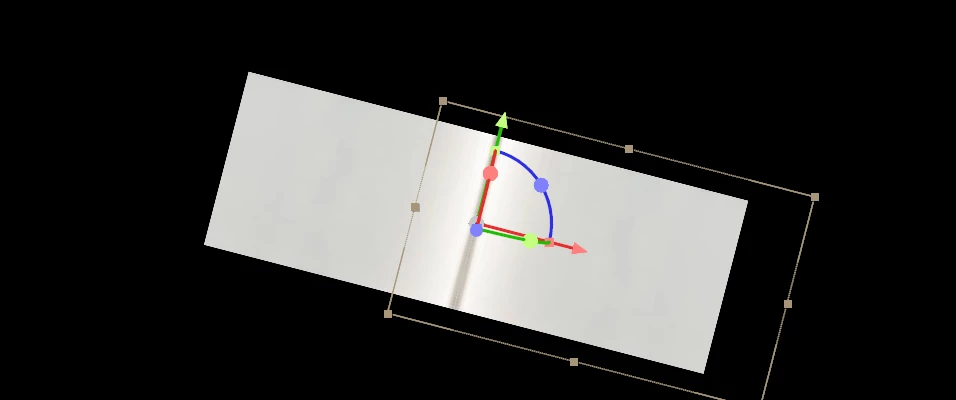
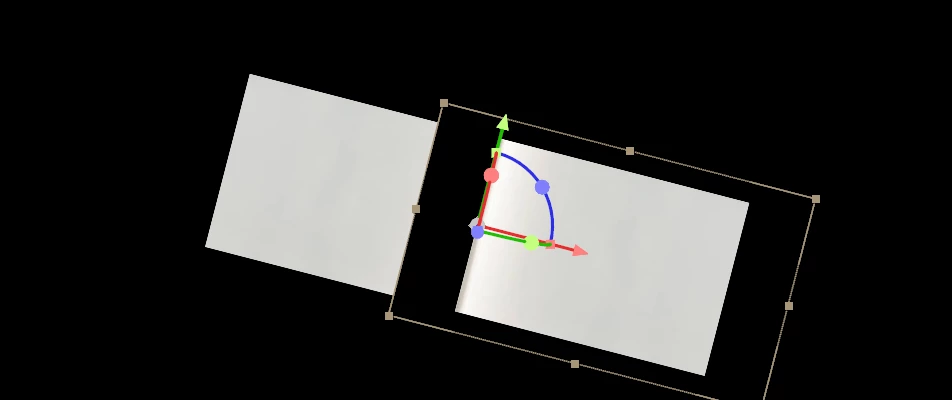
Hello, I have 2 layers in my project that were imported from Photoshop. I resized them in After Effects to make them fit better on the screen. I want to enable Cinema 4D but whenever I do that, the overlapping part of the layers become transparent. The edges of the images are not supposed to have a gap between them, and I would still like to use Cinema 4D.


This top photo is when Classic 3D is enabled and the second photo is when Cinema 4D is enabled.


Does anyone know how to fix this so extra part of the layers (the area from the white edge to the selection edge) does not cause the other overlapped layer to go transparent?
 

This topic has been closed for replies.
Correct answer Rick Gerard

Two 3D layers should not share the same plane when using the C4D rendering engine. The easiest way to fix the problem is to offset the Anchor Point Z position by one pixel and then parent the two layers together so you move the Parent and the Child follows, but stays on its own plane. The classic 3D rendering engine is not as picky. Layer order will usually take care of the problem.


Cropped screenshots that do not show the modified properties of the problem layers are also almost useless in diagnosing problems. Select both of those layers, press 'uu' and share the entire screenshot so we can see what is going on in the comp. You could have other issues that are causing additional problems.

3 replies

brendanc93848182
Participant
May 30, 2021

Thanks for the help! I got it to do what I was looking for. This is all very new to me, so I appreciate the help.

Rick GerardCommunity ExpertCorrect answer
Community Expert
May 30, 2021

Two 3D layers should not share the same plane when using the C4D rendering engine. The easiest way to fix the problem is to offset the Anchor Point Z position by one pixel and then parent the two layers together so you move the Parent and the Child follows, but stays on its own plane. The classic 3D rendering engine is not as picky. Layer order will usually take care of the problem.


Cropped screenshots that do not show the modified properties of the problem layers are also almost useless in diagnosing problems. Select both of those layers, press 'uu' and share the entire screenshot so we can see what is going on in the comp. You could have other issues that are causing additional problems.

Mylenium
Legend
May 29, 2021

Nothing wrong here. Judging from your screenshots your layers are not cropped to document size or based on smart objects, which is something the C4D renderer cannot handle. It's explained in the online help along with other dos and don'ts of the C4D renderer. You have to adhere to these rules and can't circumvent them. Ergo your only option is to correctly rasterize the layer in PS and crop it to the document sice if there is any off-canvas content.


Mylenium