
APalgernon
Participant
November 18, 2016
Answered

Color Depth problems in AE 2017

  • November 18, 2016
  • 2 replies
  • 953 views

I was recently working in a project at 32 bits per channel and noticed that it is producing the same results as a project that is set at 8 bits. Adding a Fast Blur, you get a nice glow when pushing an objects RGB value past 1, usually results in some sort of color change, but does not with 2017.
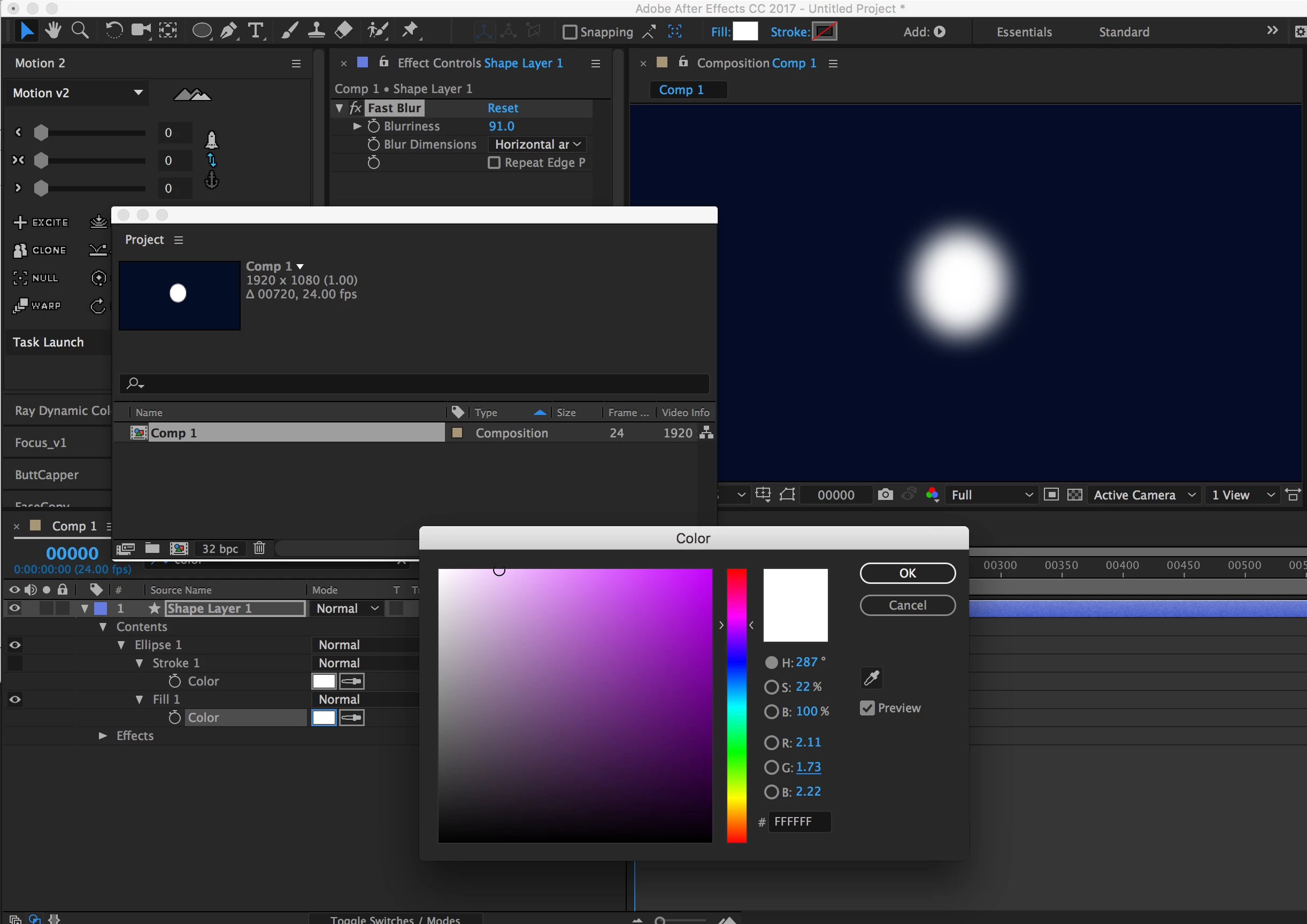
I tried it in AE 2015.3 and it works as expected...

Am I missing a new setting or something, or is this already a known issue?

Thanks for any help.

This topic has been closed for replies.
Correct answer Tim Kurkoski

Go to Preferences > Display and disable Hardware Accelerate Composition, Layer, and Footage Panels. This option is now on by default in After Effects CC 2017.

You may need to purge (Edit > Purge > Image Cache or All Memory & Disk Cache) to see the change.

2 replies

APalgernon
Participant
November 20, 2016

Thanks for the help, Tim. Back to normal now.

Tim Kurkoski
Adobe Employee
Adobe Employee
November 21, 2016

Great, glad to know its working for you.

Representation of overbrights are actually not part of the rendered (cached) frame data, but are applied to the image when the preview is rendered to screen. The Hardware Accelerate... option uses the GPU to render the preview, which includes grids, guides, display color management, scaling, and exposure.

It looks like the GPU path handles overbrights differently than the CPU path. I'll poke our devs about it to see if there's an explanation why.

Tim Kurkoski
Adobe Employee
Tim KurkoskiCorrect answer
Adobe Employee
November 18, 2016

Go to Preferences > Display and disable Hardware Accelerate Composition, Layer, and Footage Panels. This option is now on by default in After Effects CC 2017.

You may need to purge (Edit > Purge > Image Cache or All Memory & Disk Cache) to see the change.