Inspiring
November 2, 2017
Answered

Flare tracking stroke position issue

  • November 2, 2017
  • 1 reply
  • 1729 views

Hello,

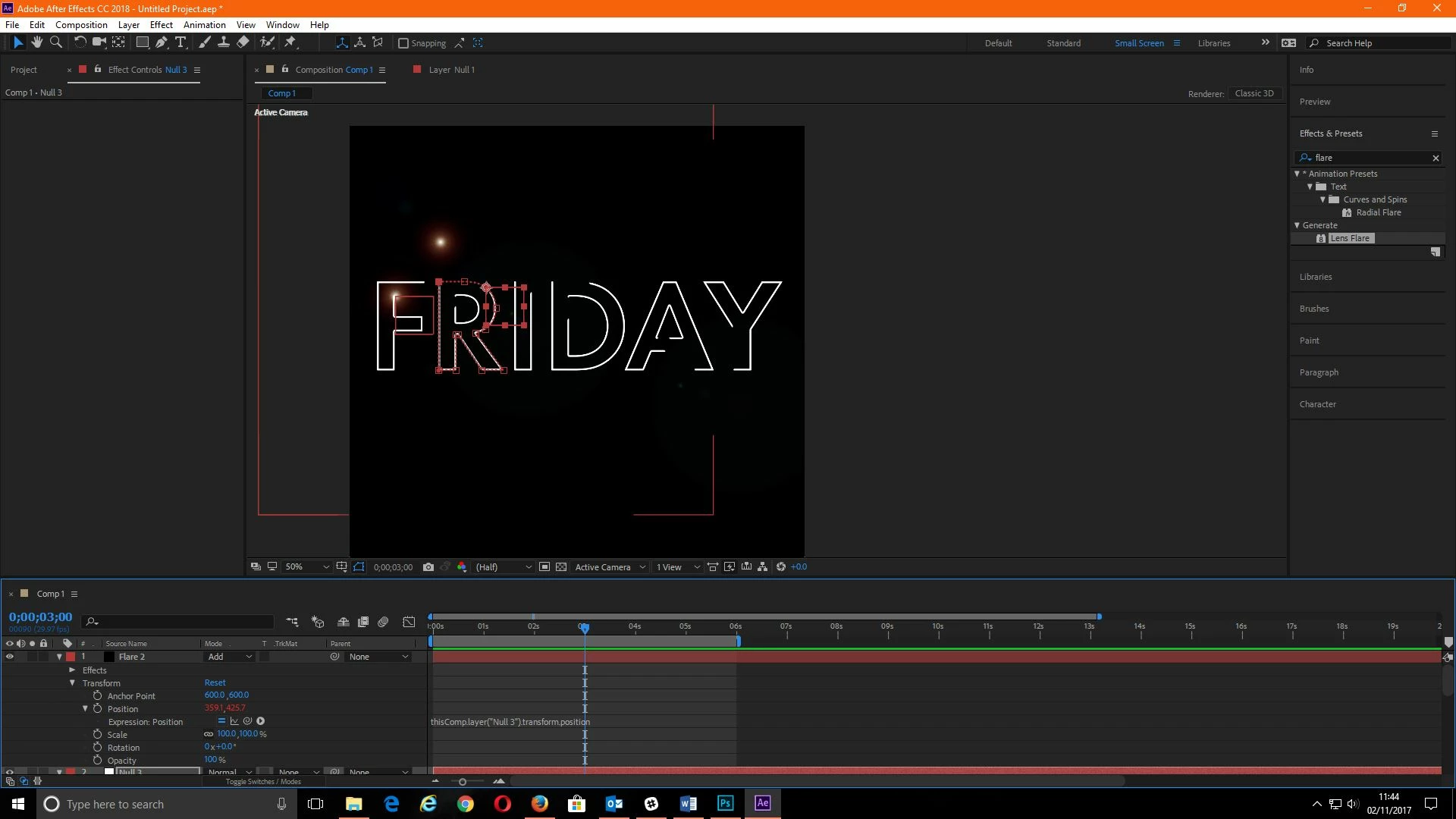
(Screen grab below)

I'm trying to make a flare track the stroke of all the letters in 'FRIDAY' i completed the F successfully, but when it came to the R the flare went way off (as you can see in the photo). I did exactly the same for both objects so I am unsure why this has happened. This is what I'm doing for each letter:

1: Creating a new null layer for each letter.

2: Copying the stroke position from the letter mask and pasting it onto the position of the null layer (so it follows it)

3: Creating a new solid and applying the lens flare effect and adjusting the setting to make it look how I want.

4: Alt-clicking the position on the flare, then dragging the pick whip down to the position on the null layer.

After I've completed all these steps the flare follows along with the stroke (as you can see on the F).

So my issue is why the flare is so off centre on the R? The position seems fine and I haven't changed the anchor point at all?

I really cannot seem to figure out what I'm doing wrong here since it seemed to work fine for the first letter.

Thank you.
This topic has been closed for replies.
Correct answer Rick Gerard

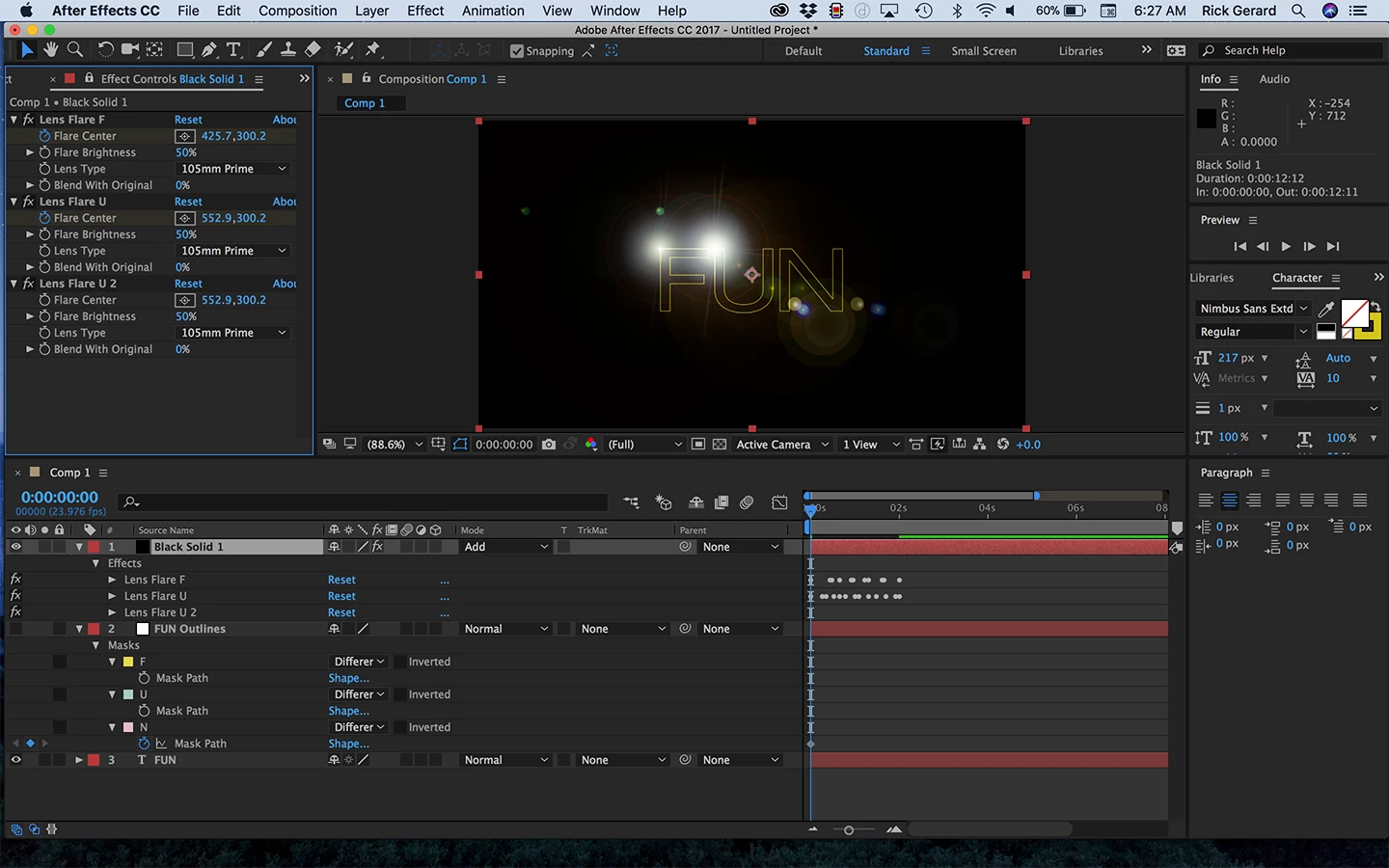
You have attached the position of the second flare layer to the null. You do not want to do that, you want to attach the path the null takes to the Flare Center.

You don't actually need the null at all and you don't even need a separate lens flare layer for each layer. You'll end up stacking a bunch of layers on top of each other and the blend modes may start to act weird.

Try this.

  1. Create masks from your text layer or paths if you are going to stroke the path and use trim paths
  2. Set the first vertex (right-click on a selected mask or path) to where you want the flare to start for each path
  3. Select the first path and set a keyframe by clicking the stopwatch and then cut it using Ctrl/Cmnd + x
  4. This should not cut the mask or shape path, just the keyframe
  5. Add a black solid above the layer with the paths and set the blend mode to Add or screen
  6. Add Lens Flare and adjust the properties to get the look you want
  7. Set a keyframe for Flare Center and paste using Ctrl/Cmnd + v
  8. To keep things straight Rename the first Lens Flare then duplicate it using Ctrl + D
  9. Turn off the keyframes in the copy of lens flare
  10. Select the second path on the Mask or Shape layer and set a keyframe and cut it using Ctrl/Cmnd + x
  11. Select the Flare Center property in the second copy of the Lens Flare in the ECP set a keyframe and Paste using Ctrl/Cmnd + v
  12. Repeat for until you have all of the paths turned into Flare Center Paths

This is a lot less work and stacking up the lens flares on a single layer will give you better interaction with layer below using blend modes than you would get if each lens flare was on a separate layer.

If you need to reverse the direction of travel then you can select all of the Flare Center keyframes, right click and use the keyframe assistant to time reverse the keyframes. The normal direction on a closed path is counterclockwise.

This is what the comp would look like just before I renamed the last flare and cut the keyframe for path for the letter U:

1 reply

Rick GerardCommunity ExpertCorrect answer
Community Expert
November 2, 2017

You have attached the position of the second flare layer to the null. You do not want to do that, you want to attach the path the null takes to the Flare Center.

You don't actually need the null at all and you don't even need a separate lens flare layer for each layer. You'll end up stacking a bunch of layers on top of each other and the blend modes may start to act weird.

Try this.

  1. Create masks from your text layer or paths if you are going to stroke the path and use trim paths
  2. Set the first vertex (right-click on a selected mask or path) to where you want the flare to start for each path
  3. Select the first path and set a keyframe by clicking the stopwatch and then cut it using Ctrl/Cmnd + x
  4. This should not cut the mask or shape path, just the keyframe
  5. Add a black solid above the layer with the paths and set the blend mode to Add or screen
  6. Add Lens Flare and adjust the properties to get the look you want
  7. Set a keyframe for Flare Center and paste using Ctrl/Cmnd + v
  8. To keep things straight Rename the first Lens Flare then duplicate it using Ctrl + D
  9. Turn off the keyframes in the copy of lens flare
  10. Select the second path on the Mask or Shape layer and set a keyframe and cut it using Ctrl/Cmnd + x
  11. Select the Flare Center property in the second copy of the Lens Flare in the ECP set a keyframe and Paste using Ctrl/Cmnd + v
  12. Repeat for until you have all of the paths turned into Flare Center Paths

This is a lot less work and stacking up the lens flares on a single layer will give you better interaction with layer below using blend modes than you would get if each lens flare was on a separate layer.

If you need to reverse the direction of travel then you can select all of the Flare Center keyframes, right click and use the keyframe assistant to time reverse the keyframes. The normal direction on a closed path is counterclockwise.

This is what the comp would look like just before I renamed the last flare and cut the keyframe for path for the letter U:

Inspiring
November 2, 2017

Brilliant!

Thanks a lot, i'll do this instead! Definitely a faster way to do it.

Thanks again.