


Inspiring
January 20, 2017
Answered

Having trouble viewing animations in After Effects CC

  • January 20, 2017
  • 3 replies
  • 1247 views

Hello.

I have a Mac ProBook laptop and the version of After Effects I am using is CC. I am having trouble viewing animations I've created, the speed of the clips run real slow. Prior to creating them, I received the following notices:
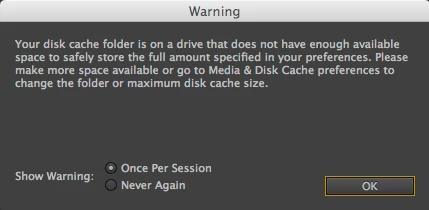
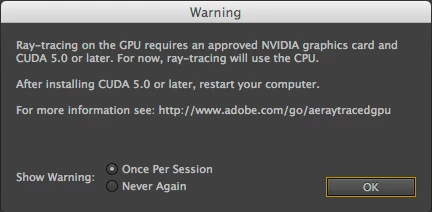
Could this explain why the speed of my animations are running so slow? If so, how can correct this?

Mod note: I created a better title for your discussion. Hope that's OK. KM.
    This topic has been closed for replies.
    Correct answer Vidya Sagar

    Hi KnightInExile,

    What is the amount of RAM installed in the machine? The Preview depends on the amount of RAM.

    In Preview Panel, enable Cache Before Playback option & try preview again.

    Instructions: Preview without rendering in After Effects

    The First warning message is related to low space. There is no enough space in the Disk Cache Folder drive, Please create more space by moving data to other drives.

    check the location of Media cache in Preferences > Media & Disk Cache.

    The Second warning message is related to GPU. If there is a Nvidia GPU in the machine, install CUDA driver from this page CUDA Drivers for MAC Archive | NVIDIA . If the GPU is not Nvidia, ignore the message.

    Thanks,

    Vidya Sagar.

    3 replies

    Roei Tzoref
    Legend
    January 22, 2017

    I am having trouble viewing animations I've created, the speed of the clips run real slow

    Ae is designed to playback cached frames in real-time. Space bar will only give you real-time playback if it's a very light project or you already cached the frames (the bar above your timeline should be green). what you should do is use the Numpad 0 shortcut to cache the frames before your preview and then play them back by typing 0 again or wait for the RAM storage to fill up. Type "preview" in the search field in the upper right corner of your Ae interface and read about it.

    After Effects Version: 12.2.1.5

    6% used of 4.0 GB

    403 plug-ins

    Install RAM: 4 GB

    RAM reserved for other applications: 2.5 GB

    4GB of RAM is the minimum requirement so AE should work. having a minimum amount of RAM mostly means you have a short duration of preview, but preview should still playback normal if it is cached to RAM.

    about this warning:

    This warning appears if you have the disk cache size set to greater than 80% of the available space on the drive. To make the warning go away, set the disk cache size to 80% or less of the free space on your drive, or like most of us - just click "never again" and don't bother with it. of course the exception is if you are using a system folder for a cache disk that is very low on disk space - you don't want to empty the system disk because of cache files so you should look into that if this is the case. I leave it ON to have an indication if I accidentally got my cache drive too full for some reason (say from unnecessary temp files).

    having disk cache means your system can save previews to disk and cache them to RAM faster if needed so this could potentially increase your performance, but this is not essential in order to have a real-time playback of cached frames that should work either way.

    about this warning:

    it is for the ray-tracing feature which allows some 3D vector extrusions and some 3D bending of pixels layers in AE. this is an obsolete feature but you are using the 2013 version when ray-tracing was still something potentially exciting. considering how low on resources your system is, I don't expect you will be using this feature anyway so might as well ignore it.

    if any of this still does not solve your issue, give us some more information on how exactly is your Ae preview behaving, try to isolate the problem and provide some screen shots or better yet - screen capture. 

    Szalam
    Community Expert
    Community Expert
    January 20, 2017

    What sort of animations are you creating?

    What, exact, version number of AE are you using?

    How are you trying to preview them?

    What are your system specs?

    How would you classify your experience with After Effects? Years? Months? Days? Hours?

    Vidya Sagar
    Adobe Employee
    Vidya SagarCorrect answer
    Adobe Employee
    January 20, 2017

    Hi KnightInExile,

    What is the amount of RAM installed in the machine? The Preview depends on the amount of RAM.

    In Preview Panel, enable Cache Before Playback option & try preview again.

    Instructions: Preview without rendering in After Effects

    The First warning message is related to low space. There is no enough space in the Disk Cache Folder drive, Please create more space by moving data to other drives.

    check the location of Media cache in Preferences > Media & Disk Cache.

    The Second warning message is related to GPU. If there is a Nvidia GPU in the machine, install CUDA driver from this page CUDA Drivers for MAC Archive | NVIDIA . If the GPU is not Nvidia, ignore the message.

    Thanks,

    Vidya Sagar.

    Inspiring
    January 21, 2017

    Hello Vidya and Szalam.

    Here is the information on my Mac using After Effects:

    After Effects Version: 12.2.1.5

    6% used of 4.0 GB

    403 plug-ins

    Install RAM: 4 GB

    RAM reserved for other applications: 2.5 GB

    Inspiring
    January 21, 2017

    Just 4 GB RAM?  You should get more pronto.  16 gigs is good.  Also, purge all your memory & caches.


    Hello Dave.

    I've been using After Effects for about a couple of months. How can I purge all of my memory and caches?