This topic has been closed for replies.

1 reply

Community Expert
June 8, 2020

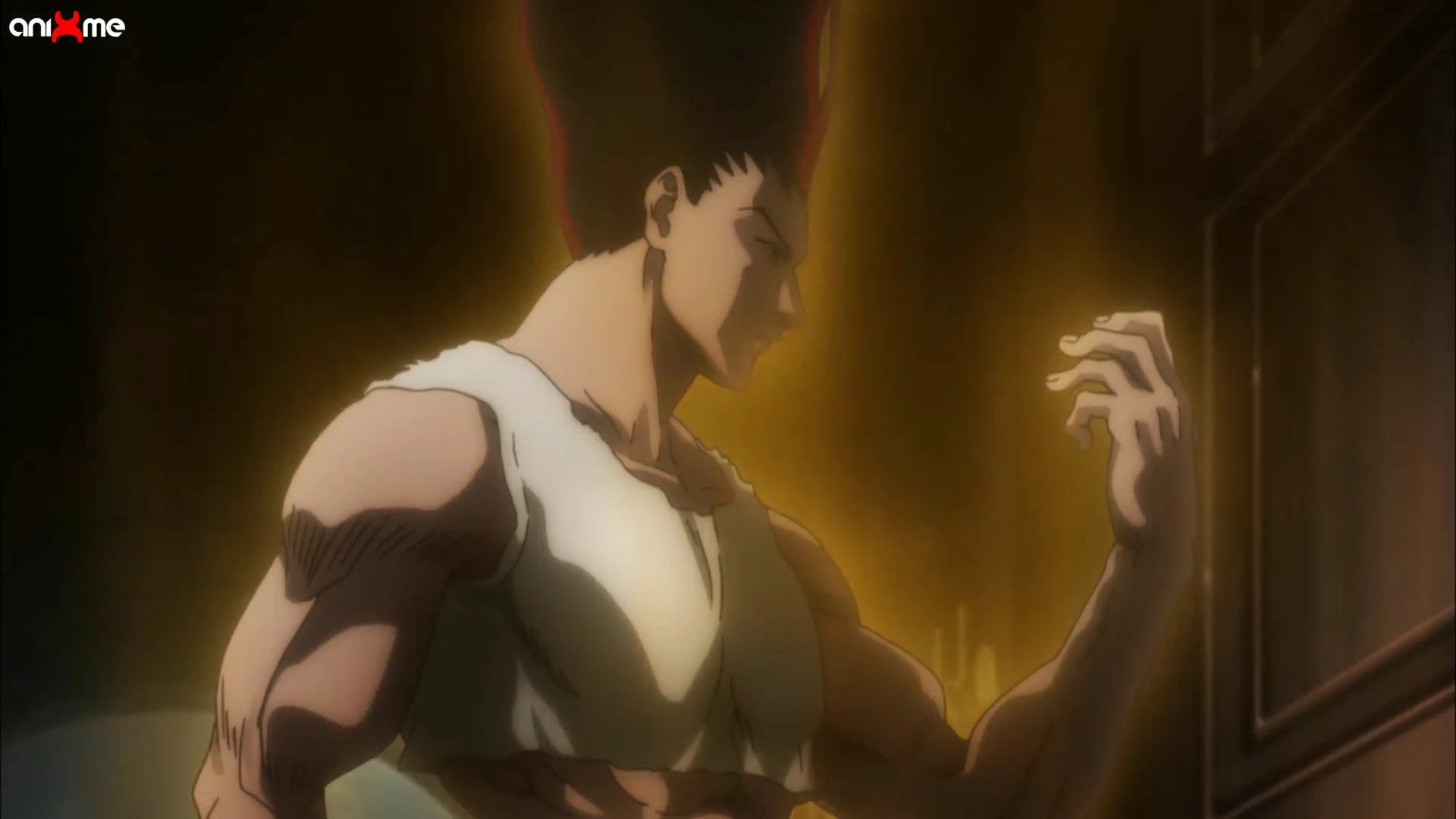
This is the same Fractal Noise + Glow technique that I have shown you before with some directional blur added. You just need a copy of the background with a mask to use for the effects you want behind the character. Do some experimenting with various setups. Here are 3 showing all the modifications for the effects.

Samilat04
Samilat04Author
Known Participant
June 8, 2020

Thank you Rick !

What about the first ?

Samilat04
Samilat04Author
Known Participant
June 8, 2020

There are dozens of ways to generate different colors and shapes. Create a shape layer, fill it with a multi-colored gradient, apply fractal noise, experiment with the blend modes and the fractal, and see what you get. Add Colorama to a fractal noise layer and experiment with the different presets and see what you get. For example, this gradient filled shape layer:

can be turned into this radial pattern using Polar Coordinates.

then by adding Gaussian Blur, Radial blur set to zoom, Fractal noise with a blend mode, and glow makes this cloud background which could be animated for an ever-changing pattern like this,

But maybe I did not want the bright spot in the middle so I turned off Polar Coordinates.

There are thousands of combinations of effects that can be used to generate different kinds of glows. Then all you have to do is to add some masking, use blend modes, or use some track mattes to start building up your effect.


A completely different look can be achieved using a radial gradient, Fractal Noise and CC Light burst. 

The original image + a mask, duplicated with mask feather applied and used as a track matte and I get this:

I have shown you everything I did to the layers. 


Thank you very much !

You really taught me things that i don't know.