gasparg94033917
Inspiring
July 21, 2017
Answered

Problems with tracking

  • July 21, 2017
  • 4 replies
  • 2650 views

Hello, I've already asked a question about that but I didn't explained very well the problem that i was facing so i'll try again.

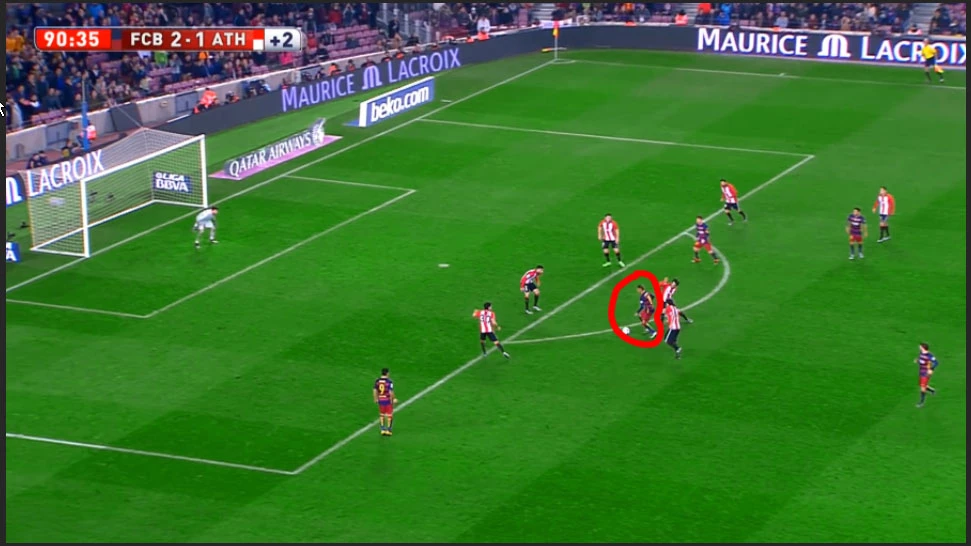
I have a footage of players running on a pitch :

My goal was to cover/remove all the guys running exept the guy in the red circle.

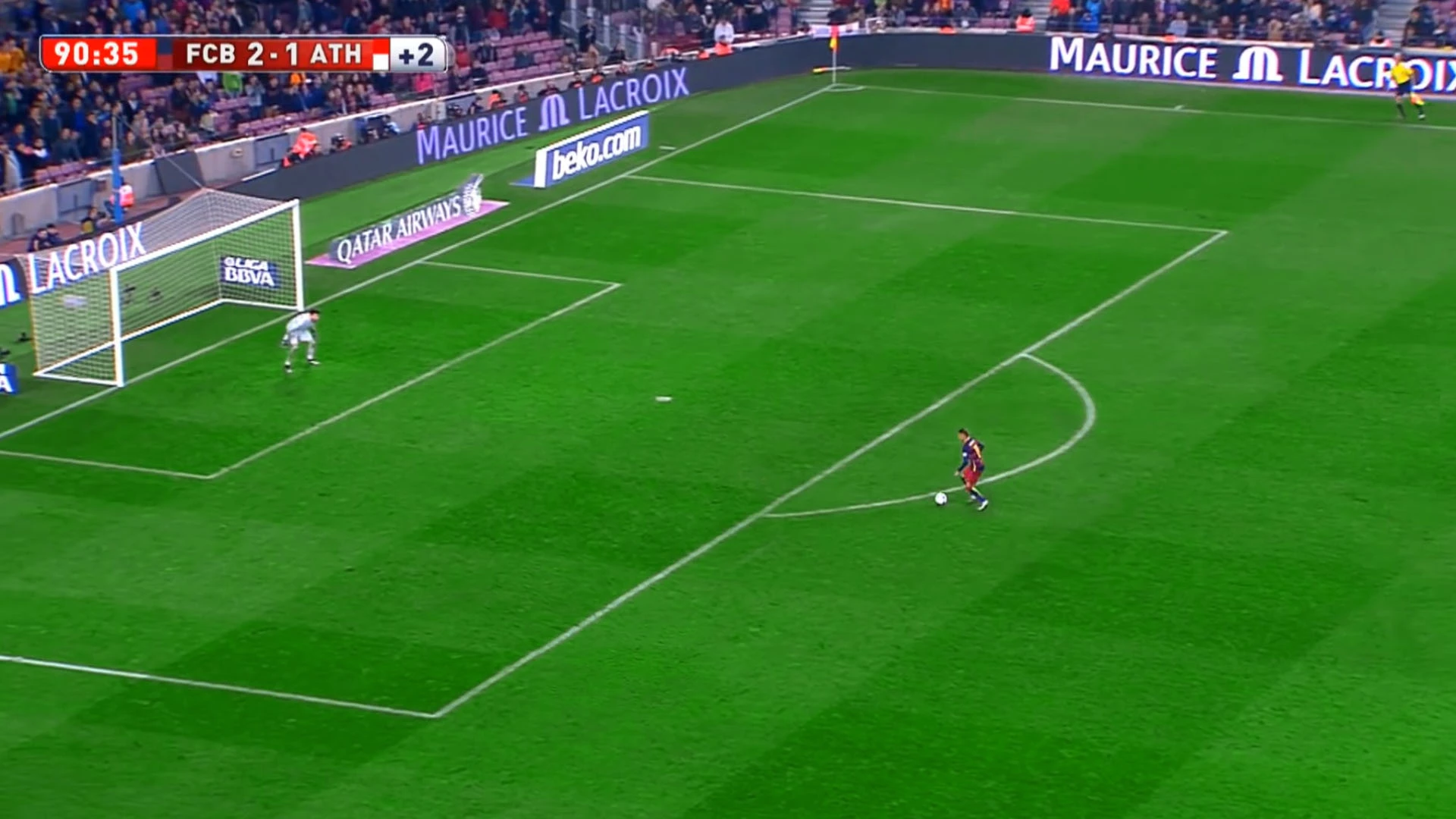
I finished covering the guys on the first frame :

but my problem is that i tried to track the motion of this footage to apply it to the pieces that covers the players but i can't get the tracking right, i tried with moca and with the after effect tracker but it doesn't work because the camera moves in a weird way.

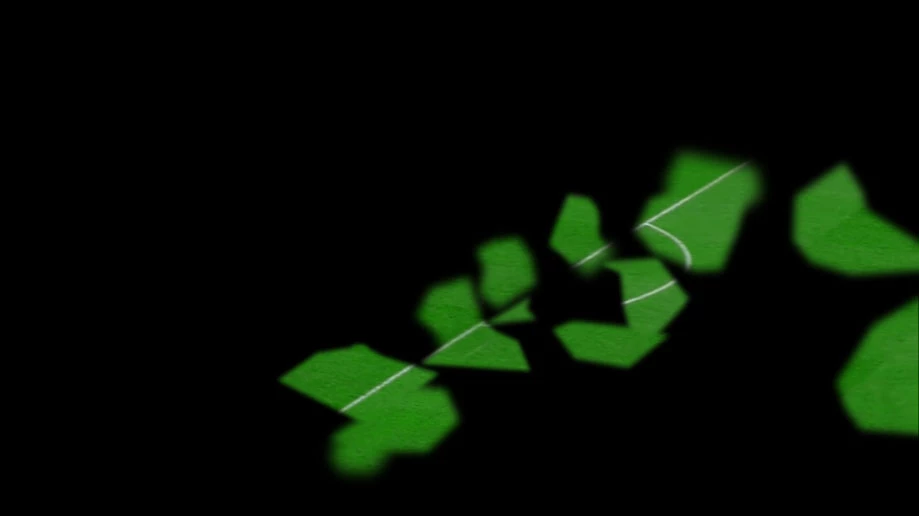
these are the pieces :

and this is the footage itself :

https://www.youtube.com/watch?v=4NMIWvlgL7E

So if anyone could explain to me how to track this footage of 3 seconds it would very nice of you

thanks for your time

This topic has been closed for replies.
Correct answer Roei Tzoref

this is no easy stuff

to do this properly, I agree with Jose, Mocha would be the most efficient tracking tool probably. but there's more to it than that.

the workflow is this:

you stabilize the footage, place a clean plate, mask out the live parts, reintroduce the motion, then duplicate the original video and roto the guy on top of it.

Stabilize:

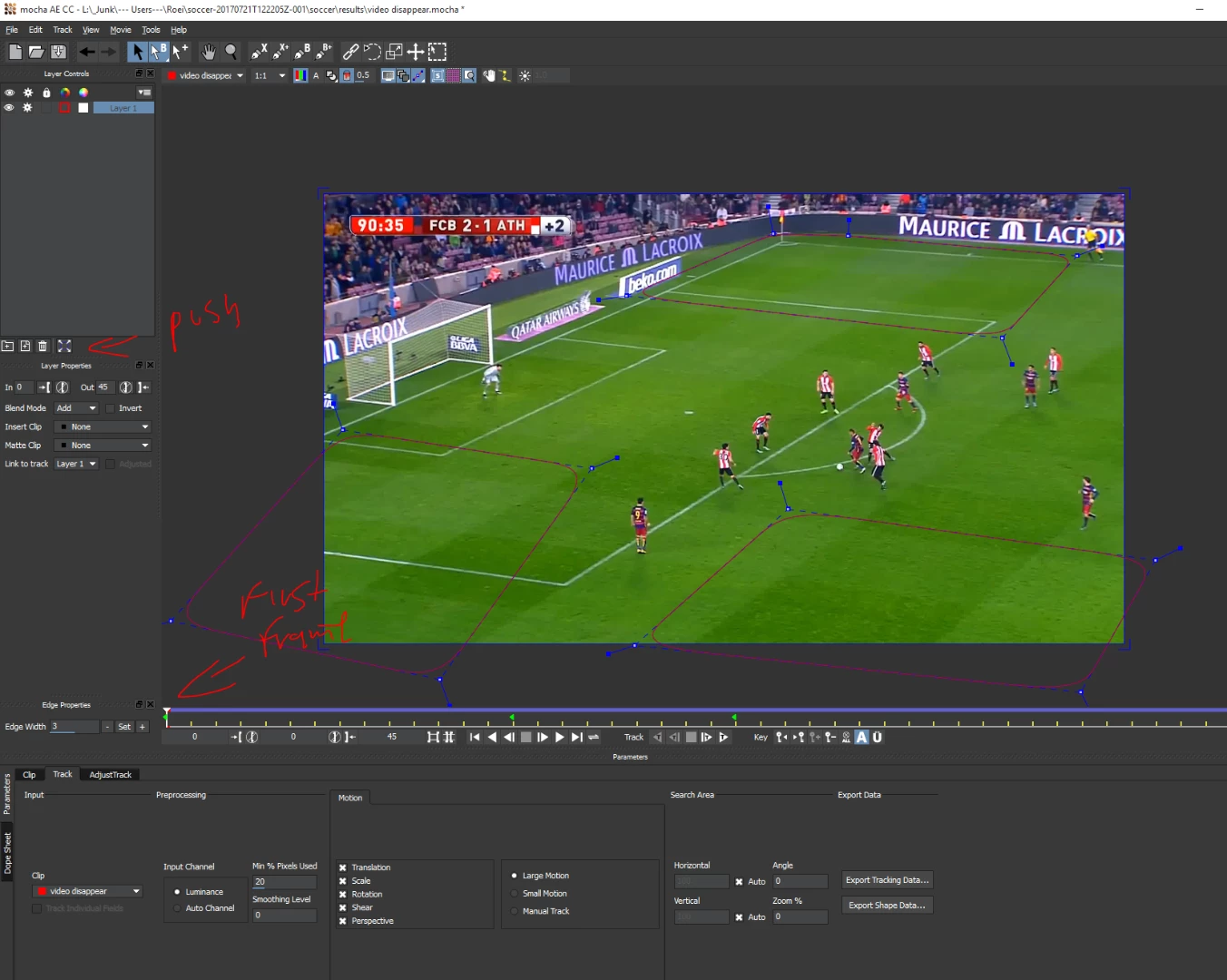
in Mocha you create multiple planes on the same track that are clean with no movement of players on top of them
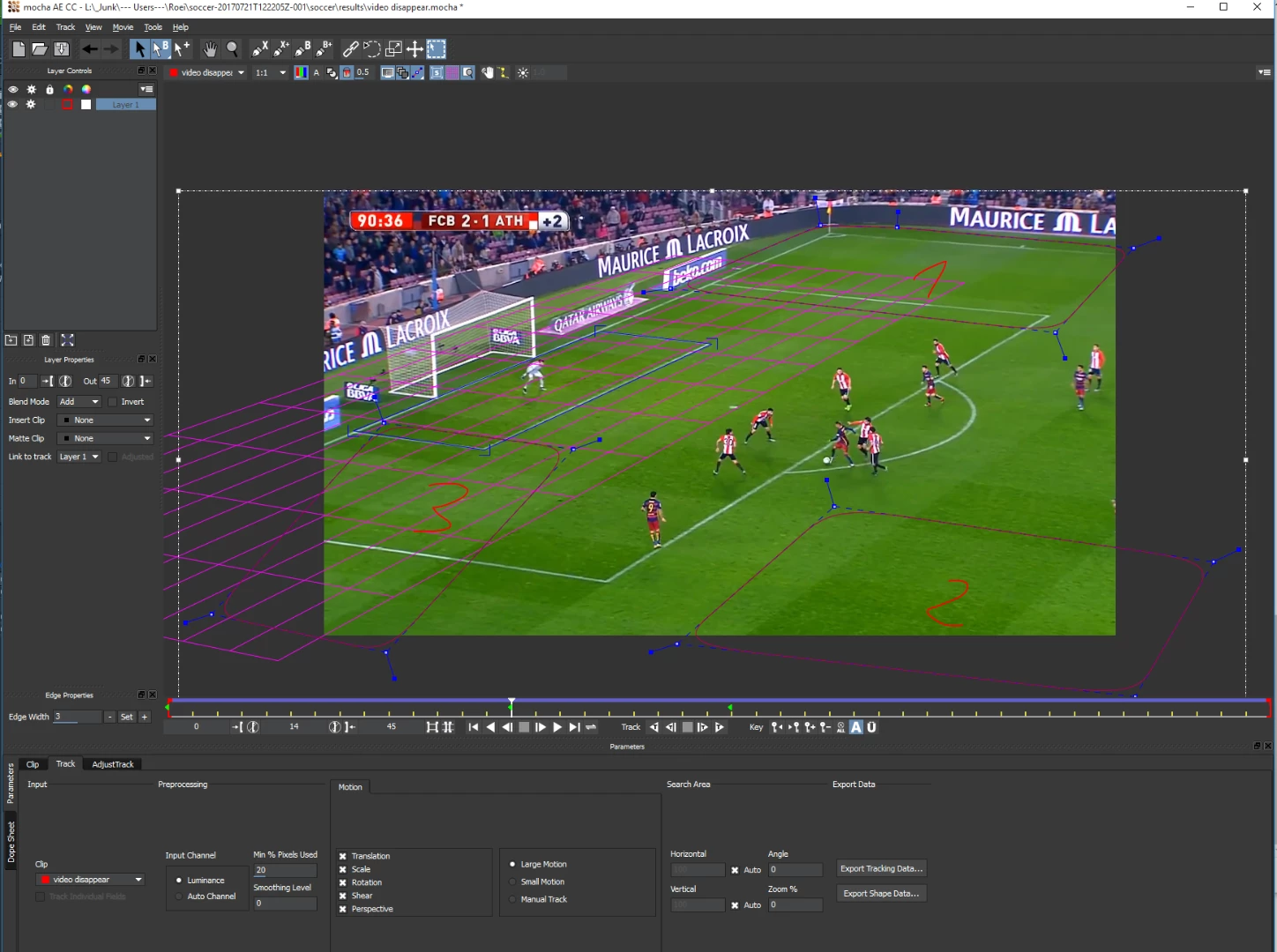
set the planar surface on a proper perspective so you can watch the planar grid and see you are locked on the track.

now for the export:

first, go to the first frame and push planar surface to corners
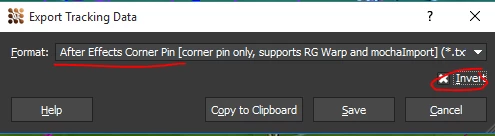
when exporting, check the invert checkbox to get a stabilized shot. use the corner pin only setup
in Ae, go to the first frame and paste.
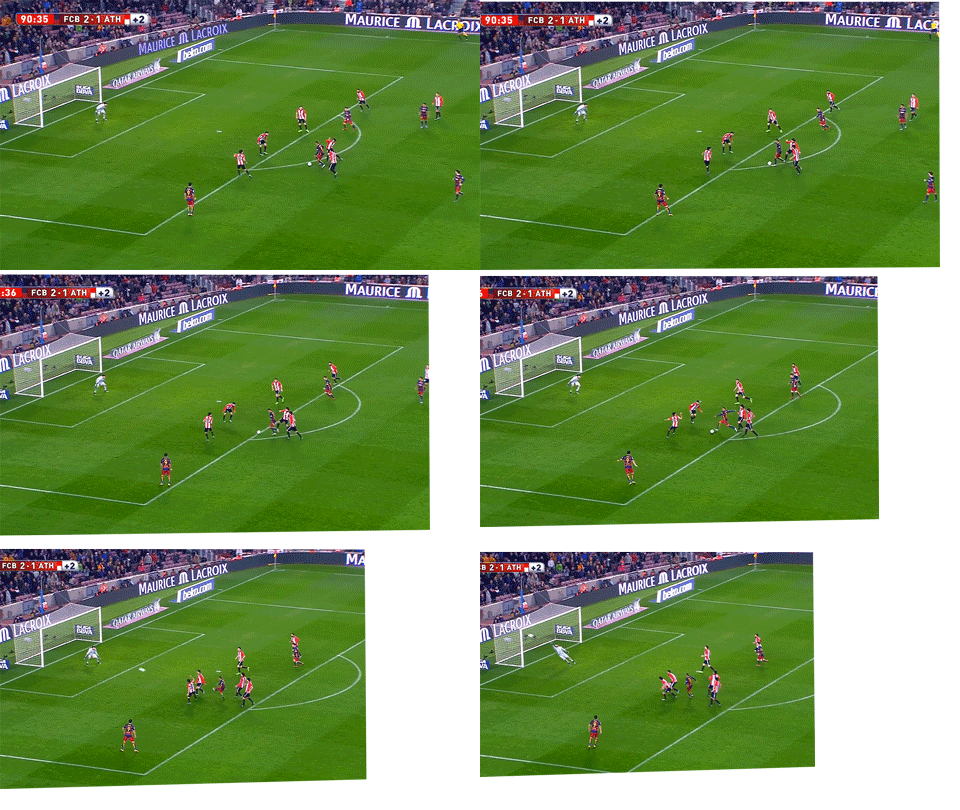
stabilize is done!

Creating a Clean Plate:

now for the clean plate. you export the first frame to photoshop and clean it up using the stamp tool
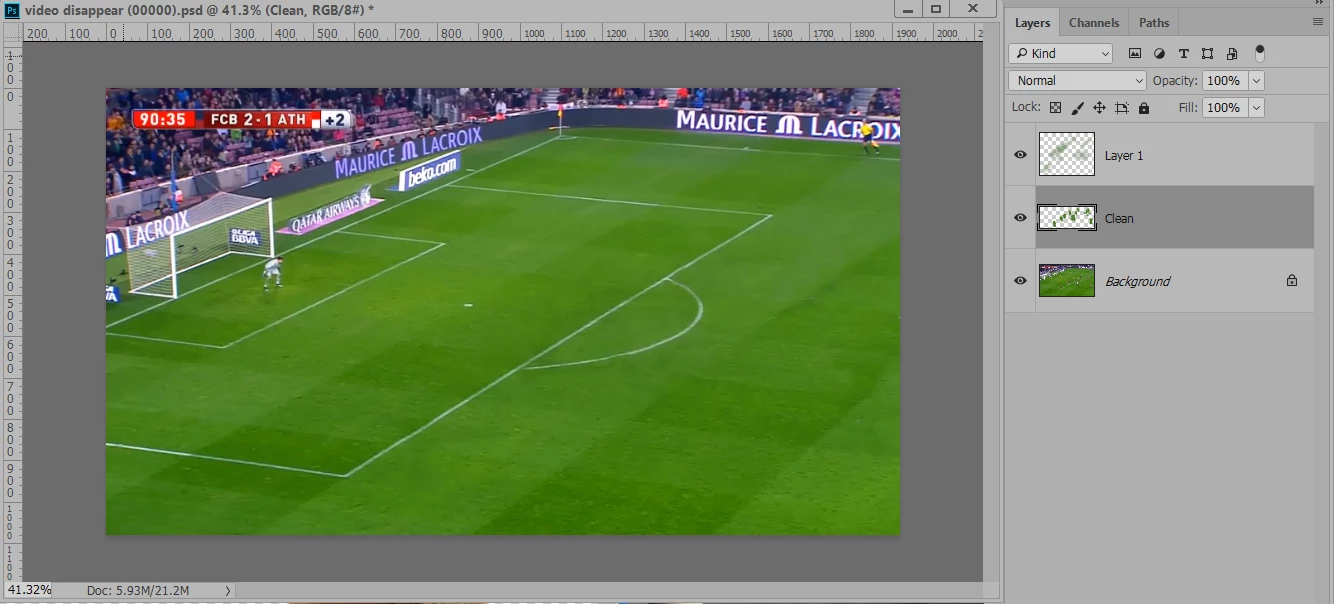
you don't bother with the goalkeeper or the assistant referee because you are going to mask them in Ae.

when you are done bring it back to Ae and place it on top of the stabilized shot. you mask out the live parts
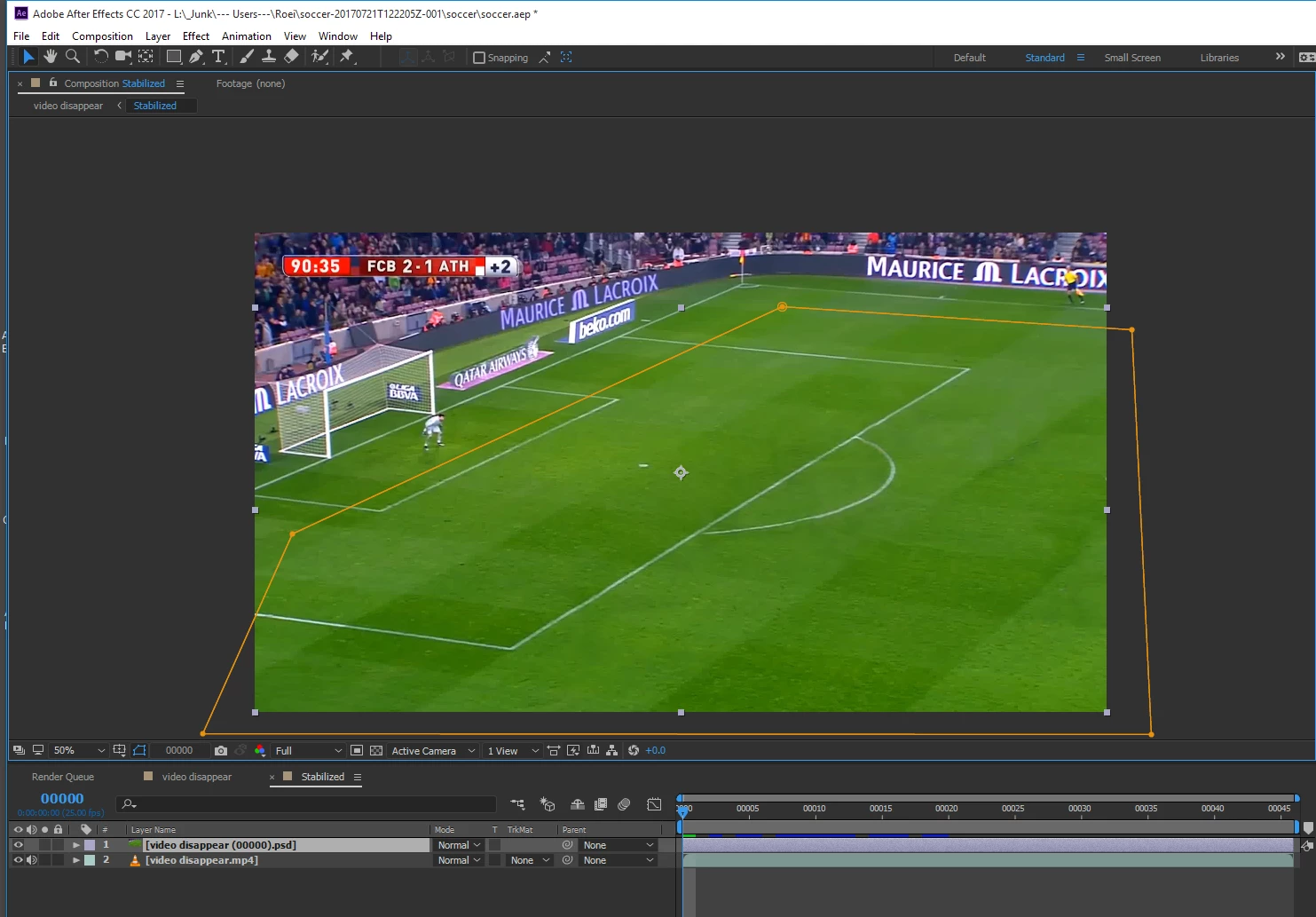
Reintroduce the motion:

you close this in a precomp and call it stabilized. you copy again from mocha and paste but this time no invert.
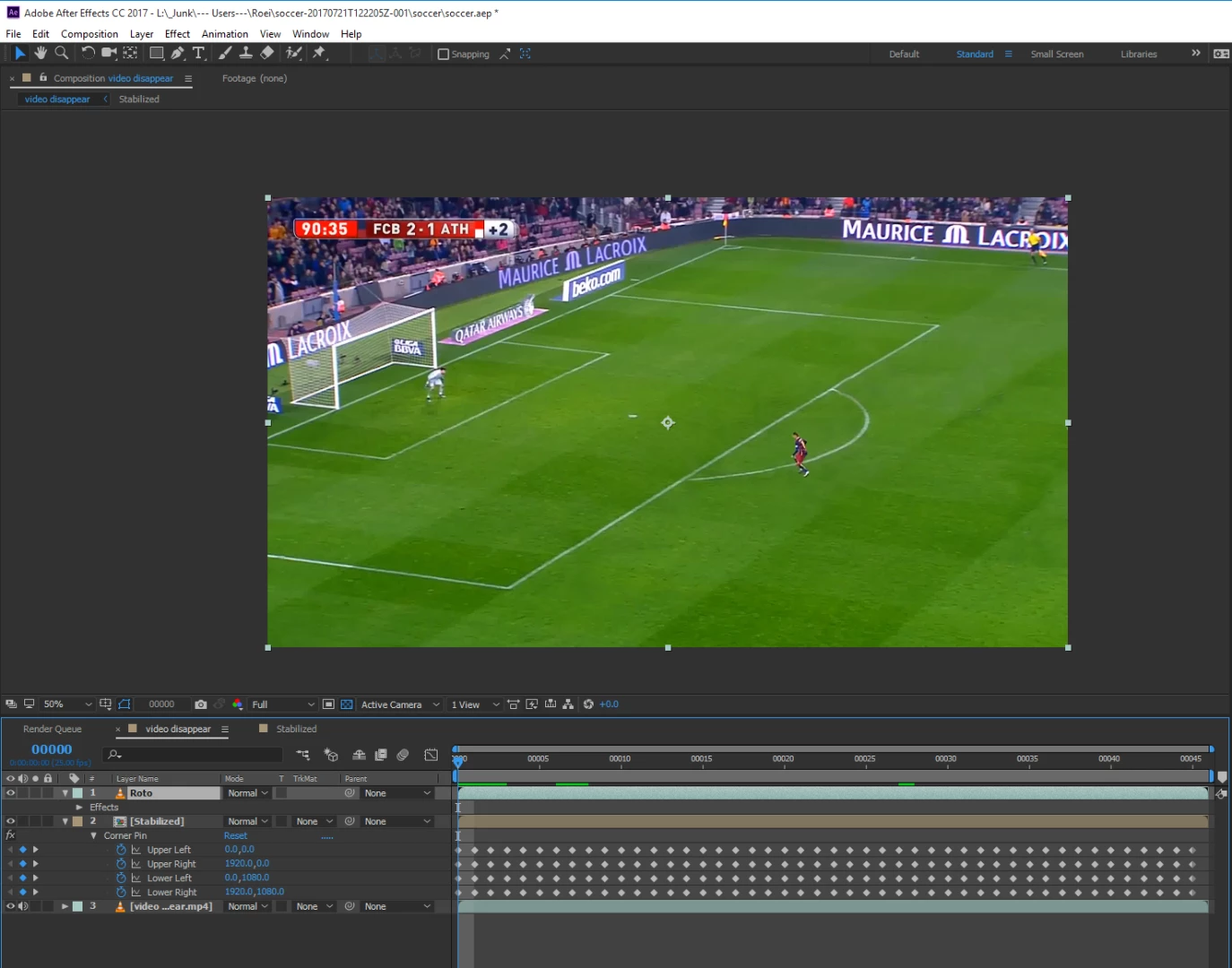
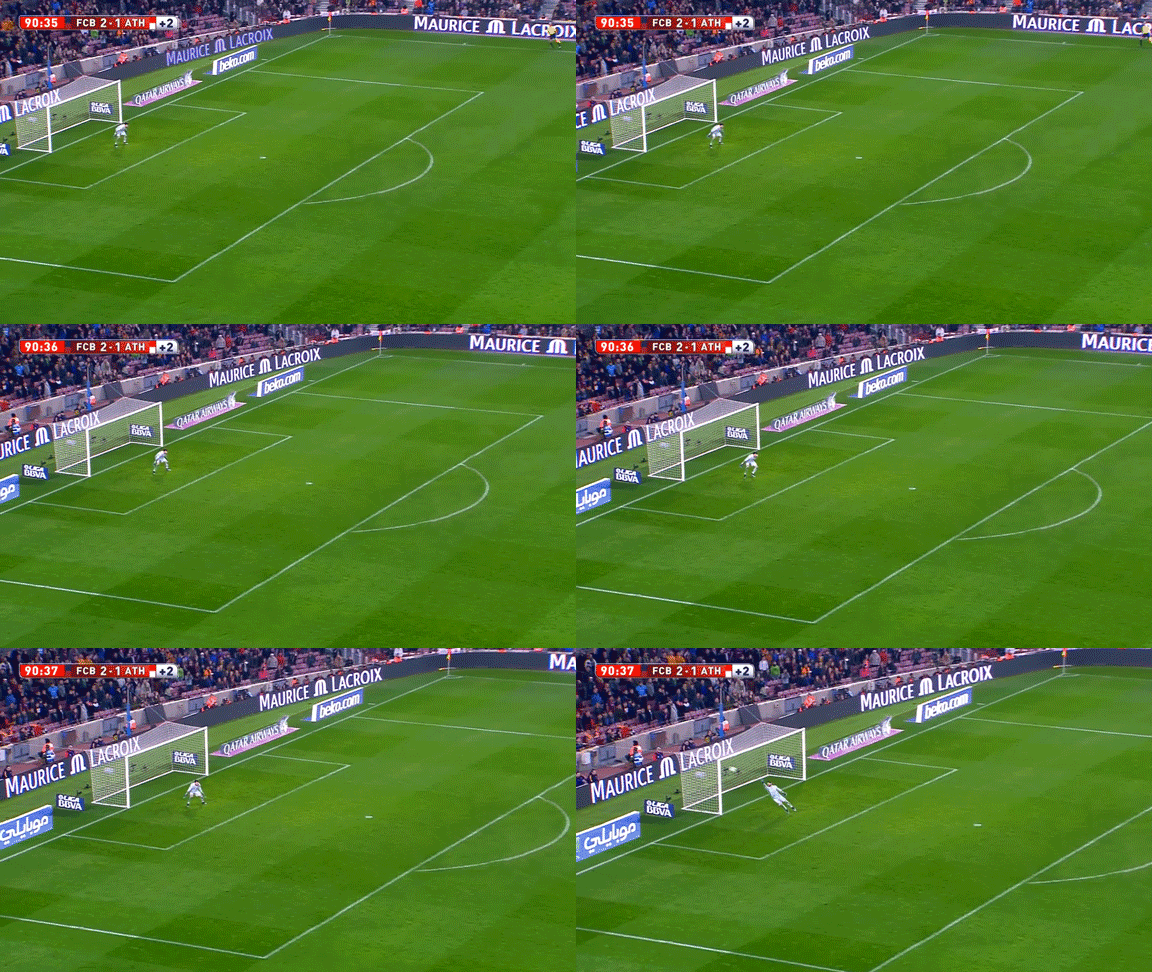
Rotoscoping:

now for the fun part - ROTOSCOPING! I would maybe use rotobrush. you got some wiggle room because the background is almost the same. manual masking can work good too or a mess - need some trial an error to see what's most efficient for the user and the purpose.
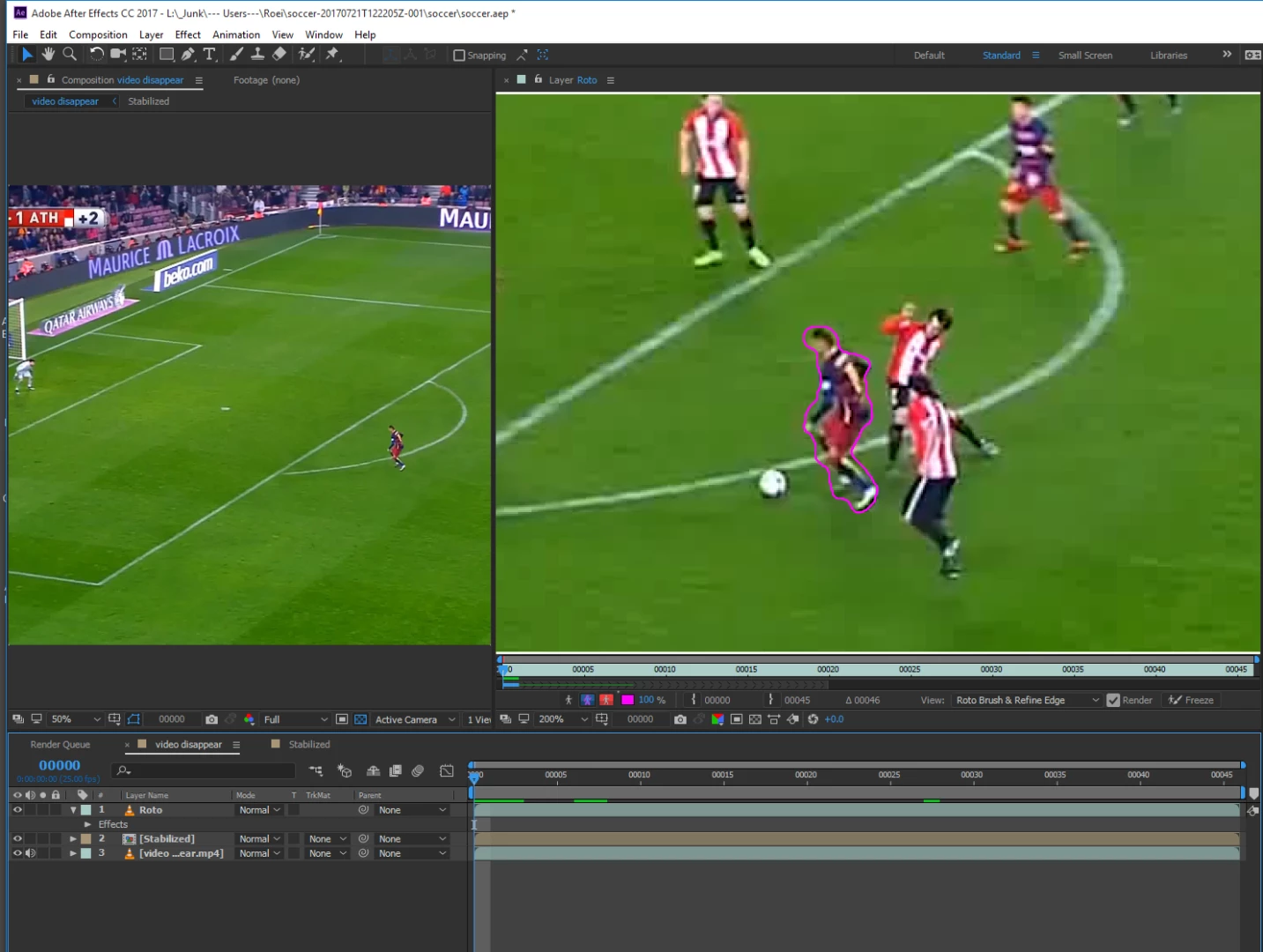
for the ball, I would mask manually using a circle mask. maybe frame by frame since it's probably very fast and changing.

and you're DONE!

4 replies

Roei Tzoref
Roei TzorefCorrect answer
Legend
July 21, 2017

this is no easy stuff

to do this properly, I agree with Jose, Mocha would be the most efficient tracking tool probably. but there's more to it than that.

the workflow is this:

you stabilize the footage, place a clean plate, mask out the live parts, reintroduce the motion, then duplicate the original video and roto the guy on top of it.

Stabilize:

in Mocha you create multiple planes on the same track that are clean with no movement of players on top of them

set the planar surface on a proper perspective so you can watch the planar grid and see you are locked on the track.

now for the export:

first, go to the first frame and push planar surface to corners

when exporting, check the invert checkbox to get a stabilized shot. use the corner pin only setup

in Ae, go to the first frame and paste.

stabilize is done!

Creating a Clean Plate:

now for the clean plate. you export the first frame to photoshop and clean it up using the stamp tool

you don't bother with the goalkeeper or the assistant referee because you are going to mask them in Ae.

when you are done bring it back to Ae and place it on top of the stabilized shot. you mask out the live parts

Reintroduce the motion:

you close this in a precomp and call it stabilized. you copy again from mocha and paste but this time no invert.

Rotoscoping:

now for the fun part - ROTOSCOPING! I would maybe use rotobrush. you got some wiggle room because the background is almost the same. manual masking can work good too or a mess - need some trial an error to see what's most efficient for the user and the purpose.

for the ball, I would mask manually using a circle mask. maybe frame by frame since it's probably very fast and changing.

and you're DONE!

gasparg94033917
Inspiring
July 21, 2017

that was really helpfull thank you a lot

Roei Tzoref
Legend
July 21, 2017

you're welcome, this is good practice

Good Luck!

Participant
July 21, 2017

You might do better tracking it manually.

Make a still of the pitch with no one on it (Photoshop would be easiest) and drop it in your comp, below the moving footage.

Make a shape layer above your footage, then create an ellipse covering the player you want to keep.

Manually keyframe the position of the ellipse, every half a second or so, ensuring it always covers your player.

Set the track matte of your footage to the alpha of the shape layer above. This will mean your footage only shows where the ellipse is, with the rest of each frame being the still shot of the empty pitch below. You may want to feather the edges of your ellipse, to smooth the effect.

However you do this, though, you're going to have to mask frame by frame, when your guy passes in front of another player.

I'd be very careful where you place the final result though, unless you have bought the rights to this footage. Broadcasters pay a fortune for the right to show sports and are very protective of any breach of copyright.

Jose Panadero
Community Expert
Community Expert
July 21, 2017

You can select another area with the same perspective (coplanar surface) that has less motion and use the planar surface (the "S" icon in Mocha) to get the desired results. For Example, try it in another area where are no soccer players

Jose Panadero
Community Expert
Community Expert
July 21, 2017

What you need is to track the planar surface and the best option for this is to send the footage to Mocha AE (include with your AE Installation). Select the Footage and go to Animation > Track with Mocha.

Go to Imaginner Systems web where you can find how to use Mocha AE. There are a lot of videos covering the basics of Mocha AE.

gasparg94033917
Inspiring
July 21, 2017

I tried in mocha ae to track it by making a rectangular shape over the small rectangle arround the goalkepper but the tracking works on the 10 first frame then it totally goes crazy