
Participant
November 30, 2017
Answered

Racing line map

  • November 30, 2017
  • 2 replies
  • 622 views

Hello community,

At the moment i'm trying to make a object in After effects follow a certain pattern/path, in order to make a smooth motion that corresponds to realistic speed intervals.

As seen on the picture, i have a background image, with the racing line in green/yellow/red, whether you should speed, brake or do nothing. However, i've attached the blue gokart to a null object, which i have tried my best to replicate the race lines path and by time. When i do it this way, it seem to me as it becomes quite laggy, so i was wondering if anyone could help me out on how to this in a easier and smoother way? I was wondering if you could make a timeless path, and make a object follow that path, with a variable speed that i can set/map out on the timeline? Or any other ideas? 
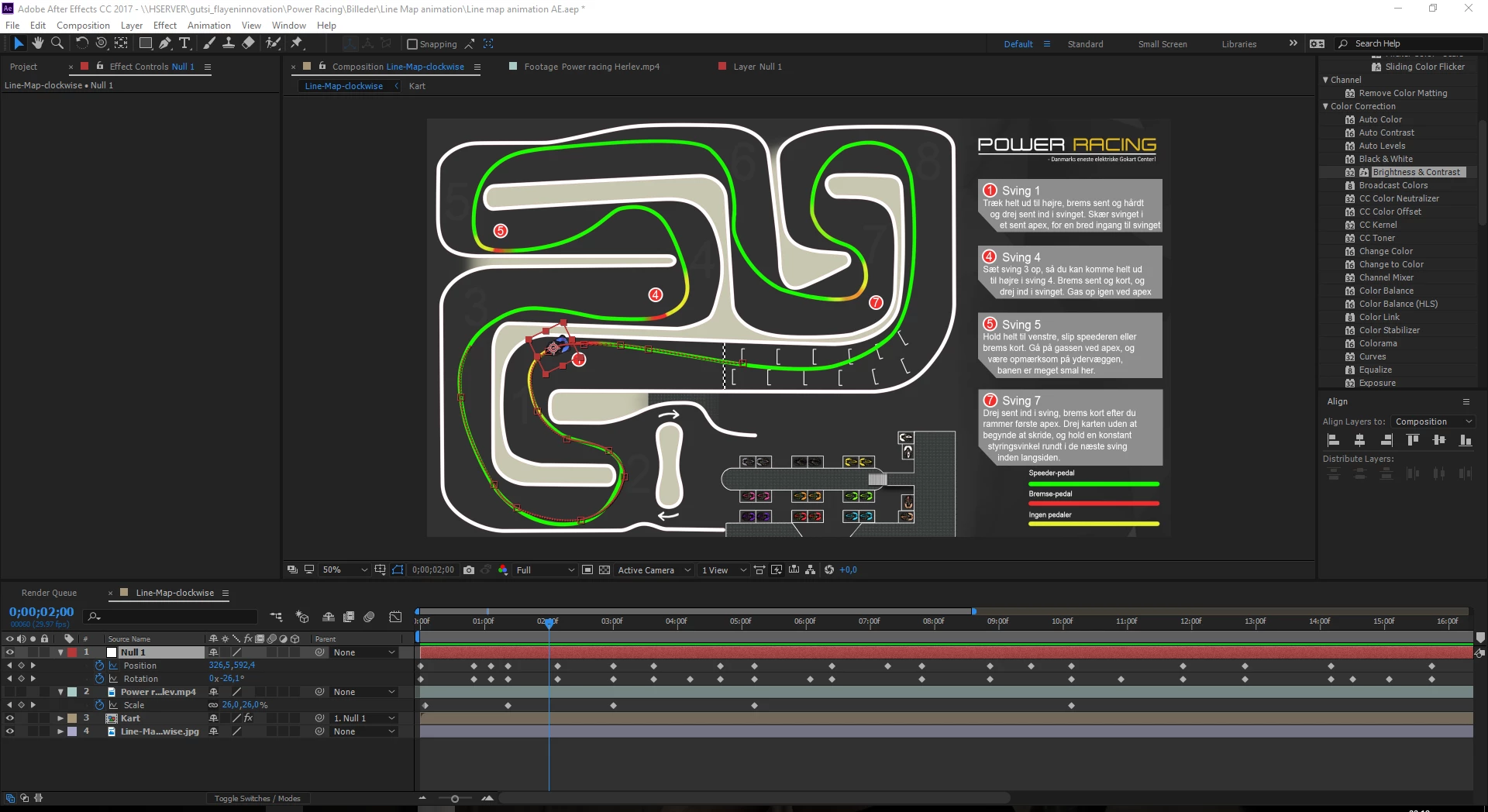
In addition to this overview, beneath is a picture of the null object (which controls the gokart's position and orientation) which is mapped on the graph with the x and y-position of the object. Is there perhaps a way to use the graph to make smoother keyframes that make the gokart go around the track more smooth, yet still realistic as it should slow down the right amount when braking and speed in a increasing manner?

I use a video of one driving the course to match to the location on the track: Power racing Herlev - YouTube )
This topic has been closed for replies.
Correct answer P.M.B

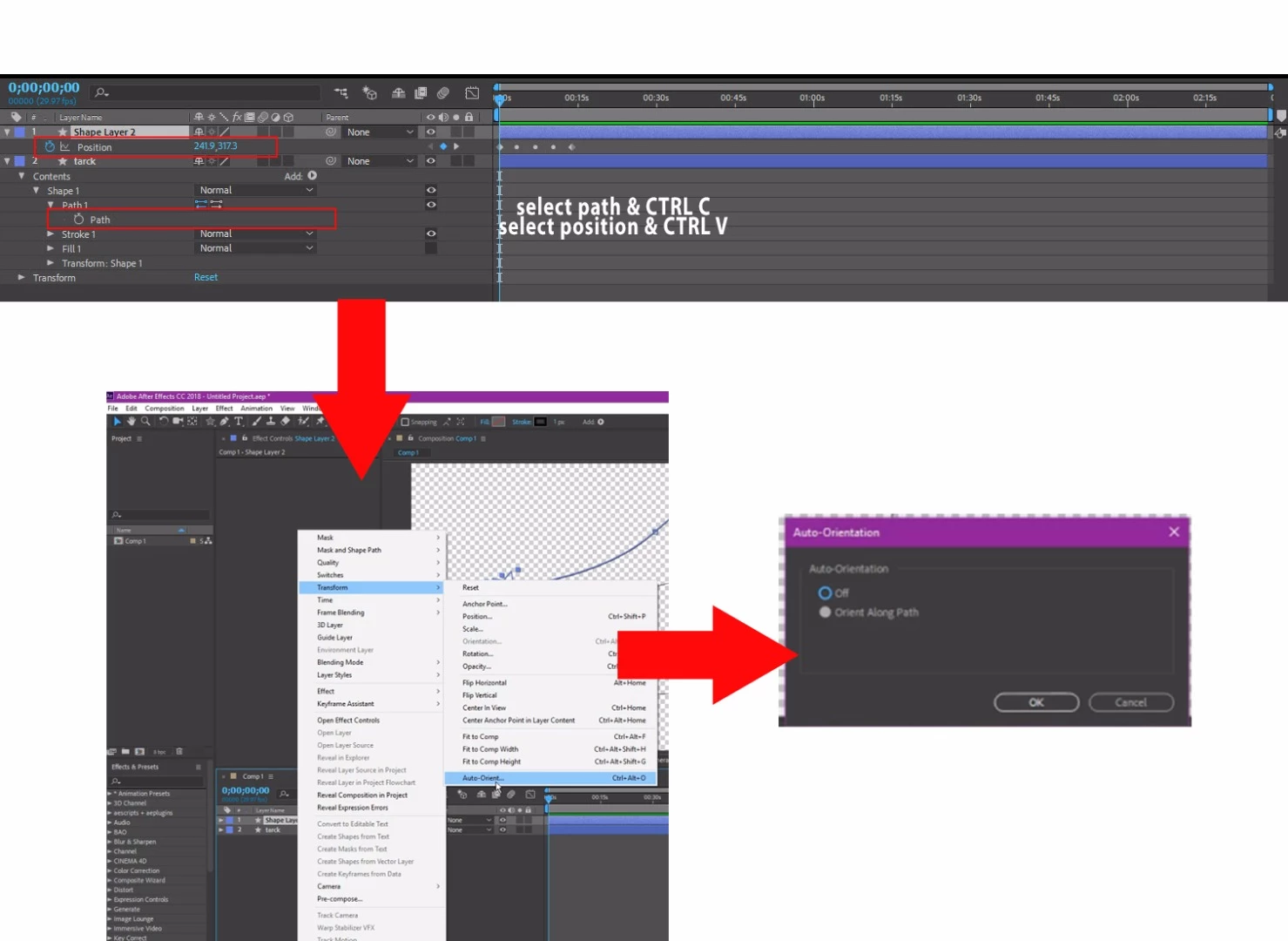
AE has tools to orient objects to paths.

To get Kart to follow path:

Selct the path CTRL C

Select the Kart Position CTRL V

To get Kart to orient to path:

Right click Kart  Transform>Auto_Orient>along path

Then you just have to adjust for speed

2 replies

Community Expert
December 1, 2017

It looks like the green line is on a jpeg. It looks like you have manually keyframed the position of the null and added rotation keyframes. That's a lot of unnecessary work.

I would use the pen tool and a stroked path to redraw that line as a vector path, right click on the path and set the first vertex at the starting line, then set a keyframe for the shape layer path and copy or cut the keyframe from the path. You can then get rid of the shape layer or the JPEG.

Then I would select my race car and use Alt/Option + p to set a position keyframe and then paste. This will make the car follow the path. You can then set Auto orientation (Alt/Optiion + Ctrl/Cmnd + o) to "Orient Along Path." You now have a constant speed race car heading around the track with a rove over time keyframe at each vertex. If the car is going the wrong way you select the position property to select all keyframes, right click on the keyframes and select Keyframe Assistant>Time Reverse Keyframes. You can grab the last keyframe and adjust it to the total time then select any of the rove over time keyframes and drag them back and forth in the timeline to adjust the speed to match the video of the cart. It should only take a few minutes to get it set up right. There will be a lot less keyframing and it should be very easy to get the timing right using the Graph Editor and editing the speed graph. You'll never get it right trying to use the value graphs. The fewer rove over time keyframes you move the smoother the action. Use the handles to make the acceleration and deceleration curves look right. The top layer is the car:

If your path is perfect you can just select all of the keyframes between the first and last keyframe, right click and set them to Rove Over Time, then use the speed graph editor technique to adjust the timing.

P.M.B
P.M.BCorrect answer
Legend
December 1, 2017

AE has tools to orient objects to paths.

To get Kart to follow path:

Selct the path CTRL C

Select the Kart Position CTRL V

To get Kart to orient to path:

Right click Kart  Transform>Auto_Orient>along path

Then you just have to adjust for speed

~Gutterfish