Participating Frequently
May 3, 2021
Answered

Removing ripples from water

  • May 3, 2021
  • 2 replies
  • 1164 views

Hello,
I am basically a beginner in After Effects, 
I had a scene where I had to reverse the shot in order for the pull focus to work. But in this shot there are ripples in the water. Hence aking it not work.
Is this something a beginner can do on after effects ?
Ive attached a sample of the shot.

Thank you !!

This topic has been closed for replies.
Correct answer Rick Gerard

Because there is no other movement on the water you could motion track the footage, grab a freeze-frame from a copy of the footage, then just replace the water. The tools I would use are Mocha AE, Time Remapping Freeze Frame, and masking. a


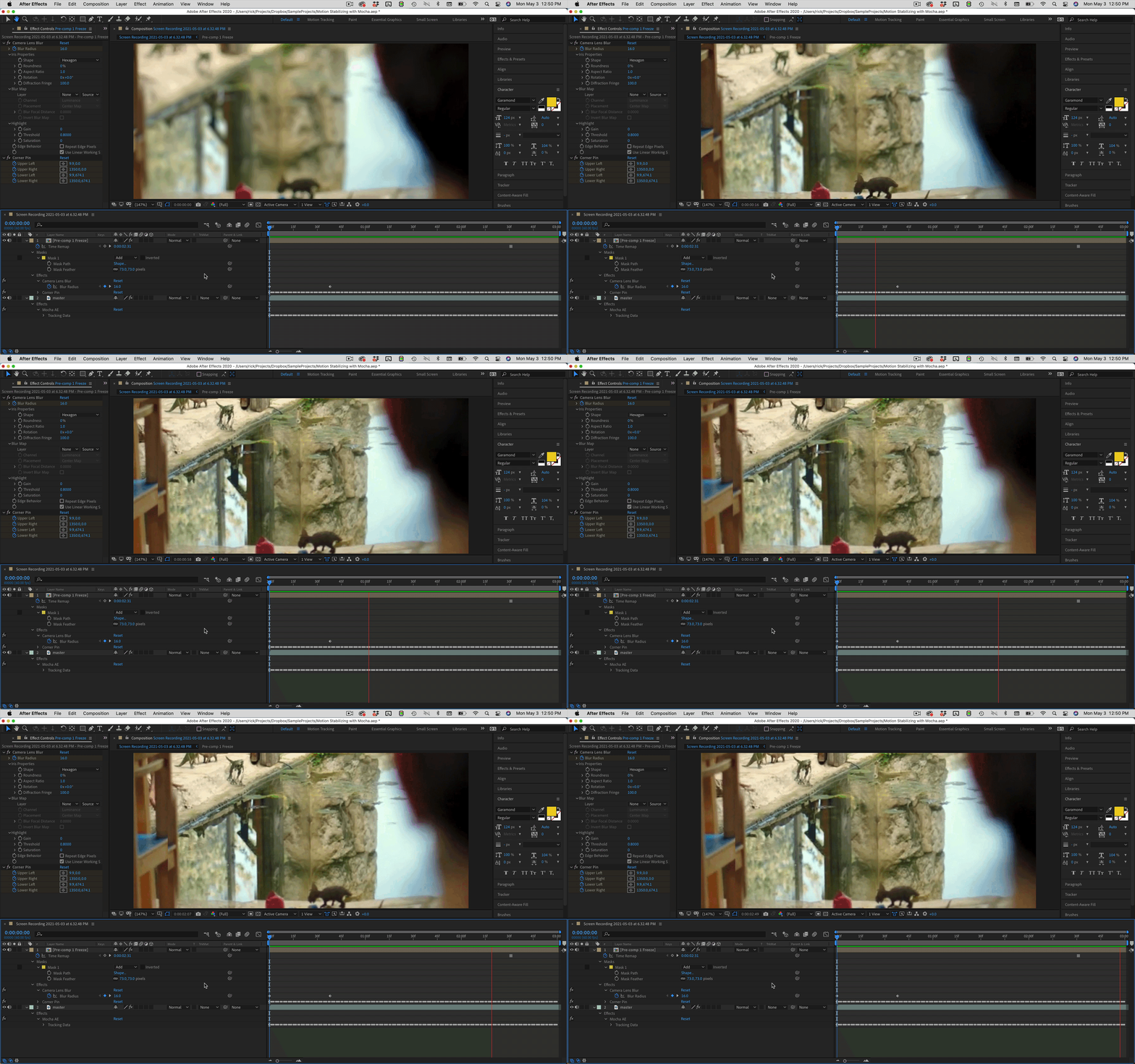
I downloaded your video, created a comp. Tracked most of the image using Mocha AE, expanded the surface to fill the frame on the first frame of the video, then returned to AE and gathered the tracking data. I added a null above the footage layer and used expressions I have saved as an animation preset to tie the tracking position to the null's anchor point, the tracking rotation and scale to the nulls scale, and then parented the footage to the null. This stops the camera movement and gives me a frozen frame. I then duplicated the Null and the footage, pre-composed the duplicate, then added a freeze frame when the water smoothed out. I then drew a mask on the water and feathered it. I added Camera Lens blur to the pre-comp to match the rack focus.


The last step is to remove the parenting from the bottom copy of the footage which puts the motion back in the frame and applied the corner pin data from Mocha to the pre-comp. Here's the project file


This is the result:

Here are the expressions:

// Anchor Point
thisComp.layer(index + 1).effect("Mocha AE")("Center")

// Scale
x = thisComp.layer(index + 1).effect("Mocha AE")("Scale X");
y = thisComp.layer(index + 1).effect("Mocha AE")("Scale Y");
value - [100 - x, 100 - y]

// Rotation
- thisComp.layer(index + 1).effect("Mocha AE")("Rotation")



2 replies

Rick GerardCommunity ExpertCorrect answer
Community Expert
May 3, 2021

Because there is no other movement on the water you could motion track the footage, grab a freeze-frame from a copy of the footage, then just replace the water. The tools I would use are Mocha AE, Time Remapping Freeze Frame, and masking. a


I downloaded your video, created a comp. Tracked most of the image using Mocha AE, expanded the surface to fill the frame on the first frame of the video, then returned to AE and gathered the tracking data. I added a null above the footage layer and used expressions I have saved as an animation preset to tie the tracking position to the null's anchor point, the tracking rotation and scale to the nulls scale, and then parented the footage to the null. This stops the camera movement and gives me a frozen frame. I then duplicated the Null and the footage, pre-composed the duplicate, then added a freeze frame when the water smoothed out. I then drew a mask on the water and feathered it. I added Camera Lens blur to the pre-comp to match the rack focus.


The last step is to remove the parenting from the bottom copy of the footage which puts the motion back in the frame and applied the corner pin data from Mocha to the pre-comp. Here's the project file


This is the result:

Here are the expressions:

// Anchor Point
thisComp.layer(index + 1).effect("Mocha AE")("Center")

// Scale
x = thisComp.layer(index + 1).effect("Mocha AE")("Scale X");
y = thisComp.layer(index + 1).effect("Mocha AE")("Scale Y");
value - [100 - x, 100 - y]

// Rotation
- thisComp.layer(index + 1).effect("Mocha AE")("Rotation")


Mylenium
Legend
May 3, 2021

that#s typical stuff where you either simply replace the entire area with something else or meticulously have to mask it out, then time-reverse and patch it up on its own. There's more or less onlw those two extremes. In your case going with option one might be simplest. Export a few frames, then patch things together in Photoshop to have a perfectly smooth surface and then replace/ insert it into your shot.


Mylenium