markl49538825
Participating Frequently
February 26, 2018
Answered

Tracking with Mocha for screen replacement.

  • February 26, 2018
  • 5 replies
  • 4711 views

Hi,

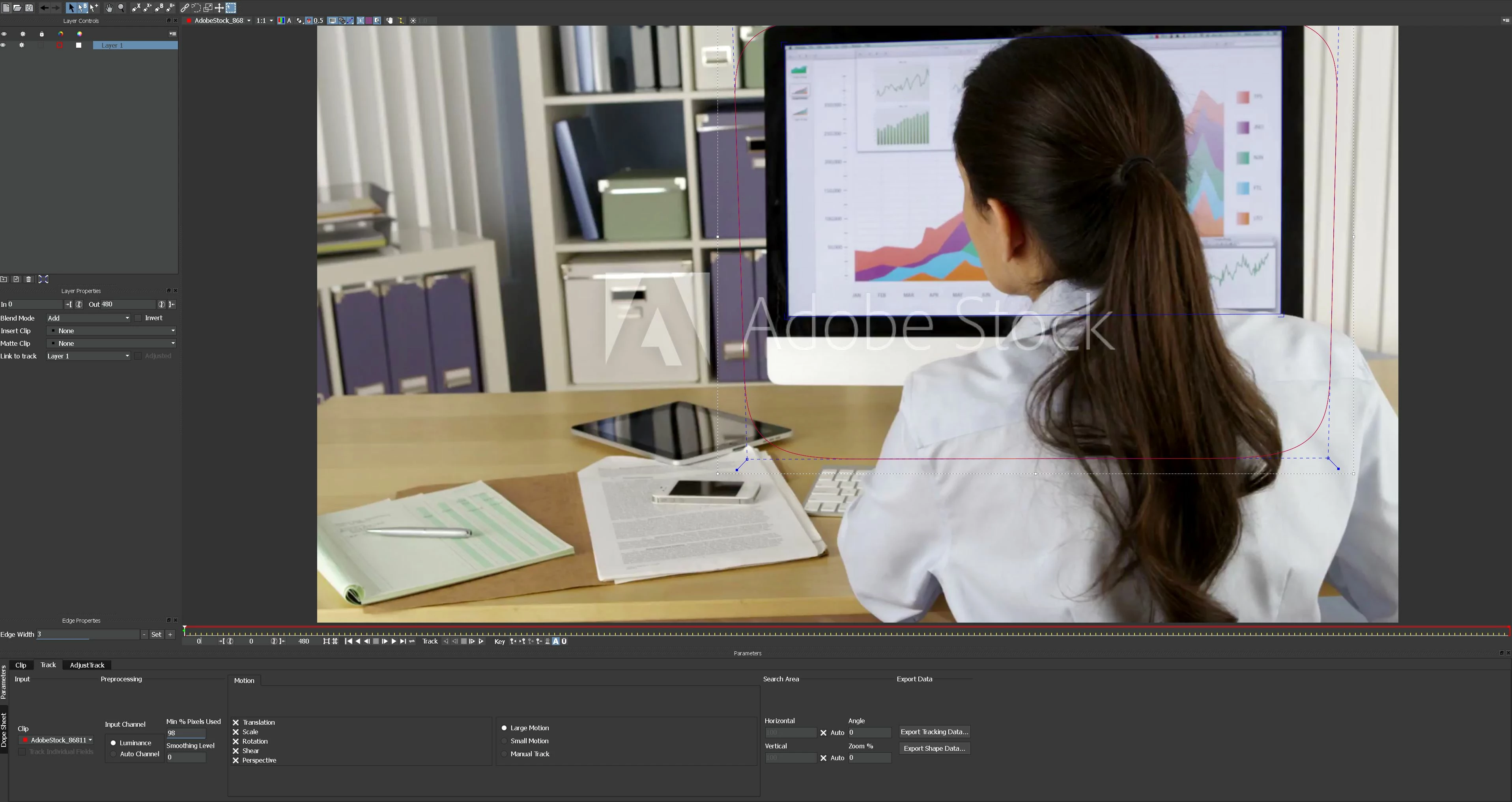
I'm trying to track below with Mocha. I've seen tutorials and nothing seems to be as smooth as Iv'e seen on you tube.

I'm curious on what certain lines are.  I know the x-spline (Red) and "show planer" (Blue) and try to understand what they do. I'm trying to replace the screen with an image. What would be the best way to track this in mocha?

Please help! I have to turn this in tomorrow with out hours of constant correction.

This topic has been closed for replies.
Correct answer Rick Gerard

Also what about the adjust track? Ive tried to correct the drift, but there I end up using multiple reffs. Should use just one reff or keep adding new reffs?


Take a look at this tutorial. It quickly shows you how to use a track matte in Mocha. This is the technique you should be using for this shot. I should emphasize that each shot presents different problems and each problem may require a different technique.

I tried your shot and got a good result with the following setup. Added a spline around the entire screen keeping it close to the edges of the computer. Added a second spline to the screen layer inside the frame that was just smaller than the screen. Added a new layer for the girl. Manually tracked the girl using just a few keyframes because it was faster than tracking her. Set view matte, edited matte color and set the matte mode for the bottom layer (screen) to track matte. I got a decent track with only 2 keyframes. Checked it using the 16 X 16 grid.

Here's what the tracking setup looks like:
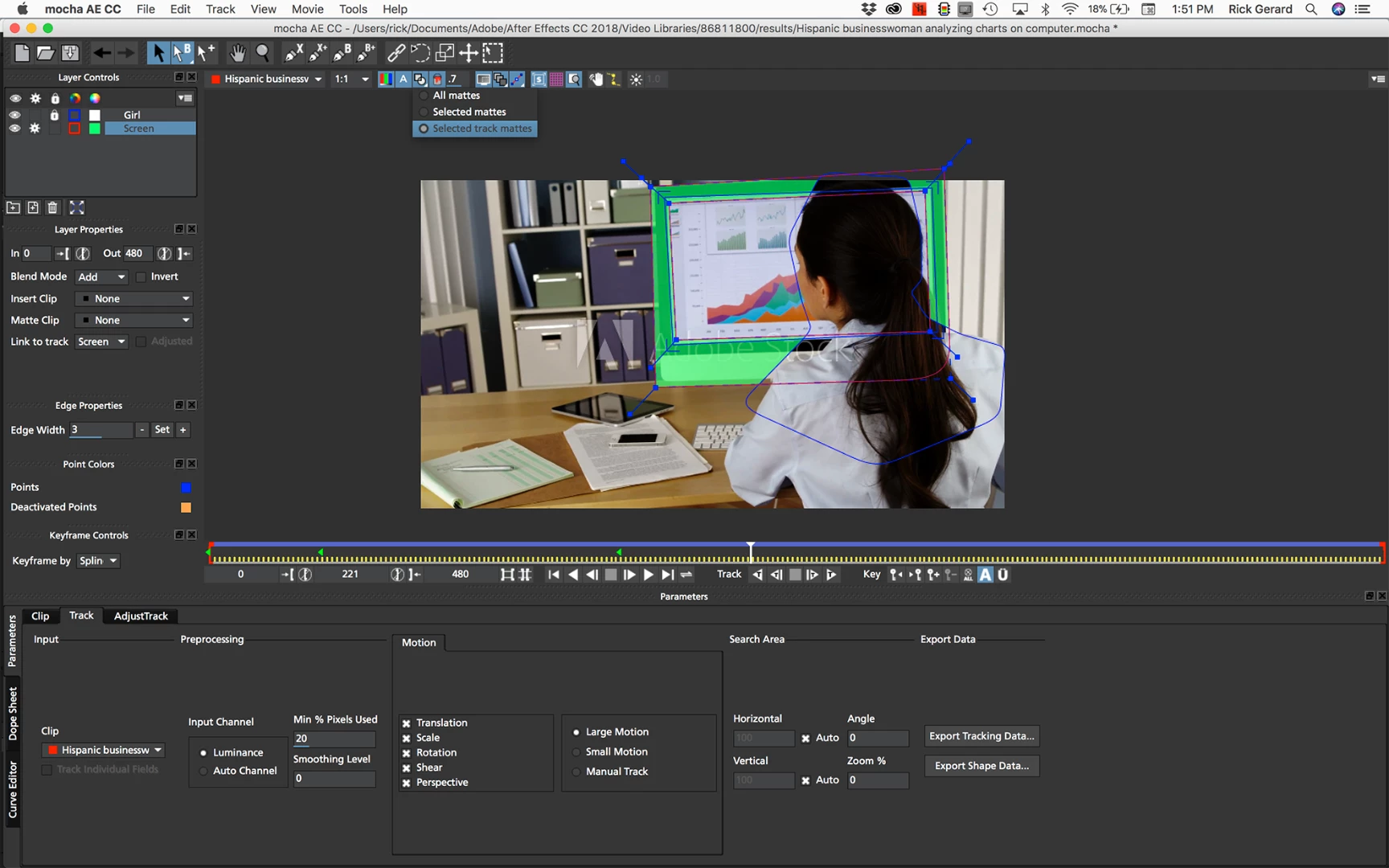
You will also need to roto the girl so you would probably be better off tracking the girl and exporting a matte for her, but that is another lesson.  You can find good tutorials on the Borris FX site that will help you create a decent matte for the girl. If you have a reasonable machine and have the technique down the Mocha work will probably take you about an hour.

5 replies

markl49538825
Participating Frequently
February 27, 2018

Hi Rick,

I have solved the problem using your technique! ! Thank you for your help, and your time. Now I can complete this project.

markl49538825
Participating Frequently
February 27, 2018

Hi Rick,

I have imitated what you have done and it seems to be slipping around here

and toward the end its really bad here

Could the mask around the girl be throwing it off?

Thanks.

markl49538825
Participating Frequently
February 26, 2018

Hi all

Thank you for your replies! I will check these out and report back. I have tracked the girl and I'm now starting to get drift towers the end on the bottom right. (I will check out the keywords looking for that type of tutorial. Just a few questions before I go forward.

So if the mask around the girl is tighter will the track be more accurate? Also when adding more planes, would I use "Add more x-splines" the (X-) button?

Also would adding more tracking data planes be more useful?

Thank you.

kirkeric
Inspiring
February 26, 2018

It's hard to know just how much movement you have but assuming very little as she's working there, to exclude her is just a simple loose matte around her to ensure she is not considered when you track the screen.  After that, track the screen.

Now, this could be complicated if there is some drastic movement so I'm basing it on what I see.

Obviously, you have a second task to mask or roto her out in order to replace the screen.  There are sure to be differing methods, using Mocha or just rotoscoping in AE, all depending on the level of movement.

Do you have a video link to get a better understanding?

Eric

markl49538825
Participating Frequently
February 26, 2018

Thanks Eric, I will upload now. give me a few mins and Ill be right back.

kirkeric
Inspiring
February 26, 2018

What Rick said but essentially you need to look for tutorials to track an object with something in the way that's moving (the girl).  By tracking her, you will "exclude" her from tracking when you track the screen since the screen is what you want to track.

Eric

Jose Panadero
Community Expert
Community Expert
February 26, 2018

The Red lines are the shapes where mocha looks for transformation (tracking data). The planar surface (blue lines) is the corner pin data. By default Mocha assigns the movement of the shape tracking data to the planar surface, but you can change the planar surface movement inside the Adjust Track tab.

Anyway, I recommend you to learn the basics of Mocha. Borisfx.com has a lot of tutorials in their website. It is a very recommendable resource.

Community Expert
February 26, 2018

There is no way that a single spline around the screen and the girl is going to give you a good track. There are too many planes in the shot.

You first have to track the girl. You can just create a spline around her and manually animate the spline. Then you lock the spline for the girl.

Then you should create a spline for the surface of the computer. If the image changes on the computer you will need to eliminate the screen so a good approach would be to put two or three splines around the edge of the computer using the add spline tool. If the camera moves a lot you should also track perspective. When you get a good track you adjust the surface to fit the screen and check that.