johns66786249
Participant
July 18, 2017
Answered

Unable to set mask/matte correctly in AE

  • July 18, 2017
  • 3 replies
  • 1521 views

So, I have a solid layer that I've animated to move across the screen. At one point, it occupies about half of the screen, and I want a 2nd layer to be overlaid on this solid layer, but nothing else. However, when I try to either set a matte for this 2nd layer, it either masks everything or nothing. Further, when I try to do a track matte (all four variants), it also masks either everything or nothing. It appears to be that the mask is applied to the original position of the solid layer, and fails to take into account that it moves!

Is there any way for me to get this 2nd layer to be overlaid on this solid layer properly? I feel like this is something AE should support since generally you want to mask where a layer CURRENTLY is, not where it USED to be, but I can't figure out how to do it right. Thanks!
    This topic has been closed for replies.
    Correct answer Roei Tzoref
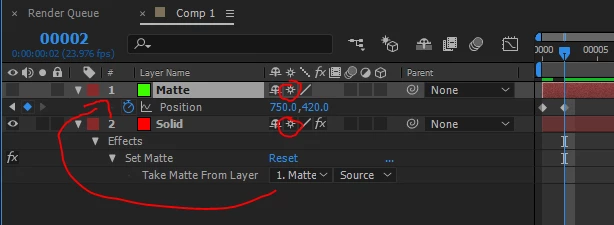
    Unfortunately one of the things I tried was Set Matte, and it didn't work. I'm pretty sure Set Matte applied the matte to the layer's original position, not the position at the time of the animation.

    for set matte to work with including the transform properties, the collapse switch needs to be turned on (for source also if there was a change in transform)

    if this does not work, show us your setup with screenshots or screen capture so we can get a better understanding on what's the issue exactly.

    3 replies

    Roei Tzoref
    Roei TzorefCorrect answer
    Legend
    July 18, 2017
    Unfortunately one of the things I tried was Set Matte, and it didn't work. I'm pretty sure Set Matte applied the matte to the layer's original position, not the position at the time of the animation.

    for set matte to work with including the transform properties, the collapse switch needs to be turned on (for source also if there was a change in transform)

    if this does not work, show us your setup with screenshots or screen capture so we can get a better understanding on what's the issue exactly.

    johns66786249
    Participant
    July 19, 2017

    Wow, that was a really simple solution, thanks for pointing that out to me!

    Roei Tzoref
    Legend
    July 19, 2017

    you are welcome. track matte would work here as well. set matte's advantage is that it can be anywhere in the stack and multiple layers can use it. the disadvantage is that you need to set collapse on both source and matte and sometimes it requires pre-composing (if it's pixel layers that don't have a collapse switch).

    Kyle Hamrick
    Community Expert
    Community Expert
    July 18, 2017

    Depending on how things are set up, it might also be worth looking at the Set Matte effect. Since you can now specify whether effects with a layer parameter take effects/masks into account, you may be able to solve your problem without precomping.

    johns66786249
    Participant
    July 18, 2017

    Unfortunately one of the things I tried was Set Matte, and it didn't work. I'm pretty sure Set Matte applied the matte to the layer's original position, not the position at the time of the animation.

    Mylenium
    Legend
    July 18, 2017

    Nothing unusual here. Works as designed Simply pre-compose the moving solid before using it as a matte. You have to read up on AE's internal rendering order and how it is affected by things that may change the order in which the operations are applied like collapsed transformations or layer styles and how effects are intra-layer, not comp space based.

    Mylenium