New Participant
December 13, 2012
Answered

Converting swf to avi

  • December 13, 2012
  • 5 replies
  • 24645 views

I have an swf file about 6mb in size. Whenever I try to convert it to avi in flash cs6 I end up with a avi file 4gbs in size that can't be played. Is there a maximum size for an swf to be converted into an avi? I just can't get it to work.

Thanks.

    This topic has been closed for replies.
    Correct answer sinious

    Exporting from Flash to a format you want to share or utilize usually involves 2 steps.

    1, Export a full quality (or very lightly compressed) great looking version of your video.

    2, Import into a quality video encoder and compress it to MP4 H.264

    When exporting (File->Export->Export Movie), hit the drop-down at the bottom and choose Quicktime (you have to have Quicktime installed, http://www.apple.com/quicktime ).I use QuickTime because all stock AVI and MPEG4 compressors are pretty terrible, except for Uncompressed (but you get a huge file size).
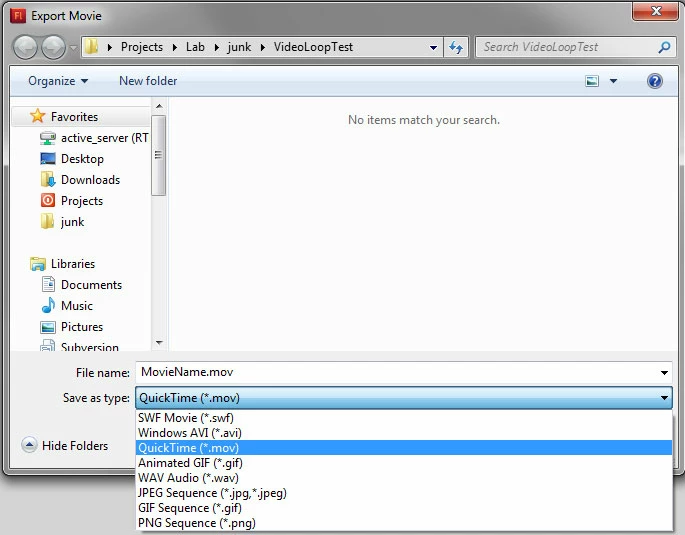
    Name your video and click "Save". A new dialog comes up which I was referring to before for rendering via memory or disk:
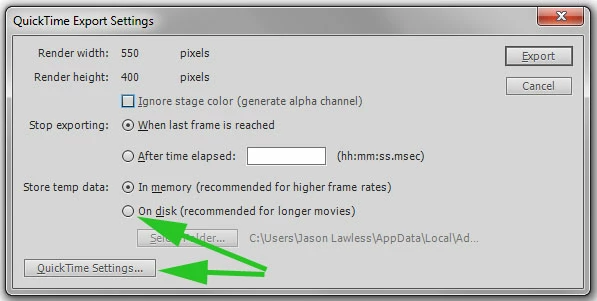
    The top green arrow points to rendering in memory or disk. You should select the bottom option as it states it's "for longer movies". I have memory selected in mine so disregard that but remember that setting exists. If you use "On disk" then set the folder it will use to export to if you desire (using alternate hard drives can give performance bumps).

    Click the QuickTime Settings button the bottom green arrow points toward. That brings up settings:
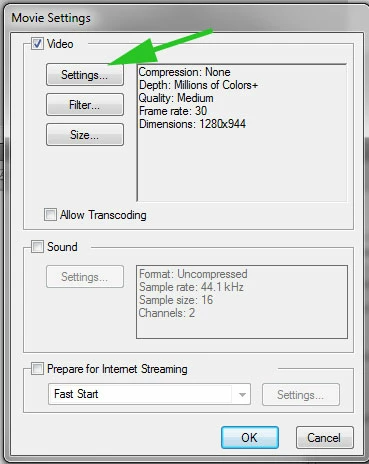
    Mine is set to Uncompressed ("None" compression) but that will generate the huge file, just like AVI Uncompressed did. We don't want that. Audio below is unchecked for me (I have no audio in it) but either way you should leave audio Uncompressed anyhow and make sure it's checked if you have audio in your movie.

    Next click the Settings button the arrow points to.
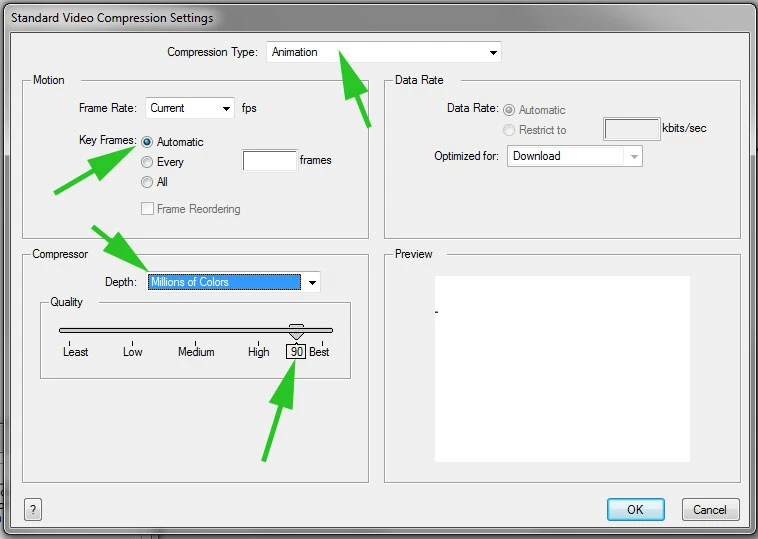
    The important parts are pointed to. Choose the "Animation" codec which is lossless at full quality but still compresses slightly. I still set the quality down to 90. Make sure colors are set to "Millions of Colors" and not "Millions of Colors+". The + sign means encode an alpha channel so don't use that. Set keyframing to Automatic as it does a decent job. If it doesn't you can set that to keyframe every 1 second to be really aggressive but it adds to file size.

    Click OK.

    You return back to Settings but notice the size of the video is wrong.
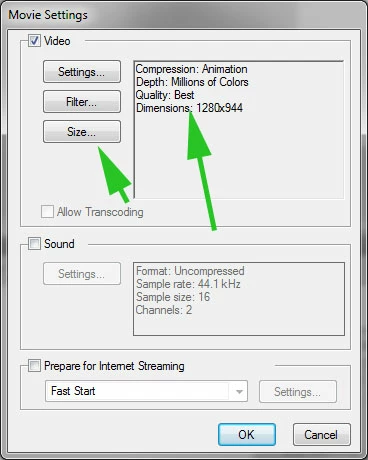
    Click the size button, you get this dialog:
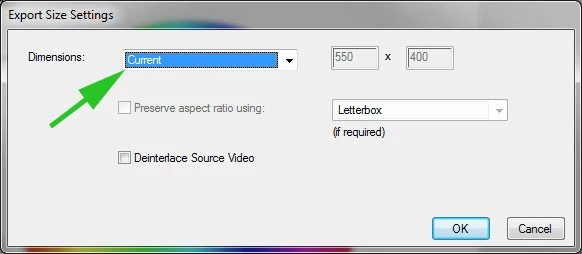
    Change it to "Current" and you'll see the document size is your Flash document size.

    Now after you press OK you won't see this take effect immediately, it may still say the wrong size, but it did work. To verify simply hit the OK button on Settings, then re-open QuickTime Settings again and it will say the correct size.
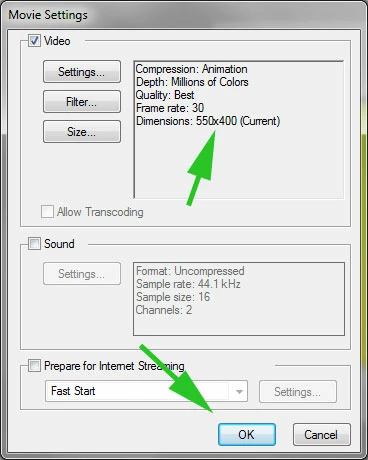
    You're done with settings, click OK. Now you're on the first panel. Click the Export button.

    After you're done with this you're going to want to take the .MOV file this generates (which should be great quality but a pretty big file size) and import it into your favorite encoder (Adobe Media Ecoder, Sorenson Squeeze, etc).

    I'll use AME because you mentioned it.

    Load Adobe Media Encoder (mine is CS5.5 yours may look different from what I'm describing). Import the video (click the [+] sign at the top next to Queue).

    In the Format column hit the [\/] drop-down button and choose H.264.

    In the Preset column you can click the drop-down and take a shot at the existing presets. If none really match up, close that drop-down and click the yellow link name of the preset it's currently on. That opens up settings for the preset.

    The recipe for a good video differs video to video. On this part I can only tell you the basics. For sheer ease I'm going to suggest a 4.2 profile setting (you'll see in a minute) so you can access the most common settings used.

    In the settings box, on the right:

    Choose the "Multiplexer" tab and make sure it's set to "MP4". Stream Compatibility to "Standard".

    Choose the "Video" tab. Look at the bottom of the Basic Video Settings and set the "Level" to 4.2. This is for basic full HD video but it also opens up a lot of otherwise locked options. At the top of that area set your videos resolution. Choose the proper frame rate below that. Set the "Pixel Aspect Ratio" to "Square Pixels". The "Profile" should be "Main". Bitrate settings is where you'll be playing most of the time. For under 1280x720 video I'd play around a minimum of 2Mbps and Max of 4Mbps. For 1280x720 mini HD I'd choose around min 3Mbps max 5Mbps. For full HD I'd probably choose 6Mbps min 10Mbps max.

    If you have audio, choose the "Audio" tab. Typically for computer/net playback I'd set the "Frequency" to highly compatible "44.1Khz". The "Bitrate [kbps]" is up to you at this point. If high fidelity audio is pinnacle to the video then choose around 256-320. Otherwise It's somewhat difficult to tell the difference between 128-192. For anything on the web I never go over 128. The bitrate you set for a long video will greatly affect the overall file size. You may want to export a 128kbit version then a 320kbit version to see how huge the difference is.

    Settings are done, get out of settings and click the play button to start the encoding queue.

    Test your MP4 when it's done encoding and make changes as necessary. Too much "blockiness" and compression in the video? Increase the min/max Bitrate. Same with audio.

    The good thing is you continue to have a high quality Quicktime source you can encode multiple times until you get the settings just right.


    5 replies

    stevend42429767
    New Participant
    June 23, 2015

    When I click file > export > export movie > I don't even get the .AVI option in fla css6.

    sinious
    Brainiac
    June 23, 2015

    Do you have Apple Quicktime installed? If not you should install it.

    webriberan
    New Participant
    November 2, 2014

    -- advertisement removed --

    [Edited by: sinious]

    sinious
    Brainiac
    November 4, 2014

    The OP wanted to export from Flash, not purchase a 3rd party application for $45. I am removing your post content as I feel it is merely an off-topic unsafe product advertisement.

    sinious
    Brainiac
    December 14, 2012

    Do you have any dynamic nature to your animation (code controlling things)?

    New Participant
    December 14, 2012

    Hi

    Thanks for all the replies. I'm using win8 and I'm working from the FLA. I go to export and choose avi, then from the drop down menus I pick the quality. I've done it using the lowest setting and I've ended up with the full video but very heavily pixelated and at about 600mb in size.

    The video is only 5 mins long.

    There's no actionscript the most complicated it gets is the odd tween. There are alot of jpgs (about 120) which I think may affect it.

    I'm going to try the media encoder idea if that don't work I'll have to just cut it down, thanks again for the replies, really appreciate it.

    sinious
    siniousCorrect answer
    Brainiac
    December 14, 2012

    Exporting from Flash to a format you want to share or utilize usually involves 2 steps.

    1, Export a full quality (or very lightly compressed) great looking version of your video.

    2, Import into a quality video encoder and compress it to MP4 H.264

    When exporting (File->Export->Export Movie), hit the drop-down at the bottom and choose Quicktime (you have to have Quicktime installed, http://www.apple.com/quicktime ).I use QuickTime because all stock AVI and MPEG4 compressors are pretty terrible, except for Uncompressed (but you get a huge file size).

    Name your video and click "Save". A new dialog comes up which I was referring to before for rendering via memory or disk:

    The top green arrow points to rendering in memory or disk. You should select the bottom option as it states it's "for longer movies". I have memory selected in mine so disregard that but remember that setting exists. If you use "On disk" then set the folder it will use to export to if you desire (using alternate hard drives can give performance bumps).

    Click the QuickTime Settings button the bottom green arrow points toward. That brings up settings:

    Mine is set to Uncompressed ("None" compression) but that will generate the huge file, just like AVI Uncompressed did. We don't want that. Audio below is unchecked for me (I have no audio in it) but either way you should leave audio Uncompressed anyhow and make sure it's checked if you have audio in your movie.

    Next click the Settings button the arrow points to.

    The important parts are pointed to. Choose the "Animation" codec which is lossless at full quality but still compresses slightly. I still set the quality down to 90. Make sure colors are set to "Millions of Colors" and not "Millions of Colors+". The + sign means encode an alpha channel so don't use that. Set keyframing to Automatic as it does a decent job. If it doesn't you can set that to keyframe every 1 second to be really aggressive but it adds to file size.

    Click OK.

    You return back to Settings but notice the size of the video is wrong.

    Click the size button, you get this dialog:

    Change it to "Current" and you'll see the document size is your Flash document size.

    Now after you press OK you won't see this take effect immediately, it may still say the wrong size, but it did work. To verify simply hit the OK button on Settings, then re-open QuickTime Settings again and it will say the correct size.

    You're done with settings, click OK. Now you're on the first panel. Click the Export button.

    After you're done with this you're going to want to take the .MOV file this generates (which should be great quality but a pretty big file size) and import it into your favorite encoder (Adobe Media Ecoder, Sorenson Squeeze, etc).

    I'll use AME because you mentioned it.

    Load Adobe Media Encoder (mine is CS5.5 yours may look different from what I'm describing). Import the video (click the [+] sign at the top next to Queue).

    In the Format column hit the [\/] drop-down button and choose H.264.

    In the Preset column you can click the drop-down and take a shot at the existing presets. If none really match up, close that drop-down and click the yellow link name of the preset it's currently on. That opens up settings for the preset.

    The recipe for a good video differs video to video. On this part I can only tell you the basics. For sheer ease I'm going to suggest a 4.2 profile setting (you'll see in a minute) so you can access the most common settings used.

    In the settings box, on the right:

    Choose the "Multiplexer" tab and make sure it's set to "MP4". Stream Compatibility to "Standard".

    Choose the "Video" tab. Look at the bottom of the Basic Video Settings and set the "Level" to 4.2. This is for basic full HD video but it also opens up a lot of otherwise locked options. At the top of that area set your videos resolution. Choose the proper frame rate below that. Set the "Pixel Aspect Ratio" to "Square Pixels". The "Profile" should be "Main". Bitrate settings is where you'll be playing most of the time. For under 1280x720 video I'd play around a minimum of 2Mbps and Max of 4Mbps. For 1280x720 mini HD I'd choose around min 3Mbps max 5Mbps. For full HD I'd probably choose 6Mbps min 10Mbps max.

    If you have audio, choose the "Audio" tab. Typically for computer/net playback I'd set the "Frequency" to highly compatible "44.1Khz". The "Bitrate [kbps]" is up to you at this point. If high fidelity audio is pinnacle to the video then choose around 256-320. Otherwise It's somewhat difficult to tell the difference between 128-192. For anything on the web I never go over 128. The bitrate you set for a long video will greatly affect the overall file size. You may want to export a 128kbit version then a 320kbit version to see how huge the difference is.

    Settings are done, get out of settings and click the play button to start the encoding queue.

    Test your MP4 when it's done encoding and make changes as necessary. Too much "blockiness" and compression in the video? Increase the min/max Bitrate. Same with audio.

    The good thing is you continue to have a high quality Quicktime source you can encode multiple times until you get the settings just right.

    SuhasYogin
    Adobe Employee
    Adobe Employee
    December 14, 2012

    Hello,

    When you say convert to AVI, could you please tell me the exact steps you are following? If you are working on an FLA within Flash Professional CS6, you could as well export the content to AVI directly - instead of first publishing to SWF and then attempting to convert to AVI. If you still wish to publish to SWF first, and convert to AVI (or any other video format), I suggest that you use Adobe Media Encoder.

    Regards,

    Suhas Yogin

    sinious
    Brainiac
    December 14, 2012

    Are you on a 32bit operating system? If so when you render you can sometimes choose to render to RAM or to disk.

    Otherwise I'd hope you're at least on an NTFS filesystem so you don't encounter "max size per single file" issues.