abdelrahmana26985373
New Participant
November 26, 2017
Answered

Help pleasssse !!! PSD and bone tool animation big issue.Not animating

  • November 26, 2017
  • 1 reply
  • 619 views

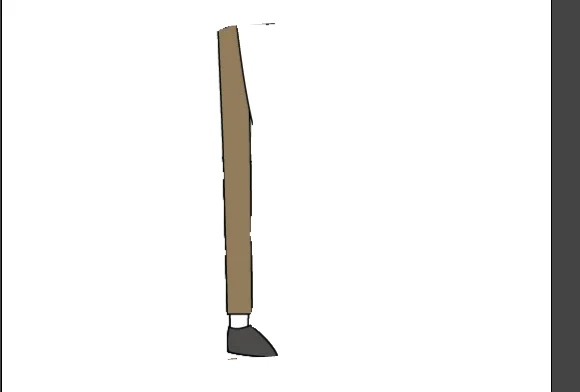
Basically i have this PSD layer (leg) that i wanted to animate and i can apply bone tool and pen tool and everything.But whenever i try to move any bone this happens(in the next picutre)

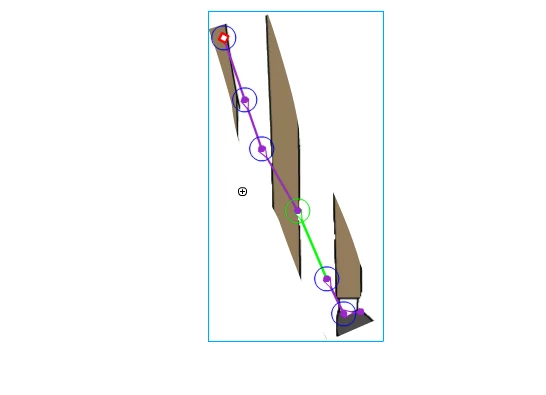
I DON'T KNOW EVEN WHAT TO CALL IT !!! IT'S LIKE A BACKGROUND LAYER  OF THE LEG AND IT KEEEPS ON REPEATING   !  Please please please help me i switch my whole platform and work to use this software and i can't deal with this problem now it would destory my project !!! PLEASE HELP !

This topic has been closed for replies.
Correct answer Colin Holgate

I learnt something by looking at your file! I hadn't used IK Shapes before. It seems that if you apply the bones to a bitmap, it creates a bitmap fill, and that fill is only able to fill-in in its original orientation.

Next thing I tried was to convert the bitmap to a shape (Modify/Bitmap/Trace Bitmap). Unfortunately that gave a shape that was too complex for the Bone tool.

I then just redrew the leg, and tried the Bone tool on the shape I had drawn. That then worked, but I couldn't figure out how to have it include the outline of the leg, only the inner part of the leg moved.

I figured that out too. You need to draw the inner part of the leg, and the sock, and shoe, then use the Ink Bottle Tool to give them a stroke. After that you can use the bone tool to set up the IK, and the strokes will move along with the filled areas.

After all that learning I went back to the bitmap version, and found a system that could work:

1. Select the bitmap

2. Modify/Break Apart

3. Choose the Magic Wand, it's in the same tool palette icon as the Lasso.

4. Click on a white area, to the right of the leg, and delete that.

5. Same for left of the leg.

6. Choose the Ink Bottle Tool, and click near the edge of the leg, to give it a black stroke.

7. Triple-click on the stroke, to hopefully select all of it.

8. Cut that, and in a new layer, Paste in Place.

9. Hide the bitmap layer, then use the Pencil to repair any gaps in the leg outline, and to add the sock and shoe lines. Make sure that a triple-click does manage to select all of the stroke. If it doesn't, repair the parts that didn't get selected.

10. Show the bitmap layer again, but lock the layer.

11. Press i to get the eyedropper, click on the leg to pick up the brown color, then paint bucket fill that part of the leg, in the new layer you made in step 8.

12. Same again for the sock and shoe.

At that point you could delete the original bitmap layer, and add bones to the shapes that you just recreated.

I did do all of those steps already, and here's an FLA with a leg, ready for bones:

http://colin.scienceninja.com/leftleg.fla.zip

1 reply

Colin Holgate
Inspiring
November 26, 2017

I tried to reproduce what you have done, but for me it went ok. Can you put your FLA online somewhere that I can download and try it?

abdelrahmana26985373
New Participant
November 26, 2017

very sorry for the late reply

yeah sure,filehosting.org | Download | Untitled-1.fla

here 's the link

Colin Holgate
Colin HolgateCorrect answer
Inspiring
November 26, 2017

I learnt something by looking at your file! I hadn't used IK Shapes before. It seems that if you apply the bones to a bitmap, it creates a bitmap fill, and that fill is only able to fill-in in its original orientation.

Next thing I tried was to convert the bitmap to a shape (Modify/Bitmap/Trace Bitmap). Unfortunately that gave a shape that was too complex for the Bone tool.

I then just redrew the leg, and tried the Bone tool on the shape I had drawn. That then worked, but I couldn't figure out how to have it include the outline of the leg, only the inner part of the leg moved.

I figured that out too. You need to draw the inner part of the leg, and the sock, and shoe, then use the Ink Bottle Tool to give them a stroke. After that you can use the bone tool to set up the IK, and the strokes will move along with the filled areas.

After all that learning I went back to the bitmap version, and found a system that could work:

1. Select the bitmap

2. Modify/Break Apart

3. Choose the Magic Wand, it's in the same tool palette icon as the Lasso.

4. Click on a white area, to the right of the leg, and delete that.

5. Same for left of the leg.

6. Choose the Ink Bottle Tool, and click near the edge of the leg, to give it a black stroke.

7. Triple-click on the stroke, to hopefully select all of it.

8. Cut that, and in a new layer, Paste in Place.

9. Hide the bitmap layer, then use the Pencil to repair any gaps in the leg outline, and to add the sock and shoe lines. Make sure that a triple-click does manage to select all of the stroke. If it doesn't, repair the parts that didn't get selected.

10. Show the bitmap layer again, but lock the layer.

11. Press i to get the eyedropper, click on the leg to pick up the brown color, then paint bucket fill that part of the leg, in the new layer you made in step 8.

12. Same again for the sock and shoe.

At that point you could delete the original bitmap layer, and add bones to the shapes that you just recreated.

I did do all of those steps already, and here's an FLA with a leg, ready for bones:

http://colin.scienceninja.com/leftleg.fla.zip