


New Participant
September 17, 2023
Answered

How to edit a warped asset

  • September 17, 2023
  • 1 reply
  • 731 views

Hey there. I'm brand new to Animate, and I'm running into an issue. 

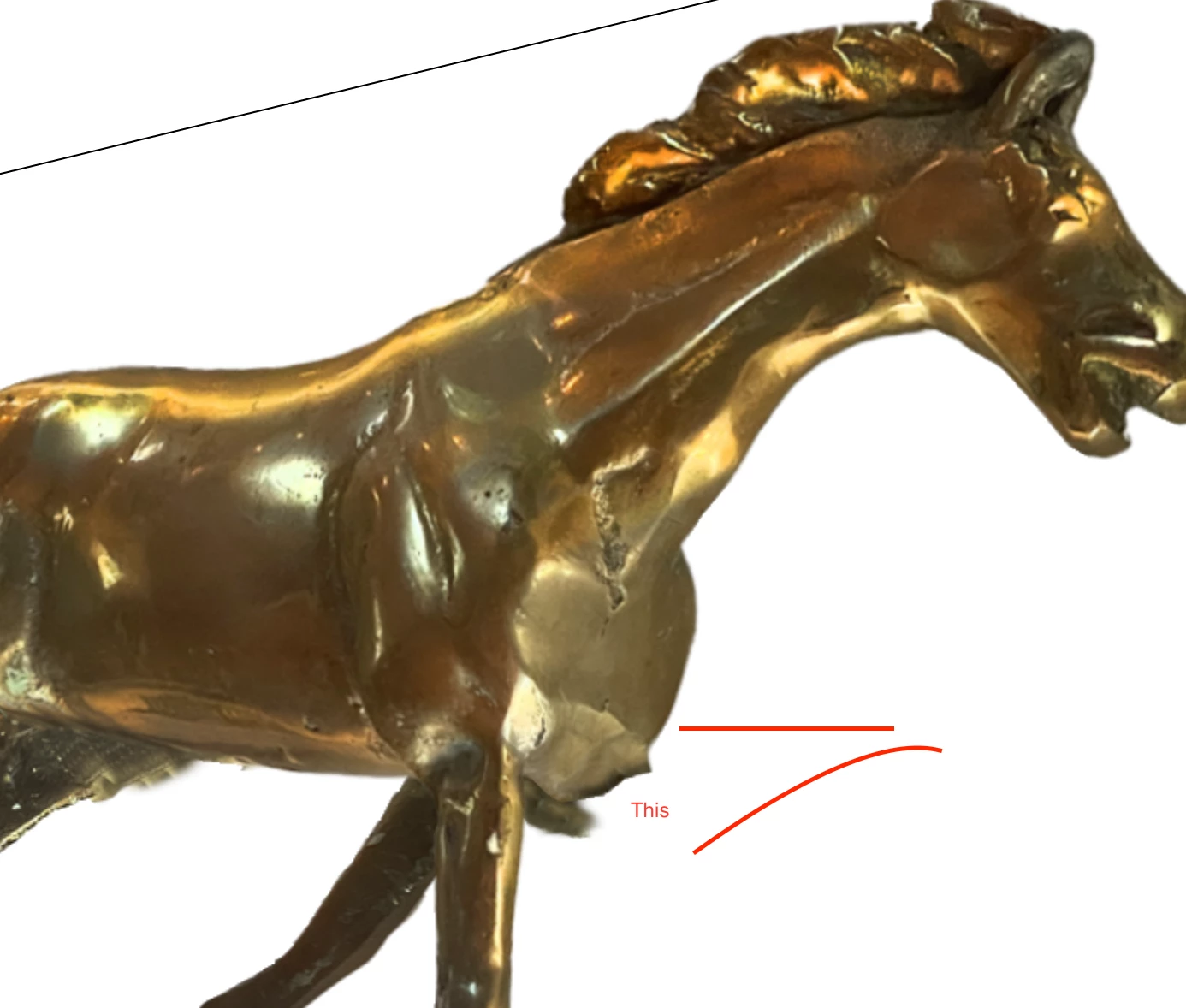
I'm working on a project where I've split a photo of a brass horse into a few constituent parts and animated those to make it look like its galloping. 

I'm using the rigging structure in Animate, and it's looking pretty cool. 

The issue is that the way I split the legs on the opposite side of the horse from the viewer. There are weird points that stick out, parts that I should have clone brushed, etc, to make it look right. 

My question is this: is there a way to edit the images contained in those warped objects so I don't have to do my rigging all over again?
    This topic has been closed for replies.
    Correct answer Mario_CR

    There is.

    Locate the warped asset in the library, right-click and select Edit. Once inside the asset, select the bitmap, right-click and choose 'Edit With'... or 'Edit with Photoshop' if available.

    Open Photoshop.exe and make your edits; when you're done, save your image and it should automatically update in Animate.

    1 reply

    Mario_CR
    Mario_CRCorrect answer
    Community Expert
    September 17, 2023

    There is.

    Locate the warped asset in the library, right-click and select Edit. Once inside the asset, select the bitmap, right-click and choose 'Edit With'... or 'Edit with Photoshop' if available.

    Open Photoshop.exe and make your edits; when you're done, save your image and it should automatically update in Animate.

    New Participant
    September 17, 2023

    Holy crap. Mario_CR, you just saved me so much time. I was about to import a whole other layered PSD and do my animations all over again, and horses are complicated! Thanks so much!

    Mario_CR
    Community Expert
    September 17, 2023

    Glad it worked out. You're welcome.