

notnad72637695
New Participant
January 10, 2019
Answered

How to hide or show a layer in JS (HTML5 Canvas)

  • January 10, 2019
  • 3 replies
  • 6262 views

Hi.

I can't figure out how to hide or show a layer in the timeline using JS.

Help please.

This topic has been closed for replies.
Correct answer JoãoCésar17023019

EDIT: 01/21/2022

It's still possible to target layers but only if:

- The advanced layers mode is on (Cmd/Ctrl + J > Use Advanced Layers);

- The virtual camera is on the stage;

- The layer is on the main timeline;

- The layer we want to target is not empty.


EDIT: 11/12/2020

It's still possible to target layers but only if:

- The advanced layers mode is on (Cmd/Ctrl + J > Use Advanced Layers);

- The virtual camera is on the stage;

- The layer is on the main timeline;

- The layer we want to target is not empty.


If all these three conditions are true, then all we have to do is to target a layer by their name like this:

this.Layer_1.visible = false;


I hope it helps.


Regards,

JC


-----------------------------------------------------------------------


Hi.


You first have to make sure that the advanced layers mode is on by going to the Document Settings (Ctrl/Cmd + J) and checking Use Advanced Layers.
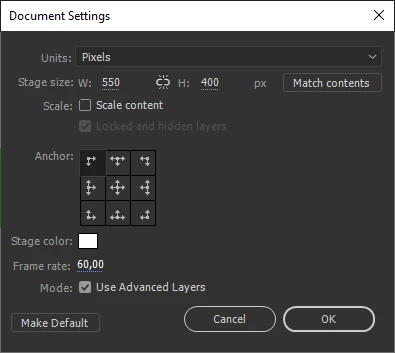


Then you can access the layer you want by its name.


For example, if your layer is called Layer_1, then you can make it invisible like this:


this.Layer_1.visible = false;


I hope this helps.


Regards,

JC

3 replies

Sharpe D
Known Participant
January 21, 2022

I am interested in this technique, but I am not able to get it working. 


Just looking to see it work and possibly utilize. 


Advanced Layers are on. 

It is a one Frame movie.

Layer name - "hide"

Action: this.hide.visible = false;

JoãoCésar17023019
Community Expert
January 21, 2022

Hi.


Make sure all conditions below are true:

- The advanced layers mode is on (Cmd/Ctrl + J > Use Advanced Layers);

- The virtual camera is on the stage;

- The layer is on the main timeline;

- The layer you want to target is not empty.


Regards,

JC

Brainiac
January 10, 2019

I'm curious WHY you want to hide an entire layer with code. Advanced Layers are a very recent addition to Animate. The usual way to hide things at runtime with code is to make them a named movieclip.

June 25, 2019

I have a good reason for using layer visibility but the suggested solution above is not working for me.

I have a multi-language project (a kids interactive book) whereby the user specifies their chosen language at the start. As each language shares the same base graphics and animation, I have put each language on a separate layer, and want to make visible the appropriate layer at the start. Each language has unique text and audio, and that changes on each page, so managing that with movie clips would be much harder (due to quantity) than using layer visibility.

The error I get is that animate doesn't appear to be defining the layer names at publish time. "Uncaught TypeError: Cannot set property 'visible' of undefined"

Document Settings / Use advanced layers is checked on, and when I try to uncheck it, it warns me that "Your layers have been converted to symbols. Turning off may affect artwork...". So one would assume it's doing the right thing there.

Any ideas?

Example code:

this.Text_Maori_Left.visible = true;  //  "Text_Maori_Left" is the layer name

this.Text_English_Left.visible = false;

Brainiac
June 25, 2019

I just tested that and it works fine.

Where exactly is that code? If you're calling it from an event handler, or it's living somewhere other than the root timeline, this won't be correct.

JoãoCésar17023019
JoãoCésar17023019Correct answer
Community Expert
January 10, 2019

EDIT: 01/21/2022

It's still possible to target layers but only if:

- The advanced layers mode is on (Cmd/Ctrl + J > Use Advanced Layers);

- The virtual camera is on the stage;

- The layer is on the main timeline;

- The layer we want to target is not empty.


EDIT: 11/12/2020

It's still possible to target layers but only if:

- The advanced layers mode is on (Cmd/Ctrl + J > Use Advanced Layers);

- The virtual camera is on the stage;

- The layer is on the main timeline;

- The layer we want to target is not empty.


If all these three conditions are true, then all we have to do is to target a layer by their name like this:

this.Layer_1.visible = false;


I hope it helps.


Regards,

JC


-----------------------------------------------------------------------


Hi.


You first have to make sure that the advanced layers mode is on by going to the Document Settings (Ctrl/Cmd + J) and checking Use Advanced Layers.


Then you can access the layer you want by its name.


For example, if your layer is called Layer_1, then you can make it invisible like this:


this.Layer_1.visible = false;


I hope this helps.


Regards,

JC

Known Participant
May 28, 2020

Hi Cesar

Below code is not working in Animate CC html5 canvas. Could you please help me here?:


this.btnOn.addEventListener("click", layerOn.bind(this));
this.btnOff.addEventListener("click", layerOff.bind(this));


function layerOff() {

this.Layer_1.visible = false;
}

function layerOn() {

this.Layer_1.visible = true;
}

JoãoCésar17023019
Community Expert
May 28, 2020

Hi.


The way JavaScript is used with advanced layers turned on has been changing a lot.


In the most recent versions I really can't tell you if it's still possible to target layers.


It seems in the most recent versions the symbols instances created in the IDE are referenced directly by their name with or without advanced layers.


Hopefully someone else will be able to accurately tell you if layers can still be target.


Regards,

JC