


Answered
How to Loop in Adobe Animate on Export
Hello, I made a short .2 second animation and I want to export it so that it will loop for 10 seconds. Is there a way for me to do this?

Hello, I made a short .2 second animation and I want to export it so that it will loop for 10 seconds. Is there a way for me to do this?
Is there instructions on how to do this? I am confused. It works when I click Test Scene but not when I export
Hopefully this GIF will be able to show you how to achieve this.
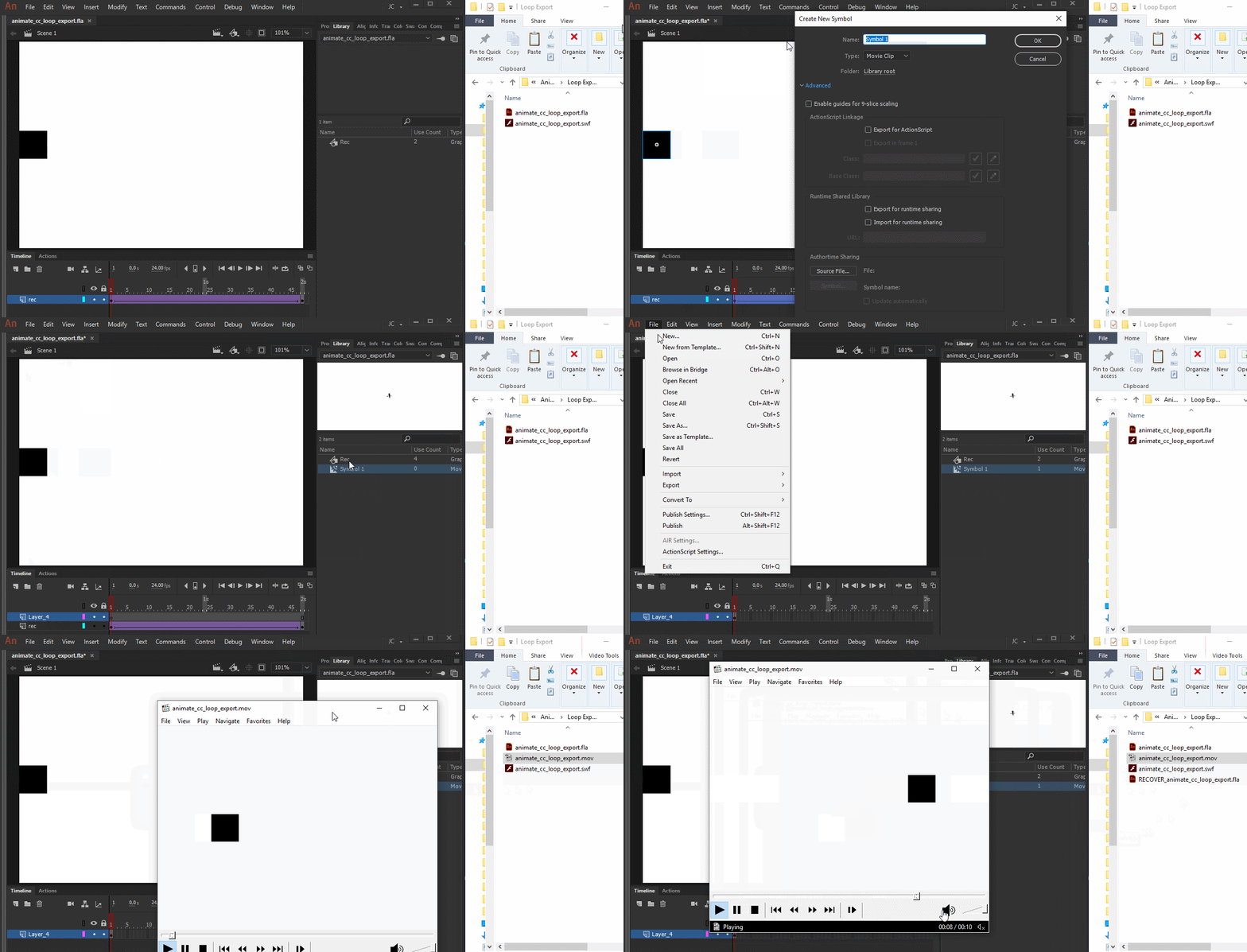
Basically:
- Copy all the frames from the main timeline by selecting the frames, right-clicking them and choosing Copy Frames;
- Insert a new symbol: Insert > New Symbol... (Ctrl/Cmd + F8);
- Inside of this newly created symbol, paste the copied frames by right-clicking and choosing Paste Frames;
- Drag and a drop a instance from this symbol from the Library to the stage;
- Align this new instance;
- Go to File > Export > Export Video...;
- Under Stop exporting, select After time elapsed;
- Type 10.
More info about frames:
Use frames and keyframes in Adobe Animate
Please let me know if you still have any further question.
Regards,
JC
Already have an account? Login
Enter your E-mail address. We'll send you an e-mail with instructions to reset your password.
 AdChoices