


Inspiring
December 6, 2018
Answered

How to replace a PNG with a Vector animate file and have it retain its position in the timeline?

  • December 6, 2018
  • 2 replies
  • 1178 views

So I made some assets for a character in Adobe Photoshop and it doesn't look great. It has a strange hard edged outline of the colour behind it as shown in the screen shot below.
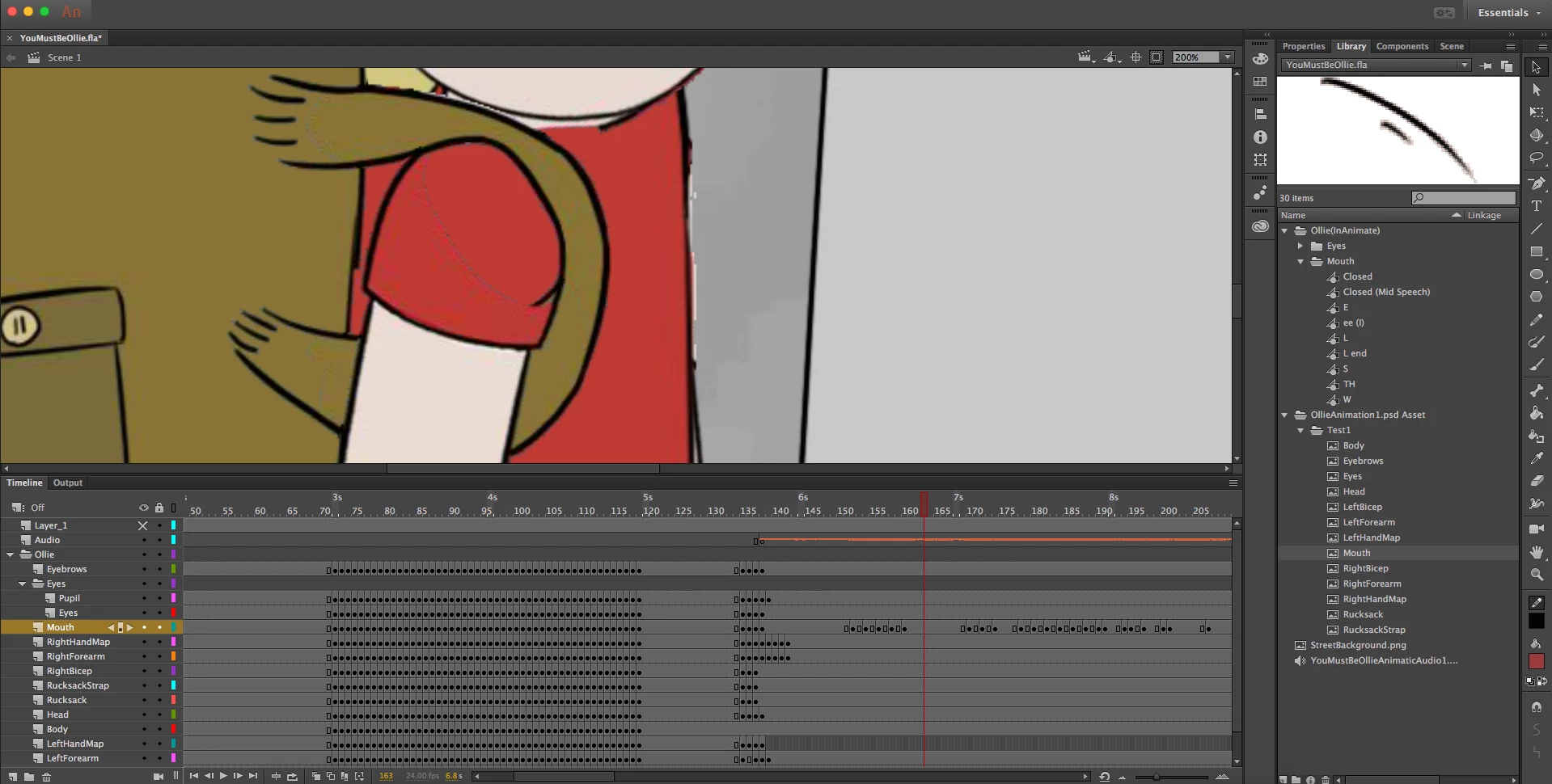
As you can see they're all PNGs in the file Test 1. However, I have already done a bit of animation for it using those assets. Is there a way I can redraw the assets as symbols in Animate and have them retain the same position in the timeline as the current PNGs?

I'm using Action Script 3.0.

This topic has been closed for replies.
Correct answer JoãoCésar17023019

The download link is in the video description:

Swap External Bitmaps.jsfl - Google Drive

Download the script and place it in the commands folder.

<disk letter>:\Users\<user name>\AppData\Local\Adobe\Animate CC <version>\<language>\Configuration\Commands

Example:

C:\Users\Admin\AppData\Local\Adobe\Animate CC 2019\en_US\Configuration\Commands

Regards,

JC

2 replies

_keyframer
Community Expert
Community Expert
December 6, 2018

You should be able to open the Library panel, locate the bitmap in question and "Edit with Adobe Photoshop..."

Once you edit and save it, it should auto-update in AnCC. If not, right-click again over the bitmap in the library and select "Update".

Animator and content creator for Animate CC
_keyframer
Community Expert
Community Expert
December 6, 2018

To answer your question specifically about re-drawing the asset while keeping it in the same place, assuming the bitmap is inside a symbol already, then double-click that symbol, insert a Blank Keyframe in frame 2, turn on Onionskin and redraw it. Or you could try the Trace Bitmap feature. But I recommend redrawing for cleaner vectors...

I attached a video of me doing this for you....

ForAlexa_AnCC.mp4 - Google Drive

Animator and content creator for Animate CC
Inspiring
December 7, 2018

Hi, Thanks for your reply. That's great. Would there be a way to make it so that my redrawn assets as you've done would retain their position through multiple frames, or would I have to redraw every single frame?

JoãoCésar17023019
Community Expert
Community Expert
December 6, 2018

Hi.

Please have a look at this thread and tell us if it helps you.

Re: Importing overlaying Photoshop layers produces unwanted artifacts

Regards,

JC

Inspiring
December 7, 2018

Hi. Thanks for your reply. In this video: Animate CC - Script to replace imported PSD bitmaps - YouTube in the video you click command and swap external bitmap, but I can't see that in Animate CC 2018.

JoãoCésar17023019
Community Expert
JoãoCésar17023019Community ExpertCorrect answer
Community Expert
December 7, 2018

The download link is in the video description:

Swap External Bitmaps.jsfl - Google Drive

Download the script and place it in the commands folder.

<disk letter>:\Users\<user name>\AppData\Local\Adobe\Animate CC <version>\<language>\Configuration\Commands

Example:

C:\Users\Admin\AppData\Local\Adobe\Animate CC 2019\en_US\Configuration\Commands

Regards,

JC