


Participating Frequently
January 29, 2018
Answered

How to scale line thickness?

  • January 29, 2018
  • 4 replies
  • 16175 views

I don't know what I'm doing, but I need to create an animation for college. So far I've designed some characters but have hit a bit of an issue which is that I drew them too small and can't upscale them without it all going horribly wrong. I've searched around a bit and Illustrator's "scale strokes and effects" seems to be what I want, but there is no such option in Animate and attempting to copy the layers into Illustrator results in a bitmap.

I've attached an image of one of my characters as its original scale, then an enlargened version and then a copy which has been converted to a symbol before being scaled. As you can see, neither of those options work too well. And yes, there are better ways of doing things than colouring things in the old-fashioned way, but I couldn't get anything else to work.
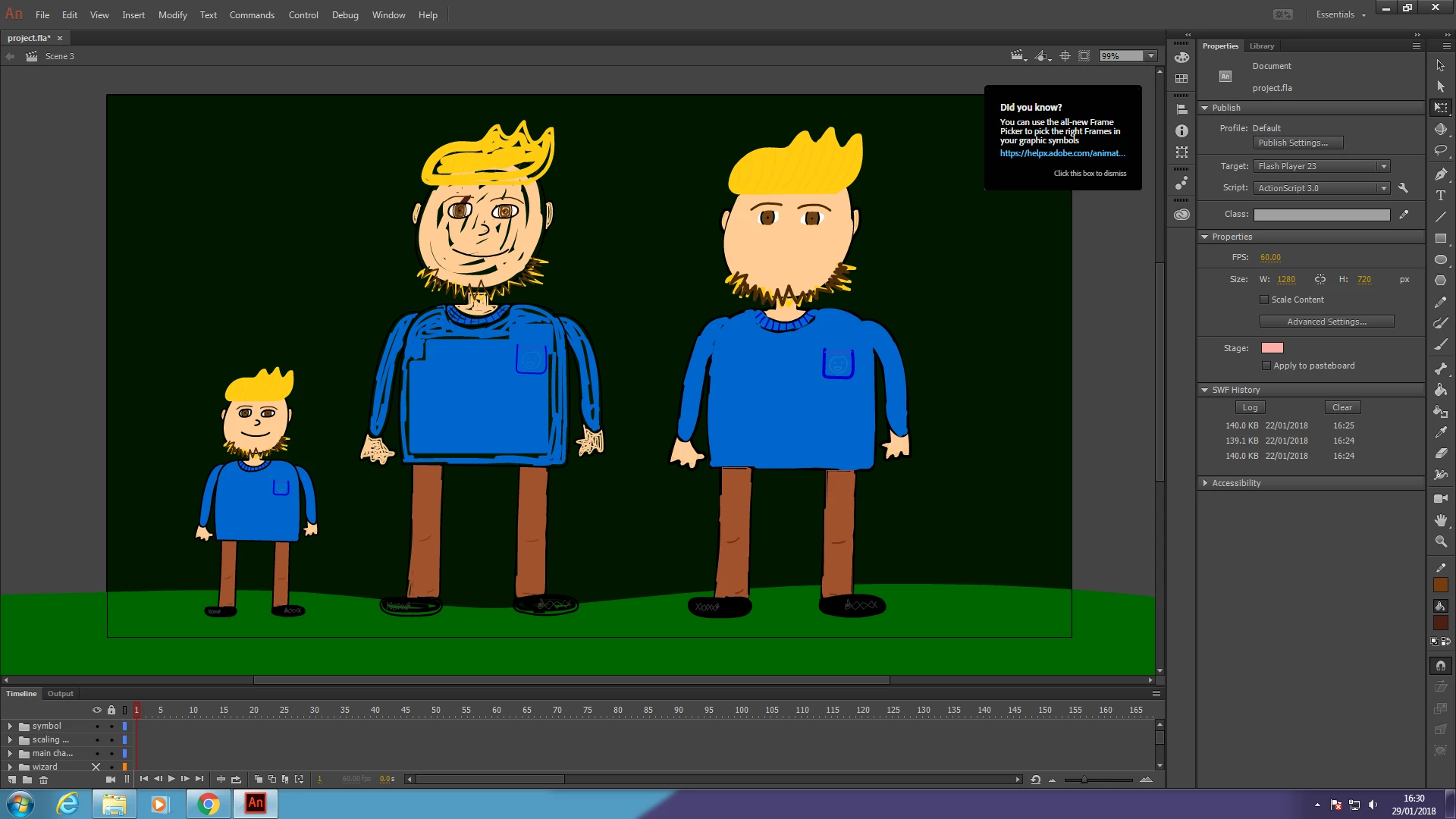
Any ideas on how to scale line thickness with the rest of the content as well then? Seems like a weird limitation.  😕😕

This topic has been closed for replies.
Correct answer ClayUUID

The only way you could increase the size of your already drawn brush line is to copy the black line, paste it again in place and then offset it but one pixel. Do that 1 pixel up, one pixel down, one pixel left and one pixel right (four times) and your line will be four times as wide. It's a cheat but I do it all the time.


How is that different from Modify -> Shape -> Expand Fill?

4 replies

peterp12625434
Participating Frequently
June 7, 2024

Try using symbols instead of groups when organizing your drawing.  For example, if you have a man, and you group his legs, arms, torso, head, mouth, etc.. use symbols instead of groups.  Then you can scale all you want.  It will preserve the line weight.  If you want to go in and adjust or create more lines, just go in the symbol and it will preserve the correct line weight info.  Thats how I do it.. hope this helps.

Brainiac
February 6, 2018

I think the key takeaway here should be don't use lines as fills.

Participating Frequently
February 6, 2018

ClayUUID  wrote

I think the key takeaway here should be don't use lines as fills.

Probably. Couldn't get the fill bucket to work though. Ugh, Animate is a pain to use. 

Brainiac
February 13, 2018

The Paint Bucket tool is perfectly straightforward to use: You draw an enclosed area, then click inside it on the same layer to fill it. If it doesn't work, you didn't enclose the area. If you can't or won't enclose the area, adjusting the gap size setting can sometimes allow it to work anyway.

Participating Frequently
February 5, 2018

bump

Brainiac
February 5, 2018

You asked how to set scaling of lines. That question was answered.

If you want to avoid this issue entirely, try redrawing your character using only fills, and/or the brush tool.

ClayUUIDCorrect answer
Brainiac
February 5, 2018

The only way you could increase the size of your already drawn brush line is to copy the black line, paste it again in place and then offset it but one pixel. Do that 1 pixel up, one pixel down, one pixel left and one pixel right (four times) and your line will be four times as wide. It's a cheat but I do it all the time.


How is that different from Modify -> Shape -> Expand Fill?

Brainiac
January 29, 2018

firstl17723917  wrote

I've searched around a bit and Illustrator's "scale strokes and effects" seems to be what I want, but there is no such option in Animate...

Participating Frequently
January 29, 2018

Tried changing that setting with the whole character selected but it didn't make any difference. Will try again tomorrow - maybe I was doing something wrong.

Brainiac
January 29, 2018

By "the whole character selected" do you mean the clip containing it, or every actual individual stroke of the character? Because the latter is how you change a stroke's render settings.