Orf
Known Participant
March 16, 2018
Answered

How can I make make all clips in multitrack the same volume without clicking and dragging?

  • March 16, 2018
  • 4 replies
  • 11242 views

I have tons of clips in the multitrack and want to make all the volume levels (not gain levels) set to 0 db.

Is there an easy way to do that without clicking and dragging all 500 clips?

    This topic has been closed for replies.
    Correct answer _durin_

    If you don't mind going scorched earth on keyframes, or getting your hands a little dirty with a text editor and Regular Expressions, you should be able to remove all of those quickly and easily.

    Save the session .sesx file, then open it in an advanced text editor like Sublime Text.  These should offer the ability to perform a Find & Replace using regex which are sort of template-driven searches for text.  If you want to wipe out all keyframes on all clips and tracks, this example should work. Audition's .sesx file format is fairly human-readable XML, so searching for:

    .*<parameterKeyframe sampleOffset=.*

    should find each instance of a keyframe.
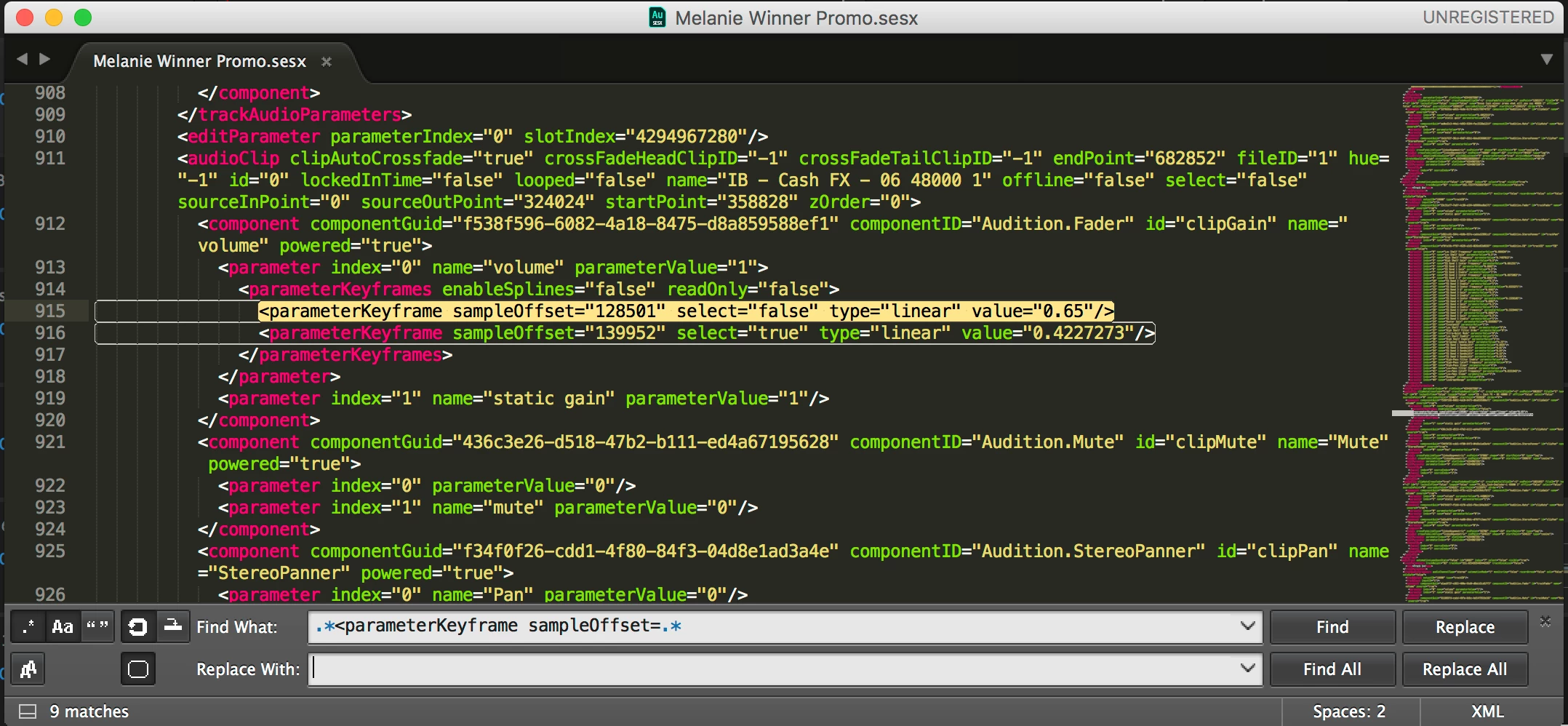
    However, that doesn't really explain why you'd end up with so many volume keyframes.  The Essential Sound panel doesn't generate any keyframe information.  The Clip Volume keyframes that show up when sending to Audition would be based on any keyframes in the standard Volume effect for every audio effect in Premiere.  I don't think anything else would be translated as clip volume keyframes when importing to Audition.

    4 replies

    Participant
    September 8, 2021

    Export your session to FCP XML interchange format,then re-open the new project. And boom all level parameters are back to default.

    Participant
    October 25, 2023

    This worked perfectly! Very quick, all volume keyframes gone, all "yellow lines"/"rubber bands" set to 0.

    Inspiring
    May 15, 2021

    I know exactly what you're talking about. I just mixed a track but I have to ship the raw file to someone else without volume envelopes. Here is what I did. I haven't tried it with multiple tracks but for me, this got the job done.


    Right click  on a keyframe, "Select all keyframes," Right click again, "Delete selected keyframes." Easy as that. You may have to drag the clip volume envelope to "0" if it isn't there already but you can get all of your clips back to zero this way. I was very happy to find this solution.

    _durin_
    Community Manager
    _durin_Community ManagerCorrect answer
    Community Manager
    March 19, 2018

    If you don't mind going scorched earth on keyframes, or getting your hands a little dirty with a text editor and Regular Expressions, you should be able to remove all of those quickly and easily.

    Save the session .sesx file, then open it in an advanced text editor like Sublime Text.  These should offer the ability to perform a Find & Replace using regex which are sort of template-driven searches for text.  If you want to wipe out all keyframes on all clips and tracks, this example should work. Audition's .sesx file format is fairly human-readable XML, so searching for:

    .*<parameterKeyframe sampleOffset=.*

    should find each instance of a keyframe.

    However, that doesn't really explain why you'd end up with so many volume keyframes.  The Essential Sound panel doesn't generate any keyframe information.  The Clip Volume keyframes that show up when sending to Audition would be based on any keyframes in the standard Volume effect for every audio effect in Premiere.  I don't think anything else would be translated as clip volume keyframes when importing to Audition.

    Aegretudo
    Participant
    June 14, 2019

    This solution worked EXACTLY as needed, and should be labeled the answer for addressing keyframes on multiple clip 'rubber bands' across a whole file. I've had this issue for years with importing Premiere OMF from various editors, and it has always been an incredibly tedious task either requesting an OMF with clip attributes removed, or manually removing keyframes by hand.

    One additional step I needed to do beyond what is outlined above is resetting all adjustments to the volume parameterValue - which in VS Code was as simple as searching for all occurrences of:

        <parameter index="0" name="volume" parameterValue=

    opting to "Change all occurrences", press shift+end, and then replace all with:
        <parameter index="0" name="volume" parameterValue="1"/>

    Hope this helps someone who may still be struggling with this!

    [Mod note - Durin's answer is now marked as correct]

    ryclark
    Participating Frequently
    March 16, 2018

    Two fairly easy methods. Either try Match Loudness from the Clip menu. Or from the Edit menu use Batch Process. there you can drop all your audio files and use one of the Normalize Favorites.

    Orf
    OrfAuthor
    Known Participant
    March 16, 2018

    Thank you for your response. Match Loudness is not what I'm looking for and the clips are already in a multitrack / I don't want to mess with the original audio files. I just want to set the clip level/volume to a default 0 db.

    In Premiere all you have to do is right click - select "remove attributes" - and have "volume" checked. It's that simple.

    Is there a way to do this in Audition? If not there should be.

    ryclark
    Participating Frequently
    March 18, 2018

    Orf  wrote

    I'm very disappointed there is no way to change the yellow line on all clips at once. (Btw is there a correct term for those other than "yellow lines on clips" that differentiate them from "actual clip gain"?

    Generally the term used for automation lines is 'rubber band' - simply because you can add key frames and 'stretch' the line, and it pings back if you remove the key-frame. Any other term would require more words, so generally this one's stuck, even though it sounds a bit childish to me!

    Is there a hotkey to raise the yellow line(s)? That would be helpful and solve the issue.

    There isn't, I'm afraid. Just to make sure, I did some more tests on this, and even if you group clips and select all of them, you can't group the rubber bands; they still remain isolated from any form of group control.

    The yellow lines are all over the place because I migrated from Premiere. Many of the line changes in the music were not even visible in Premiere---a result of selecting all music clips as "balanced background music" in Essential Sound panel. 

    I'm afraid that this doesn't surprise me in the slightest. Premiere's audio is pretty terrible, from a technical point of view. Any system that, when you drop the same audio file onto different tracks, places it at different levels sucks big-time, and apparently this is what Premiere does...

    I'm afraid that I don't know what the 'good' answer to your problem is, except that regardless of anything else, I'd prefer to have all the files I was using to be of a uniform level anyway, and if they weren't, then I'd use Batch Processing to make sure that they were. If you have multiple clips taken from one file and you want to normalize them individually (which might not result in the same changes per clip as normalizing the entire file in one go), then you can convert the clips to unique copies, and normalize these individually instead.

    My understanding of Premiere's 'remove properties' feature is that all it does is remove whatever properties the NLE has given the file, and doesn't actually alter the file itself anyway - which is what you'd expect from a NLE. The thing about Audition is that it doesn't allocate any properties (hidden or not) to a file unless you actually do it yourself - as in altering the clip gain, key-framing, etc. So, if you're saying that an import from Premiere has all this mess attached to it, that rather looks like it's Premiere's fault, doesn't it? I have to say in the same breath though that this is currently a work in progress, and because of all these idiosyncrasies, it's not the simplest thing to achieve by any means - so we have to cut the developers a bit of slack here.

    So, when you import a typical clip from Premiere, what properties does it appear to have? Rubber bands set at some random value, or the clip gain set to something other than 0dB?


    A screen grab of some of the clips with their automation envelopes (rubber bands) showing might help us to suggest a better remedy. After all 'A picture paints a thousand words' or whatever the saying is.