Participant
March 23, 2020
Answered

Bridge 2020 unable to open external drive images

  • March 23, 2020
  • 2 replies
  • 2889 views

I have two external drives connected to my 2017 iMac running OS Catalina.  Both drives work fine and I am able to view the images using Finder on my Mac.  I have also checked the external drives on a Mac laptop and viewed the images on the drive with no problem.  Both external drives show up in finder and on my desktop but when I try to open the drive I get no images.  I have already tried to uninstal and reinstal Bridge with no results.

This topic has been closed for replies.
Correct answer gary_sc

Hi Kimberly,


Please try the following steps:


Starting with Mojave (and double-downed in Catalina) you need to

1) go into your computers "System Preferences" and select the "Security & Privacy" option and select the "Privacy" option.

2) On the left hand side scroll down until you see the option of "Full Disk Access" and click on that.

3) On the bottom left of the window you'll see a lock, click that and put in your administrator password.

4) Now, click on the "+" symbol that lets you add applications to the list on the right hand side of that window.

5) Find the Bridge application, select it, and click OK. Be sure that the check box next to it is checked.


When you close this window, the lock will automatically lock again so there's nothing to do there.


OK, One of the biggest problems that Catalina has given us is the need to have to change permissions on folders. Have you checked to see if the folder the original files are in have their permissions set to allow Bridge (or any application) access?


In the Finder select the folder that you're documents/images are contained in and press Command-i (i for information). A new window will pop up on the left side of the screen. On the bottom you will see a region called "Sharing & Permissions:"
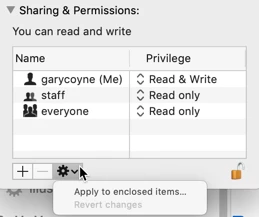


To do anything here, you need to unlock the padlock on the bottom right. Click it and a window will pop up asking you for your authorization (your Mac password). Once that's done, click on the "Everyone" and on the right change "Read only," to "Read & Write."


Now, if there are folders inside this, go to the dropdown gear below and select "Apply to enclosed items..." and you can save yourself some time.


HOWEVER: be judicious when you do this. This should ONLY be done if there are nothing but documents inside these folders. Never EVER do this if there are applications or preferences or other application-related files. Don't ask me how I know this to be true. Otherwise, I do this all the time as necessary.


Please let us know if any of this works, thanks!

2 replies

Participant
June 19, 2020

Thank you Gary for this step-by-step detailed answer which helped me get over this issue. I was scratching my head as to why I couldn't access my external drive, so finding this was amazing.

gary_sc
Community Expert
gary_scCommunity ExpertCorrect answer
Community Expert
March 23, 2020

Hi Kimberly,


Please try the following steps:


Starting with Mojave (and double-downed in Catalina) you need to

1) go into your computers "System Preferences" and select the "Security & Privacy" option and select the "Privacy" option.

2) On the left hand side scroll down until you see the option of "Full Disk Access" and click on that.

3) On the bottom left of the window you'll see a lock, click that and put in your administrator password.

4) Now, click on the "+" symbol that lets you add applications to the list on the right hand side of that window.

5) Find the Bridge application, select it, and click OK. Be sure that the check box next to it is checked.


When you close this window, the lock will automatically lock again so there's nothing to do there.


OK, One of the biggest problems that Catalina has given us is the need to have to change permissions on folders. Have you checked to see if the folder the original files are in have their permissions set to allow Bridge (or any application) access?


In the Finder select the folder that you're documents/images are contained in and press Command-i (i for information). A new window will pop up on the left side of the screen. On the bottom you will see a region called "Sharing & Permissions:"


To do anything here, you need to unlock the padlock on the bottom right. Click it and a window will pop up asking you for your authorization (your Mac password). Once that's done, click on the "Everyone" and on the right change "Read only," to "Read & Write."


Now, if there are folders inside this, go to the dropdown gear below and select "Apply to enclosed items..." and you can save yourself some time.


HOWEVER: be judicious when you do this. This should ONLY be done if there are nothing but documents inside these folders. Never EVER do this if there are applications or preferences or other application-related files. Don't ask me how I know this to be true. Otherwise, I do this all the time as necessary.


Please let us know if any of this works, thanks!

Known Participant
October 28, 2021

Yes!  Worked great.  I can now see the info on the portable disks.  Thank you!