
Participating Frequently
April 23, 2012
Answered

Can you import metadata from an excel database to images (JPG, PSD, TIF) in bulk?

  • April 23, 2012
  • 3 replies
  • 42463 views

I am very new to working with metadata. I have a microsoft excel file with the IPTC Core fields I need for each image file.

(Creator, Headline, Description, Keywords, Title, Job Identifier, Credit Line, Source, Rights Usage Terms, Copyright Status and Copyright Notice)

Is there a way to get the metadata into the files without having to copy from a cell into each metadata field individually?

I am hoping some for sort of script, possibly...

Also, if only ONE of these fields needed updating in all of the files (i.e. Rights Usage Terms) can that be done?

I have Bridge 5.1 (and earlier versions CS3/CS4)
This topic has been closed for replies.
Correct answer Stephen Marsh

Perhaps try tab delimited format instead of comma separated value format.


Edit – Paul Riggott originally wrote the following instructions:


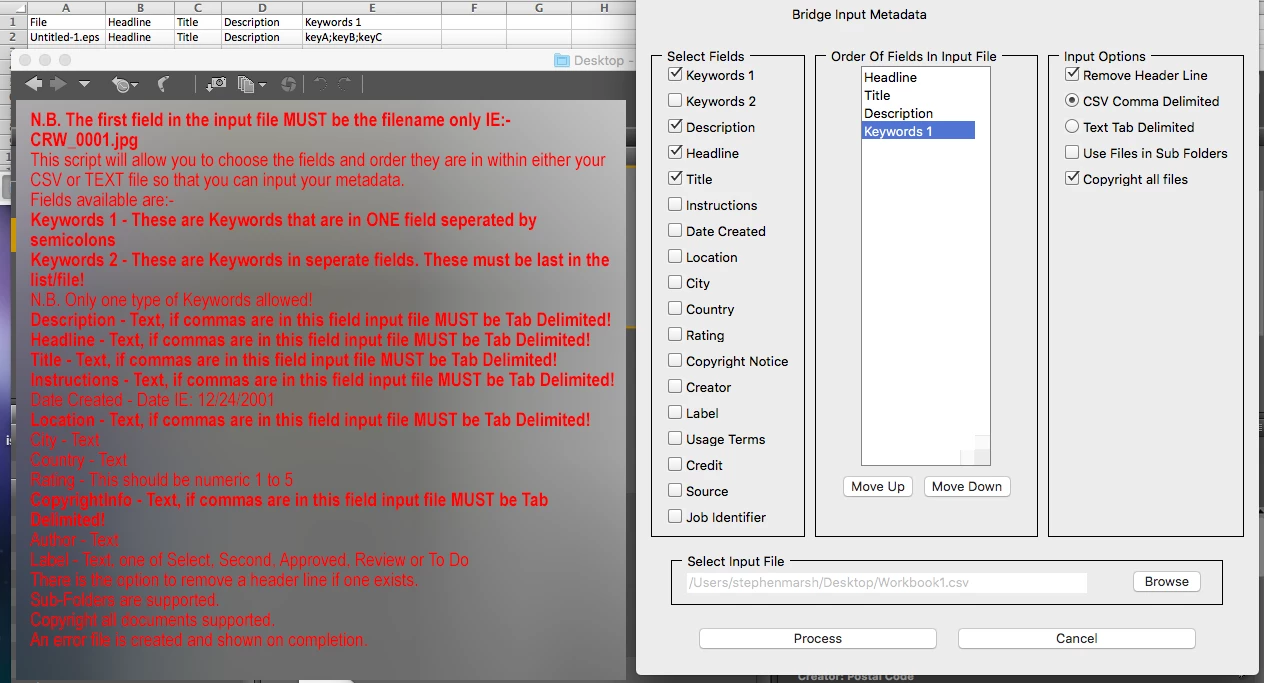
N.B. The first field in the input file MUST be the filename only IE:- CRW_0001.jpg

This script will allow you to choose the fields and order they are in within either your CSV or TEXT file so that you can input your metadata.

Fields available are:-

Keywords 1 - These are Keywords that are in ONE field seperated by semicolons

Keywords 2 - These are Keywords in seperate fields. These must be last in the list/file!

N.B. Only one type of Keywords allowed!

Description - Text, if commas are in this field input file MUST be Tab Delimited!

Headline - Text, if commas are in this field input file MUST be Tab Delimited!

Title - Text, if commas are in this field input file MUST be Tab Delimited!

Instructions - Text, if commas are in this field input file MUST be Tab Delimited!

Date Created - Date IE: 12/24/2001

Location - Text, if commas are in this field input file MUST be Tab Delimited!

City - Text

Country - Text

Rating - This should be numeric 1 to 5

CopyrightInfo - Text, if commas are in this field input file MUST be Tab Delimited!

Author - Text

Label - Text, one of Select, Second, Approved, Review or To Do

There is the option to remove a header line if one exists.

Sub-Folders are supported.

Copyright all documents supported.

An error file is created and shown on completion.

3 replies

Known Participant
November 7, 2018

Hi!

Can we use the exact same script for EPS files? I noticed that in Bridge CC 2019 when we click a EPS we can edit it's metadata (title, description, keywords) directly in Bridge.

Knowing this, would a script be possible to read a CSV and import those fields into a EPS instead of a JPG?

Stephen Marsh
Community Expert
Community Expert
November 7, 2018

Hi!

Can we use the exact same script for EPS files? I noticed that in Bridge CC 2019 when we click a EPS we can edit it's metadata (title, description, keywords) directly in Bridge.

Knowing this, would a script be possible to read a CSV and import those fields into a EPS instead of a JP

Yes, the DIY Metadata script works with a Photoshop EPS file (I have not tested with Illustrator EPS):

And it also works for the VRA tool as well:

Known Participant
November 8, 2018

Ok, in the past I tried DIY Metadata script and I didn't seem to work with illustrator EPS (that is the kind of EPS I am trying to work on). I will give it another try along with VRA panel and will post here if it works with Illustrator EPS. Thanks a lot for the suggestion.

Stephen Marsh
Community Expert
Community Expert
April 14, 2016
Paul Riggott
Inspiring
April 23, 2012

This might be of use...

DIY Metadata.jsx


EDIT: the link is there now: DIY Metadata.jsx

Participant
December 9, 2017

Hey Paul, I'm trying to edit your script to fill in the "IPTC Subject Code" and keep getting an error from the log for my added input/variable. I basically used other fields as an example to edit the code. I can get your predefined fields to work when using a csv for the input, but can't get my own added IPTC Subject Code to to write. Please help 

Participating Frequently
February 8, 2019

(1) OK, the ExifTool custom config file was not as obvious as I would have thought, however with the help of the ExifTool forum I have an answer.

%Image::ExifTool::UserDefined = (

  'Image::ExifTool::DJI::XMP' => {

        RtkFlag => { Writable => 'rational',  },

        RtkStdLon => { Writable => 'rational',  },

        RtkStdLat => { Writable => 'rational',  },

        RtkStdHgt => { Writable => 'rational',  },

    },

);

I saved this plain text file with a .config extension on the desktop with a name of: drone-dji.config (ensure that there is no double extension with .txt). This is the easy option that does not require installation, the .config file path is simply referenced in the command line code below.

(2) I have a folder full of images to process on the Desktop called “Input Folder"

(3) I also have a comma separated value text file on my desktop called “exiftool_import.csv” with the following structure (header row with shortcut tag names, full system path to each file and required metadata values under each tag):

SourceFile,RtkFlag,RtkStdHgt,RtkStdLat,RtkStdLon

/Users/username/Desktop/DJI_0002.JPG,16,3.37184,1.25373,1.85592

(Note: in addition to the “shortcut” tags listed above, the full tag can also be used:  XMP-drone-dji:RtkFlag  etc.)

(4) Finally, the following ExifTool command has to first list the full path to the .config file as well as the CSV file and the input folder to process:

exiftool -config '/Users/username/Desktop/drone-dji.config' -sep ',' -csv='/Users/username/Desktop/exiftool_import.csv' -r '/Users/username/Desktop/Input Folder'

IMPORTANT NOTE: ExifTool command line code on the Mac uses ' straight single quotes, while on MS Windows you'll need to use " straight double quotes. The code above uses the recursive  -r  command to process all sub-directories under the main top level folder. Further arguments can be added to exclude specific sub-directories or to only process specific file extensions.


Stephen,

Sweet setup on the Exiftool.  I have a question.  I modified your script and it runs perfectly (as I have 7 fields to update).  I made a backup copy of the Image folder before running ExifTool

The one thing I can not figure out is how to output the "updated" images to a subfolder so that it will leave the originals.  I tried using the -o . option and I could not get it to work. 

-------------------------

exiftool -config C:\Exiftool\drone-dji.config -sep ',' -csv="M:\Midsouth360\Missions\PPK Test Missions\2018-12-22 Snowden PPK\P4P\Snowden-12-22-Exif.csv" -r "M:\Midsouth360\Missions\PPK Test Missions\2018-12-22 Snowden PPK\P4P" -overwrite_original

-------------------------

I used -overwrite_original so it would not create backups in the same folder as originals.  That won't work for my work flow.

For the command line above, I would like to output the edited images to a subfolder [Pix4D]

M:\Midsouth360\Missions\PPK Test Missions\2018-12-22 Snowden PPK\P4P\Pix4D\

I have installed AutoHotkey scripting program and it seems pretty sweet.  My next thing to tackle will be figuring out how to use AutoHotkey to allow me to:

1. Input Config file Location

2. Input CSV file location

3. Input Output Folder (once I get it figure out).

Then click RUN  button to put those "inputs" together and format and run the command like I have above.

You and SuperMerlin are great!  Thank ya'll.