Inspiring
September 2, 2012
Answered

Color Management in Bridge CS6

  • September 2, 2012
  • 4 replies
  • 22097 views

Hello,

I'm having a strange color management issue in Bridge (64 bit). Essentially, Bridge is not displaying images in either the thumbnails or preview pane using the correct color profile.

Background: I'm on Windows using a dual monitor setup (both independantly calibrated) but I have the issue even when I use only one monitor. Photoshop has no issues with color settings. I've tried resetting all settings (hitting Ctrl as Bridge starts). I've tried purging my cache and having Bridge generate monitor-size previews.

The weirdest part is when I start Bridge, for a split second images appear to be in the correct profile, and then Bridge adjusts everything to the wrong color profile.

Any thoughts?

Thanks!

This topic has been closed for replies.
Correct answer Yammer

Omke, thanks. Would you mind embedding your monitor profile in your screenshot? Can't actually do a comparison otherwise.

I'm using just PS6.

Anyway, it looks like Bridge is showing you colors outside sRGB, which means I'm probably experiencing a bug. [I believe there's a flaw in your workflow. If the file was originally sRGB, you can't convert it to a wider gamut without being sure the actual values of the new image are correct. Although your colors also look out of the sRGB gamut, so not sure what's going on there.] The following look the same to me in Bridge but different in Photoshop:

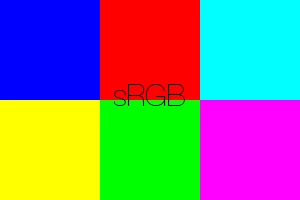
However Yammer's statement...

Bridge previews all images in sRGB regardless of the workspace. This is because Bridge generates previews in 8-bit sRGB (relative colormetric intent) and stores them in a cache as JPEGs.

...makes a lot of sense. If that is the case, both images above will look the same when downloaded and previewed in Bridge.

Would anyone with a wide gamut monitor mind testing that out?

I think what happens is that Bridge initially displays thumbnails with an sRGB display profile, and when it's finished generating thumbnails, it switches them to the monitor profile. This would be more apparent with a wide-gamut display.

On second thought, this also makes sense, since the sRGB previews when initially displayed should be oversaturated if Bridge initially pushes an sRGB display profile, essentially displaying sRGB images using an sRGB display profile on a wide-gamut monitor, explaining the oversaturation (like non-color-managed programs).


Thanks!


Sorry. Been a busy week...

Nrbelex wrote:

The following look the same to me in Bridge but different in Photoshop:
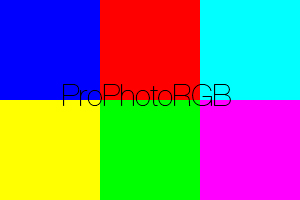
ProPhotoRGB Gamut Extremes.jpg

sRGB Gamut Extremes.jpg

However Yammer's statement...

Bridge previews all images in sRGB regardless of the workspace. This is because Bridge generates previews in 8-bit sRGB (relative colormetric intent) and stores them in a cache as JPEGs.

...makes a lot of sense. If that is the case, both images above will look the same when downloaded and previewed in Bridge.

Would anyone with a wide gamut monitor mind testing that out?

I have a wide-gamut monitor, and I can confirm that I see the same as you:

Both images look the same in Bridge, and markedly different in Photoshop (and Firefox*), with the ProPhoto image much brighter (especially the four patches on the right).

If you do a RC conversion to sRGB in Photoshop they look the same.

BTW, no need to keep saying "if Yammer is correct", I am 100% confident that this is the way Bridge does still image previews. Just look at your cache folders for proof.

(* although, for some reason, the two image thumbnails in your above post above look the same until they are clicked on. Must be something to do with the Jive forum software.)

4 replies

March 26, 2013

To follow up on my post #1 read this tutorial for how to take control of camera raw.  http://www.luminous-landscape.com/tutorials/cr-auto.shtml

NrbelexAuthor
Inspiring
March 26, 2013

PECourtjoie,

What is the file format of the files with incorrect color rendition?

Did you check in the preferences if Camera Raw is preferred for TIFF and JPEG?

This is with all file formats. My workflow usually involves CR2 RAWs, but here's a TIFF example:

That file was created in Photoshop and never entered ACR, and I'm confident my ACR settings are correct anyway:

Just to be clear - images look correct in ACR and Photoshop, but incorrect in Bridge.

YammerP,

Bridge previews all images in sRGB regardless of the workspace. This is because Bridge generates previews in 8-bit sRGB (relative colormetric intent) and stores them in a cache as JPEGs.

If this is true, it's pretty shocking. If Bridge only generates sRGB previews and thumbnails, then all people who use any gamut outside of sRGB will never see an accurate representation of the colors of their images in Bridge. Really!?

Curt Y,

To follow up on my post #1 read this tutorial for how to take control of camera raw.  http://www.luminous-landscape.com/tutorials/cr-auto.shtml

Thanks for the link, but as I posted above, I don't believe it's an ACR issue since the appearance of images once opened in ACR (versus the preview in Bridge) is accurate.

Thanks for the help guys, I really appreciate all of your thoughts!

Here are a few more factors which may or may not be useful in determining the problem. I just want to emphasize that when Bridge first opens, for just a moment the colors are more saturated and may be in the correct gamut, but then immediately the colors desaturate.

NrbelexAuthor
Inspiring
March 26, 2013

As I stated before your symptom of "I just want to emphasize that when Bridge first opens, for just a moment the colors are more saturated and may be in the correct gamut, but then immediately the colors desaturate." sounds exactlly like you are viewing the embedded jpeg profie and it switches to your default settings.  I know you state they are correct, but would double check.  Do you have HQ thumbnails selected?  In Camera Raw preferences do you have the correct boxes  unchecked so Bridge does not  automatically change your settings?


Curt, I don't see a HQ thumbnails option in any of the Bridge settings - here's what I've got:

In ACR I have my settings as I want them, and images appear correctly in ACR - see below:

However if I make an edit to a RAW file in ACR and hit done, Bridge will update the preview of the image to reflect that change, but the preview will still look very different from how the image should appear and how it does appear in ACR/Photoshop.

Thanks!

PECourtejoie
Community Expert
Community Expert
March 26, 2013

Hello!

What is the file format of the files with incorrect color rendition?

Did you check in the preferences if Camera Raw is preferred for TIFF and JPEG? If its default setting is to desaturate, all new previews will look desaturated for TIFF and JPEGs...

Participant
October 16, 2012

I am having ALMOST exactly the same problem as you are and I, also, can't find a solution. This is a list of the similarities and differences:

1. I have dual monitors, but only the primary (and wide-gamut) monitor is calibrated. The second is only for holding palettes/panels and less important documents.

2. When using my calibrated monitor, I do NOT see the right preview at any time. (I expect it to be wrong in the secondary one, and it is, but there are differences between them.)

3. From the moment of launch all the previews are either darker than they really are; completely changed; or both. (Ex: dark pink becomes a muddy brown).

4. When viewing the same documents using Bridge CS4, all previews are as they should be (that is, CS4 is capable of interpreting sRGB, AdobeRGB, and ProPhotoRGB correctly). CS6 misinterprets all three.

5. When viewing them in CS6, however, they look like documents sent to print with the wrong profile attached.

6. I checked my Bridge Preferences in CS4 and in CS6 and can't find what I'm doing differently or any settings that might govern color rendering.

7. None of the images look like the Bridge thumbnail when opened in Photoshop. I even converted them to sRGB and e-mailed them to myself. The e-mail program renders them correctly (matching the Photoshop sRGB version) and so does Windows when I view thumbnails.

8. This is the strangest uniquely CS6 Bridge behavior: A layered tif or psd image (in whichever color space) might display well. The flat version of the same image (layer>merge visable) gets distorted almost every time. (Both versions look fine in Photoshop CS6, CS4, Windows, and Bridge CS4).

Bridge CS6 is completely unreliable!

Omke Oudeman
Participating Frequently
October 16, 2012

Can you specify your system details and computer details

Don't have dual monitors my self but seem to recall there is a system setting (at least on a Mac) to specify the primary screen

Also can you tell if you own a suite or just PS as stand alone. What are your color settings in PS itself.

In Bridge you can reach Camera Raw preferences, can you check the default image settings and see if Apply Auto tone adjustment is Deselected.

And have you also tried to purge cache for a selected file (use right mouse click menu for this when pointing to the selected file(s) and see if this changes things.

Participant
October 16, 2012

I have the stand-alone Photoshop CS6.

I have Windows 7 Professional with Service Pack 1.

My dell computer has an Intel Co i7 Processor, 12 GB of RAM, 64-bit.

My color settings are set for ProPhoto as default. I process and archive in ProPhoto 16-bit @320 ppi but sometimes save a flat 72ppi copy in 8-bit sRGB.

I haven't tried to purge the cache for the individual images, but I did uncheck "apply auto tone adjustment" and some of the images did improve. In particular, the pink that turned muddy brown did improve. I think that this setting, which slipped past me somehow, accounts for some (if not most) of the problems I've been having. It didn't occur to me to check ACR settings because some of the files were not photographs, but rather created on the computer with Photoshop.

There is one other problem I've been having with some images--and I'm not 100% sure this happened under CS6, but I believe it did--and it's that some images that I KNOW previously had a profile associated with them, now appear as "untagged." On one folder over 70 images lost their profile and over 200 did not. This was an archival folder on my computer (not on an external drive) which I haven't needed again until just recently.

Luckily, I had backup copies of the originals elsewhere and can re-save them from other media. But, still, it makes me nervous that this type of thing can just happen. (I don't want to convert to a profile  now because I'm afraid they will be altered in the process and these are files that were published once, need to be published again, and I want the 2nd edition to match the first).

Thank you so much for your help. A big part of my frustration has been eliminated in one simple unchecking, but I never would have thought to do so on my own!

September 2, 2012

Nrbelex wrote:

The weirdest part is when I start Bridge, for a split second images appear to be in the correct profile, and then Bridge adjusts everything to the wrong color profile.

What you are probably seeing here is the embedded thumb that shows briefly before being replaced by your HQ preview.  If you are using raw images this likely means your default ACR settings/color profiles are not correct. 

NrbelexAuthor
Inspiring
September 2, 2012

That embedded thumb appearing briefly seems possible, but I have the issue with RAW files, PSDs and JPGs, and I'm fairly confident my color settings and profiles are all correct. Everything seems to be displayed in sRGB instead of ProPhoto RGB oor Adobe RGB. ACR is set to bring up RAW files in ProPhoto.

Here's a screenshot showing the metadata including the color profile settings. What I'm seeing is definitely not pure red or green in the ProPhoto gamut.

Thanks

NrbelexAuthor
Inspiring
September 2, 2012

Playing around a bit, I'm finding that this likely has to do with the dual monitors, and I've got a workaround. Even though a wide-gamut monitor is selected as the default, Bridge seems to be using the secondary (laptop) display's profile. If I start Windows without any output to the laptop display, Bridge shows all the files in the correct profile.

Once workaround I've come up with is to start Bridge with only the main display on, then once Bridge is up and running, add the secondary display. I would obviously prefer not to do this display juggling, so does anyone have any ideas? Anyone else experience this?

Thanks!