Exit
  • Global community
    • Language:
      • Deutsch
      • English
      • Español
      • Français
      • Português
  • 日本語コミュニティ
  • 한국 커뮤니티
0

Error

New Here ,
Jan 06, 2022 Jan 06, 2022

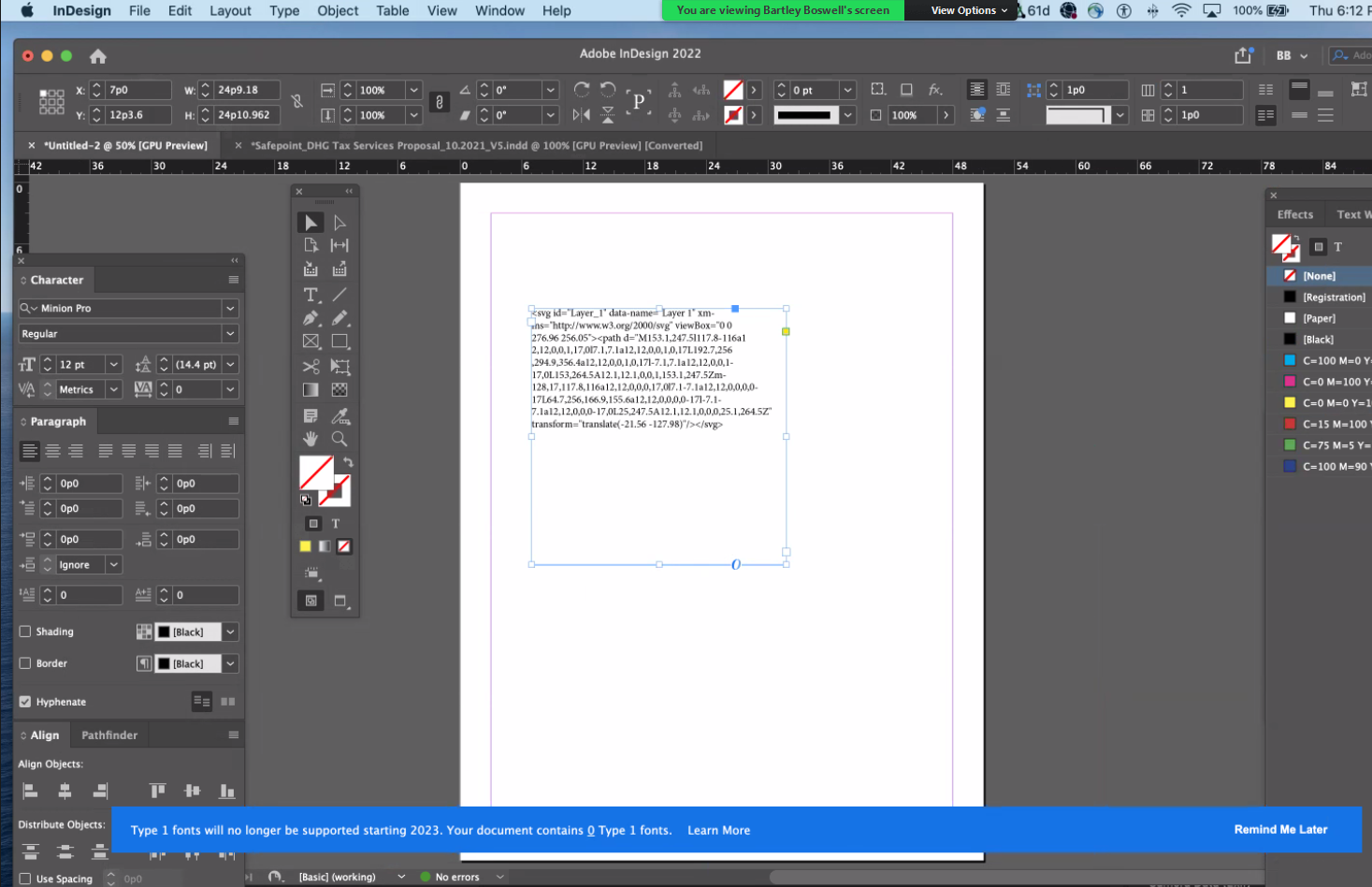
I'm working with a client that it's trying to copy SVG files from Adobe Bridge then trying to paste them into AdobeDesign to make changes but when doing this it's showing up as a code, not the image. Has anyone seen that before?

TOPICS
Problem or error
266
Translate
Report
Community guidelines
Be kind and respectful, give credit to the original source of content, and search for duplicates before posting. Learn more
community guidelines
Community Expert ,
Jan 06, 2022 Jan 06, 2022

There is an issue with copying them from Bridge, try this "trick!"


https://creativepro.com/using-svg-images-in-indesign/


Translate
Report
Community guidelines
Be kind and respectful, give credit to the original source of content, and search for duplicates before posting. Learn more
community guidelines
New Here ,
Jan 06, 2022 Jan 06, 2022

a - user doesnt want to import .ai files, and its only happening on ONE user out of 8. ON InDesign 2022. (make sure to include the ID version + 17.0.1). and ask how to make sure its not getting pasted into a text or selection box like the article suggests


b - unchecking/checking "Include SVG Code" does not work and still pastes as svg code. is there a similar option within indesign?

Translate
Report
Community guidelines
Be kind and respectful, give credit to the original source of content, and search for duplicates before posting. Learn more
community guidelines
Community Expert ,
Jan 06, 2022 Jan 06, 2022
LATEST

At no point does this article state that the user put an AI file into ID. 


The article clearly states to take the SVG file and copy from within AI to paste into ID.


FWIW, there is something about vector objects that can flummox a basic copy/paste routine. I've encountered this issue for many years. 

Translate
Report
Community guidelines
Be kind and respectful, give credit to the original source of content, and search for duplicates before posting. Learn more
community guidelines