
Known Participant
June 25, 2023
Answered

How to rate/color a photo while comparing multiple?

  • June 25, 2023
  • 2 replies
  • 1275 views

For the life of me I can´t figure this out. Can anyone tell me how this is supposed to be done.

Let´s say I am comparing two or more photos in light table or preview mode. When I click each one on the light table, the stars under the photo get brighter indicating that this photo is selected. How ever, if I want to rate this photo or say give it a yellow color, that star rating or the yellow tag comes to all of the chosen photos.

Is there any way to give the rating just for one photo?

It´s quite difficult to go and choose that photo separately from the library, because the light table shows the photos in the order that they were chosen. So the first photo on the light table isn´t always the first photo in the library. And anyways, doing that is just clicks that shouldn´t be needed.


Why can´t I just compare the photos in a light table view and click the one that I want (as I said, it gets brighter, indicating that it is active/chosen) and the give a star rating and/or a color to that photo?
 

This topic has been closed for replies.
Correct answer gregreser

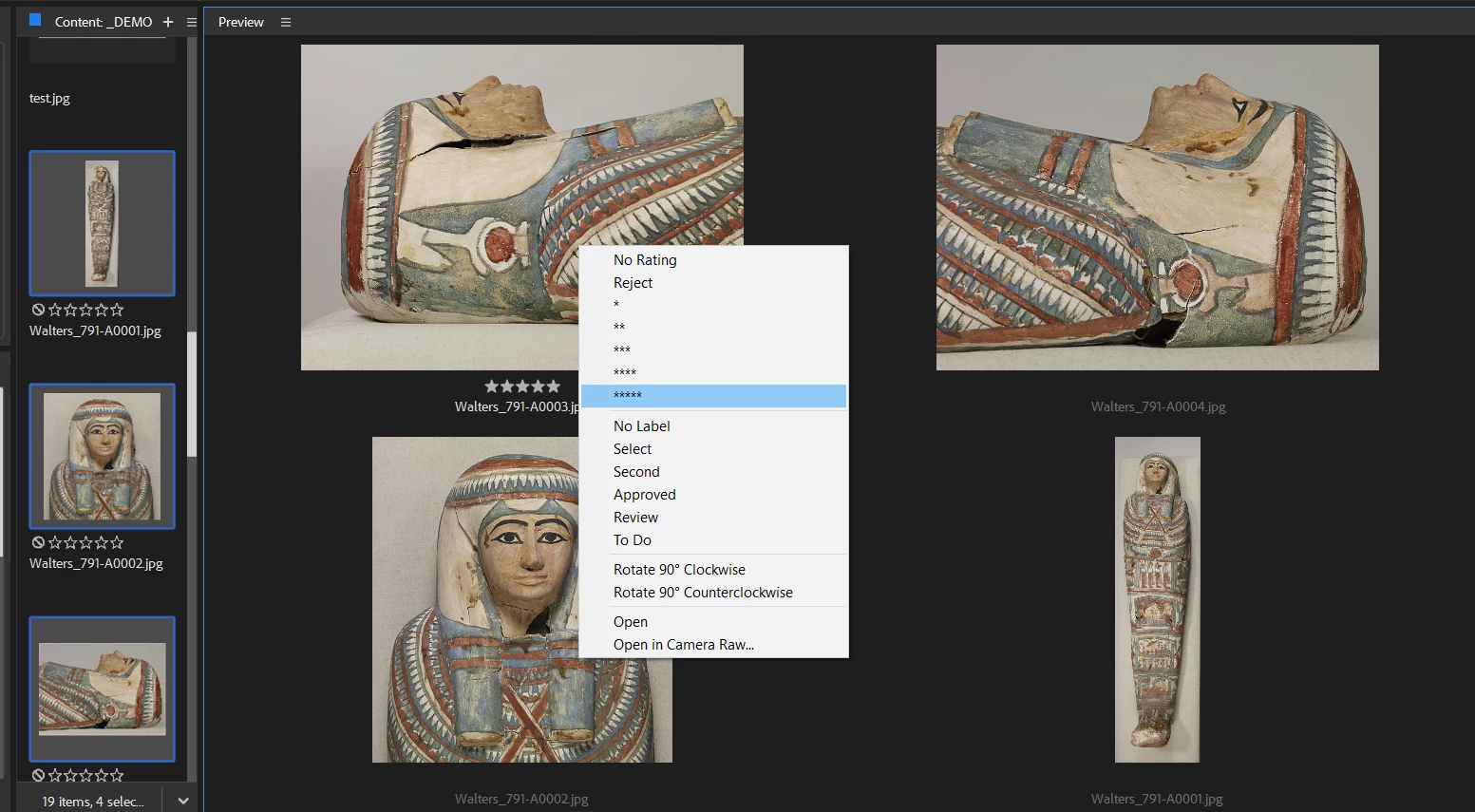
You can right click on a preview image and change the rating.


2 replies

gary_sc
Community Expert
Community Expert
June 25, 2023

As Greg states, if you're looking in the Previews Panel of multiple images, you can click on one of them and give that ONE a rating or label by right-clicking and giving it a rating or label. (You can select up to nine images in the Content Panel to show up in the Preview Panel.)


But, if you are looking at the Light Table Workspace and select multiple images (two or more), there is no way for Bridge to know which image is the ONE image you want to receive a specific rating or label.


The Light Table Workspace is the Content Panel expanded to fill the entire window. Now, here's a quick tip: if you are in any of the other Workspaces and wish to quickly switch to the Light Table Workspace and then back out to the previous Workspace, press the tilde key (`, to the left of the one (1) key. Then press it again to return. [Sadly, this only works on US Keyboards.]

TeeKooAuthor
Known Participant
June 25, 2023

Thanks @gregreser and @gary_sc .


I really wish they´d add a feature of being able to rate or color label by pressing the number keys, because using the right click really starts to slow you down when you are dealing with a big anount of photos.

TeeKooAuthor
Known Participant
June 27, 2023

I'm not sure what you mean. In both Bridge and LRC (I'm assuming you mean LRClassic, not LRDesktop (or Lightroom CC)), if you have multiple images selected and make a rating or Lable (in the thumbnail region), all selected images will receive that rating and Label. That's just the way it works. The only exception to this is the images you see in the Preview window, where you can right-click to provide your ratings and/or Lable.


Do watch out for one main issue in that ratings and Labels in Bridge and LRC are not compatible with each other. 


I do understand your concerns about space and images/catalogs. That's why I do the following:


Over the years, I've had several hard drives crash, and yes, I've lost stuff. Here's what I now do:

I have a 4 TB drive that holds all of my images and many documents. I have a 2nd 4TB drive that I use to back up my first drive. I manually do this at least once a week or more often if I've done a lot of work. (For backup, I use Chronosync, this is a Mac application.)

I have a 3rd 4TB drive I use for Apple's Time Machine.

I also use a cloud service in case the house burns down. Am I paranoid? No, just a realist. In a worst-case scenario, I would not lose much, at worse, sometimes. 


This process also leaves me with only 1/2 to 1/3 of my hard drive space open for PS caching and other important space. Something to consider.


Actually, in Lightroom Classic (which I use) you can do just that. You just have to be in Survey view (you get the survey view by pressing N). In survey view you get all the chosen photos to the screen at the same time (much like in Bridge, with the exception on not being limited to 9 photos), and you can click them or go through them using arrow keys (the selection stays and doesn´t go to next photos like in Bridge). You can see which photo is active because that one has a thicker border. Then, when you click number 2 for example, only the active photo of the selected photos get the rating (or color label of a flag).


So I suppose, that is what I am missing in Bridge. The functionality of the survey mode in LR.

gregreser
gregreserCorrect answer
Legend
June 25, 2023

You can right click on a preview image and change the rating.