Keep settings in saved workspaces

Copy link to clipboard
Copied
Hi All,
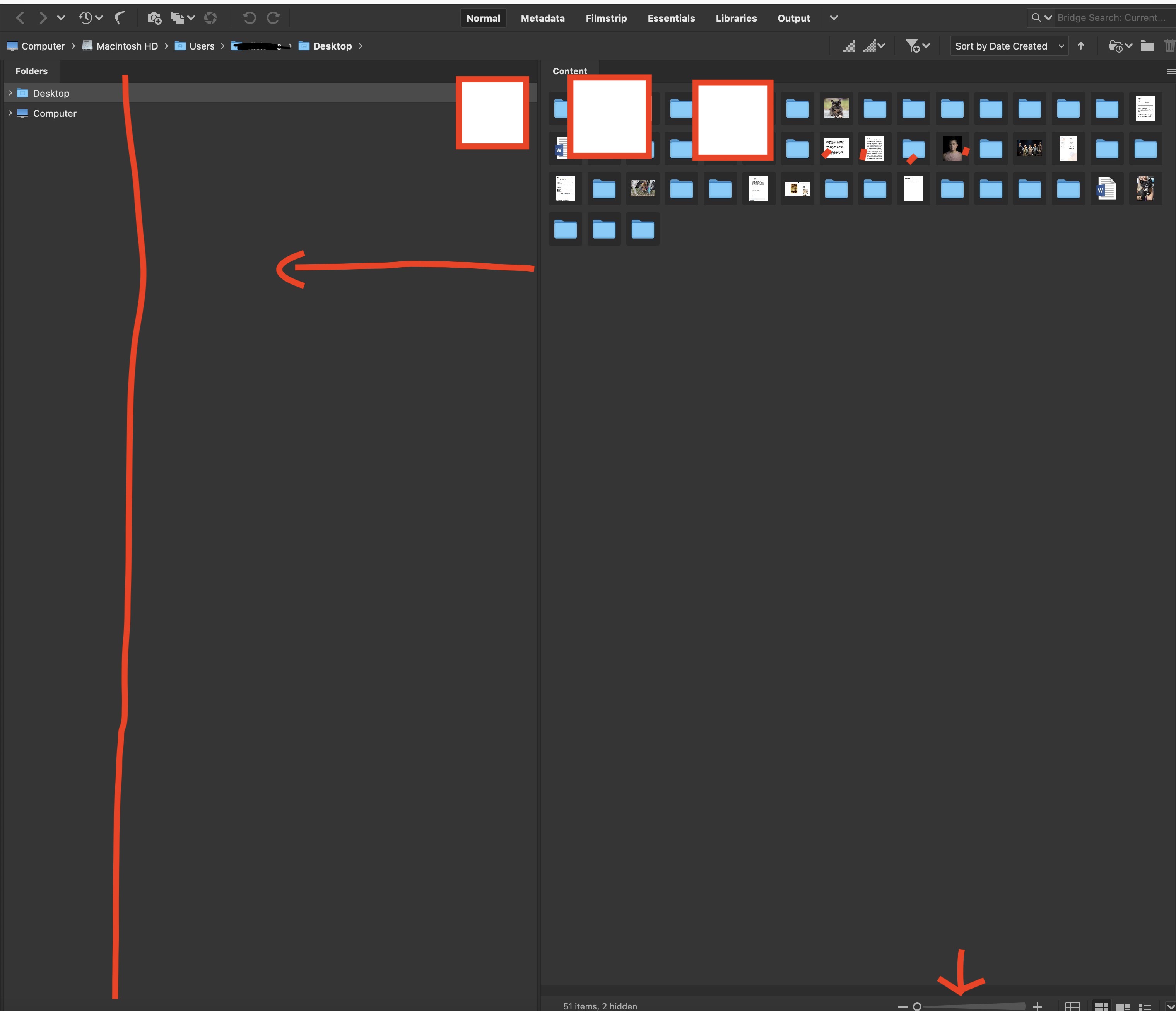
I'm trying to keep certain settings from workspace to workspace in Bridge. For example, whenever I open my 'normal' saved workspace I get the attached workspace where the thumbnails are tiny and 'divider line' between the left and the right is way over to the right. I keep that line closer to the left and have my thumbnails much larger. This used to be 'sticky' but I can't seem to make it work anymore.
Thanks!
Mac os 12.3.1
Bridge 12.0.1.246


 6
Replies
6
6
Replies
6


Copy link to clipboard
Copied
Hi SRP,
Many things can cause your custom Workspace to change from what you intended, even you moving things around for a moment here or there.
If you go to the Window (menu) and mouse-down on the first listing (Workspace), the first option is Reset Workspace. This will reset WHATEVER Workspace you are currently in back to the way it was when created. Unfortunately, there is no Keyword control on this, but it will always get you back to where you want to be very quick.
Let us know if that works for you
Copy link to clipboard
Copied
Hi Gary,
That didn't work for me. For some reason that screen I attached is the default. I've also tried modifying and saving the workspace again, as well as renaming the workspace to something that doesn't exist. It always comes back the the weird dividing line in the middle and the teensy thumbnails...
Copy link to clipboard
Copied
Can you please show me what you want this to look like?
Also, it appears on the image that you've placed that you only have two columns. Bridge is designed to work with three columns of Panels. Can you please verify that?
Copy link to clipboard
Copied
Copy link to clipboard
Copied
Hi SRP,
OK, here's the deal. I've been playing around with your desired workspace (although I do not understand what the three squares are in red, so I'm ignoring them for now).
I finally figured out how you did the 2-column window by taking the left column and collapsing that, then taking the middle column and shoving that to the far left.
And, I think I now understand that when you "Reset the window, it does not completely snap back into the narrow thin column you want: it's because the engineers never considered anyone wanting such a narrow thin column and the default percentage of the columns takes precedence over your desired Workspace. There is no secret sauce to set this up; it's built into the Application. I found that if you place a 3rd Panel below your Folders Panel, it helps but does not eliminate the issue. If you drag the window out to the right, the width of the left side extends considerably, and if you then reset it, it snaps mostly back and less so than if there's one Panel on the left side.
About the only thing I can think of is for you to write to the Adobe engineers here:
https://adobebridge.uservoice.com
Now, I have to give you a generic warning: do not expect anything to happen with this soon. First, there are a bunch of actual real nasty bugs that Bridge has not dealt with in a long time that will take precedence. Plus, I know the engineers have been busy making a new platform for the new Apple M1 computers. This also takes precedence. Lastly, making adjustments to any application is a game of "how many people will strongly appreciate the result from the amount of engineering time that will need to be spent to get any feature created. Since I've never seen anyone use a three-panel Window, I do not think that the call for this will be strong. (Obviously, I could very well be wrong, I'm only expressing my thoughts here.)
But have a heart here, get your friends and family to vote on this, and maybe it could happen. But, I do wish you not to get your expectations set to see this in a month or two. That will not happen. Trust me.
FWIW, if I close the inside edges of the left and right column, I can replicate what you want, and it survives any alteration I make of it and ALWAYS bounces back to your desired general design
Copy link to clipboard
Copied
The thing with that is that I have always had my bridge set up this way. For decades. It's only with the last set of updates that this started happening.


Get ready! An upgraded Adobe Community experience is coming in January.
Learn more
 AdChoices