

Samuel Hoffe
Participating Frequently
January 21, 2023
Question

Metadata Changes made in Bridge not Reflected Elsewhere

  • January 21, 2023
  • 1 reply
  • 4092 views

Hello friends,


After many years of lurking these forums for various solutions over the years, I have finally come across an issue perplexing enough to warrant a post. For some background info, I recently updated all my devices and CC apps and am running macOS Ventura and Bridge 13.0.2.636


I'm in the process of consolidating my iPhone photo and videos backups to iCloud to free up space on my iMac/generally making my workflow more efficient. Previously, I would use Apple Photos to import images and videos from my iPhone onto my iMac and export them as "unmodified originals" to annual archive folders. However, last year I discoverd a batch of ~500 videos from 2019 that were in a different format (.m4v instead of the usual .MOV) and they'd somehow had their metadata stripped away and replaced with an incorrect creation date - I assume this date delineates when this disaster occured. Whats more bizarre, all the photos from this period (May-September) didn't have their metadata affected, but are .jpg images instead of the usal .HEIC, and can still be sorted chronologically. I've tried to recreate this error by exporting from Apple Photos with different settings but so far I'm still stumped as to what happened to this batch of media.


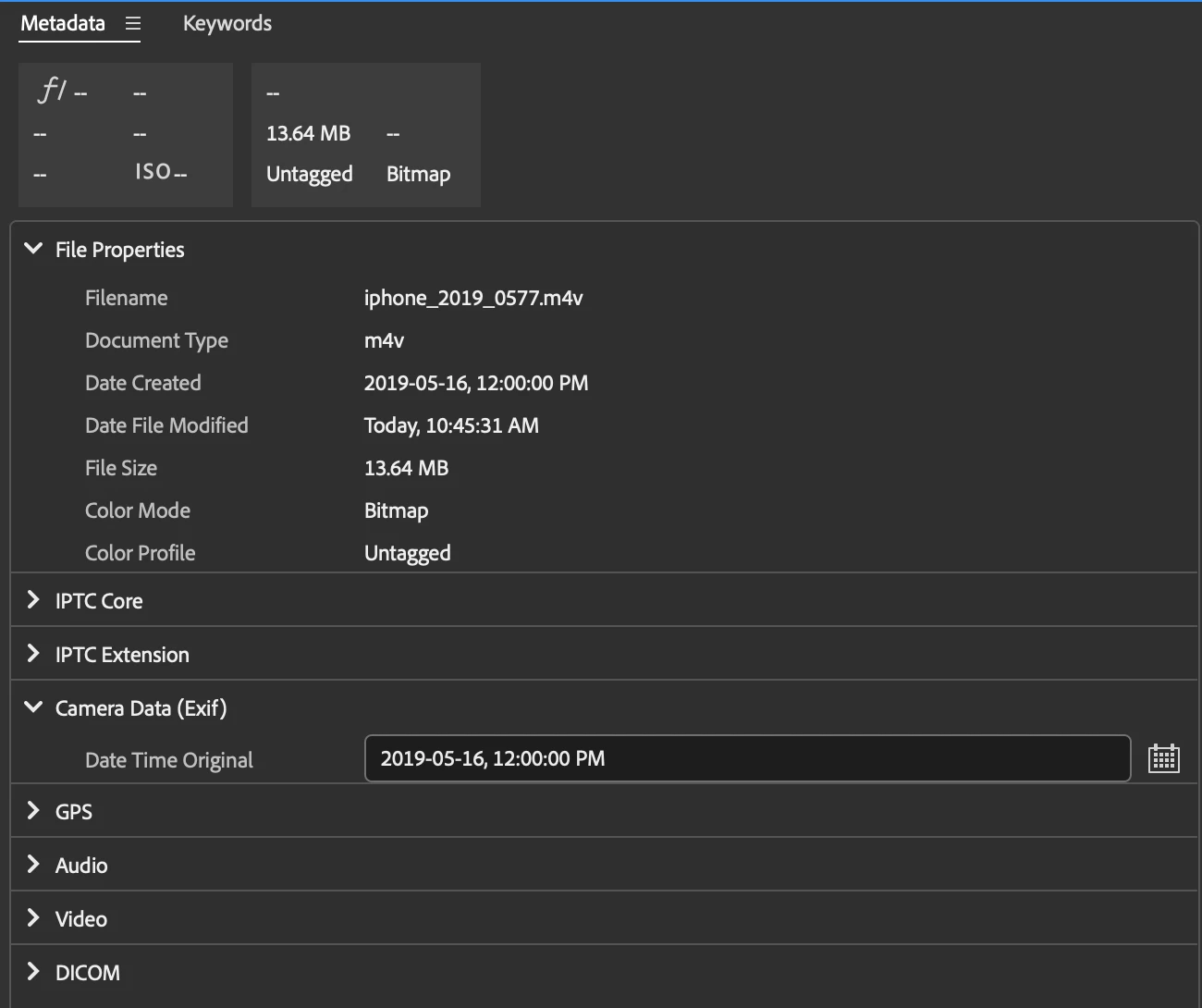
Anyway, over the past week, I've been tediously sorting the videos manually by comparing the dates to photos, trying to delineate different events and occurences, and using instagram to further corroborate dates. Once I've established the date and rough time of a video, I have been typing the corrected date and time into the "Camera Data (Exif)" drop down area of the Metadata viewer, altering the "Date Time Original" field to the corrected date/time. This change is also reflected in the "File Properties" drop down area of the Metadata viewer, showing the correctly altered "Date Created", as shown below.


After hours upon hours of this, I finally finished yesterday and went to import everything into Apple Photo/sync with iCloud and once again, these ~500 videos were recorded as having the incorrect creation date of September 25th, 2019 and were placed in a randomized order depending on their supposed time of creation. I removed them from Apple Photos, came here, found a couple of suggestions like the "Edit Capture Time" feature, which does in fact reflect my corrected dates, or clicking the "Apply" checkmark in the bottom right corner to make sure the change was applied. Even more perplexing is the fact that Bridge can now correctly sorted these videos by date created, but the "File Info" still shows the incorrect creation date (shown below) as does the file info provided in Finder. Note: all screen captures are for the same file.
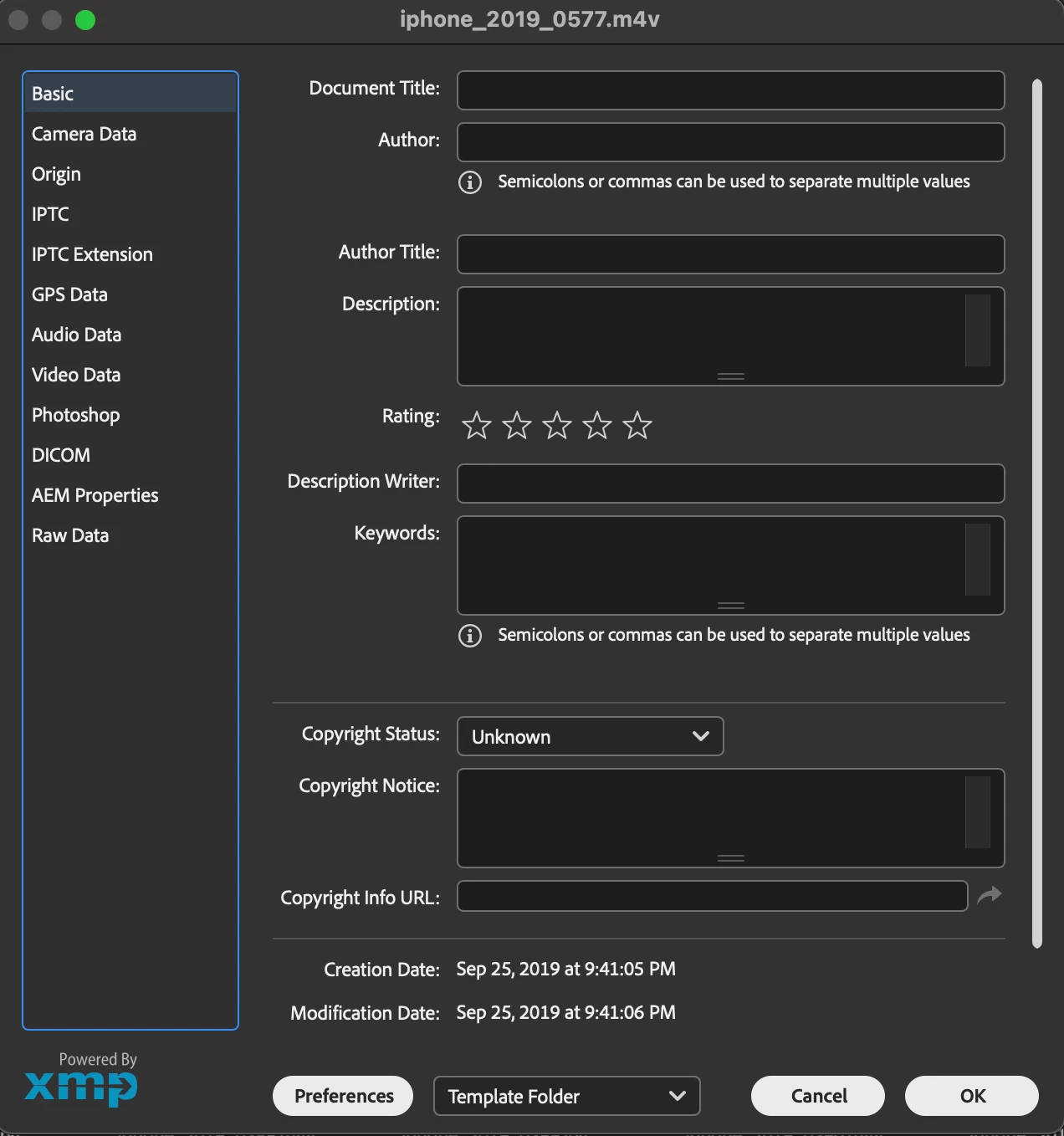
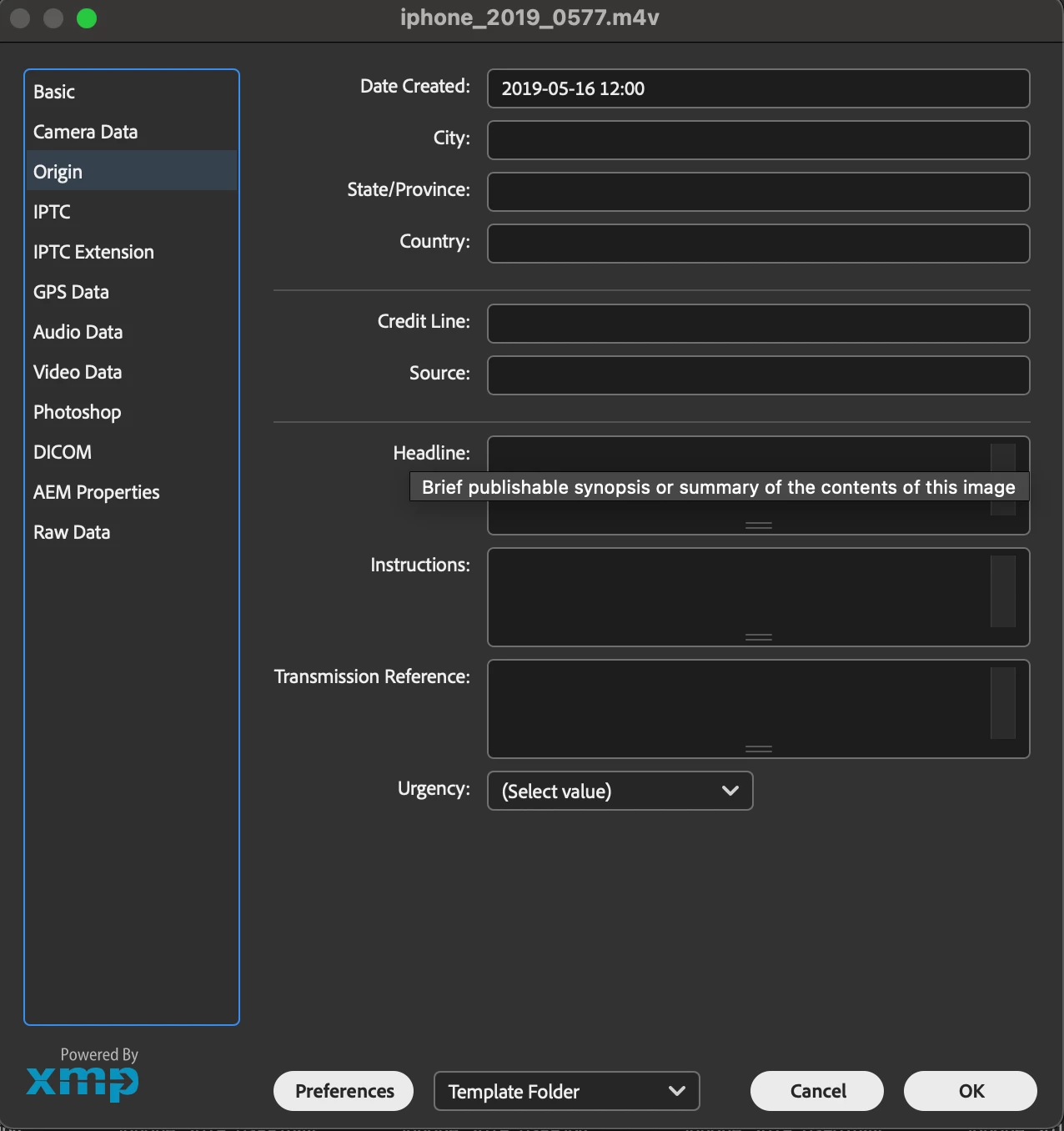


Can anyone advise on how to solididy the metadata changes I've made to be reflected outside of Bridge so I can finally sorted these videos chronologically? I am desperately hoping that this can be achieved in a batch processing method because I've poured way too many hours into tediously and manually sorting these videos already and am terrified of it all being for nothing. Thanks for your help,

Sam


This topic has been closed for replies.

1 reply

gregreser
Legend
January 22, 2023

A big part of this puzzle is knowing which date field Apple Photos sorts on, there are several: date file created, date created (content created), exif dates, XMP dates (many different types). I don't have any .m4V files to analyze, so I'm at a slight disadvantage.


I notice in your File properties that Date File Created is not showing. Would that be September 25th, 2019?

Turn on Date File Created in Preferences > Metadata.


I think the File Info Basic and Origin panels are reading different dates, which only adds to the confusion.

First, let's look at the embedded XMP metadata. 

Open the File Info panel (File > File Info…) and click on "Raw Data" (in the list of panels on the left side).

Click on the XMP data. Select all then copy and paste it into a reply here.


Samuel Hoffe
Participating Frequently
January 22, 2023

Hi there, thanks for your help with this. After enabling the additional metadata fields, this is the what I've found. The date created and date time original reflect the corrections I've made, but now there's a further mismatch between the Exif date time and date file created listed under file properties. Clearly something went very askew from September 25th-26th, 2019, possibly during an export procedure that was going on in the background. I'll post a screenshot of this below.


RAW Data as per your request:


<x:xmpmeta xmlns:x="adobe:ns:meta/" x:xmptk="Adobe XMP Core 7.1-c000 79.4d2f597, 2021/09/01-20:51:22 "> <rdf:RDF xmlns:rdf="http://www.w3.org/1999/02/22-rdf-syntax-ns#"> <rdf:Description rdf:about="" xmlns:xmp="http://ns.adobe.com/xap/1.0/" xmlns:tiff="http://ns.adobe.com/tiff/1.0/" xmlns:xmpMM="http://ns.adobe.com/xap/1.0/mm/" xmlns:stEvt="http://ns.adobe.com/xap/1.0/sType/ResourceEvent#" xmlns:kbrg="http://ns.adobe.com/bridge/1.0/" xmlns:exif="http://ns.adobe.com/exif/1.0/" xmlns:photoshop="http://ns.adobe.com/photoshop/1.0/" xmlns:xmpDM="http://ns.adobe.com/xmp/1.0/DynamicMedia/"> <xmp:CreateDate>2019-09-26T04:41:05Z</xmp:CreateDate> <xmp:ModifyDate>2019-09-26T04:41:06Z</xmp:ModifyDate> <xmp:MetadataDate>2023-01-21T10:45:31-08:00</xmp:MetadataDate> <tiff:Orientation>1</tiff:Orientation> <xmpMM:InstanceID>xmp.iid:b2255872-8197-4686-92d7-be1a6c0cea85</xmpMM:InstanceID> <xmpMM:DocumentID>xmp.did:4401b4b8-33c6-4fbb-84df-9934344ac881</xmpMM:DocumentID> <xmpMM:OriginalDocumentID>xmp.did:4401b4b8-33c6-4fbb-84df-9934344ac881</xmpMM:OriginalDocumentID> <xmpMM:History> <rdf:Seq> <rdf:li rdf:parseType="Resource"> <stEvt:action>saved</stEvt:action> <stEvt:instanceID>xmp.iid:4401b4b8-33c6-4fbb-84df-9934344ac881</stEvt:instanceID> <stEvt:when>2023-01-15T10:20:26-08:00</stEvt:when> <stEvt:softwareAgent>Adobe Bridge 2023</stEvt:softwareAgent> <stEvt:changed>/metadata</stEvt:changed> </rdf:li> <rdf:li rdf:parseType="Resource"> <stEvt:action>saved</stEvt:action> <stEvt:instanceID>xmp.iid:b2255872-8197-4686-92d7-be1a6c0cea85</stEvt:instanceID> <stEvt:when>2023-01-21T10:45:31-08:00</stEvt:when> <stEvt:softwareAgent>Adobe Bridge 2023</stEvt:softwareAgent> <stEvt:changed>/metadata</stEvt:changed> </rdf:li> </rdf:Seq> </xmpMM:History> <kbrg:InitialEditCaptureTime>2019-09-26T04:41:05Z</kbrg:InitialEditCaptureTime> <exif:DateTimeOriginal>2019-05-16T12:00-08:00</exif:DateTimeOriginal> <photoshop:DateCreated>2019-05-16T12:00</photoshop:DateCreated> <xmpDM:duration rdf:parseType="Resource"> <xmpDM:value>6299</xmpDM:value> <xmpDM:scale>1/600</xmpDM:scale> </xmpDM:duration> </rdf:Description> </rdf:RDF> </x:xmpmeta>


And as a screenshot:


Samuel Hoffe
Participating Frequently
January 22, 2023

There are 4 dates in the XMP metadata:

Generally these are defined consistently, but some software might not honor the definition.


Date the file was created/modified:

xmp:CreateDate 2019-09-26T04:41:05Z
xmp:ModifyDate 2019-09-26T04:41:06Z


Date the content was created:

exif:DateTimeOriginal 2019-05-16T12:00-08:00
photoshop:DateCreated 2019-05-16T12:00


I bet that when you transferred the video files in September 25th-26th, 2019, they were considered to be new files in iCloud and the xmp:CreateDate and Modified dates were set the same as the new file date.


I found a discussion about a similar issue. It's about jpgs, but the problem of date changes might still be relevant. Your m4V files might have been handled differently than your jpgs on upload, I can't say why or how though.

https://discussions.apple.com/thread/253781687


There are ways to sync the file create date to DateTimeOriginal, but not in Bridge. Before we go down that path, it would be good to know if the corrected files will be changed again in iCloud or Apple Photo. You said you have not been able to recreate the problem. Has this been with .m4v files? I should have said from the beginning that I am a Windows user, so I can't test the issue directly. I can help with the metadata cleanup though.


Hi Greg,


This is correct, I have not been able to replicate the issue by exporting "normal" .MOV files from Apple Photos that came from before and after the May-September period and to be honest, I don't even know where the .m4v extension came from - perhaps previous version of Apple Photos handled file export differently? Looking at previous years, I have .m4v files from 2015 that also have bizarre file creation dates shown in Finder but are still correctly sorted in Apple Photos and when exmained, show the correct capture time.


Examining a "normal" .MOV video in Apple Photos vs one of the September 25th .m4v anomalies doesn't provide much information either as the software is more user friendly to a fault and doesn't provided detailed metadata about each file - as seen below


 Anomaly                                      Normal


The user in the link you've provided seems to be having a similar problem in that Finder uses file creation dates and not Exif data to sort, probably irrespective of the file format - which is certainly a scary proposition: that Apple Photos could have stripped out the actual date and time the photo/video was created. I know that for the ~500 videos I appended, there was no sign of the original creation date/time anywhere to be found so I was mostly using educated guesses when I input the Date Time Original myself.


As you've suggested, syncing the file creation date to the Date Time Original I've manually input in Bridge would be the ticket. It would be good to test this on a single file and then see if Finder and Apple Photos can read the altered metadata correctly before proceeding with any batch processing. Let me know your thoughts.