

ssaad97
Inspiring
September 11, 2017
Answered

Metadata doesn't change in Adobe Bridge

  • September 11, 2017
  • 2 replies
  • 2015 views

Hello everyone!

I've encountered something strange and I'm not sure what to do about it.

For my Graphic Design course, I had to make some changes on the photos for the Web.

I've used Camera Raw with Adobe Bridge in order to do it.

What I had to do was to change the Dimensions, Resolution, and Color Mode/Profile for the photos.

Here are the changes I've made on them for the exercise, which are shown in Camera Raw..

But unfortunately when I open those Images with Adobe Bridge, the Metadata in File Properties doesn't change. Despite the fact that I've updated them.
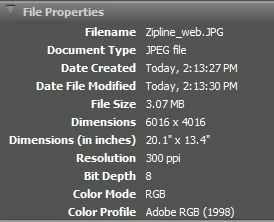
Do you guys think that I must've made a mistake during the exercise, or it's some glitch or something?

Oh and not forget to mention, I'm using the CC 2017 versions of the Adobe Creative Cloud.

I'll like to know as soon as possible.

Thanks and have a great day!

Best

- Sherif

This topic has been closed for replies.
Correct answer ssaad97

I've found the solution. It turns out that I only needed to change the Color Space and Image Sizing in the Save Options dialogue box. I think I was suppose to do the three photos all at once, but it didn't work for some reason. But when I tried to do it again on each separately, it solved the problem and now the File Properties have updated.

Also to answer your question, I've saved images from ACR only and didn't use Photoshop for it. I even tried purging the cache for the selected images, but it hasn't done much unfortunately.

But anyways, as long as it's solved then that's what matters. Thanks for your help though, I appreciate it.

2 replies

Stephen Marsh
Community Expert
Community Expert
September 11, 2017

Have you actually saved the images from ACR or opened the images from ACR into Photoshop?… If you have, then perhaps try purging the cache for the selected image or directory in Bridge.

ssaad97
ssaad97AuthorCorrect answer
Inspiring
September 12, 2017

I've found the solution. It turns out that I only needed to change the Color Space and Image Sizing in the Save Options dialogue box. I think I was suppose to do the three photos all at once, but it didn't work for some reason. But when I tried to do it again on each separately, it solved the problem and now the File Properties have updated.

Also to answer your question, I've saved images from ACR only and didn't use Photoshop for it. I even tried purging the cache for the selected images, but it hasn't done much unfortunately.

But anyways, as long as it's solved then that's what matters. Thanks for your help though, I appreciate it.

Kanikas
Community Manager
Community Manager
September 11, 2017