
JoannaPJ
Participating Frequently
October 24, 2022
Answered

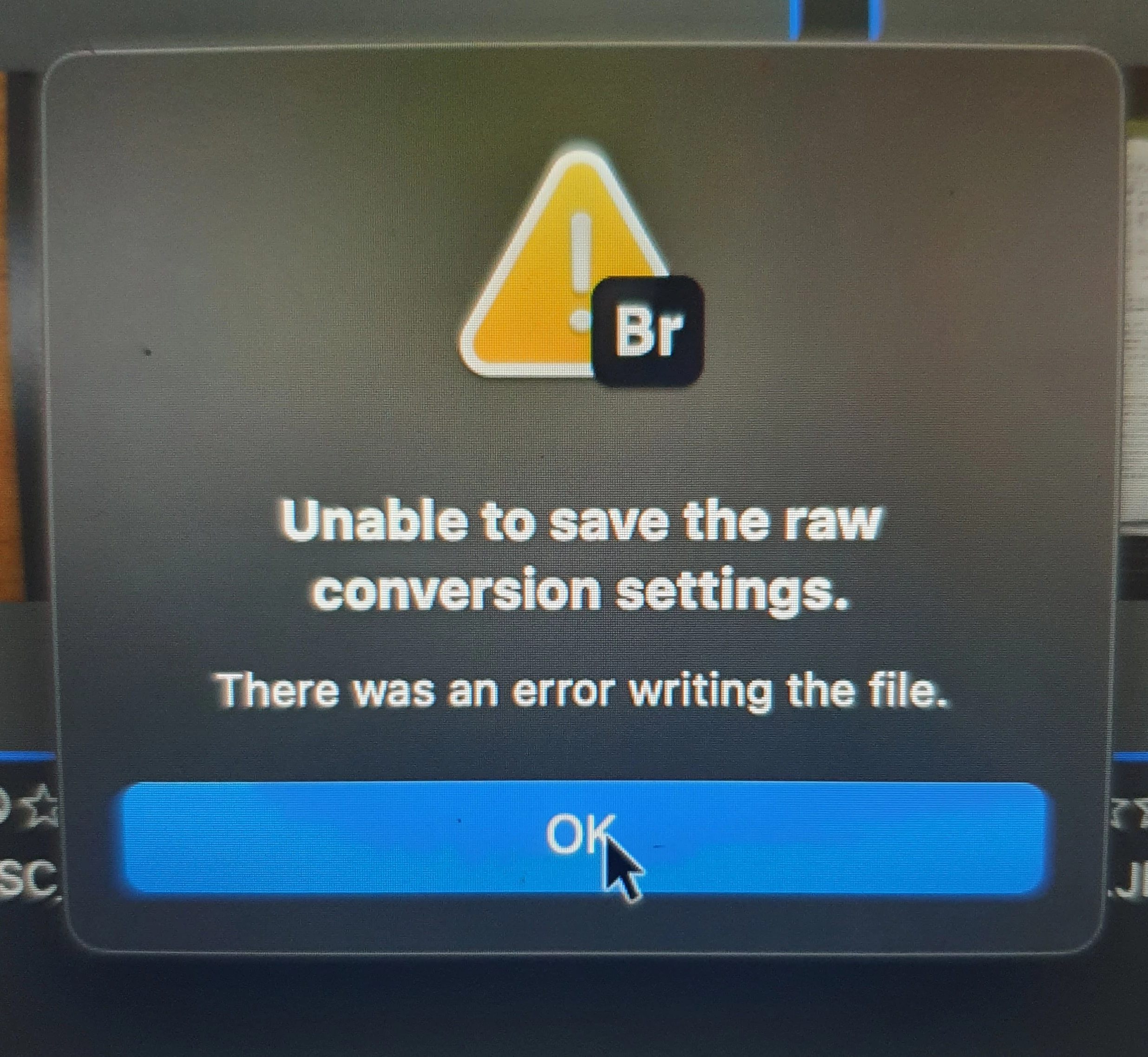
Unable to save the raw conversion settings
  • October 24, 2022
  • 2 replies
  • 3716 views

 I've tried so many times but I keep getting this error message. Any solutions please. 

This topic has been closed for replies.
Correct answer gary_sc

You're absolutely right! Thank you for the reminder. I will do this from NOW.

Thanks again 👍


Great, thanks


BTW, if you could please click on the "Correct Answer" on my comments of the things I've pointed out that helped you, that will help others.


Thanks!

2 replies

JoannaPJ
JoannaPJAuthor
Participating Frequently
October 24, 2022

Hi, thanks for your reply and help. 

It's not working. I keep getting this message. (See photo) then nothing happens.

gary_sc
Community Expert
Community Expert
October 24, 2022

Hi @JoannaPJ 


Can you please tell me when that error message shows up? 


When you're trying to commit an ACR change?

When you did the Security and Privacy process, I show above?

Exactly when does it show up? What are you doing?

gary_sc
Community Expert
Community Expert
October 24, 2022

They are on a SanDisk camera chip


What happens if you move the files to your hard drive?

gary_sc
Community Expert
Community Expert
October 24, 2022

It looks like you're on a Mac. Did you OK Bridge's access to locations on your computer like the Desktop and external Drives?


This is not the fault of Adobe or anyone; this is Apple making sure that applications that have not been given permission to access areas of your computer cannot access those areas of your computer.


Go to your System Preferences and select Security and Privacy (found in the top section). Now click on the Privacy setting (last tab). Now click on the lock on the bottom left and provide your Administrator code. Now select the Full Disk Access option and click on the "+" symbol. This will bring up the standard Mac Open window and let you add any application you want or need to have full access. Look for Bridge, select it; it will now appear in that window, and make sure it's checked. Next, go to the Files and Folders option and do the same thing as above (although there's nothing to check, just add. Close everything down and see if that makes it all work.

Please let me know

[Note: these images are from an older OS, the process is the same.]


Close everything up and you should be good to go.