Participant
April 13, 2024
Answered

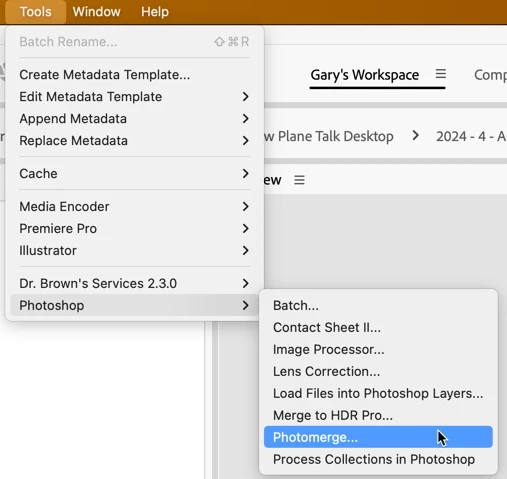
Where is Photomerge in Bridge 2024?

  • April 13, 2024
  • 1 reply
  • 1395 views

Maybe I missed this in a recent update but where did Photomerge relocate in Bridge?  It used to be under Tools > Photoshop > Photomerge.


I'm on version 16.2.0.1763. 

This topic has been closed for replies.
Correct answer gary_sc

OK, it's still there, 

 But I have a question: you are on version 16.2.0.1763 of what? Bridge is now in version 14, not 16 (and Photoshop is in version 25). 


Assuming you misread the version, here's how to get things back to normal. If any of these Tools are not under the Tools menu, it's missing because of either:


  1. Your copy of Bridge does not match your copy of Photoshop. That is, if you are using Bridge 2022 and Photoshop 2023 when Photoshop is installed, Photoshop looks at the copy of Bridge, and if the two do not match, Photoshop will not install the scripts.
  2.  If Photoshop is installed before Bridge, it cannot know that Bridge "may" be installed in the future, so it does not install any of the scripts into Bridge.


To resolve this, be sure you are using paired copies of Bridge and Photoshop, and when installing, be sure to install Bridge BEFORE installing Photoshop. If you've already installed both applications, you'll probably have to uninstall both and then reinstall them in the proper order. Let me add that whenever I update PS, besides quitting PS, I also quit Bridge (this resolves any issue around item #1 above).


Let me know if this works.


1 reply

gary_sc
Community Expert
gary_scCommunity ExpertCorrect answer
Community Expert
April 13, 2024

OK, it's still there, 

 But I have a question: you are on version 16.2.0.1763 of what? Bridge is now in version 14, not 16 (and Photoshop is in version 25). 


Assuming you misread the version, here's how to get things back to normal. If any of these Tools are not under the Tools menu, it's missing because of either:


  1. Your copy of Bridge does not match your copy of Photoshop. That is, if you are using Bridge 2022 and Photoshop 2023 when Photoshop is installed, Photoshop looks at the copy of Bridge, and if the two do not match, Photoshop will not install the scripts.
  2.  If Photoshop is installed before Bridge, it cannot know that Bridge "may" be installed in the future, so it does not install any of the scripts into Bridge.


To resolve this, be sure you are using paired copies of Bridge and Photoshop, and when installing, be sure to install Bridge BEFORE installing Photoshop. If you've already installed both applications, you'll probably have to uninstall both and then reinstall them in the proper order. Let me add that whenever I update PS, besides quitting PS, I also quit Bridge (this resolves any issue around item #1 above).


Let me know if this works.


Inspiring
April 13, 2024

"To resolve this, be sure you are using paired copies of Bridge and Photoshop"


In fact, to the best of my knowledge, Adobe no longer offers a compatible version of Ps to mate with Bridge 2022 (Br 12) in the CC app and hasn't for quite some time.  If you don't have Ps V. 23.3.x.xxx (Ps 2022), your're out of luck getting the Ps automation scripts to work from Br 12. 


With the large loyalty to Br 12 due to the ongoing slow-motion train wreck that has been the Br 13/14 era I'm dismayed that Adobe doesn't acknowledge that and bring back Ps 2022 until the Bridge team gets its act together.

gary_sc
Community Expert
Community Expert
April 13, 2024

Well, you asked about Bridge 2024, not 2022. 


And, FWIW, I am using and (mostly) enjoying Bridge 2024 and use it daily. What are your specific issues?


And, FWIW part 2, as I'm sure you know, photography is an art of compromise. For example, you cannot take a photo of your friend and the mountain. You have to pick one. Either your friend will be so small as not to be seen, or you will have your friend and part of the mountain. If you want to use Photoshop's Tools, you'll have to work with Bridge 2024 (the application you said you had).


Good luck!