Inspiring
March 6, 2024
Answered

[workaround] Disable or change the color of blue borders around active panels

  • March 6, 2024
  • 1 reply
  • 1787 views

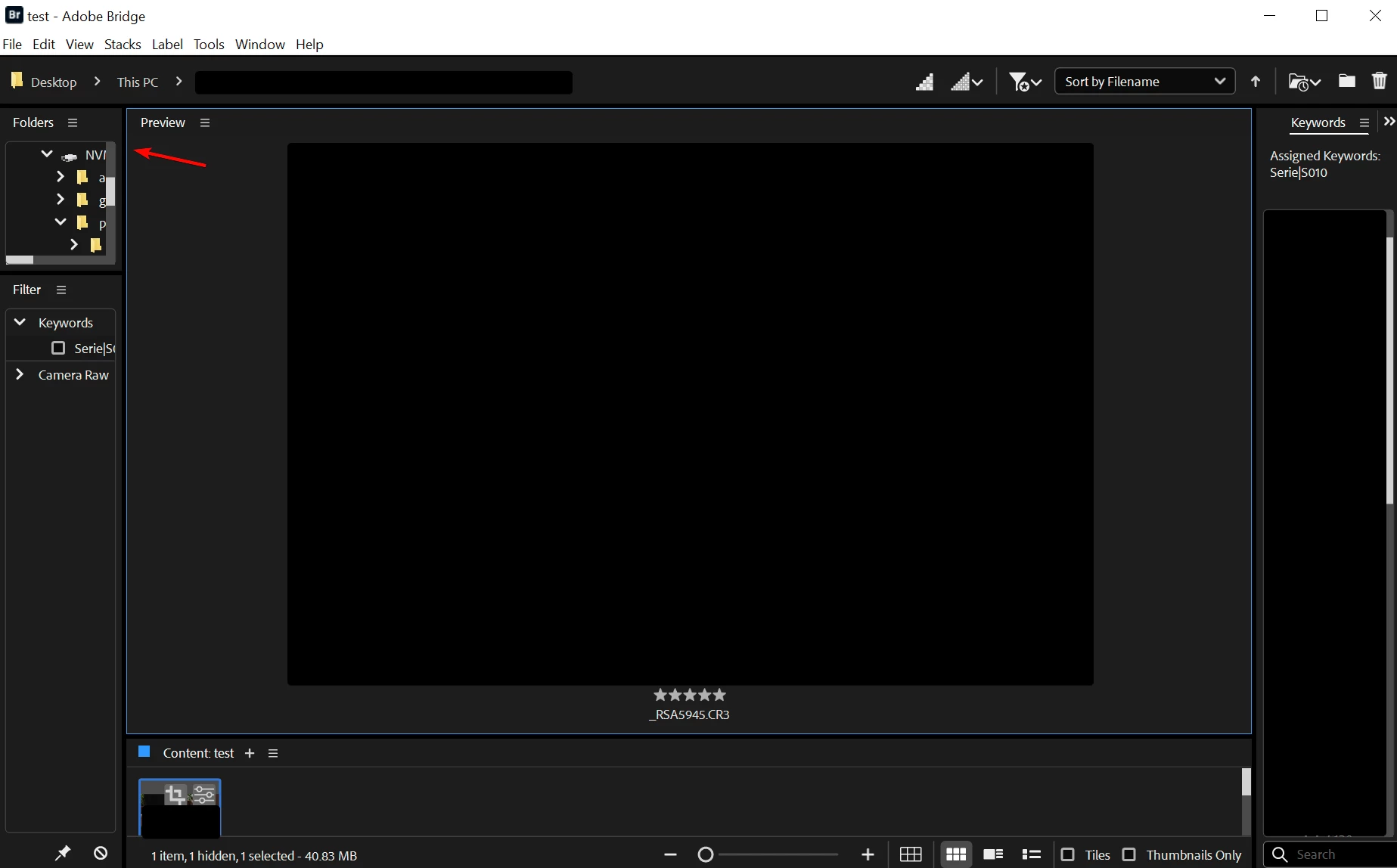
How to disable or change the color of those blue borders around active panels and photos?

I would like to have my UI without those distracting colors.


In Bridge 2022 there were no borders and it was fine.


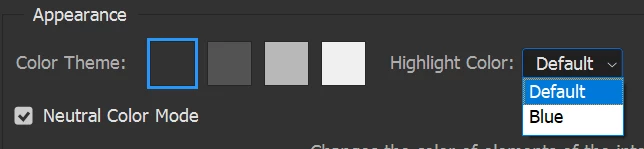
In Photoshop, there is a setting to choose the highlight color and enable natural color mode. Can we have the same in Bridge please?


Correct answer DiodorS

@gary_sc Now there is a way 🙂 Well... more like an ugly hack. But it works. You have to use a hex editor though.


Here I've changed the border color to red, as a proof of concept - you can choose any color you want. Tested on Windows.
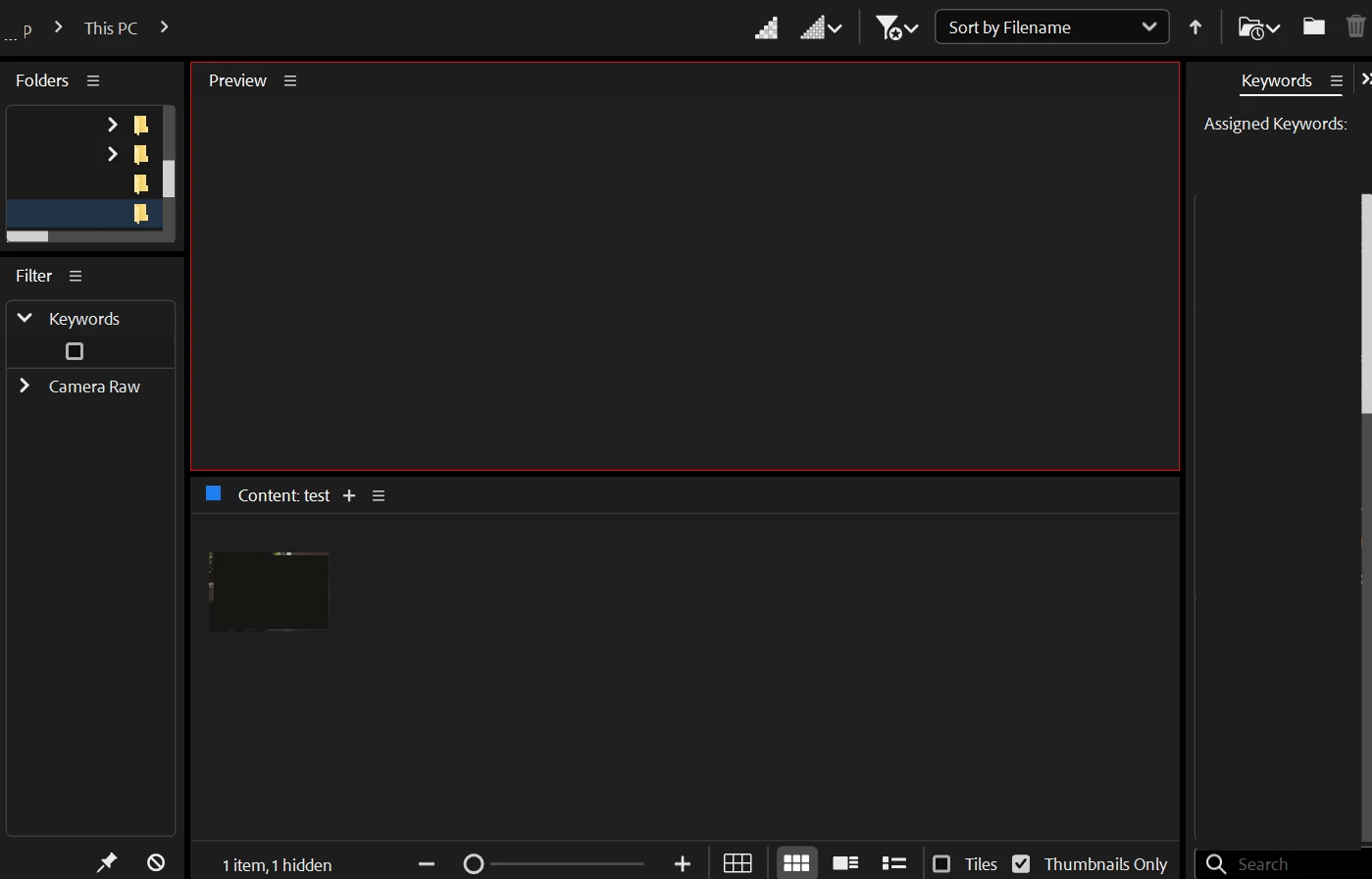
 

Locate `dvaui.dll` in your Bridge installation folder. Backup this file. Quit the Bridge app. Modify the file at your own risk!


Open a hex editor (for example https://hexed.it/ - works in a browser), load `dvaui.dll` and search for `spectrum-global-color-blue-400` text string.

Skip the first match. Then you will find that string in three more places:

"spectrum-global-color-blue-400": "rgb(52, 143, 244)" - for the "Dark" color theme

"spectrum-global-color-blue-400": "rgb(29, 128, 245)" - for the "Darkest " color theme

"spectrum-global-color-blue-400": "rgb(20, 122, 243)" - for the "Light" color theme


Simply change the RGB values to something you like. Be careful not to change the number of characters within the parentheses. For example, if you want to change the border color for the "Darkest " color theme to black, just add some spaces in place of the missing digits:

"spectrum-global-color-blue-400": "rgb(29, 128, 245)" - original
"spectrum-global-color-blue-400": "rgb( 0,   0,   0)" - modified

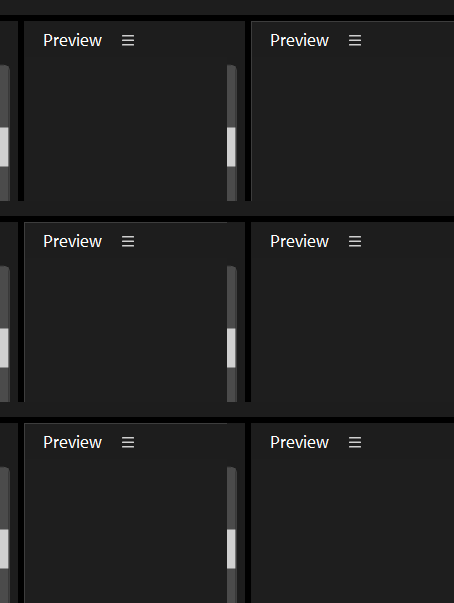
I found rgb(60,  60,  60) to my liking, for the darkest mode - it still shows the active panel but is not distracting at all.


Save the modified file on your desktop, rename the original file to `dvaui.dll.original`, and copy the modified file to the Bridge installation directory (requires admin rights). Make sure the modified file is named `dvaui.dll`.


Open Bridge. The annoying blue borders are gone! 🙂


-----

If you have found my post helpful and would like to say thanks, you can buy me a coffee at https://www.buymeacoffee.com/diodorsirola

-----

1 reply

gary_sc
Community Expert
Community Expert
March 6, 2024

There is currently no way to change which tabs or columns are active. Adobe knows there is high interest in such a feature, and hopefully, they will be able to implement it soon. However, none of us volunteers can know where this is in the engineer's schedule. 

DiodorSAuthorCorrect answer
Inspiring
March 9, 2024

@gary_sc Now there is a way 🙂 Well... more like an ugly hack. But it works. You have to use a hex editor though.


Here I've changed the border color to red, as a proof of concept - you can choose any color you want. Tested on Windows.


Locate `dvaui.dll` in your Bridge installation folder. Backup this file. Quit the Bridge app. Modify the file at your own risk!


Open a hex editor (for example https://hexed.it/ - works in a browser), load `dvaui.dll` and search for `spectrum-global-color-blue-400` text string.

Skip the first match. Then you will find that string in three more places:

"spectrum-global-color-blue-400": "rgb(52, 143, 244)" - for the "Dark" color theme

"spectrum-global-color-blue-400": "rgb(29, 128, 245)" - for the "Darkest " color theme

"spectrum-global-color-blue-400": "rgb(20, 122, 243)" - for the "Light" color theme


Simply change the RGB values to something you like. Be careful not to change the number of characters within the parentheses. For example, if you want to change the border color for the "Darkest " color theme to black, just add some spaces in place of the missing digits:

"spectrum-global-color-blue-400": "rgb(29, 128, 245)" - original
"spectrum-global-color-blue-400": "rgb( 0,   0,   0)" - modified

I found rgb(60,  60,  60) to my liking, for the darkest mode - it still shows the active panel but is not distracting at all.


Save the modified file on your desktop, rename the original file to `dvaui.dll.original`, and copy the modified file to the Bridge installation directory (requires admin rights). Make sure the modified file is named `dvaui.dll`.


Open Bridge. The annoying blue borders are gone! 🙂


-----

If you have found my post helpful and would like to say thanks, you can buy me a coffee at https://www.buymeacoffee.com/diodorsirola

-----
DiodorSAuthor
Inspiring
March 11, 2024

I had a trial with your editing of dvaui.dll - impressed!

One question for you, as I have zero knowledge of this, when you say, "Be careful not to change the number of characters within the parentheses", does that imply that the first of the three numbers cannot exceed 99 since it appears to be allocated just two characters?


@Erik Bloodaxe Thanks!

quote

does that imply that the first of the three numbers cannot exceed 99 since it appears to be allocated just two characters?

No, just drop the space after the comma Like this:


"spectrum-global-color-blue-400": "rgb(29, 128, 245)" - original
"spectrum-global-color-blue-400": "rgb(255,128, 245)" - modified


I've also hacked my way around the bright app and menu bar on Windows ( https://community.adobe.com/t5/bridge-discussions/white-menu-and-application-bar-even-in-the-dark-and-darkest-theme/m-p/14481282#M49050 ), if you are interested.


---