
lornam9529995
Participant
December 12, 2016
Answered

Bridge automatically cropping images

  • December 12, 2016
  • 2 replies
  • 6851 views

Hi,

I am having trouble with Bridge. I have a folder of images I am cropping in Photoshop and viewing on Bridge at the same time. About a quarter of these images have a small crop icon on the top right hand corner, these images look like they have been cropped in too much, I did not do this. I have one example open in Photoshop where I have cropped it how I like but when I save it Bridge crops in even more, but maintains the crop I chose on Photoshop. After I close this it will then only open as the over cropped image.

Any solutions for this?

Thanks.
    This topic has been closed for replies.
    Correct answer Stephen Marsh

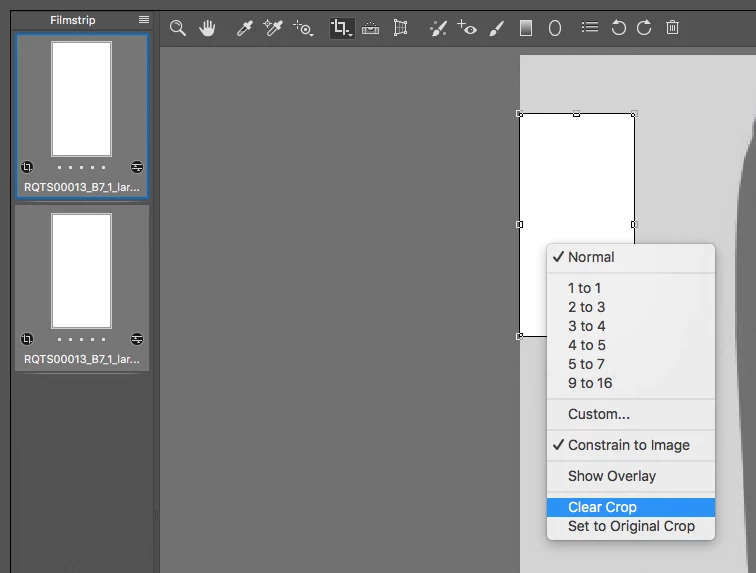
    Select all images that display the crop symbol in Bridge, then press CMD/CTRL-R to open in Adobe Camera Raw.

    Ensure all images are selected on the lefthand side filmstrip area.

    Open the crop tool, then right contextual click within the cropped area of an image and select “clear crop” and then press done.

    Another option would be to use ExifTool to reset the offending metadata information:

    Mac OS:

    exiftool -r -overwrite_original -ext .jpg -XMP-crs:HasCrop='False' 'MAC OS PATH TO FILE OR TOP LEVEL FOLDER'

    Windows OS:

    exiftool -r -overwrite_original -ext .jpg -XMP-crs:HasCrop="False" "WINDOWS OS PATH TO FILE OR TOP LEVEL FOLDER"

    These recursive platform specific ExifTool commands will only process .jpg extension files, you can add -ext .arw to the command to also process the raw files if required, or remove the extension to process all files.

    2 replies

    Stephen Marsh
    Community Expert
    Stephen MarshCommunity ExpertCorrect answer
    Community Expert
    May 30, 2017

    Select all images that display the crop symbol in Bridge, then press CMD/CTRL-R to open in Adobe Camera Raw.

    Ensure all images are selected on the lefthand side filmstrip area.

    Open the crop tool, then right contextual click within the cropped area of an image and select “clear crop” and then press done.

    Another option would be to use ExifTool to reset the offending metadata information:

    Mac OS:

    exiftool -r -overwrite_original -ext .jpg -XMP-crs:HasCrop='False' 'MAC OS PATH TO FILE OR TOP LEVEL FOLDER'

    Windows OS:

    exiftool -r -overwrite_original -ext .jpg -XMP-crs:HasCrop="False" "WINDOWS OS PATH TO FILE OR TOP LEVEL FOLDER"

    These recursive platform specific ExifTool commands will only process .jpg extension files, you can add -ext .arw to the command to also process the raw files if required, or remove the extension to process all files.

    Participant
    May 31, 2017

    Thanks! I figured it out in Lightroom. Can't believe how much time I spent trying to figure that out. Changed the settings on my camera so this doesn't happen any more

    Stephen Marsh
    Community Expert
    Community Expert
    May 31, 2017

    Which camera settings were throwing a spanner into the works?

    Sahil.Chawla
    Adobe Employee
    Adobe Employee
    December 12, 2016

    Hi Lornam,

    Could you please share a screenshot of the issue you are facing?

    Regards,

    Sahil

    Participant
    May 30, 2017


    I'm getting the same thing. It seems the JPG aspect is coming in with the RAW file. I didn't notice this before today.
    This is what it should look like