


Participant
March 19, 2018
Answered

Camera Raw won't open multiple photos when i drag them into PhotoShop CC

  • March 19, 2018
  • 3 replies
  • 18715 views

Hi.

Then i drag multiple photos into PhotoShop CC only one image can be edited in Camera Raw at a time.
When I finish an image and press okey, the next picture will come to Camera Raw.

This worked well until I did a reinstallation on my computer.
Then I installed PhotoShop CC and suddenly it no longer works.

1: I'm taking two photos at the same time into PhotoShop CC
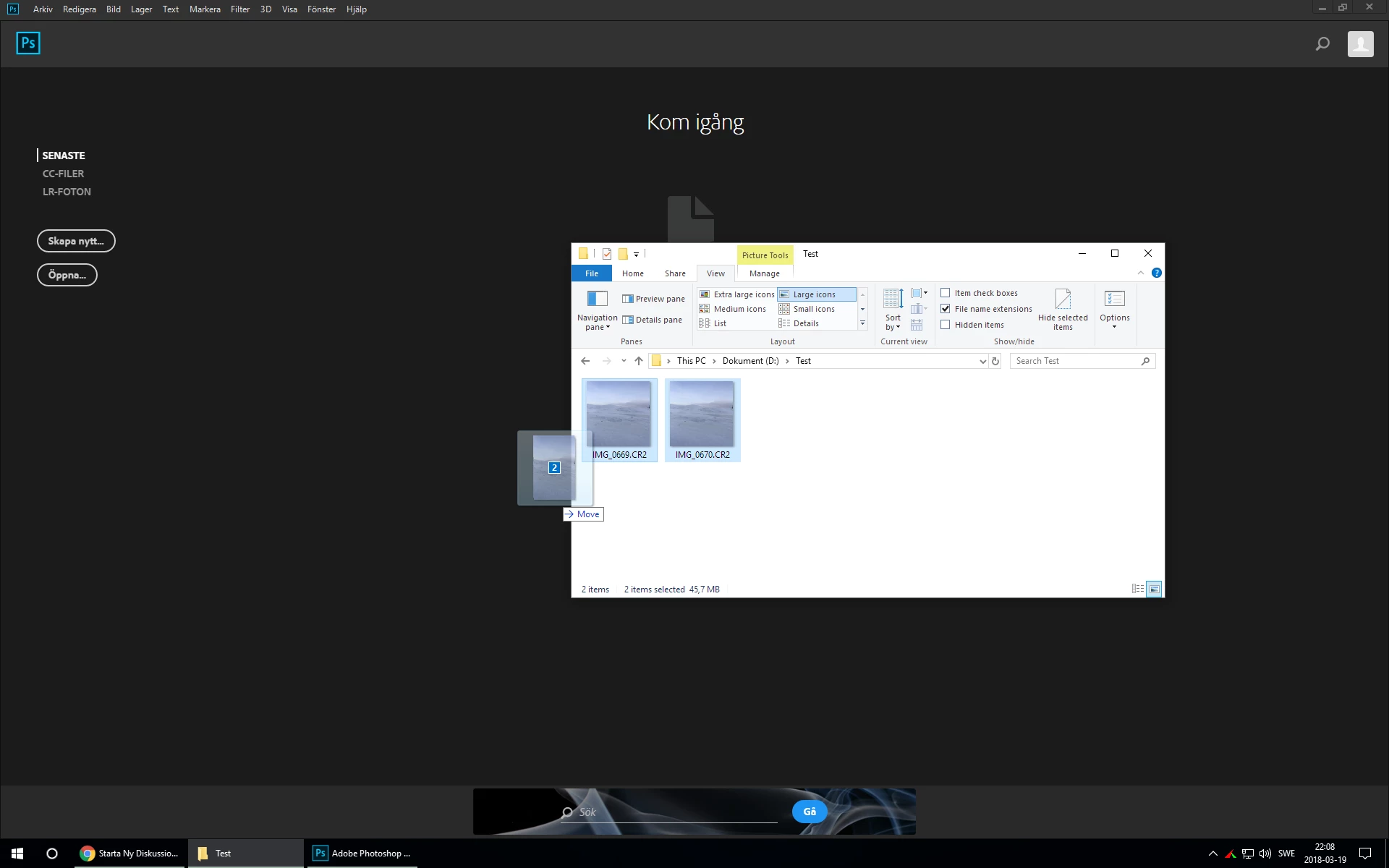

2: Adobe Camera Raw starts but only one of the pictures is available. I press "open image"
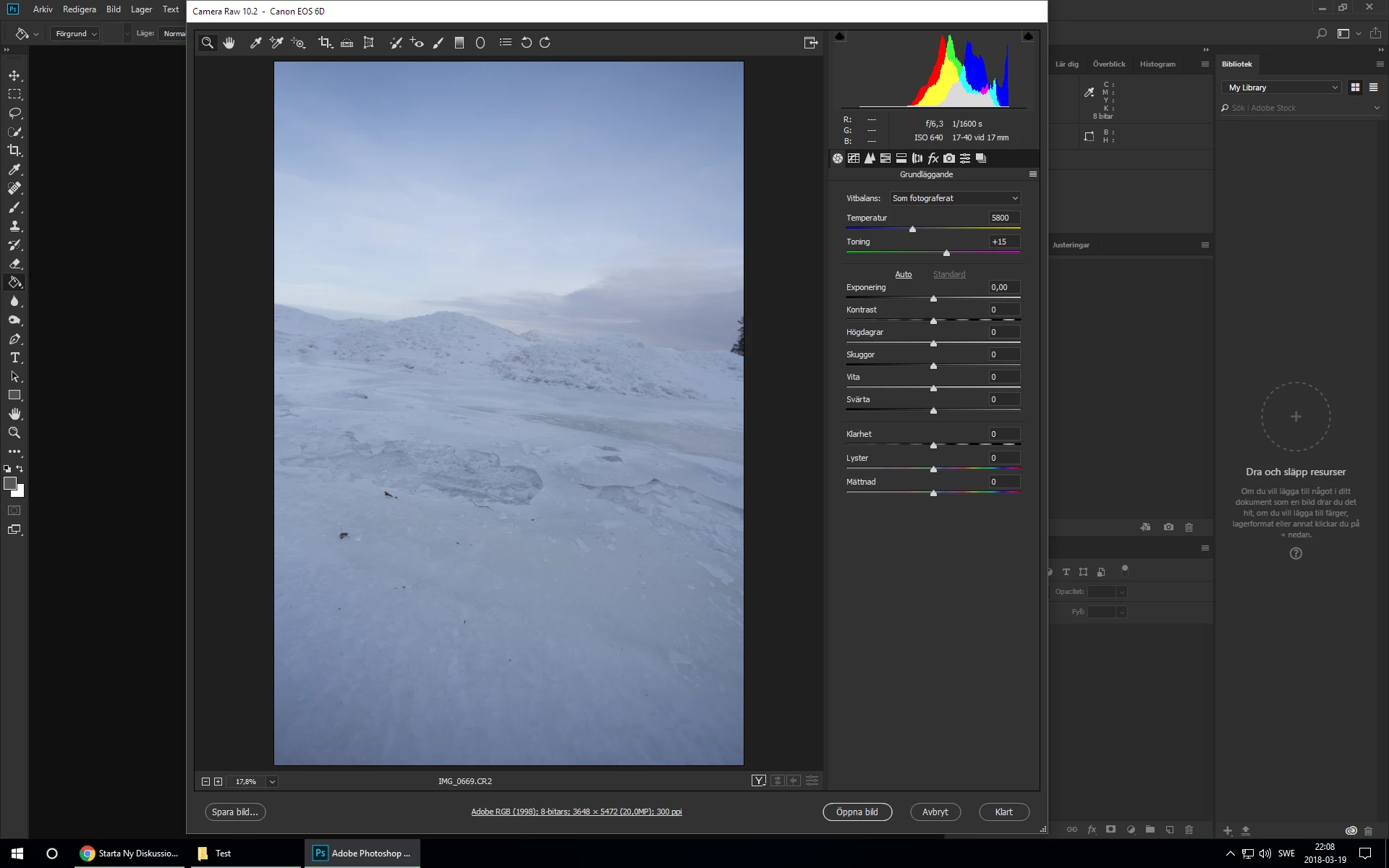
3: The first image enters PhotoShop CC, and then Adobe Camera Raw automatically opens with the other image. I press "Open Image".
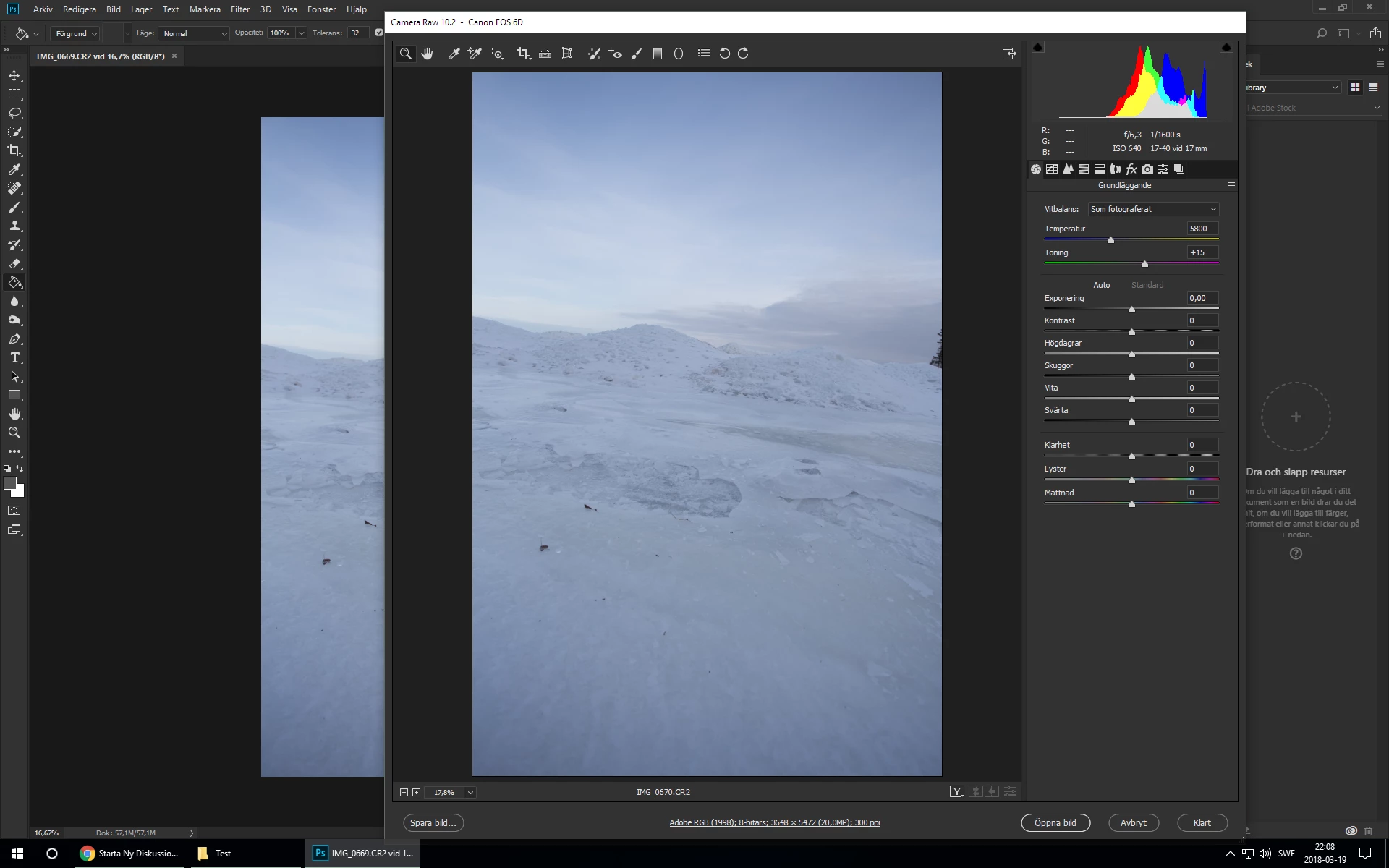
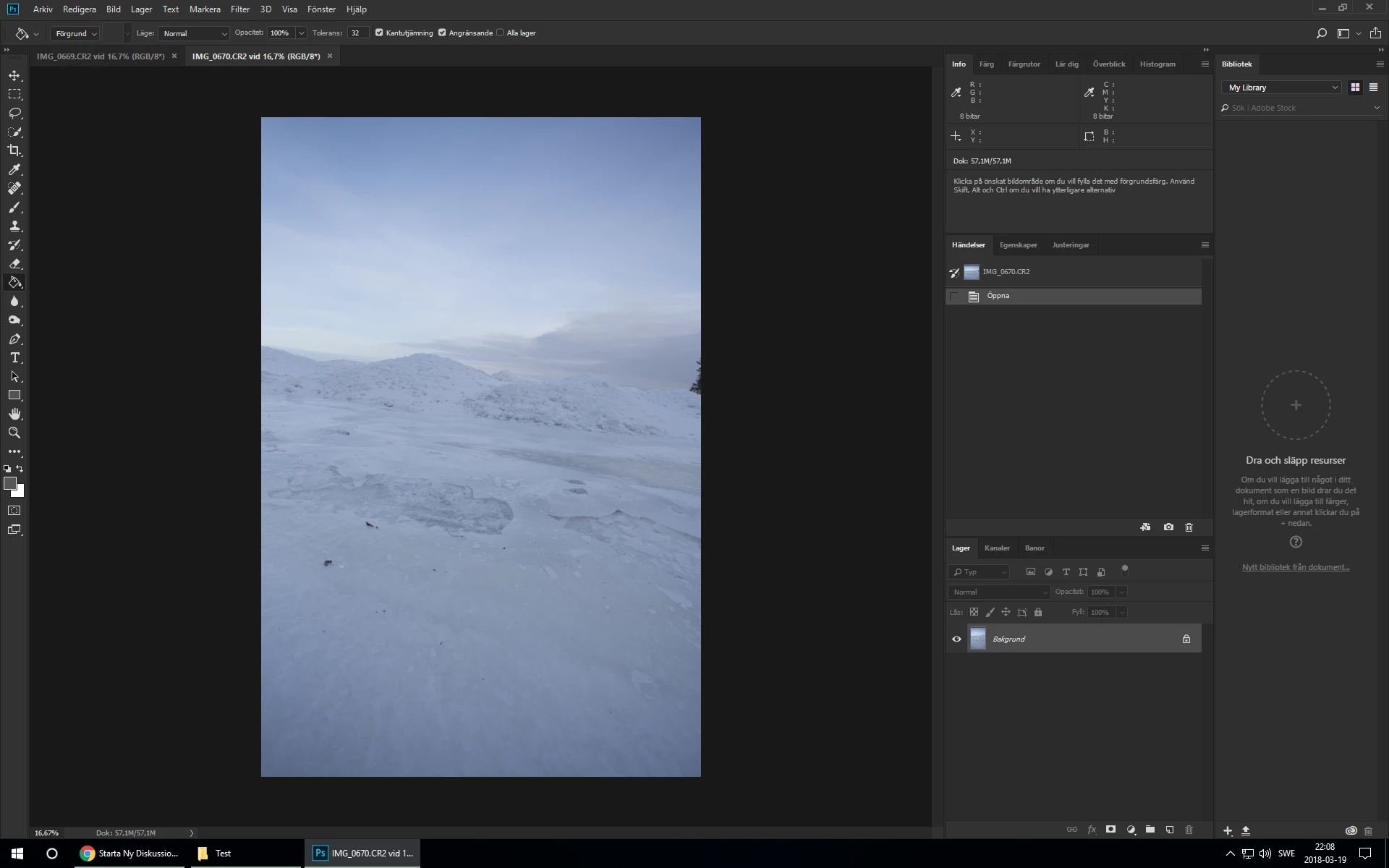
3: Now are both the pictures in PhotoShop CC

I want it as in this picture (is not my picture):
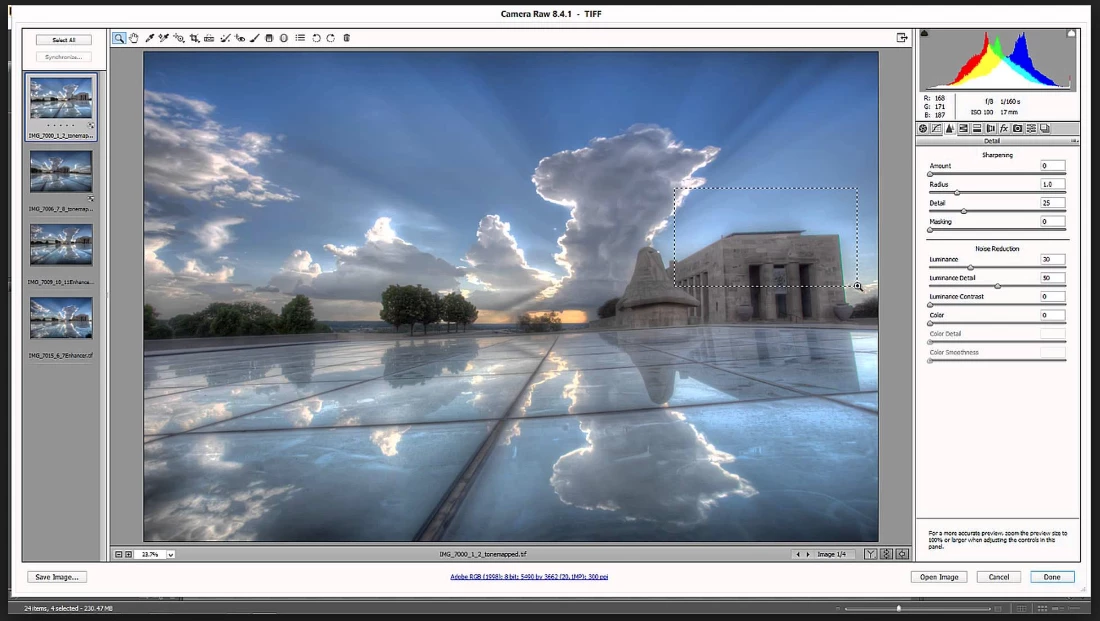

Please help me. Must make this work again so my workflow works as I want.

Best regards Staffan

This topic has been closed for replies.
Correct answer Jeff Arola

I believe the problem is your dragging into the Start Workspace, which for some reason only opens one raw photo at a time.

Two options i can see are:

1. Make a shortcut to photoshop on your desktop and drag the raw photos into that.

2. Turn off the Start Workspace in Edit>Preferences>General>Show Start workspace When no documents are open.

3 replies

Participating Frequently
June 17, 2020

Dont see this option in Photoshop 2020 and my files are opening 1 by 1 instead of all 5 in Camera Raw.

Participant
June 22, 2020

I've had/have still the same problem on Windows 10 up to date. The only way it works to have 4 or 5 imaches at a time is by selecting them in Bridge, right click and "open in Camera-Raw'. Tadaa, there are the 4, 5, 12,...files with the filmstrip.

Participant
September 13, 2020

Having the same issue, let me know if you find a fix


KatieKate123
Participant
September 22, 2018

Thank you for this fix! You've made my life so much easier!

JP Hess
Inspiring
March 20, 2018

Have you tried opening multiple images from Bridge? On the other hand, I have never tried the drag/drop method until just now (strange as it may seem). But it worked for me as you seem to expect it to work. There was an update to Photoshop within the last week. Did you get that update? I wonder if that update had anything to do with correcting this issue. Anyway, things seem to be working properly here. Latest Photoshop on Windows 10.

Staffan75Author
Participant
March 20, 2018

I did the update today. But it still does not work to drag the images directly from "File Explorer" straight into PhotoShop. Each file is loaded separately.

If I open the images from Bridge, it will be the way I want.

1. I select both images, right-click and select "open in Camera Raw":


2. Both images are now in Camera Raw:

PhotoShop & Camera Raw is up to date, my OS is Windows 10:


JP Hess
Inspiring
March 20, 2018

I wish I had a suggestion for you. I just tried your method again on my computer. I dragged three DNG files from File Explorer onto the Photoshop workspace and they all opened in Camera Raw with the filmstrip on the left-hand side as expected. When I tried it before it was with NEF files, same result.