


Ryan17476939594
Participant
May 22, 2015
Answered

How do you zoom into a picture and crop the zoomed image so the picture stays zoomed?

  • May 22, 2015
  • 3 replies
  • 37175 views

Basically I want to perform a post-production zoom in camera raw, like I would on my telephoto lens. For example, I have a full body shot of a horse and I want to zoom in to just the head so that my full frame is the head. I don't want to just crop around the head, I want to magnify it.
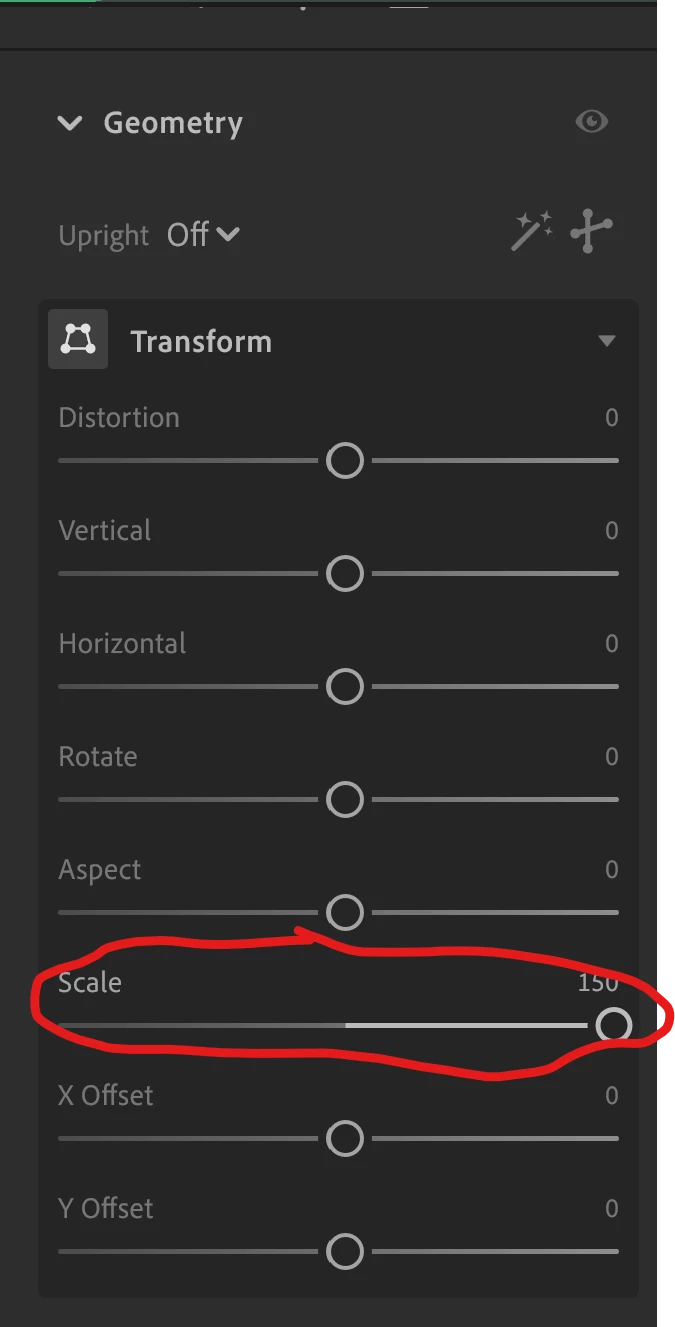
Correct answer elyse6C15

I figured it out! Im using Lightroom desktop

1. You want to go to your crop tool menu.

2. Find the geometry tab.

3. Use the scale slider.


3 replies

elyse6C15Correct answer
Participant
July 9, 2024

I figured it out! Im using Lightroom desktop

1. You want to go to your crop tool menu.

2. Find the geometry tab.

3. Use the scale slider.


ssprengel
Inspiring
May 23, 2015

After you have cropped to the head of the horse, you can open the image into PSE or PS and use an Image / Resize function to change the pixel dimensions of the cropped area, but that is going to make things more blurry because you're not actually there with a lens and zooming in to record finer details.

To what end are you wanting to resize the horse head?

Are you uploading to an online photo printing service and it is saying the cropped image isn't large enough in pixel dimensions?  Your resizing it in post processing can remove that message but it isn't actually going to add any image detail.

If you are resizing it to make wallpaper for your monitor then fine, as long as it isn't being resize too much larger otherwise the blurriness will be obvious.

You can disguise this somewhat using Add Noise after resizing larger.

ssprengel
Inspiring
May 22, 2015

You want to "crop" the image...forget about using the term "zoom" in this context.

To accomplish this:

1)  left click on the crop tool

2)  right-click somewhere on the image and set your crop options, at least aspect ratio

3)  left-click and drag on the image starting where you want to top-left corner and ending where you want the bottom-right corner to be.  Then fine-tune the crop-box by click-dragging on the corner or side handles of the crop-box.

Here is what the crop-options look like, where I'm choosing a 2x3 ratio (same as 4x6):

Here is what it looks like after I've click-dragged out the area I want to keep and have hovered over the bottom-right corner to adjust it, slightly:

Participant
September 6, 2025

This really helped a lot! Thank you great detail!