Thanks Andrew. I do have the dropdown selected as such...
Ok, I drag a jpeg into PS and opens up. Online many say to get that into raw you right click.
But when I right click everything is greyed out:
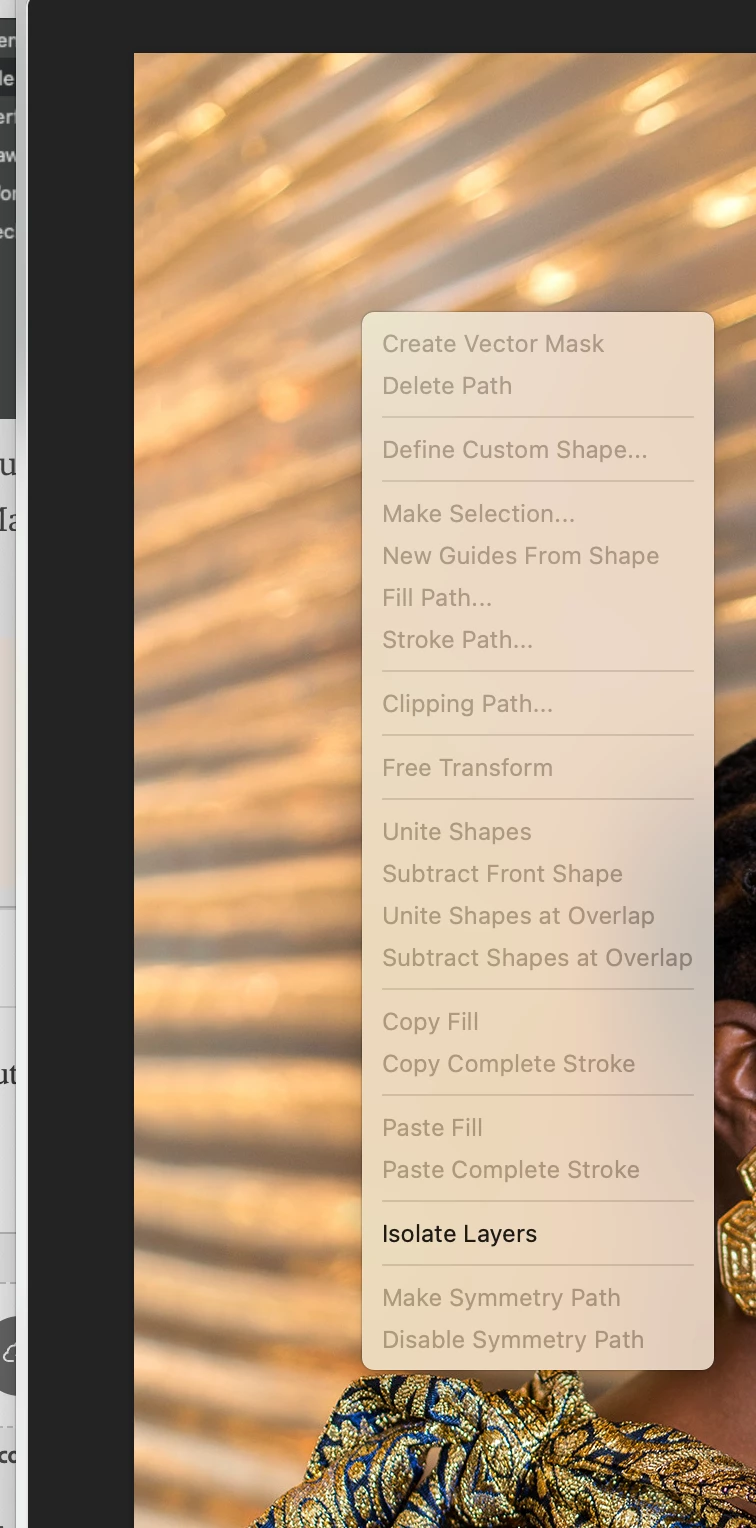
Ok, I drag a jpeg into PS and opens up. Online many say to get that into raw you right click.
But when I right click everything is greyed out:
By @larry45
It is not clear what the online advice means, because Camera Raw never been on the context menu for a layer. If a JPEG is opened into Photoshop, there is no route to raw format from there because it is now a Photoshop document. The Camera Raw method depends on editing it before it opens as a Photoshop document, so if the JPEG is already open as a layer in a Photoshop document, it’s too late.
There is one way to get into Camera Raw editing controls from that point, and that is to use Camera Raw not as a plug-in on a file, but as a filter on a Photoshop layer. To do that, with the image layer selected, choose Filter > Camera Raw Filter.
If you see the online advice again, pay attention to what it says to do after right-clicking. Because right-clicking alone does nothing but pop up the context menu. Any other result is from what you do after that. For example, if you wanted to convert the image layer to a Smart Object, you can’t just right click, you right-click and then choose Convert to Smart Object. So check the online advice and find out what context menu command they say you are supposed to choose after right-clicking.
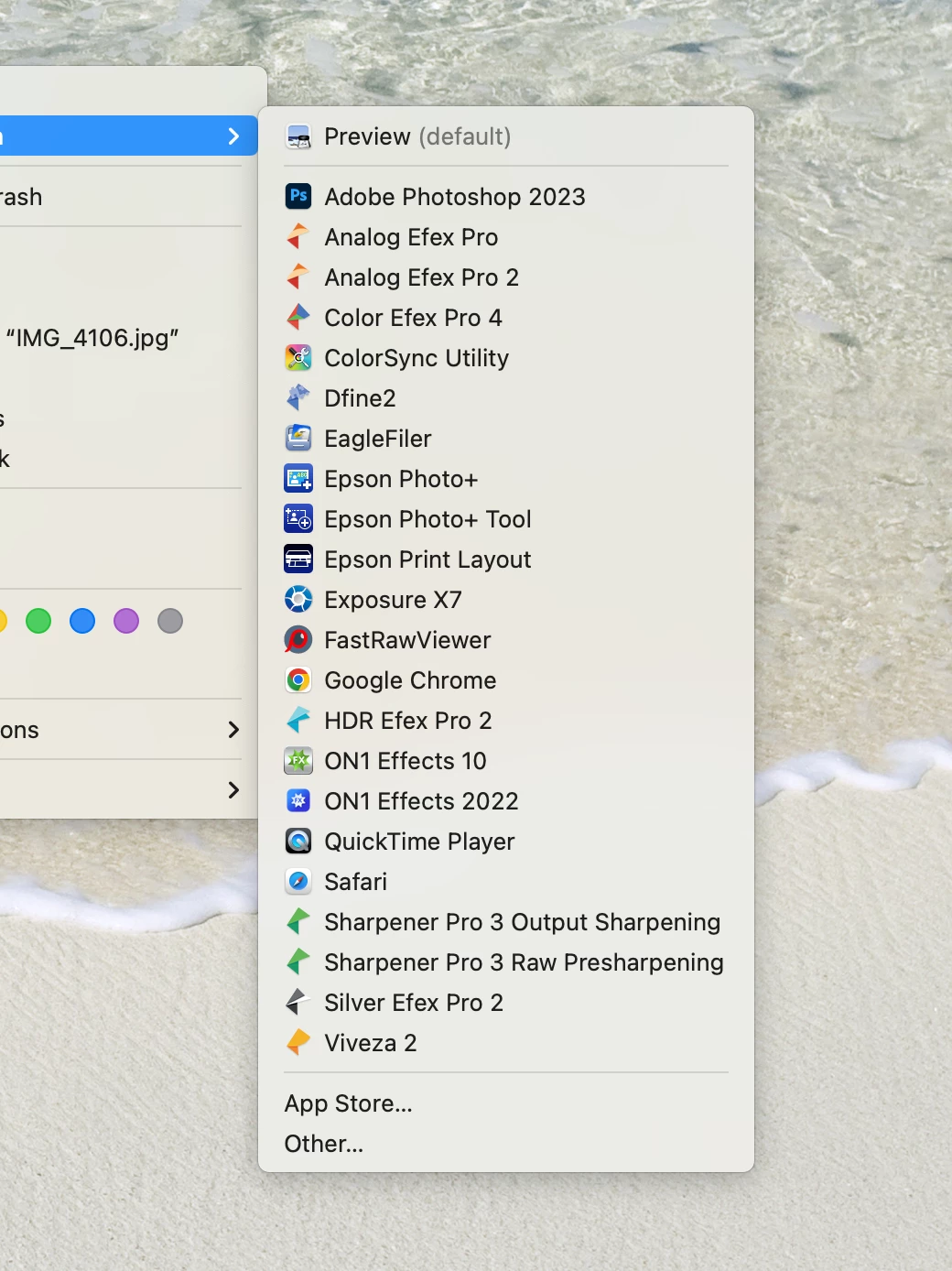
Also, the reason you cannot get to Camera Raw from the Finder is that the Finder accepts file associations to applications only. So if you want to associate JPEG with Preview or Photoshop, no problem. But…Camera Raw is not a standalone application itself; Camera Raw is a plug-in that only operates from inside another application. That is the problem. Camera Raw is not an application (you can’t find it in the Applications folder), therefore macOS will not list Camera Raw in the file associations menu for JPEG.
Given all of the above, one way to achieve your goal is to let Photoshop open it, then choose Filter > Camera Raw Filter to immediately get into that (or press its keyboard shortcut listed next to the command). Just keep in mind that Camera Raw Filter does not have all the features you get when you use Camera Raw as a plug-in on a file being opened.




 AdChoices