Participant
March 12, 2021
Answered

No option to use Super Resolution 'enhance' in Camera Raw 13.2

  • March 12, 2021
  • 4 replies
  • 18617 views

Hi, 


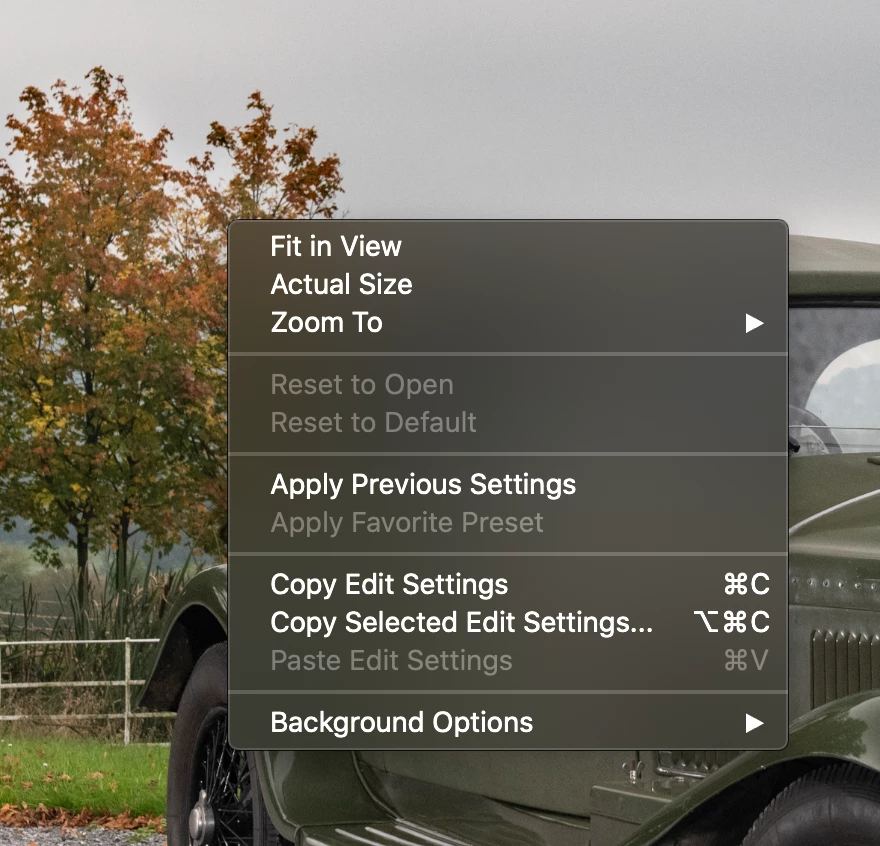
I have the new Camrea Raw 13.2 installed and want to use the new Super Resolution option with jpgs. When I control click I don't get an option to Enhance, in fact the options look completely different to all the online videos (see screengrab).


I've tried opening Camera Raw from Bridge but the button is greyed out and turning on the double click to open Camera Raw from preferences doesn't work. Also there is no option to control click open in Camera Raw.


Photoshop is up to date (22.3) and i'm running macOS 0.15.4 
 

Correct answer TheDigitalDog

Actually one can use this feature on JPEGs or TIFFs or PSDs etc. It's a bit of a hack but works (although not as well as doing this on a true raw). 


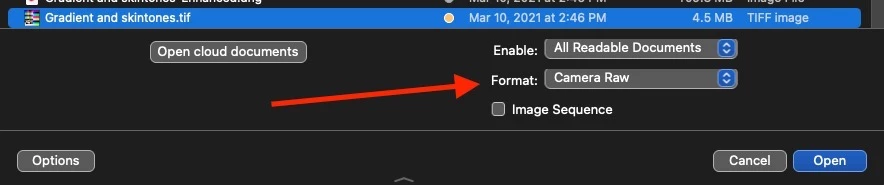
In Photoshop's Open dialog, set Format Menu to "Camera Raw" after selecting a JPEG or TIFF. This forces it to open in ACR (not ACR as a Filter) and you can now use the new Super Resolution. 


4 replies

Participant
November 13, 2024

I have used the ENHANCE tool in camera raw quite frequently, and I see now that it has disappeared. It was so convenient. I suppose I now must use Topaz. I would rather have continued with Camera Raw. Why did you change it? It was great!

Erik Bloodaxe
Legend
November 13, 2024

It's still there!

You are not saying whether you are referring to the  Camera Raw Plugin or the Camera Raw Filter accessed when have already opened an image in Photoshop. 

Also which version of Camera Raw are you using?

If you have version 17, then look in Camera Raw Preferences>Technology Previews and check the box "New AI Features and Settings Panel." You will then see the Enhance tools in the Detail Panel where they can be used via sliders non-destructively (unlike in the past where a new DNG image was generated.) 

Note that the Camera Raw Filter does not have this feature.


Participant
March 17, 2021

I got into quite the spat with a chat rep about this very issue. The Adobe Blog post by Eric Chan dated Mar 10, 2021 states that unlike Raw Details (that only works on RAW formats) the new Super Resolution feature also works on JPEG, TIFF, PNG and HEIC. The rep tolde it only works with RAW and directed me to a KB article on Enhance Details that in the third paragraph (specific to the new Super Resolution feature in 13.2) ALSO works with JPEG, PNG, TIFF and HEIC. The chat rep told me that the KB article is wrong and the Blog post by Eric Chan is wrong. I explained that articles posted by Petapixel, Fstoppers, etc ALL show them using Super Resolution on JPEGs and TIFFs straight out of PS into ACR. I was told those articles are all wrong also. Not entire sure how when they show photo tutorials of them opening a JPEG I'm PS, opening ACR and then right-click > "Enhance..".  At least I now know, thanks to this post, that you can convert to DNG to get it to work. I thought I was losing my mind.

Chuck Uebele
Community Expert
Community Expert
March 13, 2021

Moved to the Camera Raw forum, from the Photoshop forum.

TheDigitalDog
TheDigitalDogCorrect answer
Inspiring
March 14, 2021

Actually one can use this feature on JPEGs or TIFFs or PSDs etc. It's a bit of a hack but works (although not as well as doing this on a true raw). 


In Photoshop's Open dialog, set Format Menu to "Camera Raw" after selecting a JPEG or TIFF. This forces it to open in ACR (not ACR as a Filter) and you can now use the new Super Resolution. 


Author “Color Management for Photographers" & "Photoshop CC Color Management/pluralsight"
Participant
December 14, 2023

Can you elaborate on this one ? cant find that options in photoshop, thank U

Myra Ferguson
Community Expert
Community Expert
March 13, 2021

Unfortunately, the new Enhance feature doesn't work with jpegs. It only works with raw files. According to the documentation, "The supported file types are raw mosaic files from cameras with Bayer sensors (Canon, Nikon, Sony, and others) and Fujifilm X-Trans sensors."


What's tricky about Camera Raw is that the options that appear for Raw files are different from what appear for other file types, so they're not just grayed out--they're not there.

Participating Frequently
March 13, 2021

Hi I am getting the same thing using a tiff file 

the camera it was shot on was a  Fujifilm GFX 100 

Process 

image in capture one 

edit with

photosho 21

choose setttings 

tiff

16 bit

at 360

processs Prophoto

(and yes I tried in rgb)

image is now transferred as tiff to photoshop 

click filter

camera raw

open 

image appears 

right hand click and the he above screen shot

any other suggestions please 

Myra Ferguson
Community Expert
Community Expert
March 13, 2021

It needs to be a raw file. To make it a raw file do the following:

  1. Open Bridge
  2. Select the image
  3. Go to File > Export to > Export to DNG
  4. In the Export Progress dialog click on the exported image to navigate to it in Bridge
  5. With the DNG selected, go to File > Open in Camera Raw...
  6. Then in Camera Raw, you should get the Enhance option