Participant
April 17, 2019
해결됨

How can I change Table of Contents (the actual words) to Tabla de contenido in captivate?

  • April 17, 2019
  • 4 답변들
  • 1757 조회

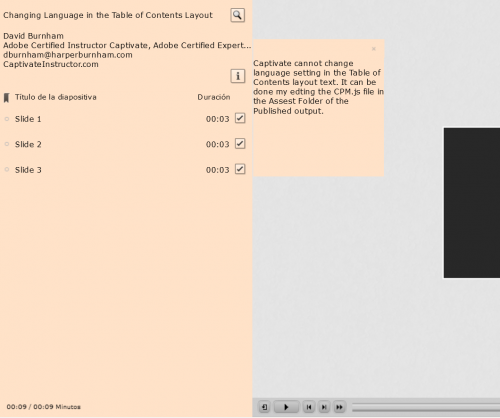
I am localizing a project to Spanish. I changed all the TOC content, but how can I change the actual words Table of Content to Tabla de contenido as well as slide title to Título de la diapositiva?

    이 주제는 답변이 닫혔습니다.
    최고의 답변: David Burnham HBA

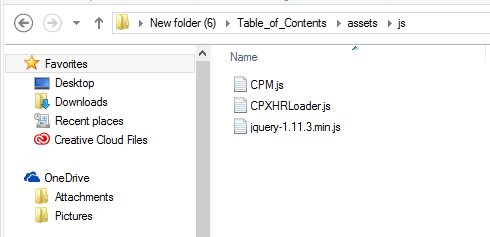
    If you are publishing to html5, then you can edit the  CPM.js file in the js folder in the published Assets folder. Make sure you make these edit in the final version of your published project. If you republish you will have to edit again.

    It's easier to replace a block of code

    The code to edit is:

    {overlay:false,position:1,stretch:true,alpha:100,texture:false,showSearch:true,showTotalD:true,showClear:false,showDuration:true,statusFlag:true,hasSelfPaced:true,htmlFileId:19348,clear:'Clear Status Flag',bookmark:'Bookmark',moreInfo:'More Info',slideTitle:'Slide Title',duration:'Duration',minutes:'Minutes',go:'Go',noSearchText:'No Matches Found',

    use the find feature in Notepad to identify the code - search for   overlay

    replace with the translated text:

    {overlay:false,position:1,stretch:true,alpha:100,texture:false,showSearch:true,showTotalD:true,showClear:false,showDuration:true,statusFlag:true,hasSelfPaced:true,htmlFileId:19348,clear:'Bandera de Estado Clara',bookmark:'Marcador',moreInfo:'Mas informacion',slideTitle:'Ti­tulo de la diapositiva',duration:'Duracion',minutes:'Minutos',go:'Mi para Ir',noSearchText:'No se encontraron coincidencias'

    You will have to add proper accents in the spanish as this post is adding non characters so I have left out the proper Spanish accents.

    Use Notepad to edit the content. When you resave the CPM.js file be sure to save it at UTF-8 format to perserve the Spanish accents. Saving it as default ANSI will remove the accents.

    You can also localize the tool tips on the buttons on the playbar if you need to Spanish as well:

    Edit the playbarScript.js file in the playbar folder in the Assets folder


    an example is shown below.

    cp.playbarTooltips

    {

    AudioOff : 'Audio apagado',

    AudioOn : 'Audio en',

    BackGround : 'BackGround',

    Backward : 'Hacia atras',

    Color : 'Color',

    CC : 'CC',

    Exit : 'Salida',

    FastForward : '2x Velocidad de avance rapido',

    FastForward1 : '4x Velocidad de avance rapido',

    FastForward2 : 'Velocidad normal',

    Forward : 'Adelante',

    Glow : 'Glow',

    Height : 'Height',

    InnerStroke : 'InnerStroke',

    Play : 'Jugar',

    Pause : 'Pausa',

    Progress : 'Progress',

    Rewind : 'Rebobinar',

    Shade : 'Shade',

    Stroke : 'Stroke',

    Thumb : 'Thumb',

    ThumbBase : 'ThumbBase',

    TOC : 'TOC'

    };

    I have been creating a lot of content for Canadian companies where we have to create the interface in French - this has always been a hazzle in Captivate.

    In Storyline all you do is click one button and you get to localize the interface in a choice of about 30 languages.


    4 답변

    David Burnham HBA
    Inspiring
    April 20, 2019

    If you are publishing to html5, then you can edit the  CPM.js file in the js folder in the published Assets folder. Make sure you make these edit in the final version of your published project. If you republish you will have to edit again.

    It's easier to replace a block of code

    The code to edit is:

    {overlay:false,position:1,stretch:true,alpha:100,texture:false,showSearch:true,showTotalD:true,showClear:false,showDuration:true,statusFlag:true,hasSelfPaced:true,htmlFileId:19348,clear:'Clear Status Flag',bookmark:'Bookmark',moreInfo:'More Info',slideTitle:'Slide Title',duration:'Duration',minutes:'Minutes',go:'Go',noSearchText:'No Matches Found',

    use the find feature in Notepad to identify the code - search for   overlay

    replace with the translated text:

    {overlay:false,position:1,stretch:true,alpha:100,texture:false,showSearch:true,showTotalD:true,showClear:false,showDuration:true,statusFlag:true,hasSelfPaced:true,htmlFileId:19348,clear:'Bandera de Estado Clara',bookmark:'Marcador',moreInfo:'Mas informacion',slideTitle:'Ti­tulo de la diapositiva',duration:'Duracion',minutes:'Minutos',go:'Mi para Ir',noSearchText:'No se encontraron coincidencias'

    You will have to add proper accents in the spanish as this post is adding non characters so I have left out the proper Spanish accents.

    Use Notepad to edit the content. When you resave the CPM.js file be sure to save it at UTF-8 format to perserve the Spanish accents. Saving it as default ANSI will remove the accents.

    You can also localize the tool tips on the buttons on the playbar if you need to Spanish as well:

    Edit the playbarScript.js file in the playbar folder in the Assets folder


    an example is shown below.

    cp.playbarTooltips

    {

    AudioOff : 'Audio apagado',

    AudioOn : 'Audio en',

    BackGround : 'BackGround',

    Backward : 'Hacia atras',

    Color : 'Color',

    CC : 'CC',

    Exit : 'Salida',

    FastForward : '2x Velocidad de avance rapido',

    FastForward1 : '4x Velocidad de avance rapido',

    FastForward2 : 'Velocidad normal',

    Forward : 'Adelante',

    Glow : 'Glow',

    Height : 'Height',

    InnerStroke : 'InnerStroke',

    Play : 'Jugar',

    Pause : 'Pausa',

    Progress : 'Progress',

    Rewind : 'Rebobinar',

    Shade : 'Shade',

    Stroke : 'Stroke',

    Thumb : 'Thumb',

    ThumbBase : 'ThumbBase',

    TOC : 'TOC'

    };

    I have been creating a lot of content for Canadian companies where we have to create the interface in French - this has always been a hazzle in Captivate.

    In Storyline all you do is click one button and you get to localize the interface in a choice of about 30 languages.

    Lilybiri
    Legend
    April 20, 2019

    Much better solution than the old SWF workflow (posted about 8 years ag I think). Thanks for posting, David, will add it to my list with localisation tips.

    WizeGuy65작성자
    Participant
    April 18, 2019

    Paul, I did find that, but what about changing the following?

    Slide Title

    Duration

    Minutes

    I need to make those Spanish.

    Paul Wilson CTDP
    Community Expert
    Community Expert
    April 18, 2019

    So this can be done but it's a very manual process that many Captivate developers have been asking Adobe to address for many years now. You can edit these types of elements by creating a file in the folder where your Adobe Captivate installation is located. The file can be created using a text editor such as Notepad and it should be called TOCStrings.ini. It needs to contain the following entries.

    [TOCStrings]

    SlideTitle=

    Duration=

    Status=

    MoreInfo=

    Clear=

    ClearToolTip=

    BookMarkToolTip=

    NoSearch=

    CurrTime=


    Just enter what words you want to appear instead of the defaults that appear after the equal signs. There are a couple of issues to note. The first thing is that this will only affect new projects moving forward. Existing projects will still contain the default text. You would need to copy and paste the slides of an older project into a newly created version for the updated strings to appear. Another thing is that you will need admin rights to create such a file in the first place, which would be a challenge for people working within a corporate environment where these sorts of rights are not often granted.

    Paul Wilson, CTDP
    Paul Wilson CTDP
    Community Expert
    Community Expert
    April 18, 2019

    There is a place within the Table of Contents section where you can edit that. Here is a video where I show that location and how to change it. Change the Title of Your Captivate Table of Contents - YouTube

    Paul Wilson, CTDP
    Peru Bob
    Community Expert
    Community Expert
    April 17, 2019