



Feature Focus: Motion Library
Introducing the Motion Library, a new Character Animator behavior. The Character Animator Motion Library (powered by Mixamo) is a library of 350+ full-body character animations, captured from professional motion actors. Dance moves ranging from ballet to hip hop can be applied with one quick selection. Sports moves from basketball to bowling are super simple. And a range of walking, running, and jumping are also available. Moves that were difficult to animate are now within everyone’s reach.
Tutorial
Check out this tutorial from Okay Samurai:
Puppets to use with the Motion Library
Use these example puppets.
Requirements
- Puppets must have Body, Motion Library, and Limb IK behaviors applied to the same layer.
- Full body puppets with typical human dimensions work the best.
- Body behavior must be picking up relevant body handles properly. Body behavior requires puppets with at least one arm (Head/Neck/Shoulder and Elbow/Wrist) to estimate the body scale.
Current rules
- Head and Waist: If tracked by Motion Library, Motion Library always wins.
- Other body handles: averages if tracked by both Motion Library and Body.
- In this case, you may want to uncheck Head, Head Rotation, and Neck from Motion Library to make it look a bit better.
- You may also want to Calibrate before testing the quality.
Set up
Add the Motion Library behavior.
Controls
Motion
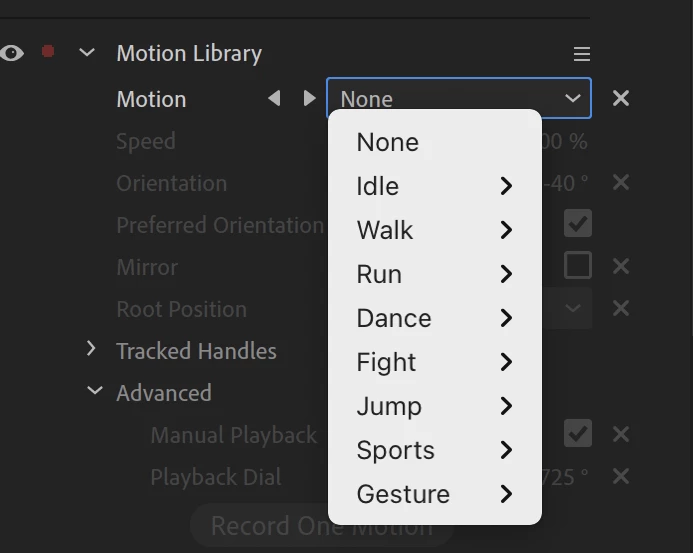
Animate your puppet with any of over 350 motions. There are eight motion categories. Pick a category and then click the < > buttons to audition motions one after another.
Speed
Change the motion’s playback speed across the whole motion. The speed value is recorded into any take generated by Record One Motion. The default value is 100% (no speed change). The minimum value is 10% (10 times slower). The maximum value is 1,000% (10 times faster).
Note: Speed is not animatable. To change the speed of a motion, use the Manual Playback controls in the Advanced section.
Orientation
Change the angle of view for the 3D motion capture data as it’s applied to your 2D artwork. For example, a front-facing puppet might want a 90º offset compared to the default left-to-right walk. If the applied motion doesn’t look right (e.g., a head or wrist has too much rotation), tweaking this parameter might help improve your results.
Preferred Orientation
Use the “best” 3D orientation of the motion captures as a starting point. Otherwise, the motion capture’s default angle is used.
Mirror
Flip the motion data horizontally.
Root Motion
Specify how your puppet’s overall position behaves during the animation cycle:
- Reset at loop resets your puppet to its initial position.
- Continuous loops the local motion with your puppet’s global position continuing where it left off. This is useful for continuous animation cycles such as walking (or dancing!) off the screen.
- Treadmill leaves the puppet in place and performs the animation cycle as if walking on a treadmill.
Tracked Handles
Specify the handles that the captured motion is applied to. If the same handles are also tracked by Body Tracker (specified by Tracked Handles in the Body behavior), the handle transforms get averaged, except for Head and Waist which are controlled solely by Motion Library.
Advanced
Select Manual Playback to control the playback of all the motions in your timeline manually. The Playback Dial value cycles through the entire animation for each 360. For example, you can keyframe the Manual Playback dial to have a cycle ease in and out of an animation.
Record One Motion / Reset Position
Record One Motion captures all the current motion parameters and creates a new take in the timeline for one cycle of that motion. The new take will have the name of the recorded motion; view the tooltip to see any additional parameters that were captured at the time of the recording. Extend or trim the motion in the timeline to change the duration; create multiple overlapping takes with new motions and blend them.
Reset Position resets the puppet’s location to its original starting point. This is helpful if the puppet has danced out of the scene. 🙂
Known issues and limitations
No known issues. Please let us know if you encounter any problems.
What we want to know
We want to hear about your experience with Motion Library:
- What are your overall impressions?
- What do you think about the Record One Motion workflow?
- Do the parameter names make sense to you?
Also, we’d love to see what you create with Motion Library. Share your animations on social media with the #CharacterAnimator hashtag.
Thank you! We’re looking forward to your feedback.
Use this Beta forum thread to discuss Motion Library and share your feedback with the Character Animator team and other Beta users. If you encounter a bug, let us know by posting a reply here or choosing “Report a bug” from the “Provide feedback” icon in the top-right corner of the app.
 AdChoices