dmitrys6033465
Participant
November 21, 2018
Answered

Character Animation related question

  • November 21, 2018
  • 2 replies
  • 726 views

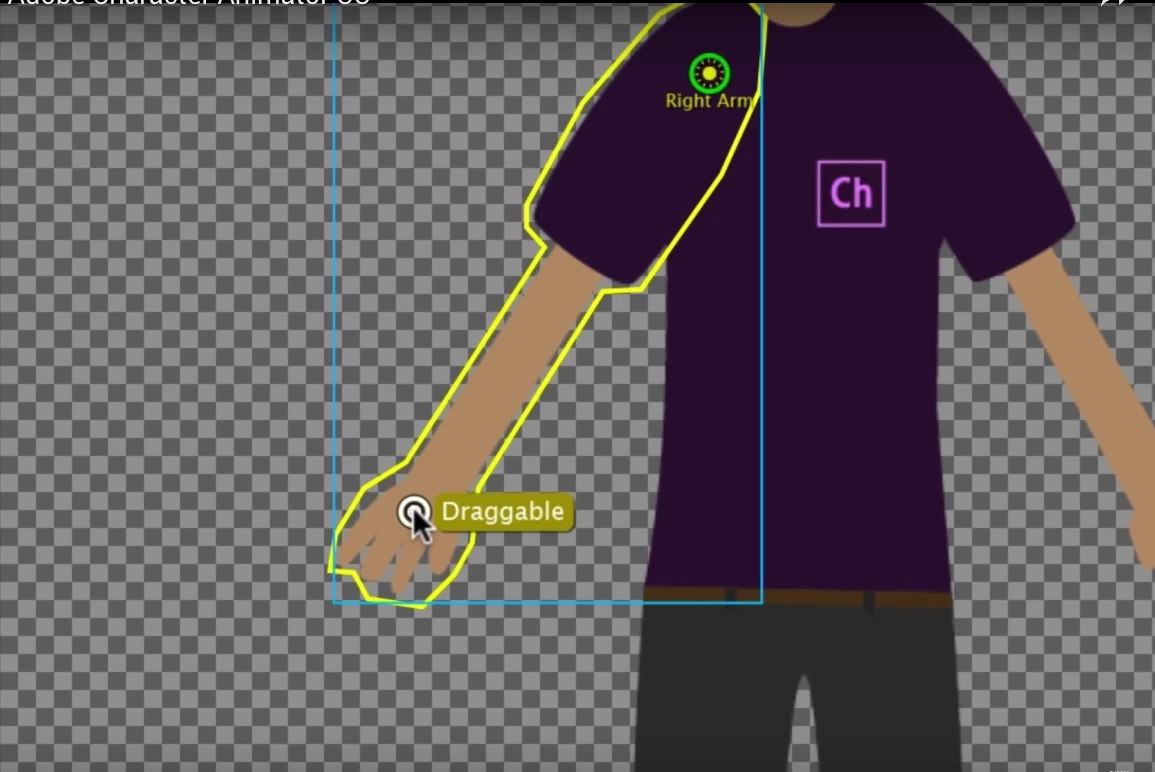
Hi there, following the  YouTube by  Okay Samurai tutorial ( Getting Started in Adobe Character Animation CC) which I like very much, I have encountered an issue:  after adding the draggable handles, the arm would not move in the scene mode. All  other features of the app seems to look just fine. Would anybody please,  point me out where the solution of the above mentioned issue would be ? Thank you in advance.

This topic has been closed for replies.
Correct answer alank99101739

Okay, thanks for the screenshots. So you are in the scene mode but you have not recorded a "take" yet. The "Dragger handle()" part is a recording I had made in the scene. The red dots means you have everything armed ready to record. So press the red circle at the bottom of the scene window to start recording (it will give you a 3 second count down), or press control-R (windows). That will start recording values for all the armed properties. If you drag the hand around while recording, you will get a "take" appear under the puppet bar you currently have. You just click in the scene near where you know the dragger is (on the hand) and start dragging the hand around. You can practice without recording first, but if you want to keep the movements you need to record it.

Project Wookie, Episode 2: Rigging Simple Arms and Legs - YouTube showed simple rigging of a photo (no independent layers like Chloe has) - Episode 25 shows independent layers. Project Wookie, Episode 3: Recording a First Scene - YouTube shows an example of recording.

A useful trick is if in Rig mode, if you click on the dragger and hit "Enter", you can type in a name like "left hand". WHen you make a recording, that name appears inside parenthesis. E.g. "Dragger handle()" would become "Dragger handle (left hand)" which makes it easier to work out what takes are for what.

2 replies

alank99101739
alank99101739Correct answer
Legend
November 22, 2018

Okay, thanks for the screenshots. So you are in the scene mode but you have not recorded a "take" yet. The "Dragger handle()" part is a recording I had made in the scene. The red dots means you have everything armed ready to record. So press the red circle at the bottom of the scene window to start recording (it will give you a 3 second count down), or press control-R (windows). That will start recording values for all the armed properties. If you drag the hand around while recording, you will get a "take" appear under the puppet bar you currently have. You just click in the scene near where you know the dragger is (on the hand) and start dragging the hand around. You can practice without recording first, but if you want to keep the movements you need to record it.

Project Wookie, Episode 2: Rigging Simple Arms and Legs - YouTube showed simple rigging of a photo (no independent layers like Chloe has) - Episode 25 shows independent layers. Project Wookie, Episode 3: Recording a First Scene - YouTube shows an example of recording.

A useful trick is if in Rig mode, if you click on the dragger and hit "Enter", you can type in a name like "left hand". WHen you make a recording, that name appears inside parenthesis. E.g. "Dragger handle()" would become "Dragger handle (left hand)" which makes it easier to work out what takes are for what.
dmitrys6033465
Participant
November 22, 2018

Thanks for the nice explanation with the extra tips. I will surely give it a try soon and will let you know about the results.

alank99101739
Legend
November 22, 2018

The screen shot looks like Rig mode still - are you sure you are in scene mode? The yellow outline etc does not appear on layers of the puppet in scene mode. If you skim through Project Wookie, Episode 2: Rigging Simple Arms and Legs - YouTube  it has some examples of jumping between modes. Episode 25 talks about independent layers for arms if that matters, but I don't think it does in your case. (Project Wookie – A Beginner YouTube Playlist – Extra Ordinary, the Series might be a better starting point if you want to see them all - hmmm, I need to add the new ones to it still)

alank99101739
Legend
November 22, 2018

The other thing is to check if the puppet is armed in the timeline,

and the Dragger property is armed in the properties panel.

If not, the dragger is turned off.

Oh, you might need to click on the correct puppet to highlight it in the timeline as well, so CH knows which puppet the drags are for:

dmitrys6033465
Participant
November 22, 2018

Thank you  so much for the advise. Looking at my timeline - I do not see the Dragger - Handle () as on your screenshot. I have double checked at the Rig mode, the draggable handle is active. Any thoughts?