Inspiring
February 14, 2021
Answered

character not moving

  • February 14, 2021
  • 7 replies
  • 1751 views

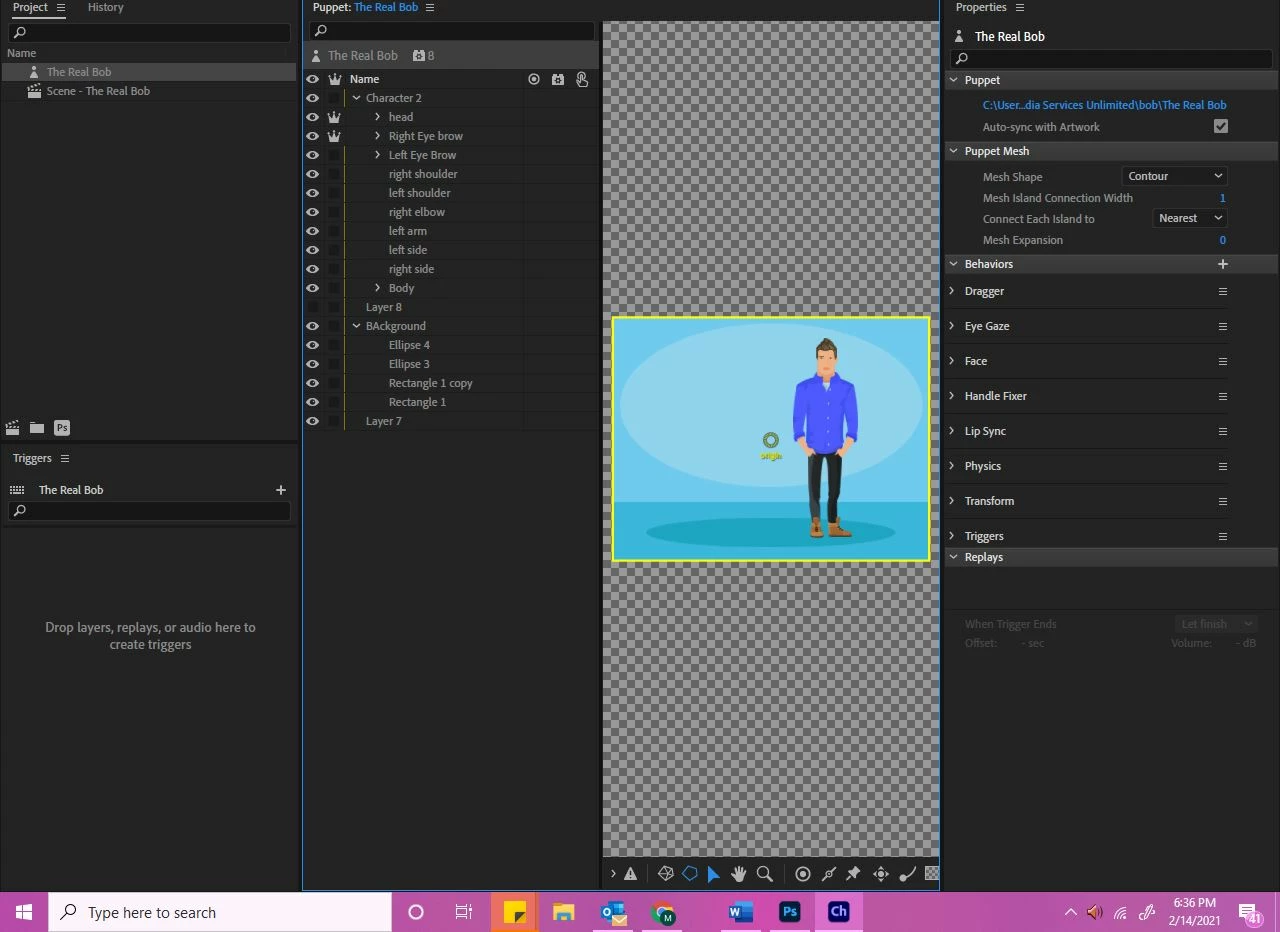
Hi, I'm using Character Animate for the first time.  Can someone help me understand why the head isn't moving when I have it on scene?  The webcam and microphone works.  
 

This topic has been closed for replies.
Correct answer k_oshiro

As far as I can see the screenshot you attached
The structure doesn't seem to be a problem.


Is this screenshot a puppet that I (k_oshiro) modified?
Or is it the puppet you modified?

I downloaded the puppet that I modified.
I then checked to see if the arms moved.
See the video.
https://youtu.be/eV8Vof5aoMg
The arms are working fine.


If the arms don't work on your puppet, please make it the same structure as my modified puppet.

If it still doesn't work, there may be another reason.
Thanks.

7 replies

k_oshiro
Community Expert
k_oshiroCommunity ExpertCorrect answer
Community Expert
February 16, 2021

As far as I can see the screenshot you attached
The structure doesn't seem to be a problem.


Is this screenshot a puppet that I (k_oshiro) modified?
Or is it the puppet you modified?

I downloaded the puppet that I modified.
I then checked to see if the arms moved.
See the video.
https://youtu.be/eV8Vof5aoMg
The arms are working fine.


If the arms don't work on your puppet, please make it the same structure as my modified puppet.

If it still doesn't work, there may be another reason.
Thanks.

k_oshiro(AdobeCommunityExpert)
k_oshiro
Community Expert
Community Expert
February 16, 2021

Compare the layer structure of the doll you made and the doll modified by k_oshiro.


Layer structure of k_oshiro
1) The layer of the right arm is simple.
2) The right arm of the puppet is selected.
3) The human illustration on the right side is tagged with each part of the arm.


Your puppet structure
1) There is a layer of the left arm with another layer of the left Arm.
2) The right arm of the puppet is selected even though the left arm layer is selected.


There are many tutorials on YouTube about arms, and I think watching them is a good way to learn.
Thank you.

k_oshiro(AdobeCommunityExpert)
Inspiring
February 16, 2021

I reloaded the puppet that k_oshiro did, but the arm still doesn't move in scene mode.  

Inspiring
February 17, 2021

OH!  I get it now!  I didn't know arm hand movements aren't controlled by the camera.  I'm so sorry!  Like I said I haven't had that much experience with Character Animor but that video cleared it up.  Thank you!  Thank you!  Thank you!  

k_oshiro
Community Expert
Community Expert
February 15, 2021

I managed to move your puppet's head, but I fixed it quite a bit.
It's hard to explain everything in detail.

Main corrections
1) The layer structure has been simplified in Photoshop.
2) Fixed that the left and right layer names were reversed.
3) Divided into groups for each part
I made many other fixes.

Instead of making a complex puppet all at once, you can get good results by making a simple puppet and tagging it correctly.
I uploaded the modified puppet to Dropbox.

https://www.dropbox.com/s/wwbwv2rtun4fada/edit_The%20Real%20Bob.puppet?dl=0

thank you.

k_oshiro(AdobeCommunityExpert)
Inspiring
February 15, 2021

Thanks so much the help!  I really appreciate it!  

Inspiring
February 16, 2021

I'm so sorry, but one more question.  I'm trying to get his arm to move, but it's not working.  I'm following the steps on this video and it's about 15 minutes into the video.  

k_oshiro
Community Expert
Community Expert
February 15, 2021

I was able to download the puppet.
Please give me some time to look at it in detail.
Thank you for your efforts.
Thank you.

k_oshiro(AdobeCommunityExpert)
Inspiring
February 15, 2021

Thank you so much for helping.  I'm going to bed now.  If you could help me get the head and arms to move that would help so much.  Again, thank you for helping!  


I had someone design the puppet and I dont think he did a good job of labeling things.  I worked on that today so hopefully that will help.  

k_oshiro
Community Expert
Community Expert
February 15, 2021

I'm sorry. I can't help you any more.
As for file sharing.
I can't explain it in detail because it's not a topic for this community.


You'll have to do your own research or hope for advice from others.
I hope your problem will be solved.
Thank you.

k_oshiro(AdobeCommunityExpert)
Inspiring
February 15, 2021

I think I got it.  Try this.  if it doesn't work I will try later today 


https://www.dropbox.com/s/2nnjdxsnskt86jn/puppet.puppet?dl=0

k_oshiro
Community Expert
Community Expert
February 15, 2021

I'm using translation software, so I may not be able to answer your question properly.

If you're using Dropbox,
Upload your puppet to your Dropbox,
Make it a shared setting.
Then only that file will be shared by outsiders.
Copy and paste that link here.

If you don't know how to use it, you may not want to use it for security reasons.


If you have a reliable file transfer service, use it to upload files and
Please tell me the download link.

Alternatively, attach a screenshot to this page that shows the tagging of each layer.
It takes time to find out the cause, but it is safer.

k_oshiro(AdobeCommunityExpert)
k_oshiro
Community Expert
Community Expert
February 15, 2021

I converted Japanese to English with translation software.


There are many possible reasons.
For example,
You may not have added a head dag, or you may not have erased the extra garbage around the head layer, making the head area larger.

If possible, let me export the puppet and share it on Googledrive or Dropbox.
If I look at it in detail, I may be able to figure out why.

You can export the puppet from

File -> Export -> Puppet


Thank you.

k_oshiro(AdobeCommunityExpert)
Inspiring
February 15, 2021

 I'm not sure if I understand how to dropox it to you.  Dont I need an email address?
