Puppeteeer
Participant
August 26, 2018
Answered

Hand dragger forearm and bicep

  • August 26, 2018
  • 2 replies
  • 1247 views

Hello, i have a question, i've been sitting here for hours trying to make it so that when you drag the hand it will also move the forearm and the bicep together while all three being independant object, is there some kind of parent option i'm not seeing? I remember being able to do this with an old version of the software back in the days (i rememberber i could do that with the stapler tool i think) but apparently a lot of things changed and i can't do the same effect anymore.

I make a dummy character so that it is visually easier to understand:

https://drive.google.com/open?id=1VYu0Y8Y2rZi1UE-rshB8sjwSpfyt9Yw-

Please help.

Thank you very much !

This topic has been closed for replies.
Correct answer alank99101739

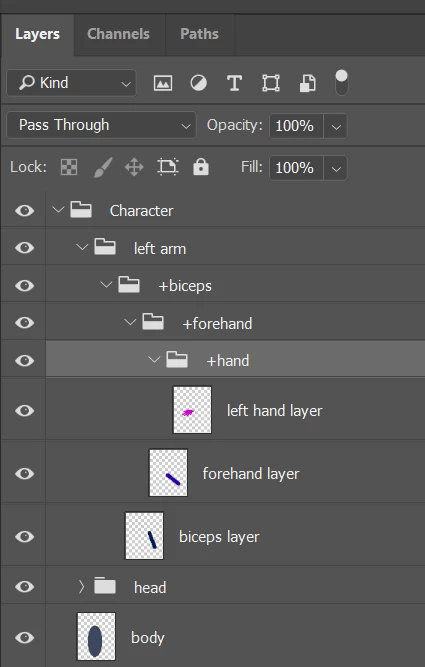
There are two sort of ideas that come to mind. The first thing is if you want independent layers (which I think you do), then the nesting heirarchy is now important. You attach things to your parent. Here is what I did to your PSD file. Notice the hand is inside the forearm, which is inside the biceps. The ordering is important for depth of the layers. But doing this allows me to attach each layer to its parent.
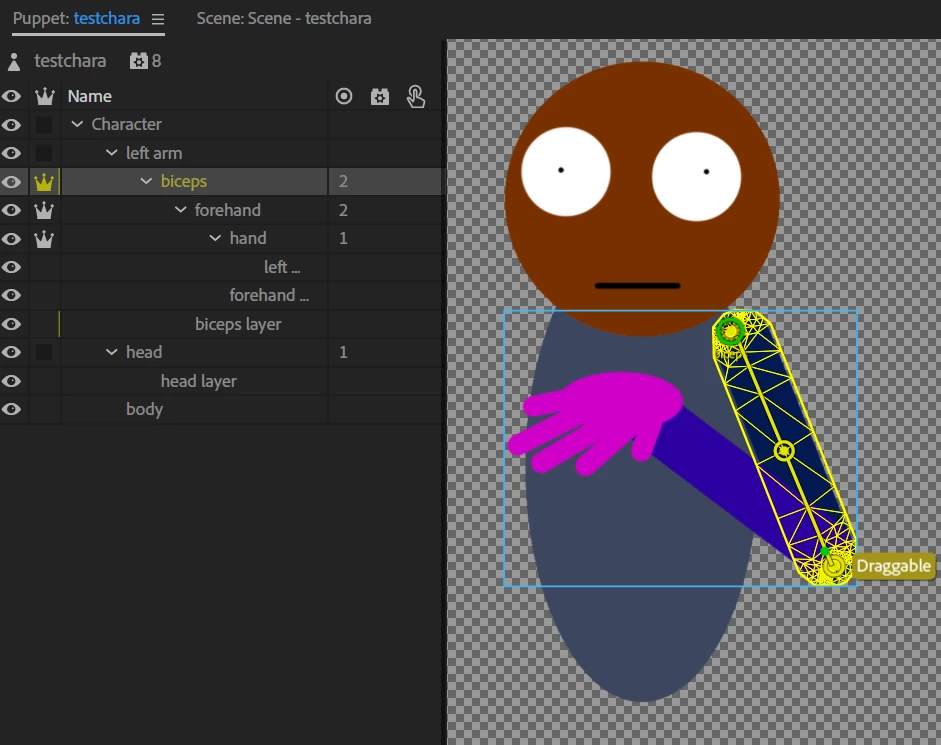
Here is the rigging. Note that the origin (dotted circle) I dragged over the parent layer so it turned green and attached.
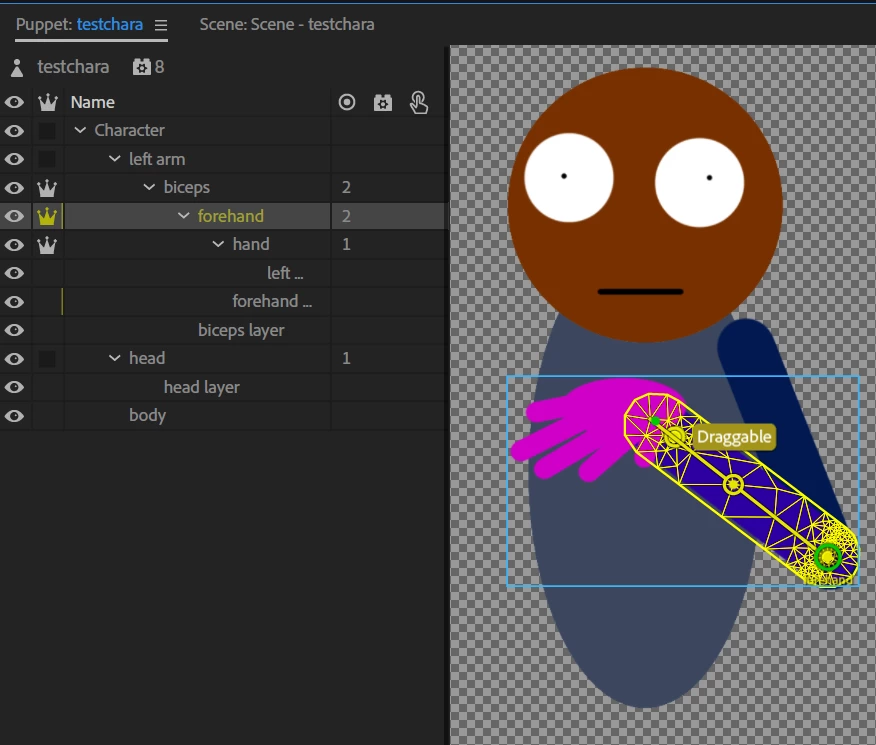
The "forehand" then joins to its parent, the biceps. etc.
The next question is the attach properties, where you have to options. You can use "hinge" or "weld" (or "free" if you are into dismemberment! You can drag the arm away from what it is "joined" to which is "interesting" - sort of like one of those hover drones sticking to where your hand is, but separate). I found with "weld" the sticks were important if you want to keep straight arms. Just try the different hing vs weld to see what works best for you. Hinge I think is the closest to what I think you are trying to do.

Oh, make sure "Attach To" is auto. You can try other values, but generally I find auto gives the least troubles. (I have only seen one case where "auto" was not the right answer, and I forgot what case that was its so rare!) So if its not "auto", change it!

Personally I normally do what Jerry says and not have independent arm segments, but that is up to the artwork and what is trying to be achieved.

2 replies

KJerryK
Legend
August 26, 2018

I don't know what you want it to look like, but here's a quick example

Puppeteeer
Participant
August 26, 2018

Hey! Thanks but that's not what i want to do, your method is basically the usual way of doing things, what i want is being able to drag the hand, move it on a hinge while it automatically drags the forearm and bicep i could do this before on an old version of the software which had the stapler tool but since it disapeared it seems like the software lost this ability which is a shame :/

https://media.giphy.com/media/69zGpNBE9nQw5AjuBx/giphy.gifhttps://media.giphy.com/media/69zGpNBE9nQw5AjuBx/giphy.gif

alank99101739
alank99101739Correct answer
Legend
August 26, 2018

There are two sort of ideas that come to mind. The first thing is if you want independent layers (which I think you do), then the nesting heirarchy is now important. You attach things to your parent. Here is what I did to your PSD file. Notice the hand is inside the forearm, which is inside the biceps. The ordering is important for depth of the layers. But doing this allows me to attach each layer to its parent.

Here is the rigging. Note that the origin (dotted circle) I dragged over the parent layer so it turned green and attached.

The "forehand" then joins to its parent, the biceps. etc.

The next question is the attach properties, where you have to options. You can use "hinge" or "weld" (or "free" if you are into dismemberment! You can drag the arm away from what it is "joined" to which is "interesting" - sort of like one of those hover drones sticking to where your hand is, but separate). I found with "weld" the sticks were important if you want to keep straight arms. Just try the different hing vs weld to see what works best for you. Hinge I think is the closest to what I think you are trying to do.

Oh, make sure "Attach To" is auto. You can try other values, but generally I find auto gives the least troubles. (I have only seen one case where "auto" was not the right answer, and I forgot what case that was its so rare!) So if its not "auto", change it!

Personally I normally do what Jerry says and not have independent arm segments, but that is up to the artwork and what is trying to be achieved.

KJerryK
Legend
August 26, 2018

Try this -- delete the dragger tag from the hand. Select the left arm group and place a dragger tag near the wrist. Close the independent crowns from the hand, forearm and biceps. I would also make the arm and forearm one layer, instead of two. Then move the left arm tag to near the shoulder.