
Participant
August 15, 2020
Answered

One Eye Moving Out of Range

  • August 15, 2020
  • 1 reply
  • 644 views

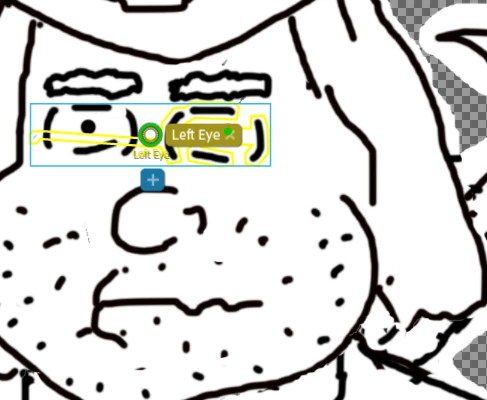
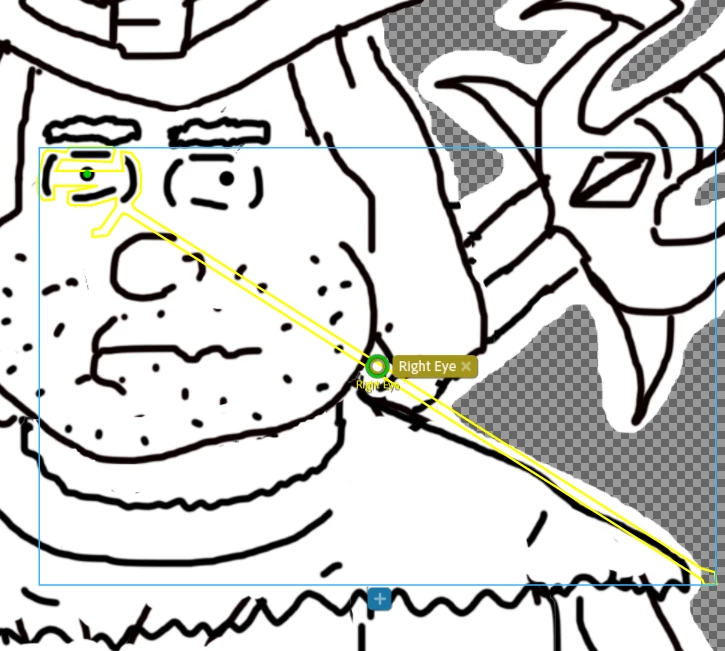
When testing the rigging on my character's eyes, I am running into an issue where the pupil is going far out of the bounds of the eyeball. When I open up the character in rig mode and examine the eyes I notice that there is a huge area for the blue boundary box, and the yellow outline of the eye is way off as well. I'm completely new to Character Animator, so if anyone can offer any advice to help with this issue, it would be massively appreciated. I have attached the psd of the character in question. Upon importing this character and opening rig mode, you'll notice the huge boundaries on each of the eyes.
 

This topic has been closed for replies.
Correct answer alank99101739

I am a novice Photoshop user, so I don't know how to find them in Photoshop, but I am 99% certain you have some stray pixels in the eye layers somewhere. If you look at the yellow outline, look for the extreme edges - there are probably some pixels in the eye layers there somewhere.


For example, I drew a rectangle selection around each eye, did an inverse selection, then hit the "del" key to wipe any pixels not close to your eye artwork. I then saved that, and the blue bounding box in CH went back to expected.


There might be a better way in Photoshop to find these stray pixles drawn in the wrong layer, but that is beyond my Photoshop skills!! But its almost certainly near the edges of the yellow and blue bounding boxes in CH. Just erase those areas, save, repeat until you got them all... or use clever Photoshop skills I don have! 😉

1 reply

alank99101739
alank99101739Correct answer
Legend
August 15, 2020

I am a novice Photoshop user, so I don't know how to find them in Photoshop, but I am 99% certain you have some stray pixels in the eye layers somewhere. If you look at the yellow outline, look for the extreme edges - there are probably some pixels in the eye layers there somewhere.


For example, I drew a rectangle selection around each eye, did an inverse selection, then hit the "del" key to wipe any pixels not close to your eye artwork. I then saved that, and the blue bounding box in CH went back to expected.


There might be a better way in Photoshop to find these stray pixles drawn in the wrong layer, but that is beyond my Photoshop skills!! But its almost certainly near the edges of the yellow and blue bounding boxes in CH. Just erase those areas, save, repeat until you got them all... or use clever Photoshop skills I don have! 😉

TCool97Author
Participant
August 16, 2020

It was a stray pixel issue. After a bit of trial and error in Photoshop, I was able to track down and delete the stray pixels. Thanks so much for the help!