Inspiring
September 1, 2023
Answered

CF 2023 SOLR installed but cant access coldfusion collections

  • September 1, 2023
  • 1 reply
  • 2793 views

I've installed CF 2023, the Add-on service is running.

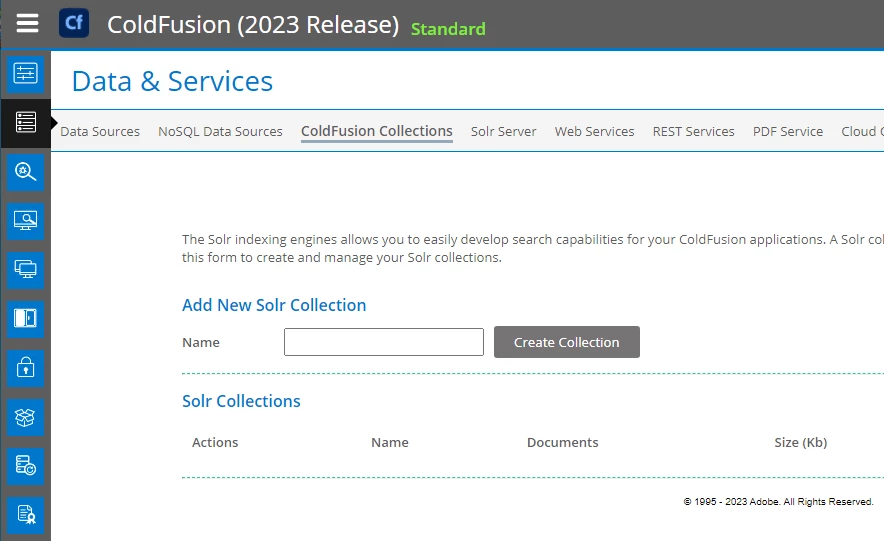
I can bring up the SOLR server admin page (in CFadmin)

but when I click on Coldfusion collections I see this error message


Unable to retrieve collections from the Search Services.
Ensure that you have installed ColdFusion Search Service and it is running.


the SOLR files appear to be all there under /cfusion/jetty

The install log says it installed without any errors


Summary
-------

Installation: Successful.

897 Successes
0 Warnings
0 NonFatalErrors
0 FatalErrors

Action Notes:

None

Install Log Detail:

Check Disk Space: C:\ColdFusionAdd-onServices
Status: SUCCESSFUL
Additional Notes: NOTE - Required Disk Space:755,448,814 Bytes Free Disk Space:62,365,196,288 Bytes


how do i fix this?
    This topic has been closed for replies.
    Correct answer xamax

    It seems you misunderstood the most important point (and first "solution") I posed (but I posed a lot, so I can understand losing track).


    First, this is not at all about WHERE you access the CF Admin from.


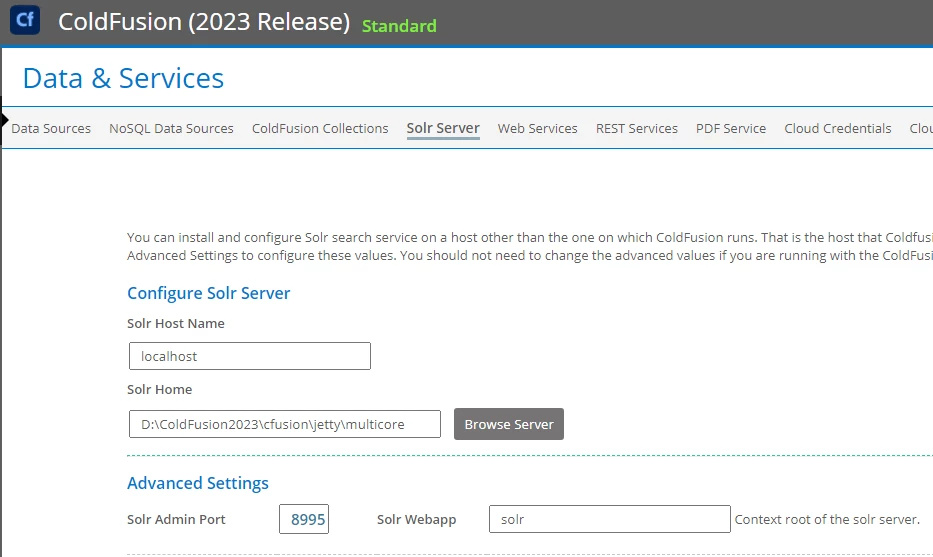
    Second, I had said (with the emphases added in my original reply): "Now that you've shared the screenshot of the CF Solr Server page, I see you have an ip address there of 10.81.7.39. The default would be "localhost", but I guess you had your reason for changing it. (Is it that you tried that as a possible fix?) If you set it back to localhost, does it work? If you felt you needed to change it, see my point 3a below that may be relevant." This is about the "solar host name" field on that page, to be clear, not the URL used for accessing the CF admin.


    Finally, that log looks fine, and your saying the localhost:8995 works is great, so I think we're close to the solution. 🙂


    Charlie,


    Setting the SOLR host name to "localhost" on the CFadmin page fixed the problem.

    I didn't change any of the settings under that page, those are the settings it installed with,

    but either way, it's fixed and I appreciate you giving me the opportunity to enjoy the 3 day weekend 🙂


    thanks

    Michael


    1 reply

    Charlie Arehart
    Community Expert
    September 1, 2023

    More questions than answers, as it's easy for things to have gotten messy in your setup:

    • What is the port for the solr server, on the solr server page of the cf admin?
    • Are you using that or another for the url to the solr admin?
    • You mention having run the separate solr add on installer. Why did you do that, if you have the cfusion/jetty folder? Does it have a solr folder?
    • Where are your collections, if you had any from before? In what folder, under either of these? 
    • There's a port for solr in the jetty.lax file found in both that coldfusionaddonservices folder, and in the cfusion/jetty folder. They will likely differ. What are they?
    • What do you see if you use this other port for viewing the solr admin?
    • Does that solr admin show any collections in the drop down on the bottom left for "cores" (solr's technical name for what cf calls collections)? 
    • And what if you change the solr server page in the cf admin admin to this other port? Do you then see any collections on the cf admin collections page? 
    /Charlie (troubleshooter, carehart. org)
    xamaxAuthor
    Inspiring
    September 1, 2023

    Charlie,


    thanks - here is the information.


    it is a clean CF2023 standard build on a new win2016 server. There were no existing collections

    the main CF install was run, and the SOLR option check box was checked.

    I am not trying to run a separate instance of SOLR or anything .. it's completely as it is out of the box.
    Both installs reported successful installations.


    the SOLR admin port as report in CF admin is 8995

    the port from the jetty.lax file is

    lax.nl.java.option.additional=-server --add-opens=java.base/jdk.internal.ref=ALL-UNNAMED -Xmx512m -XX:+ScavengeBeforeFullGC -XX:-UseParallelGC -DSTOP.PORT=8077 -DSTOP.KEY=cfstop -Dsolr.solr.home=D:\ColdFusion2023\cfusion\jetty\multicore

    changing the CFadmin to port 8077 still produces the same error on the collections page

    it does not show the usual create a collection input area.


    my CF2023 folder, there is no separate coldfusionaddonservices folder


    here are the processes running


    I am only viewing the SOLR settings under the CF admin page.
    all of these values are as they were, nothing has been changed.
    I am not looking at a separate SOLR admin page, besides this one.


    thanks

    Michael


    xamaxAuthorCorrect answer
    Inspiring
    September 2, 2023

    It seems you misunderstood the most important point (and first "solution") I posed (but I posed a lot, so I can understand losing track).


    First, this is not at all about WHERE you access the CF Admin from.


    Second, I had said (with the emphases added in my original reply): "Now that you've shared the screenshot of the CF Solr Server page, I see you have an ip address there of 10.81.7.39. The default would be "localhost", but I guess you had your reason for changing it. (Is it that you tried that as a possible fix?) If you set it back to localhost, does it work? If you felt you needed to change it, see my point 3a below that may be relevant." This is about the "solar host name" field on that page, to be clear, not the URL used for accessing the CF admin.


    Finally, that log looks fine, and your saying the localhost:8995 works is great, so I think we're close to the solution. 🙂


    Charlie,


    Setting the SOLR host name to "localhost" on the CFadmin page fixed the problem.

    I didn't change any of the settings under that page, those are the settings it installed with,

    but either way, it's fixed and I appreciate you giving me the opportunity to enjoy the 3 day weekend 🙂


    thanks

    Michael